Post Date: September 22, 2026
Last Updated: September 22, 2026
Introduction
Plesk provides a centralised interface for managing hosting accounts, subscriptions, domains, and user access. If a user needs to update their account password or an administrator needs to reset a user’s password, the password can be changed directly through the Plesk interface.
Prerequisites
Before changing a user’s password, ensure that:
- You have access to the Plesk control panel.
- You have the required permissions to manage the user account.
- You know which user account requires the password change.
- The new password meets the password policy configured in Plesk.
Implementation
Step 1: Log in to Plesk
Log in to the Plesk control panel using an administrator or authorized account.
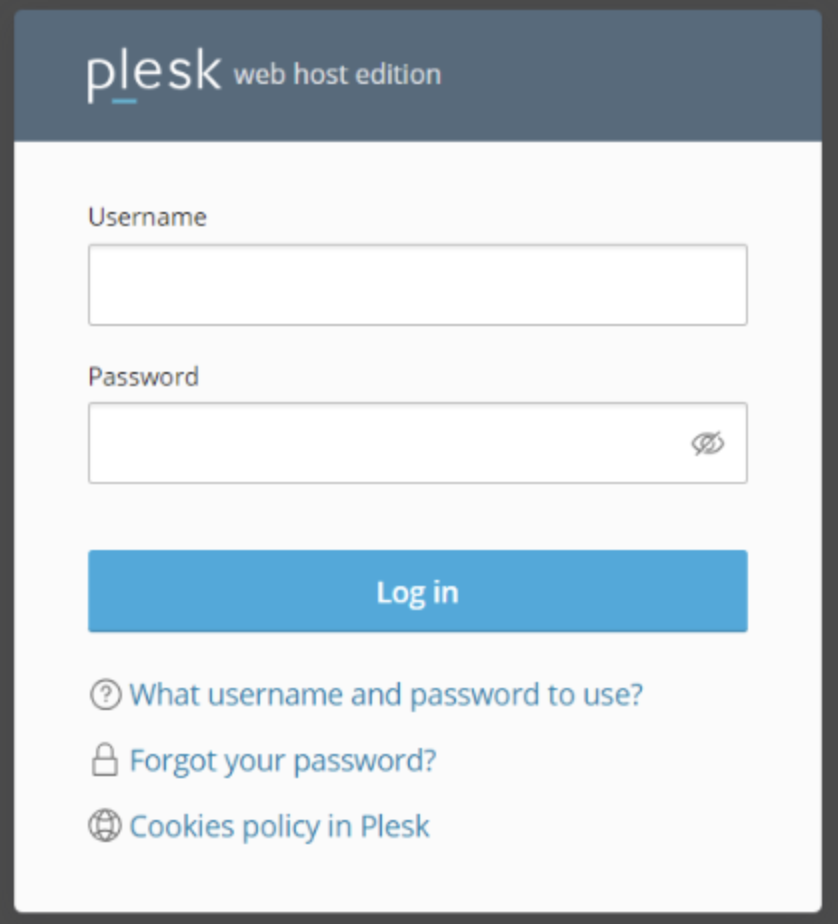
Step 2: Open User Management
From the Plesk dashboard, navigate to the user management section.
Locate the user account for which you want to change the password.
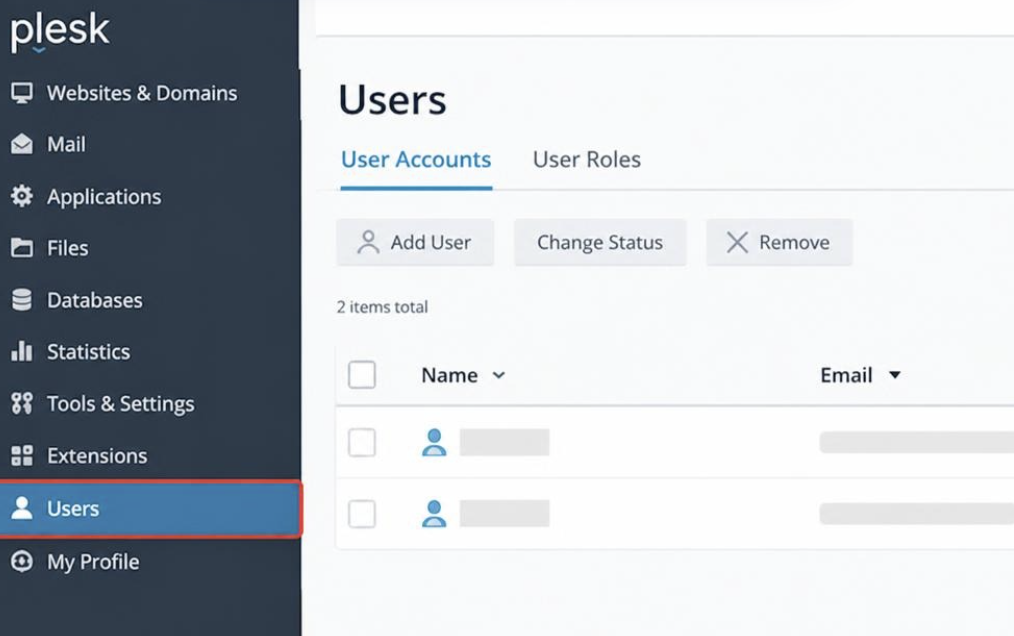
Step 3: Select the User Account
Open the required user account to access its account settings.
Look for the option to change or update the user’s password.
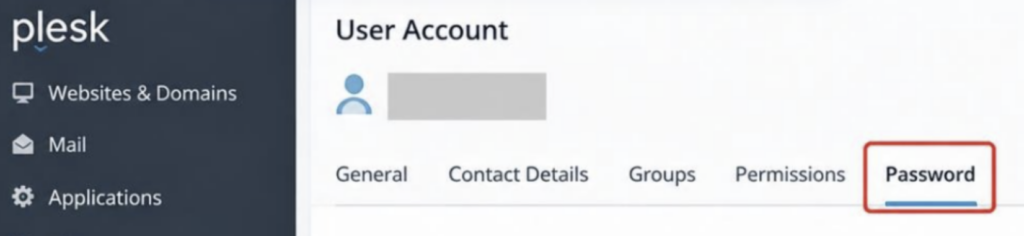
Step 4: Enter the New Password
Enter the new password in the appropriate password fields.
Make sure the password satisfies the password-strength requirements configured in Plesk.
For better security, use a strong and unique password containing a combination of:
- Uppercase letters
- Lowercase letters
- Numbers
- Special characters
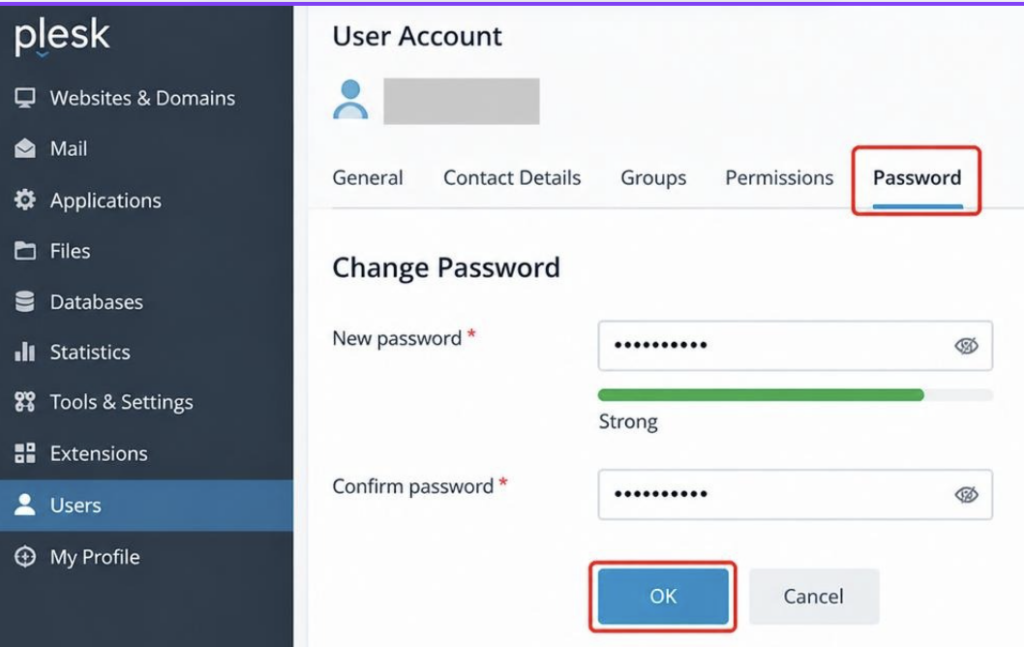
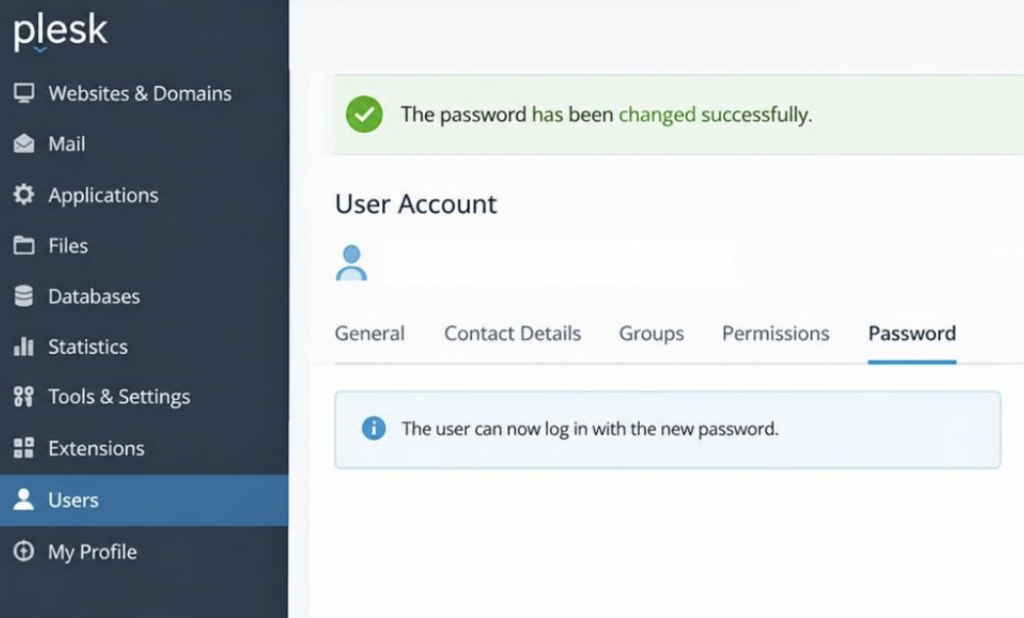
Step 5: Save the Changes
Review the new password and save the changes.
Plesk will apply the new password to the selected user account.
Security Considerations
When managing user passwords:
- Use strong and unique passwords.
- Do not share passwords through unsecured communication channels.
- Avoid reusing passwords across multiple services.
- Follow your organization’s password-management policy.
- Consider using a password manager for securely storing credentials.
- Enable additional authentication controls where supported.
Conclusion
Changing a user password in Plesk is a straightforward administrative task that can be completed through the Plesk control panel.
Administrators should ensure that passwords meet the organization’s security requirements and that access is verified after the password change.
Regular password management and appropriate access controls help maintain the security of hosting environments and user accounts.
Frequently Asked Questions
1. Can an administrator change another user’s password in Plesk?
Yes. An administrator with the appropriate permissions can manage user accounts and change their passwords.
2. What should I do if the new password is rejected?
Check the password requirements configured in Plesk and ensure that the new password satisfies the required complexity rules.
3. Should the new password be shared with the user?
If the administrator changes a user’s password, provide the credentials through a secure communication method rather than sending them through an unsecured channel.
4. Can I verify the password change?
Yes. You can verify the change by logging in with the updated credentials using a private/incognito browser session.
Related Articles
Connect with Our Technology Experts
Looking for assistance with Plesk administration, hosting security, server management, or infrastructure maintenance?
Our technology team can help manage and secure your hosting environment while following appropriate operational and security practices.
Talk to Our Technology Experts
Need help managing users, roles, or subscription access in Plesk? Our team can assist with Plesk configuration, access management, security, troubleshooting, and ongoing server administration.