Post Date: October 02, 2026
Last Updated: October 02, 2026
Introduction
The document root is the folder that contains a website’s files. When visitors open a domain, the web server uses this folder to display the website. Plesk usually sets httpdocs as the default document root. However, some websites use a different folder, such as httpdocs/public.
In this case, Plesk lets you change the document root from the domain’s Hosting Settings. This article explains how to change the document root in Plesk with simple steps.
Prerequisites
Before changing the document root, check the following requirements:
- You have access to the Plesk control panel.
- The domain is already added to Plesk.
- The new document root folder exists.
- The website files are available in the new folder.
- You have a recent backup of the website.
These steps help reduce the risk of website errors during the change.
Implementation
Follow the steps below to change the document root in Plesk.
Step 1: Log in to Plesk
First, log in to the Plesk control panel with your Plesk account.
After you sign in, the Plesk dashboard will appear.
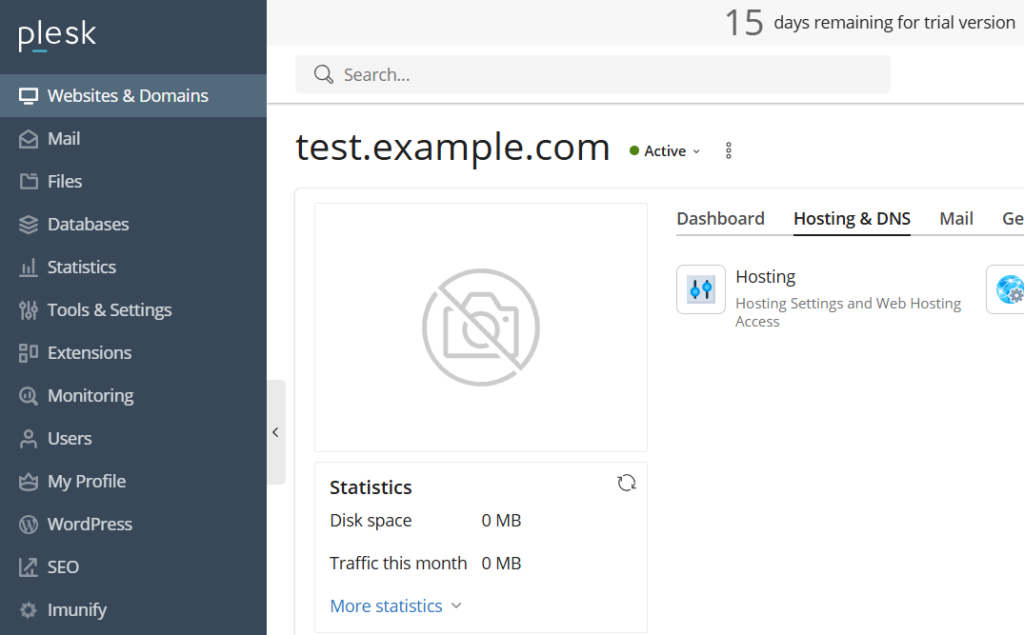
Step 2: Open Websites & Domains
Next, click Websites & Domains from the left-hand menu.
This section shows the domains and websites managed through your Plesk account.
Step 3: Select the Domain
From the domain list, find the website that needs a different document root.
For example: test.example.com
After finding the domain, click Hosting Settings.
Step 4: Change the Document Root
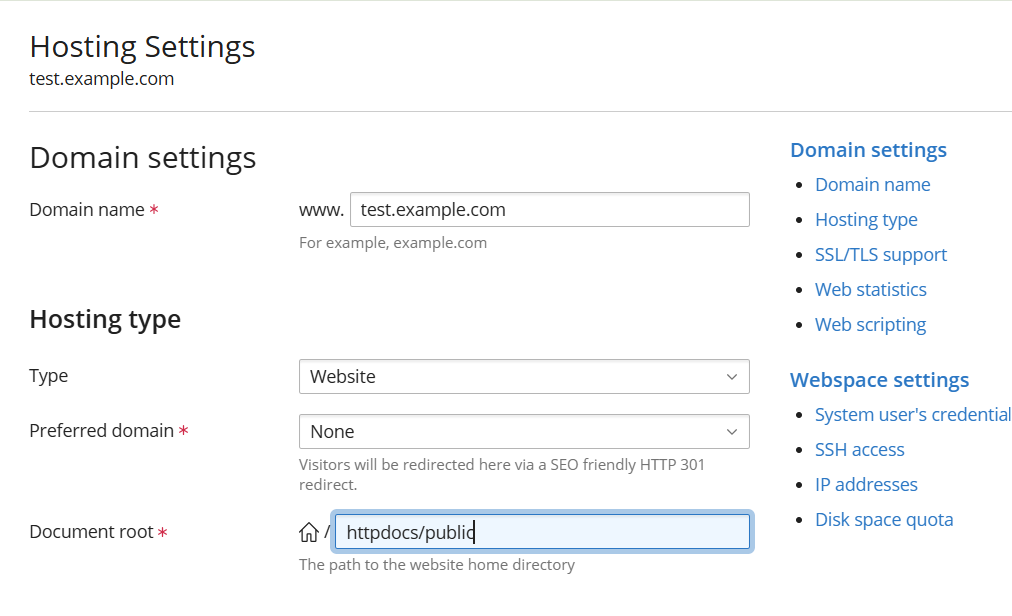
On the Hosting Settings page, find the Document root field.
Plesk normally displays: httpdocs
However, you can enter another folder when your website uses a custom location.
For example: httpdocs/public
The field should then show:
Document root: httpdocs/public
Before saving the setting, confirm that the selected folder contains the required website files.
Step 5: Save the Changes
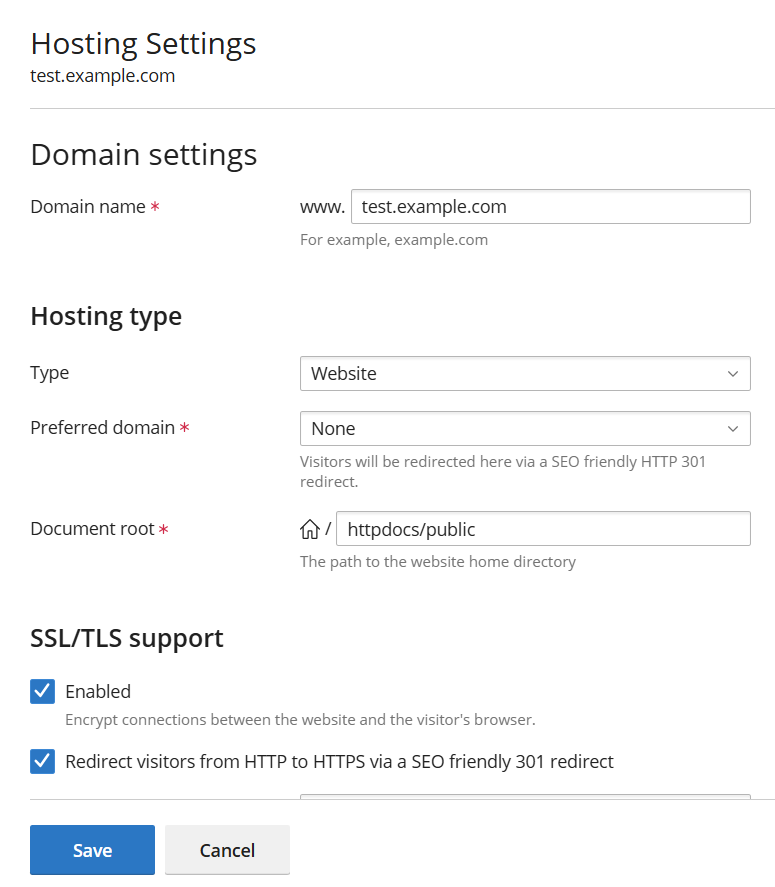
After entering the new document root, click Save.
Plesk saves the new setting and updates the hosting configuration.
Next, open the website in a browser and check that it loads correctly.
For example: https://test.example.com
Conclusion
You can change the document root in Plesk when a website needs to use a different folder.
The process starts from the domain’s Hosting Settings page. First, confirm that the new folder exists and contains the required website files. Next, update the Document root field and save the setting.
Afterwards, open the website and verify that it works correctly. If an error appears, check the folder permissions, index file, .htaccess rules, application settings, and website error logs.
FAQs
1. What is the document root in Plesk?
The document root is the folder that the web server uses to serve website files. In Plesk, httpdocs is usually the default document root.
2. Can I change the document root for a domain in Plesk?
Yes. Plesk allows you to change the document root from Websites & Domains → Hosting Settings → Document root.
3. Does the new document root need to exist?
Yes. Create the required folder before changing the document root. Also, make sure that the folder contains the required website files, such as index.php or index.html.
4. Do I need to restart Apache or Nginx after changing the document root?
Normally, you do not need to restart Apache or Nginx manually. Plesk applies the required hosting configuration after you save the changes.
Related Articles
How to Change a User Password in Plesk
How to Change an Existing User Role in Plesk
How to Create a User Role in Plesk
Need Help with Plesk?
Need help managing users, roles, or subscription access in Plesk? Our team can assist with Plesk configuration, access management, security, troubleshooting, and ongoing server administration. Get in touch with our team here.