Introduction
Maintaining the integrity of WordPress core files is an important part of website security and maintenance. WordPress core files may become modified due to manual changes, incomplete updates, file corruption, or unauthorized modifications.
Plesk provides WordPress Toolkit, which allows website administrators to verify WordPress core files against their expected checksums and identify files that may require further investigation. For more details, refer to the official Plesk WordPress Toolkit documentation.
This document explains how to check WordPress core file integrity and restore affected core files through Plesk WordPress Toolkit when necessary.
Purpose
The purpose of this document is to provide a step-by-step procedure for verifying WordPress core file integrity through Plesk WordPress Toolkit and identifying potentially modified or corrupted core files.
Prerequisites
Before checking WordPress core file integrity, ensure that the following requirements are met:
- Access to the Plesk Control Panel.
- Access to the required website or domain.
- WordPress installed and detected in WordPress Toolkit.
- Sufficient permissions to manage the WordPress installation.
- A recent backup of the website files and database, especially for production websites, before reinstalling WordPress.
Procedure
Follow the steps below to check WordPress core file integrity through Plesk.
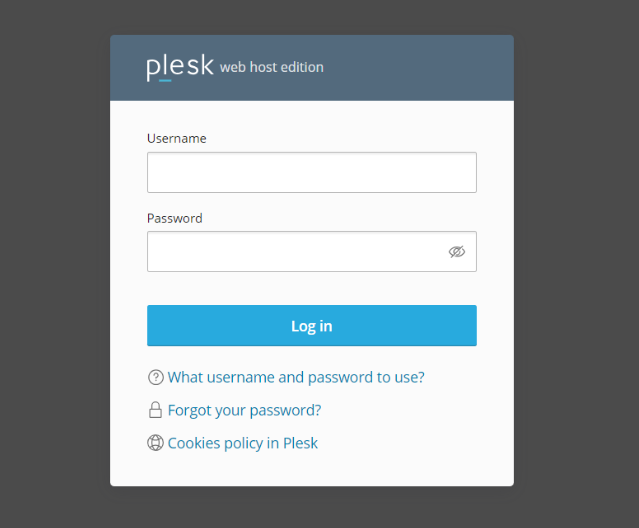
Step 1: Log in to the Plesk Control Panel
- Open the Plesk Control Panel URL in a web browser.
- Enter your Plesk username and password.
- Click Log In to access the dashboard.
Step 2: Navigate to WordPress Toolkit
- From the Plesk dashboard, navigate to WordPress or Websites & Domains, depending on your Plesk interface.
- Locate the required domain.
- Open the WordPress installation managed through WordPress Toolkit.
Ensure that the selected installation belongs to the website you intend to inspect.
Step 3: Open the WordPress Installation Options
- Locate the required WordPress installation.
- Click the dropdown menu or the corresponding options menu for the website.
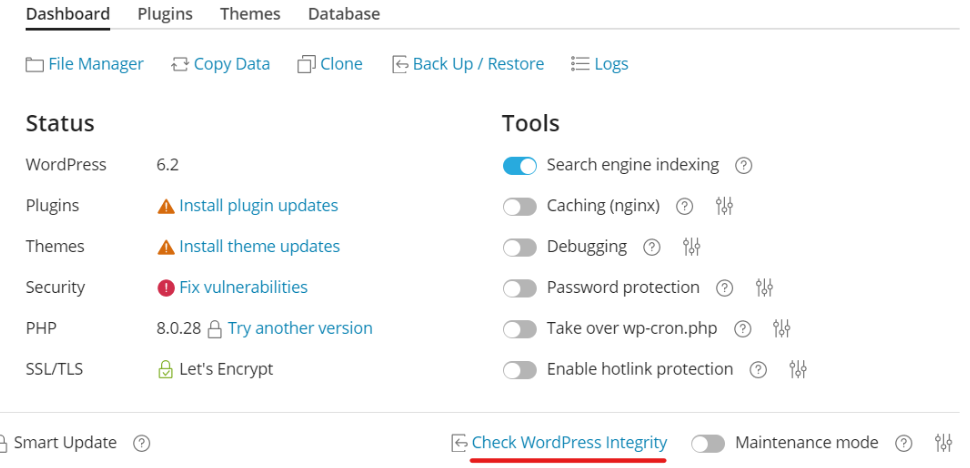
- Look for the Check WordPress Integrity option.
The available options and their locations may vary depending on the Plesk version and WordPress Toolkit interface.
Step 4: Select Check WordPress Integrity
- Click Check WordPress Integrity.
- Wait for the integrity-checking interface to open.
- Review the available verification options.
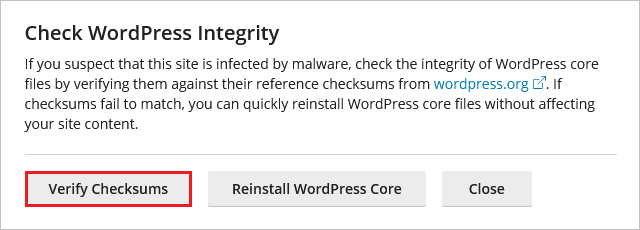
This feature allows WordPress core files to be checked against the expected checksums for the installed WordPress version.
Step 5: Verify WordPress Core File Checksums
- Click Verify Checksums.
- Wait for the verification process to complete.
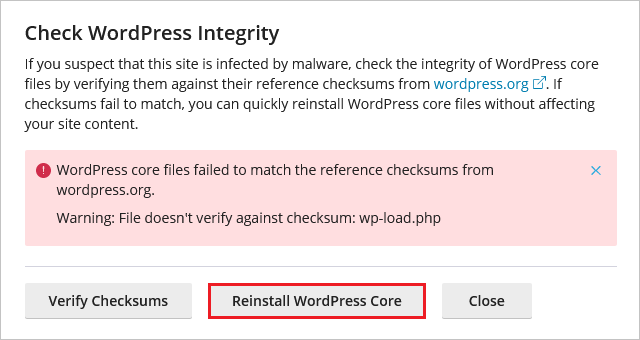
- Review the results displayed by WordPress Toolkit.
- Identify any files reported as modified, missing, or failing checksum verification, if such details are provided.
A checksum mismatch indicates that a file differs from the expected reference. It does not automatically mean that the file is infected or malicious.
Step 6: Review the Verification Results
- Review the files flagged by the integrity check.
- Identify whether the affected files belong to the WordPress core.
- Determine whether any differences are expected, such as approved custom modifications.
- Investigate unexpected changes before proceeding with restoration.
If suspicious modifications are identified, consider reviewing file timestamps, website access logs, security scan results, and recent administrative changes.
Do not assume that every checksum mismatch is a security incident. Further investigation may be required to determine the cause.
Step 7: Reinstall WordPress Core Files if Required
If the verification identifies unexpected modifications or corrupted WordPress core files, consider restoring the core files.
- Ensure that a recent backup of the website files and database is available.
- Review the integrity-check results and confirm that restoring the core files is appropriate.
- Return to the WordPress Toolkit installation overview.
- Select Reinstall WordPress, where the option is available.
- Review the confirmation details and proceed according to the Plesk interface.
Important: Reinstalling WordPress core files should be performed carefully. Confirm the scope of the operation and ensure that the backup is available before proceeding. Review any warnings displayed by Plesk before confirming the action.
Step 8: Verify the Website After Restoration
After restoring the WordPress core files, perform the following checks:
- Run Verify Checksums again, where available.
- Confirm that the core-file integrity check no longer reports unexpected mismatches.
- Open the website in a browser and verify that it loads correctly.
- Test the WordPress administrator login and important website functionality.
- Review relevant logs and security scan results if suspicious modifications were identified.
If integrity issues remain, investigate the affected files and the underlying cause rather than repeatedly reinstalling WordPress.
Result
WordPress core file integrity is checked through Plesk WordPress Toolkit, and files that differ from their expected checksums are identified for further investigation.
If unexpected modifications or corrupted core files are confirmed, the WordPress core can be restored using the appropriate recovery option. The website should then be checked to confirm that core-file verification and essential website functionality are working as expected.
Important Notes and Best Practices
- Take a backup: Ensure a recent backup of website files and the database is available before reinstalling WordPress on a production website.
- Understand checksum mismatches: A failed checksum verification does not automatically indicate malware or unauthorized access.
- Investigate suspicious changes: Review file changes, access logs, security scan results, and recent administrative activity when unexpected modifications are found.
- Protect custom changes: Identify any intentional modifications to core files before restoring them. Avoid making custom changes directly to WordPress core files whenever possible.
- Restore carefully: Review the Plesk confirmation details and the scope of the reinstall operation before proceeding.
- Verify after restoration: Run the integrity check again and test the website after restoring core files.
- Investigate recurring issues: If files become modified again after restoration, investigate possible security incidents, compromised credentials, vulnerable plugins, themes, or other underlying causes.
- Keep WordPress updated: Maintain supported WordPress core, plugin, and theme versions to help reduce security risks.
Conclusion
Plesk WordPress Toolkit provides a convenient way to verify WordPress core file integrity and identify files that may have been modified or corrupted.
By following this procedure, administrators can check core-file checksums, investigate unexpected changes, and restore WordPress core files when necessary.
Regular backups, timely security updates, and post-restoration verification help maintain website integrity and reduce the risk of service disruption.
FAQ – Frequently Asked Questions
1. How do I check WordPress core file integrity in Plesk?
Log in to Plesk, open the required WordPress installation in WordPress Toolkit, select Check WordPress Integrity, and click Verify Checksums.
2. What does Verify Checksums do in WordPress Toolkit?
It compares WordPress core files against their expected checksums to identify files that differ from the reference values.
3. Does a checksum mismatch mean my WordPress website is hacked?
No. A checksum mismatch means that a file differs from the expected reference. It may result from manual modifications, corruption, incomplete updates, or unauthorized changes. Further investigation is needed to determine the cause.
4. Can I restore modified WordPress core files through Plesk?
Yes. Where supported by the installed WordPress Toolkit interface, you can use the Reinstall WordPress option to restore core files. Review the operation details and ensure that a recent backup is available before proceeding.
5. Will reinstalling WordPress delete my website content?
Reinstalling WordPress core files is intended to restore the WordPress core, but the exact effects depend on the operation and Plesk interface. Review the confirmation details and take a complete backup before proceeding. Do not assume that all website files and customizations are unaffected.
6. What should I do if checksum verification fails?
Review the affected files, determine whether the changes are expected, and investigate suspicious modifications. If corrupted or unauthorized changes are confirmed, restore the appropriate core files and perform a security review.
7. Should I back up my website before reinstalling WordPress?
Yes. A recent backup of the website files and database is strongly recommended, particularly for production websites. Verify that the backup is available and usable before starting the restoration process.
8. What if checksum mismatches return after reinstalling WordPress?
Investigate the underlying cause, including possible compromised credentials, vulnerable plugins or themes, unauthorized access, and automated file modifications. Repeatedly reinstalling core files without addressing the cause may not resolve the issue.
Related Articles
How to Create a User Role in Plesk
Talk to Our Technology Experts
Need assistance with WordPress core integrity checks, Plesk configuration, or website security? Our team can help with WordPress Toolkit, hosting management, security troubleshooting, and ongoing server administration.