Post Date: November 10, 2026
Introduction
Website security is an important responsibility for every website owner and server administrator. Sometimes, website administrators need to restrict public access to specific website directories, development environments, staging websites, or confidential content.
Plesk Panel provides a built-in Password-Protected Directories feature that allows administrators to secure website directories using username and password authentication. Once enabled, visitors must enter valid login credentials before accessing the protected directory and its contents.
This feature is particularly useful for protecting development websites, staging environments, private documentation, testing applications, and internal resources without modifying application code.
In this guide, we will explain how to enable domain website password protection in Plesk Panel, create authorized users, configure protected directories, and verify that the authentication works correctly.
What Is Password Protection in Plesk?
Password protection in Plesk is a directory-level security feature that restricts access to selected website folders.
When a visitor attempts to access a protected directory, the web server displays an authentication prompt. The visitor must provide a valid username and password to access the protected content.
For example:
- Public website:
https://example.com - Protected directory:
https://example.com/staging - Authentication: Username and password required
Only authorized users with valid credentials can access the protected directory.
Why Should You Enable Website Password Protection?
Password protection provides an additional access-control layer for websites and hosting environments.
Some common use cases include:
- Protecting staging websites: Prevent public visitors and search engines from accessing development or staging environments.
- Securing development directories: Restrict access to unfinished applications and testing projects.
- Protecting confidential documents: Secure internal files and private documentation.
- Restricting client access: Allow only authorized customers or team members to access specific website sections.
- Preventing unauthorized access: Require authentication before visitors can access selected website content.
Prerequisites
Before enabling password protection in Plesk, make sure you have:
- Access to the Plesk Panel.
- A domain or subdomain configured in Plesk.
- An active website hosting subscription.
- Permission to manage website directories.
- A valid SSL/TLS certificate (recommended).
Step-by-Step Guide to Enable Domain Website Password Protection in Plesk Panel
Follow the steps below to enable password protection for a website directory.
Step 1: Log in to Plesk Panel
First, access your Plesk control panel using your administrator or subscription credentials.
Open your browser and navigate to your Plesk login URL.
Example:
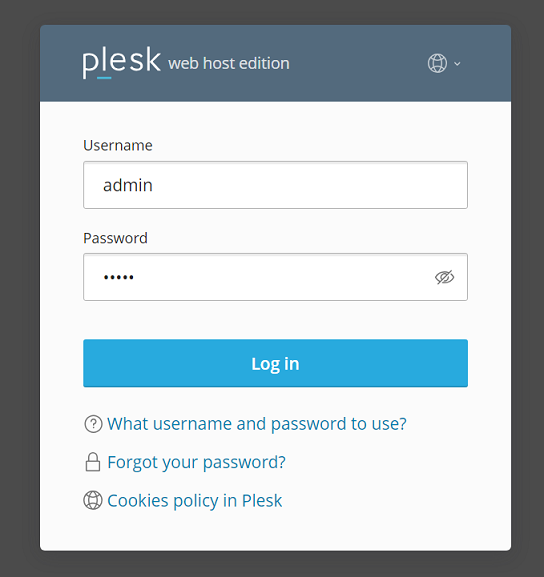
Enter your Plesk username and password, then click Log in.
After successful authentication, you will be redirected to the Plesk dashboard.
Step 2: Select the Domain
From the Plesk dashboard:
- Navigate to Websites & Domains.
- Locate the domain for which you want to enable password protection.
- Open the domain management section.
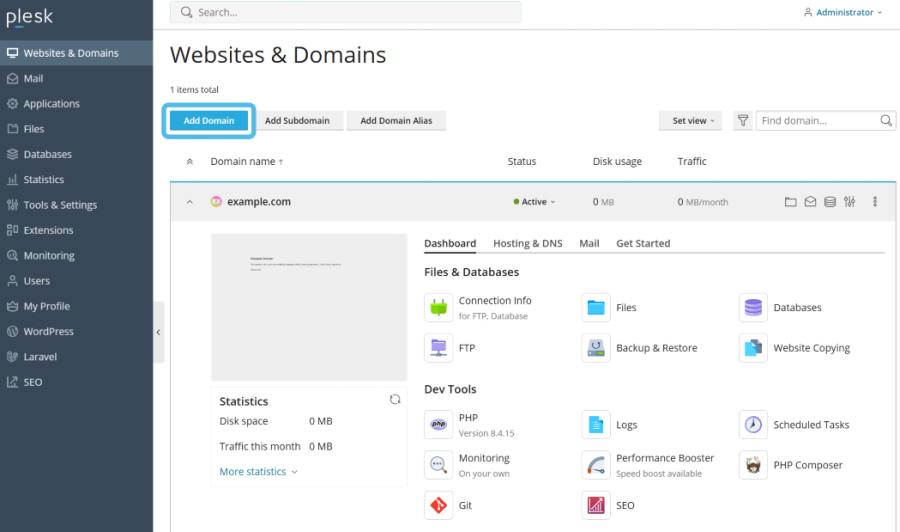
Example domain:
example.com
Make sure you select the correct domain before configuring its security settings.
Step 3: Open Password-Protected Directories
Under the selected domain, locate the Password-Protected Directories option.
Click this option to open the directory protection management page.
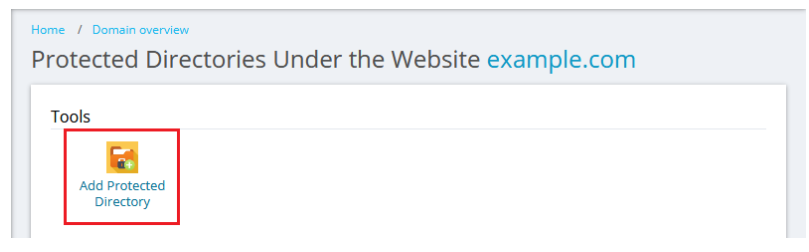
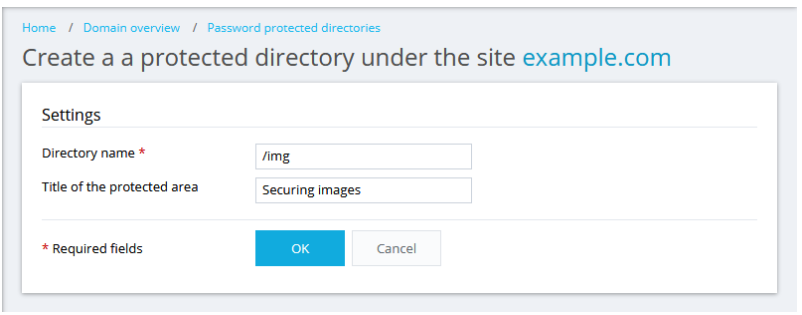
This section allows you to:
- Add protected directories.
- Configure directory authentication.
- Create authorized users.
- Manage existing protected directories.
- Remove password protection when required.
Step 4: Add a Protected Directory
Click Add Protected Directory to create a new protected directory.
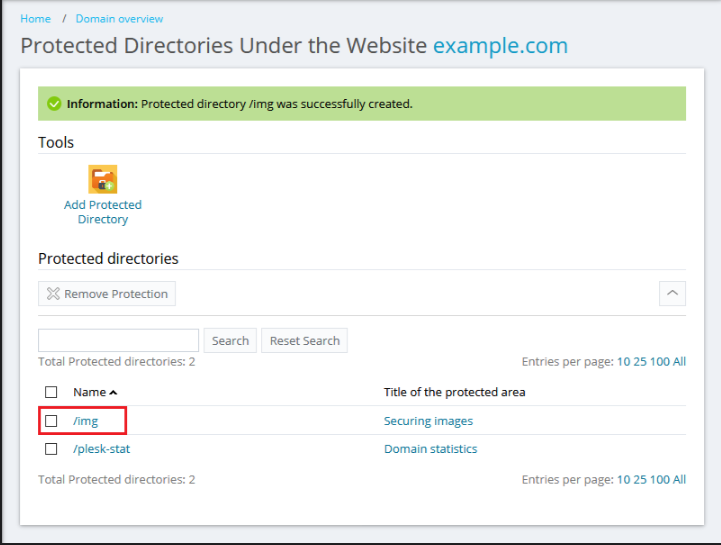
You will generally see configuration fields such as:
Directory name:
Enter the directory path you want to protect.
Example:
/staging
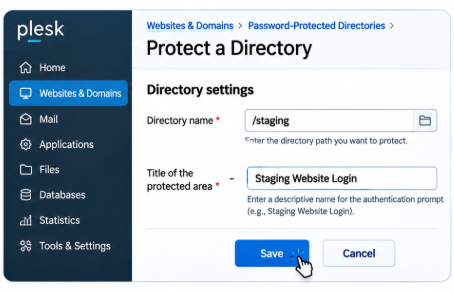
Title of the protected area:
Enter a descriptive name for the authentication prompt.
Example:
Staging Website Login
After entering the required information, click Save or OK.
Plesk will configure password protection for the selected directory.
Important: Select the correct directory path. Protecting the website root directory may restrict access to the entire website.
Step 5: Create a Password-Protected User
After adding the protected directory, you need to create an authorized user.
Follow these steps:
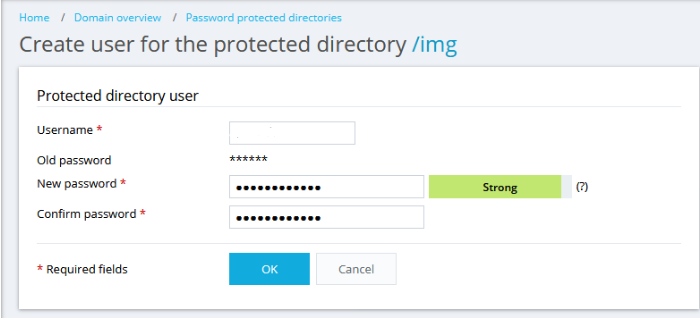
- Open the protected directory you created.
- Navigate to the Users section.
- Click Add User.
- Enter a username.
- Set a strong password.
- Confirm the password if requested.
- Click Save or OK.
Example credentials:
- Username:
staginguser - Password: Use a unique, strong password.
Do not use the example credentials in a production environment.
You can create multiple authorized users if different team members require access.
Step 6: Verify the Password Protection
After completing the configuration, open a new incognito or private browser window.
Navigate to the protected directory.
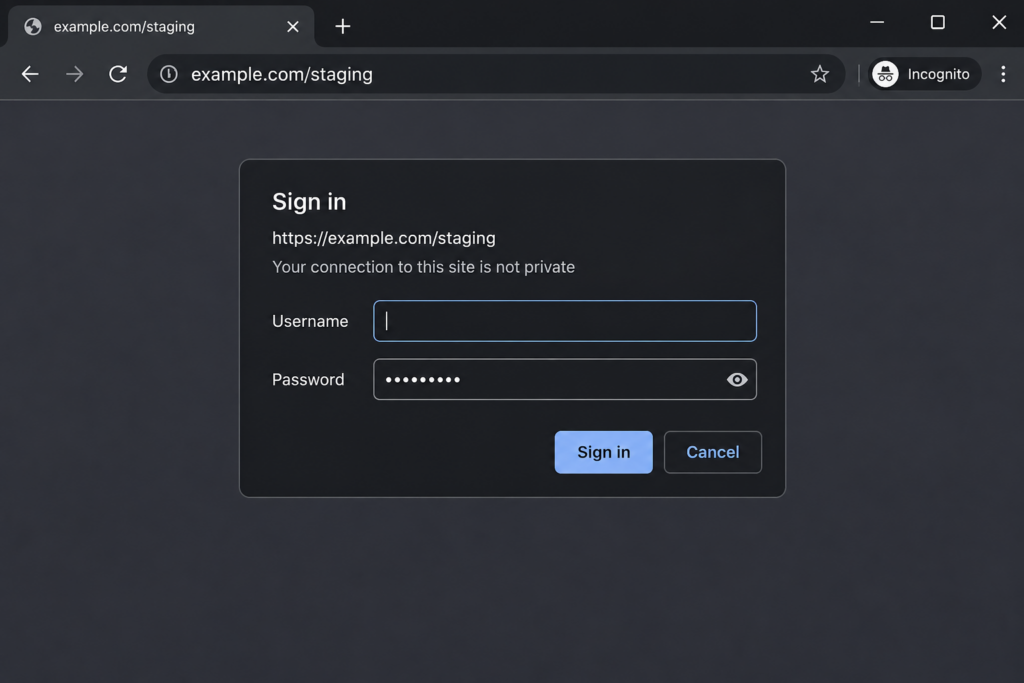
Example:
You should now see a browser authentication prompt requesting a username and password.
Enter the credentials created in the previous step.
If the credentials are correct, the protected directory should become accessible.
If you enter incorrect credentials, access should be denied.
Step 7: Manage Protected Directories and Users
You can manage password-protected directories whenever necessary.
From Websites & Domains → Password-Protected Directories, select the relevant directory.
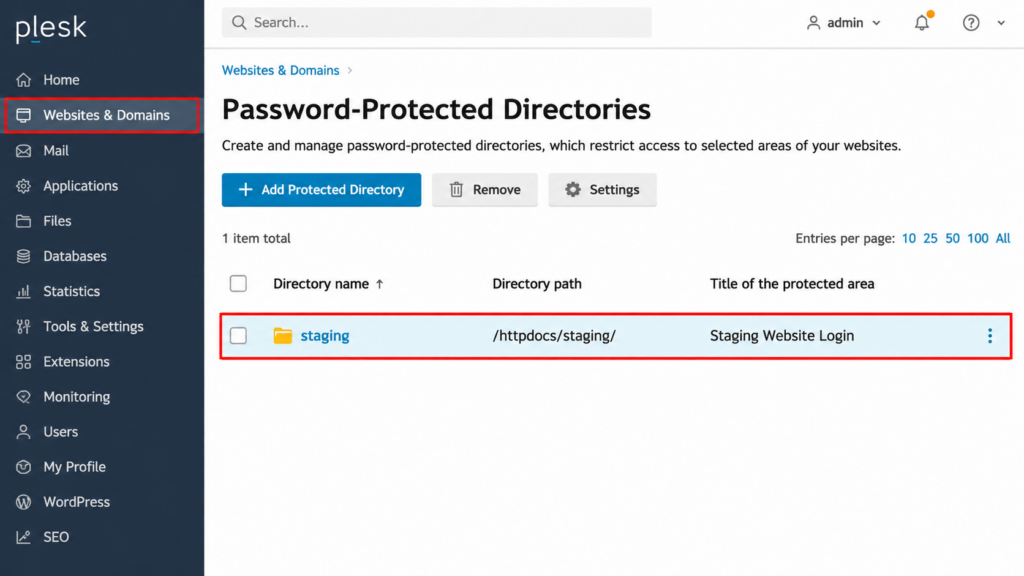
You can perform the following operations:
- Add additional authorized users.
- Change user passwords.
- Remove users who no longer require access.
- Modify the protected directory configuration.
- Delete directory protection when it is no longer needed.
Regularly review authorized users to ensure that only approved individuals have access.
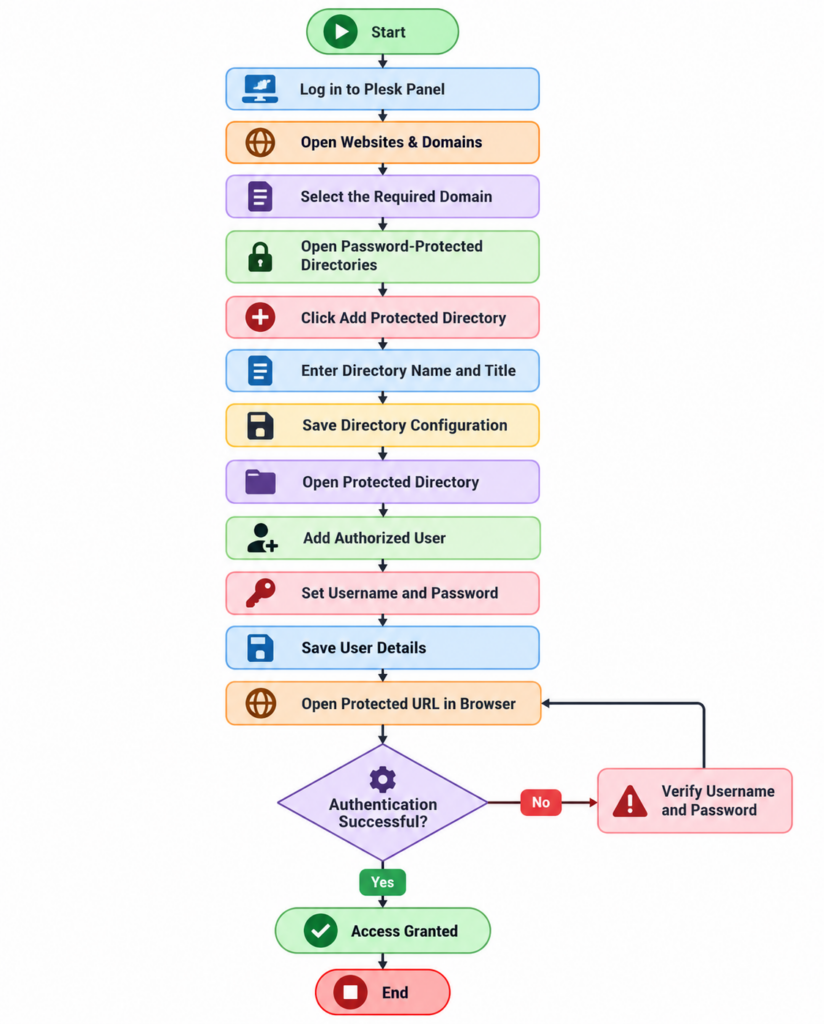
Flowchart: Website Password Protection in Plesk
The following flowchart explains the complete process of enabling and verifying password protection.
How to Disable Password Protection in Plesk
If you no longer need authentication for a directory, you can remove its password protection.
- Log in to Plesk Panel.
- Navigate to Websites & Domains.
- Select the required domain.
- Open Password-Protected Directories.
- Select the directory you want to remove.
- Use the available Remove or Delete option.
- Confirm the operation.
Once the protection is removed, the directory will no longer require the Plesk-managed directory authentication.
Note: Removing password protection does not delete the website files inside the directory. Always verify the selected directory before confirming the operation.
Common Issues and Troubleshooting
Sometimes, password protection may not work as expected. Below are some common issues and their possible solutions.
1. Password Authentication Prompt Is Not Displayed
Possible reasons:
- The wrong directory was selected.
- Password protection was not saved successfully.
- The requested URL does not point to the protected directory.
- A reverse proxy or caching layer is affecting the request.
Solution:
Verify the protected directory path in Plesk and test the URL using a private browser window.
2. Correct Username and Password Are Not Accepted
Possible reasons:
- Incorrect login credentials.
- The user was not created under the correct protected directory.
- The password was changed or entered incorrectly.
Solution:
Open the protected directory in Plesk, verify the authorized user, and reset the password if necessary.
3. Website Returns a 403 Forbidden Error
Possible reasons:
- Incorrect directory permissions.
- Web server configuration issues.
- Authentication configuration problems.
- Access restrictions from another security rule.
Solution:
Check the directory permissions and review the web server error logs. Verify the domain’s Apache or Nginx configuration if the issue continues.
4. Password Protection Is Not Working Behind a Reverse Proxy
If your website uses Nginx, Apache, a CDN, or another reverse proxy, verify that the authentication request is being handled correctly.
Check the relevant web server configuration and logs. Also, confirm that no custom rewrite rules are overriding the authentication settings.
Best Practices for Website Password Protection
To maintain a secure hosting environment, follow these recommendations:
- Use strong and unique passwords.
- Avoid sharing administrator credentials.
- Create separate accounts for individual users.
- Remove access for users who no longer need it.
- Use HTTPS to protect credentials during transmission.
- Regularly review protected directory configurations.
- Avoid storing sensitive information in publicly accessible folders.
- Use additional security controls for sensitive applications and data.
Security Tip: Directory password protection is an additional access-control measure, not a replacement for application authentication, server security, or regular backups.
Conclusion
Enabling domain website password protection in Plesk Panel is a simple and effective way to restrict unauthorized access to specific website directories. By using the built-in Password-Protected Directories feature, website administrators can secure staging environments, development folders, private documents, and other restricted website resources without making changes to the application’s source code.
By following the steps explained in this guide, you can configure protected directories, create authorized users, verify authentication, and manage access whenever required.
For better website security, always use strong passwords, enable HTTPS, review authorized users regularly, and maintain proper server security practices.
Frequently Asked Questions (FAQs)
1. Can I password-protect an entire domain in Plesk?
Yes. You can protect the website’s document root directory using Password-Protected Directories. However, this will require authentication for visitors accessing the website’s protected content. Ensure you select the correct root directory.
2. Can I password-protect only one folder?
Yes. Plesk allows you to protect individual directories without restricting access to the entire website. For example, you can protect /staging while keeping the main website publicly accessible.
3. Can multiple users access the same protected directory?
Yes. You can create multiple authorized users for a protected directory. Each user can access the directory using their assigned credentials.
4. Does password protection affect website files?
No. Enabling password protection does not delete or modify the website’s content. It restricts access to the selected directory through authentication.
5. Is password protection available for subdomains?
Yes. If the subdomain is configured as a separate website or hosting entry in Plesk, you can manage its protected directories through its domain management settings.
6. Does Plesk password protection secure the entire server?
No. It protects the selected website directories. Server-level security, firewall configuration, application security, and access controls must be managed separately.
7. Can I remove password protection later?
Yes. You can remove the protected directory configuration from the Password-Protected Directories section in Plesk.
Related Articles
How to Create a Database in Plesk
How to Create a Password-Protected Directory in Plesk
Need Help with Plesk Website Security?
Need assistance with Plesk configuration, website password protection, directory permissions, SSL/TLS setup, or server security?
Our technical team can help with Plesk administration, Linux server management, website security configuration, hosting troubleshooting, and server maintenance.
Explore our DevOps and Cloud Services to learn more about our infrastructure, cloud, and DevOps solutions.
For more information or technical assistance, Contact Pheonix Solutions.