Introduction
Plesk is a popular web hosting control panel that allows hosting providers, resellers, and website owners to manage their hosting services through a user-friendly graphical interface. One of its useful features is interface customization, which allows administrators and resellers to personalize the appearance of the Plesk Customer Control Panel.
Installing a custom theme in Plesk helps hosting providers create a consistent brand identity by changing interface colors, styles, images, and other visual elements. This is particularly useful for hosting companies that want to provide customers with a personalized hosting management experience.
In this guide, we will explain how to install a custom theme in the Plesk Customer Control Panel, including the prerequisites, theme preparation, installation commands, verification, and troubleshooting steps.
What Is a Plesk Theme?
A Plesk theme is a collection of CSS styles, images, and other visual resources that control the appearance of the Plesk interface.
Using a custom theme, you can:
- Customize the appearance of the Plesk control panel.
- Change interface colors and background styles.
- Replace default graphical elements with custom images.
- Improve your hosting company’s branding.
- Provide customers with a consistent control panel experience.
Plesk Obsidian supports custom themes for administrators and resellers. Administrator-level customizations apply to all Plesk users, while reseller-level customizations apply to the reseller and their customers.
Important: Installing a Plesk interface theme is different from installing a WordPress website theme. A customer cannot independently upload and install a Plesk interface theme through the normal customer dashboard. Administrator or reseller access and the appropriate server permissions are required.
Prerequisites
Before installing a custom theme in Plesk, make sure you have the following:
- A working Plesk Obsidian installation.
- Administrator or reseller-level access, depending on the intended customization.
- SSH access to a Linux server or Remote Desktop access to a Windows server.
- A custom Plesk theme package in ZIP format.
- A backup of the existing theme configuration.
- Basic knowledge of Linux commands.
Step 1: Log in to the Plesk Control Panel
First, access your Plesk control panel using your administrator or reseller login credentials.
- Open your web browser.
- Enter your Plesk login URL.Example:
https://your-server-ip:8443 - Enter your username and password.
- Click Log in.
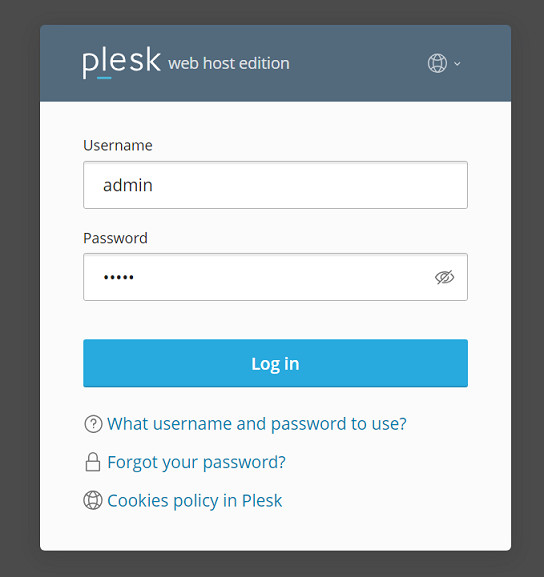
After successful authentication, you will be redirected to the Plesk dashboard.
Step 2: Connect to the Plesk Server Through SSH
To install a custom theme on Plesk for Linux, connect to the server using SSH.
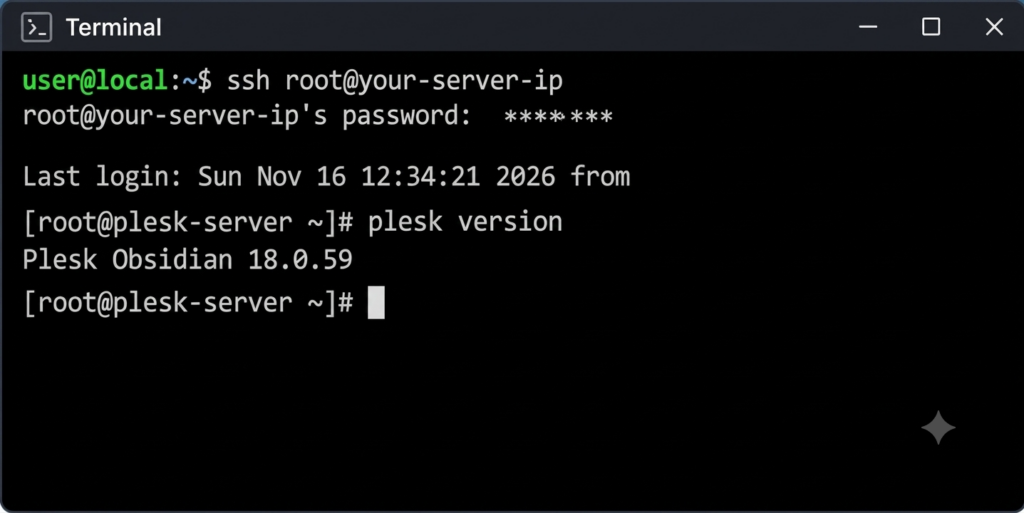
Open your terminal and execute:
ssh root@your-server-ipEnter the server password when prompted.
After logging in, verify that Plesk is installed:
plesk versionThis command displays the installed Plesk version.
Step 3: Obtain the Default Plesk Theme Package
Before creating a custom theme, obtain the default Plesk theme package.
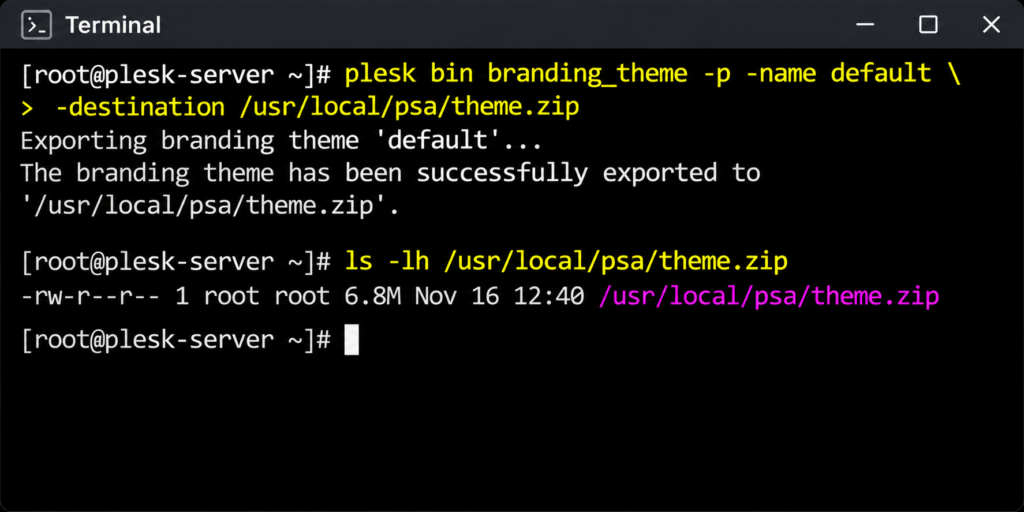
Execute the following command:
plesk bin branding_theme -p -name default -destination /usr/local/psa/theme.zipThis command exports the default Plesk theme into a ZIP archive.
Verify that the archive has been created:
ls -lh /usr/local/psa/theme.zipThe generated ZIP file contains the theme resources required for customization.
Step 4: Extract and Customize the Theme
Create a working directory for your custom theme:
mkdir -p /root/custom-plesk-themeExtract the default theme package:
unzip /usr/local/psa/theme.zip -d /root/custom-plesk-themeNavigate to the extracted directory:
cd /root/custom-plesk-themeYou can now customize the available CSS styles and image resources.
Depending on the package structure, you may find files such as:
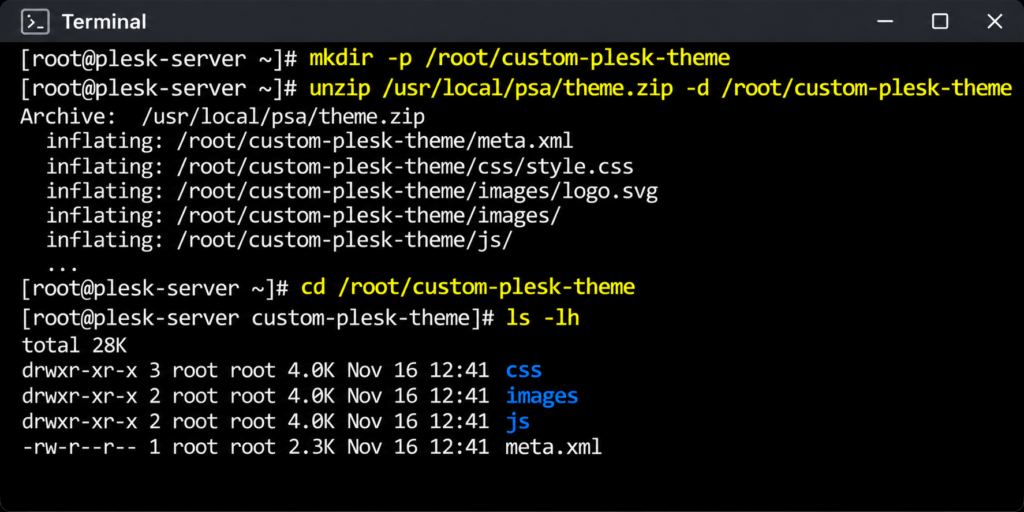
- CSS files for interface styling.
- Image files used in the control panel.
meta.xmlcontaining theme metadata.- Other theme-related resources.
You can modify supported decorative elements, including:
- Background colors.
- Font styles.
- Interface colors.
- Images and graphical elements.
Make sure you preserve the original directory structure and required metadata.
Tip: Avoid unnecessary changes to the Plesk interface layout or functional elements because they may affect control panel usability.
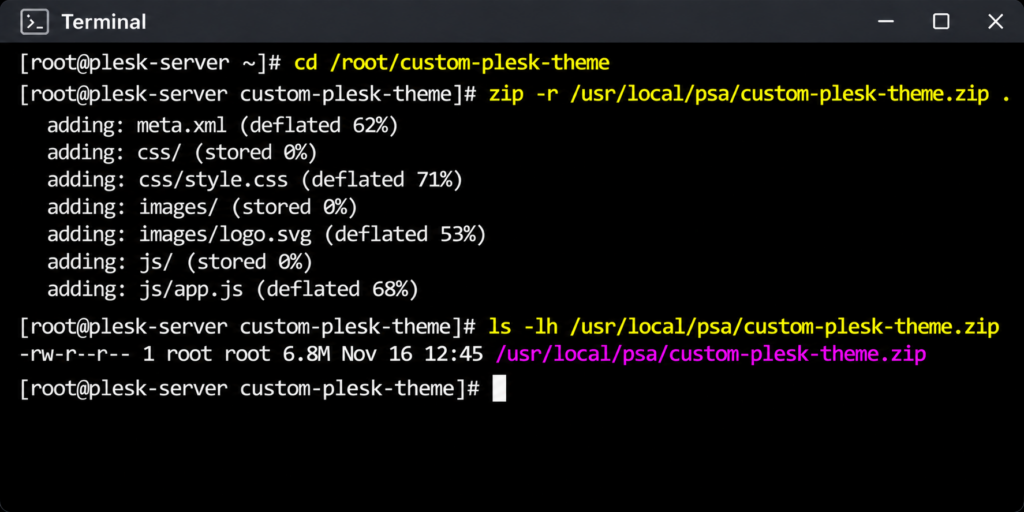
Step 5: Create a ZIP Archive of the Custom Theme
After completing the customization, package the theme directory into a ZIP archive.
Execute:
cd /root/custom-plesk-theme
zip -r /usr/local/psa/custom-plesk-theme.zip .
Verify the generated archive:
ls -lh /usr/local/psa/custom-plesk-theme.zipYour custom theme package is now ready for installation.
Step 6: Install the Custom Theme in Plesk
Plesk provides the branding_theme command-line utility to install custom themes.
For a server administrator theme, execute:
plesk bin branding_theme -i -vendor admin -source /usr/local/psa/custom-plesk-theme.zipFor a reseller-specific theme, use the reseller’s username:
plesk bin branding_theme -i -vendor "reseller_username" -source /usr/local/psa/custom-plesk-theme.zipReplace reseller_username with the actual Plesk reseller username.
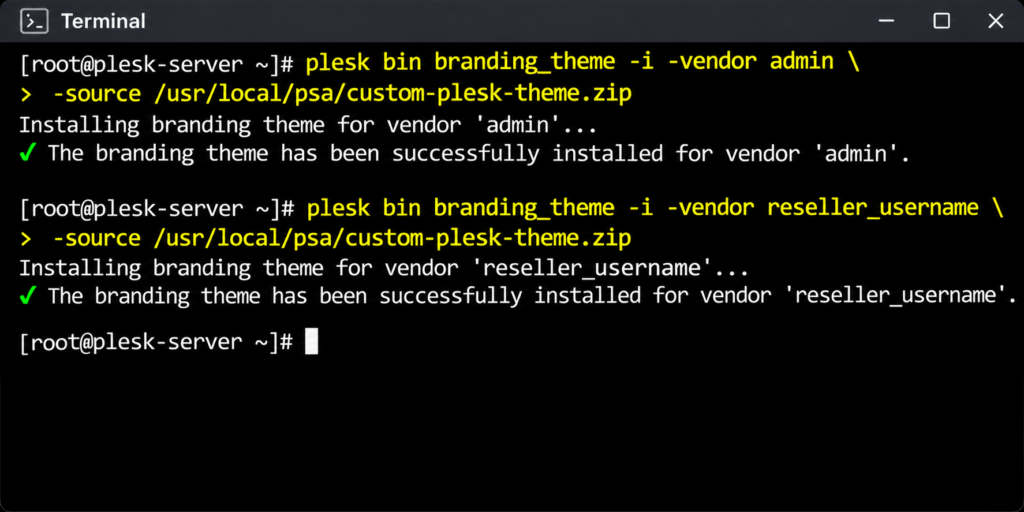
Note: Administrator-level themes affect all Plesk users. Reseller-level themes affect only the reseller and their customers.
Step 7: Log Out and Log In Again
After successful installation:
Return to the Plesk control panel.
Log out of your current session.

Open the Plesk login page again.
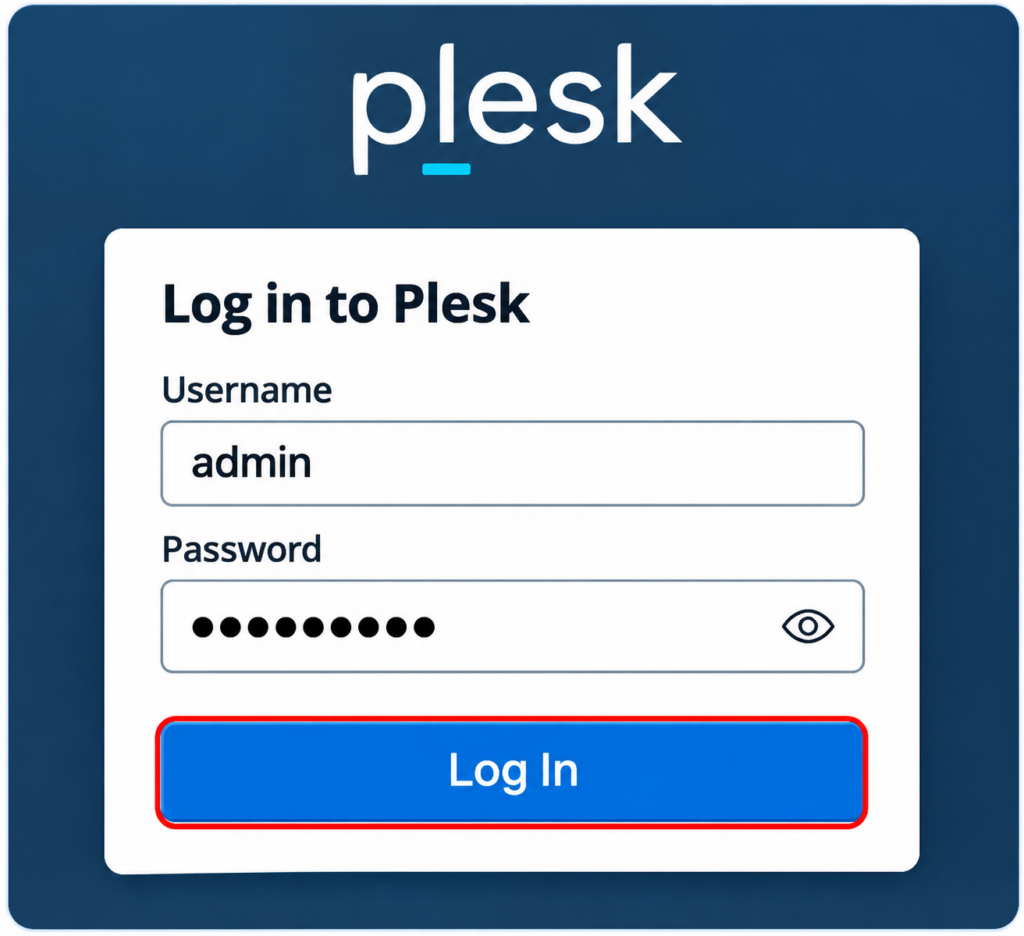
Log in using your administrator, reseller, or customer account.
Check whether the custom theme has been applied.
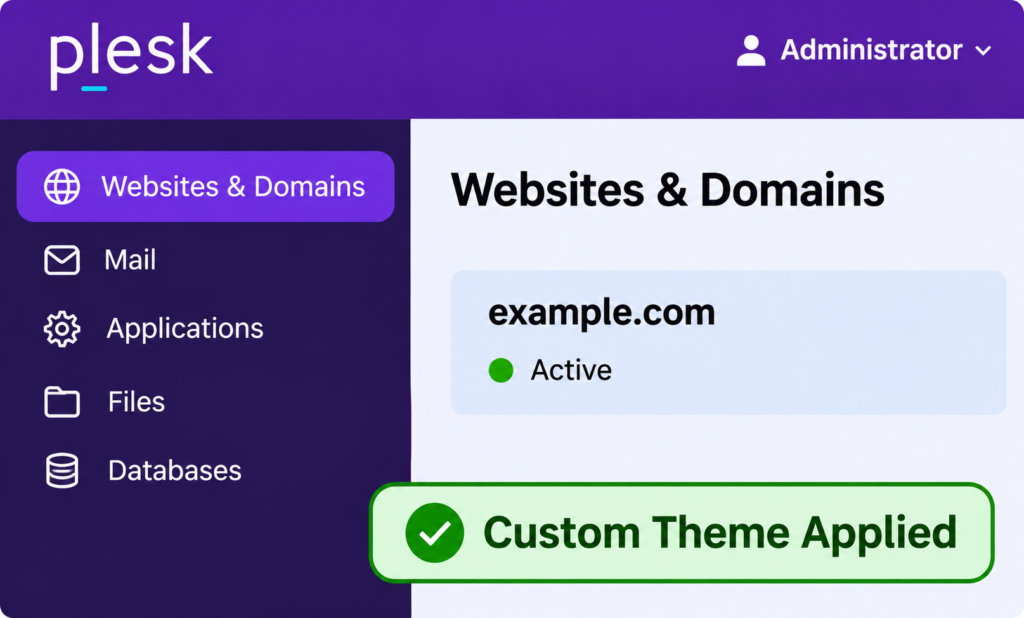
The custom theme becomes visible after logging out and logging in again.
Step 8: Verify the Installed Theme
Open the Plesk Customer Control Panel and check the interface.
Verify the following:
- The custom colors are displayed correctly.
- Updated images and branding elements are visible.
- The navigation menu works correctly.
- All customer management features remain accessible.
- The interface displays properly on different screen sizes.
If the theme is not visible, check the installation output and verify that the correct theme vendor was specified.
The theme files and check for conflicts with installed Plesk extensions.
How to Restore the Default Plesk Theme
If you want to remove your custom theme and restore the default appearance, use the Plesk branding utility.
For administrator-level customization:
plesk bin branding_theme --remove -vendor adminFor reseller-level customization:
plesk bin branding_theme --remove -vendor "reseller_username"Replace the reseller username with the actual account name.
After removing the custom theme, log out and log in again to verify the default appearance.
Always verify the supported command options for your installed Plesk version before making changes.
Best Practices for Plesk Theme Customization
Follow these recommendations when customizing the Plesk Customer Control Panel:
- Take a backup: Keep a copy of the original theme package before modifying any files.
- Test before deployment: Test the custom theme in a staging environment before applying it to production.
- Preserve the directory structure: Do not remove required files or metadata.
- Use compatible CSS: Avoid changing functional interface elements unnecessarily.
- Maintain branding consistency: Use your company’s colors, logo, and visual identity.
- Check customer accessibility: Make sure that the interface remains readable and easy to navigate.
- Verify after updates: Review your customization after upgrading Plesk because interface changes may affect custom themes.
Conclusion
Installing a custom theme in the Plesk Customer Control Panel is a useful way to personalize the hosting management experience and maintain consistent company branding.
With the Plesk branding_theme utility, administrators and resellers can prepare, install, and manage custom themes. Administrators can apply branding across the entire server, while resellers can customize the experience for their own customers.
By following the steps in this guide, you can customize the Plesk interface while keeping its essential hosting management features functional.
Frequently Asked Questions (FAQs)
1. Can I install a custom theme directly from the Plesk Customer Control Panel?
No. Installing a complete custom Plesk interface theme requires the appropriate administrator or reseller permissions and the branding_theme utility. Some basic appearance and branding settings are available through the GUI.
2. Does a custom Plesk theme affect all customers?
It depends on the installation level. An administrator-level theme affects all Plesk users, whereas a reseller-level theme affects only that reseller and their customers.
3. Which command is used to install a custom Plesk theme?
Use the following command for an administrator-level theme:
plesk bin branding_theme -i -vendor admin -source /path/to/theme.zip4. Can I change the Plesk logo and company branding?
Yes. Plesk provides branding customization options, including changing supported logo and title settings.
5. Do I need to restart the Plesk server after installing a theme?
A full server restart is generally not required. Log out and log in again to view the updated interface.
6. Can I restore the original Plesk appearance?
Yes. Remove the custom theme using the branding_theme --remove command with the appropriate vendor and log in again.
7. Is a Plesk interface theme the same as a WordPress theme?
No. A Plesk theme changes the appearance of the hosting control panel, while a WordPress theme changes the design of a WordPress website.
8. Can a reseller install a separate theme for their customers?
Yes. Plesk supports reseller-level custom themes, allowing resellers to customize the appearance for themselves and their customers, subject to the required permissions and supported version.
Related Articles
How to Create a Database in Plesk
How to Create a Password-Protected Directory in Plesk
Need Help with Plesk Theme Customization?
Need assistance with installing custom themes, Plesk branding, Customer Control Panel customization, or Plesk server configuration?
Our technical team can help with Plesk administration, custom theme installation, reseller branding, Linux server management, hosting troubleshooting, and server maintenance.
Explore our DevOps and Cloud Services to learn more about our infrastructure, cloud, and DevOps solutions.
For more information or technical assistance, Contact Pheonix Solutions.