Post Date: November 20, 2026
Introduction
How to remove a user account in Plesk is a common question among hosting administrators who want to manage access and improve security. Plesk provides a simple control panel for managing websites, domains, email accounts, databases, and user permissions.
For example, an employee may leave an organisation, or a client may no longer need access to the hosting account. In these situations, removing unused accounts helps prevent unwanted access.
Additionally, regular account reviews help administrators maintain better security and keep the hosting environment organised.
In this guide, you will learn how to remove an additional user account in Plesk with easy, step-by-step instructions.
Prerequisites
Before removing a user account in Plesk, make sure you have the following:
- Access to the Plesk control panel.
- Administrator privileges or permission to manage user accounts.
- The username or email address of the account you want to remove.
- Confirmation that the user no longer needs access.
- A backup of important data, if required.
Note: Before proceeding, check whether the account is linked to any subscriptions, websites, or hosting services. Also, keep in mind that removing an additional user account does not mean deleting the customer account or subscription.
Implementation
Follow the steps below to remove an additional user account in Plesk.
Step 1: Log in to Plesk
- First, open your preferred web browser.
- After that, visit your Plesk login URL.
- Enter your administrator username and password.
- Finally, click Log In to access the control panel.
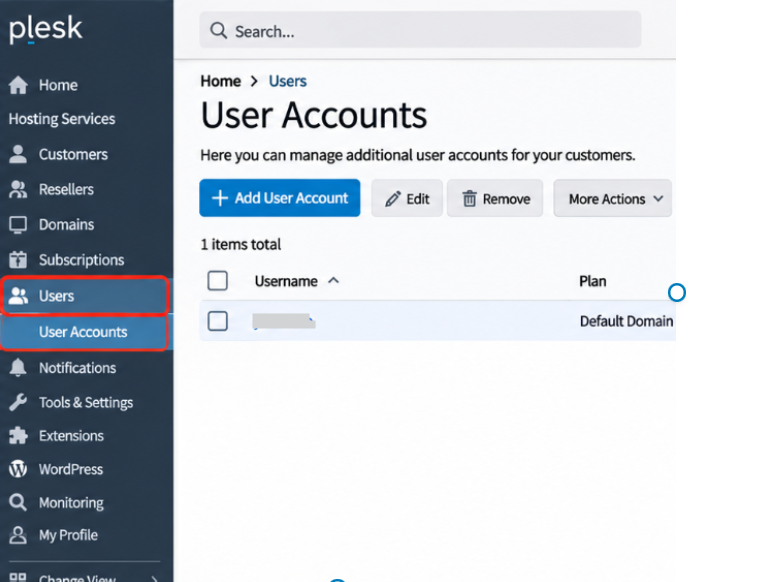
Step 2: Navigate to User Accounts
- Start by opening the left-side navigation menu.
- Next, click Users.
- From the available options, select User Accounts.
- The page will now display the additional user accounts configured in Plesk.
Step 3: Select the User Account
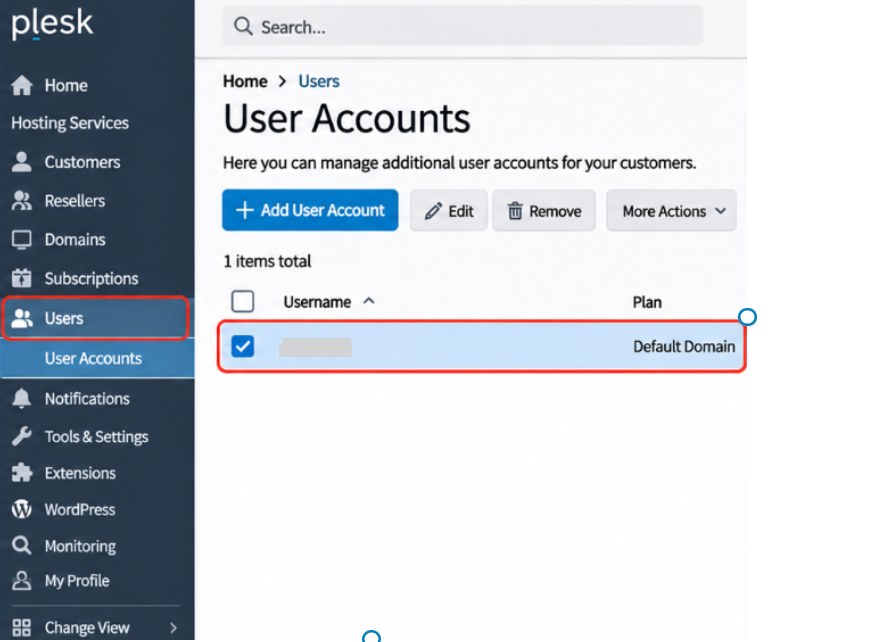
- Review the list of available user accounts.
- Once you find the required account, locate its username.
- Select the checkbox next to that username.
- Before proceeding, double-check that you have selected the correct account.
Step 4: Remove the Selected User
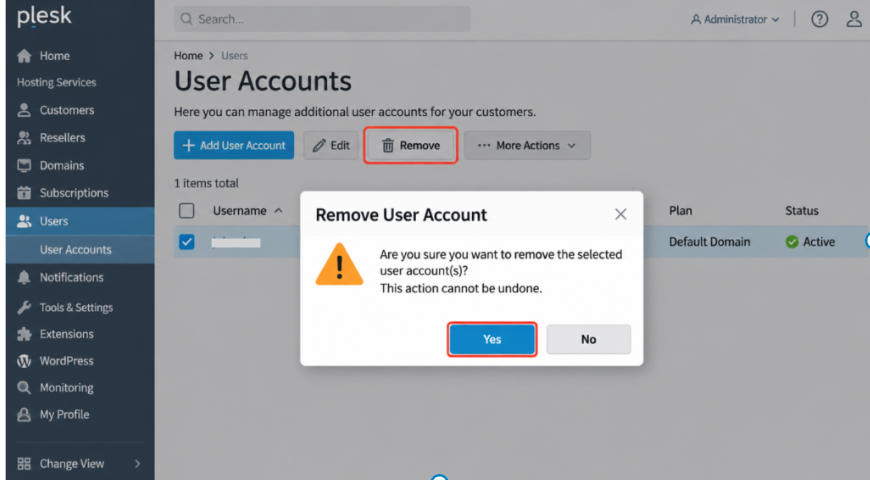
- After selecting the account, click the Remove button.
- A confirmation message will appear on the screen.
- Read the message carefully before continuing.
- To complete the process, click Yes.
Step 5: Verify User Removal
- Once the removal is complete, return to Users → User Accounts.
- If necessary, refresh the page.
- Review the updated account list.
- As a final check, confirm that the deleted user no longer appears.
The selected additional user account has now been removed from Plesk.
Conclusion
Removing an unused user account in Plesk is a simple way to manage access and improve hosting security.
By following these instructions, administrators can easily remove users who no longer need access to the Plesk control panel.
Moreover, regular reviews of user accounts help identify unused or unnecessary access. As a result, administrators can reduce security risks and maintain a safe hosting environment.
Therefore, make user account reviews a regular part of your hosting management process.
FAQs
1. Can I remove a user account in Plesk without deleting the subscription?
Yes. You can remove an additional user account through Users → User Accounts without affecting the associated subscription or website.
2. Do I need administrator privileges to remove a user in Plesk?
Yes. Administrator privileges or suitable permissions are required to manage additional user accounts.
3. What happens after removing a user account in Plesk?
Once the account is removed, the user can no longer use that account to access the Plesk services assigned to it.
4. Can I recover a deleted user account in Plesk?
No. There is no direct undo option for removing an additional user account. However, you can create the account again and assign the required permissions.
5. Can I remove multiple user accounts at once in Plesk?
Yes. If your Plesk version and permissions support this option, select multiple accounts using the checkboxes. Then, click Remove to delete the selected accounts together.
References
Official Documentation: Plesk – Additional User Accounts
Related Articles
- How to Change the PHP Version of a Website in Plesk
- How to Enable Maintenance Mode for a Website in Plesk
Need Assistance?
Need help managing user accounts, configuring access permissions, or troubleshooting user access issues in Plesk?
The Pheonix Solutions technical team can assist you with Plesk user management, hosting configuration, server administration, and security-related issues.
For assistance, contact us.