Introduction
Email spam and unwanted messages can create serious issues for website owners and businesses, including inbox clutter, phishing risks, and reduced productivity. In cPanel, you have built-in tools that allow you to block or blacklist specific email addresses or entire domains to prevent unwanted emails from reaching your inbox. This helps improve email security and ensures better control over incoming messages.
Prerequisites
Before you blacklist an email in cPanel, ensure the following:
- You have valid cPanel login credentials
- You have access to the Email Accounts or Email Filters section
- You know the email address or domain you want to block
- The email account is already created in cPanel
IMPLEMENTATION
Step : 1
Login to your cPanel.
Step : 2
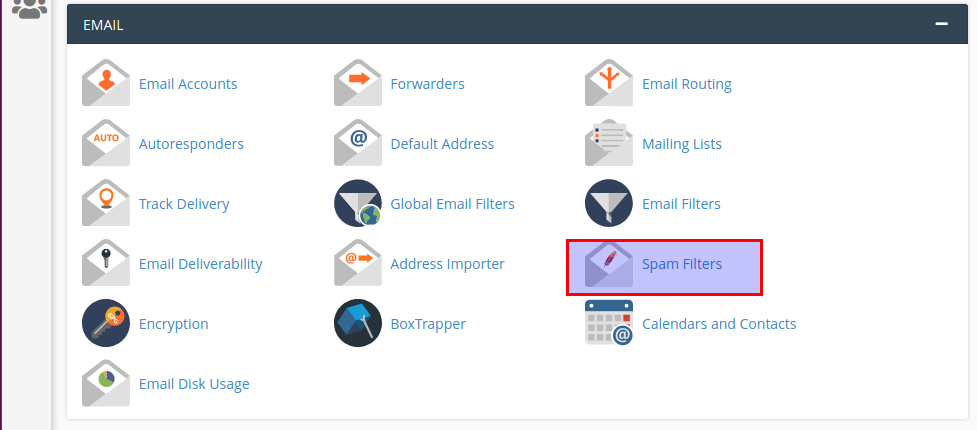
Choose the spam filter icon under the email section.
Step : 3

Scroll down the page you can see the show additional configuration option just click the option.
Step : 4
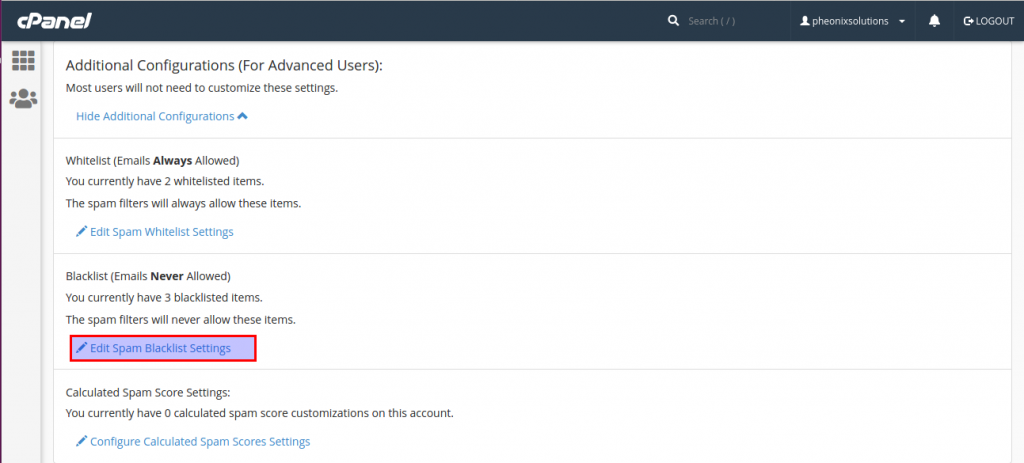
Click the edit spam blacklist option.
Step : 5
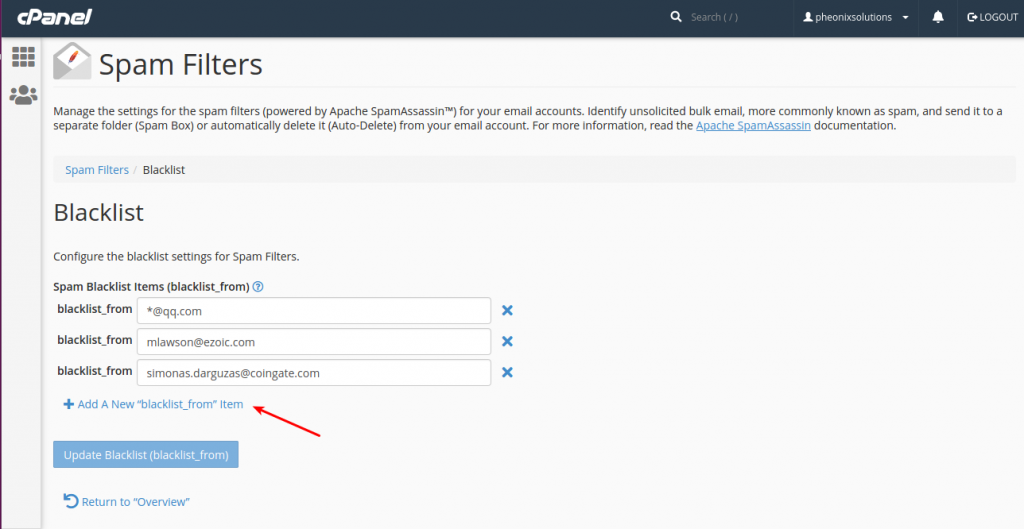
You can see the blacked emails now you choose the add nee option .
Step : 6
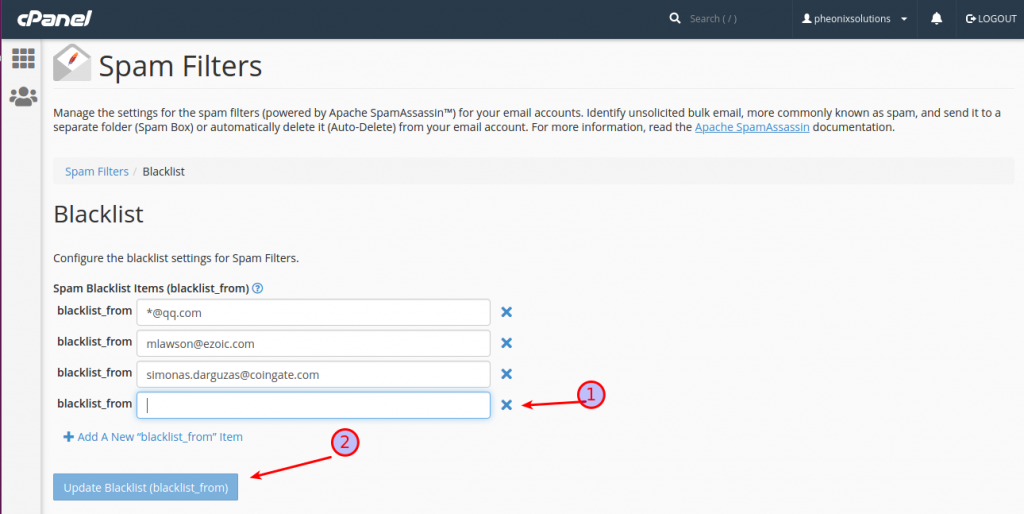
- Now you can add the mail address
- Once you add the information you click the update blacklist option.
Conclusion
Blacklisting emails in cPanel is a simple but effective way to protect your mailbox from spam, phishing attempts, and unwanted messages. By using email filters or global filters, you can easily control who can send emails to your domain. Regularly updating your blacklist ensures better email security and a cleaner inbox experience.