
Post Date: February 07, 2018
Last Updated: October 07, 2026
Introduction
One of the most common issues WordPress developers encounter is being unable to upload files, install plugins, update themes, or perform WordPress core updates through the WordPress Admin Dashboard.
In most cases, these problems are caused by incorrect file ownership and permission settings on the WordPress installation directory. When the web server user and the FTP/SFTP user do not have the appropriate permissions, WordPress may continuously request FTP credentials or fail to write files altogether.
This guide explains how to properly configure file ownership and permissions to allow seamless file uploads and plugin management through WordPress.
Common Symptoms
You may be facing a permissions issue if you experience any of the following:
- WordPress asks for FTP credentials during plugin installation.
- Plugin or theme updates fail.
- Media uploads do not work.
- Unable to create or modify files through WordPress Admin.
- “Permission Denied” errors appear in logs.
Solution Overview
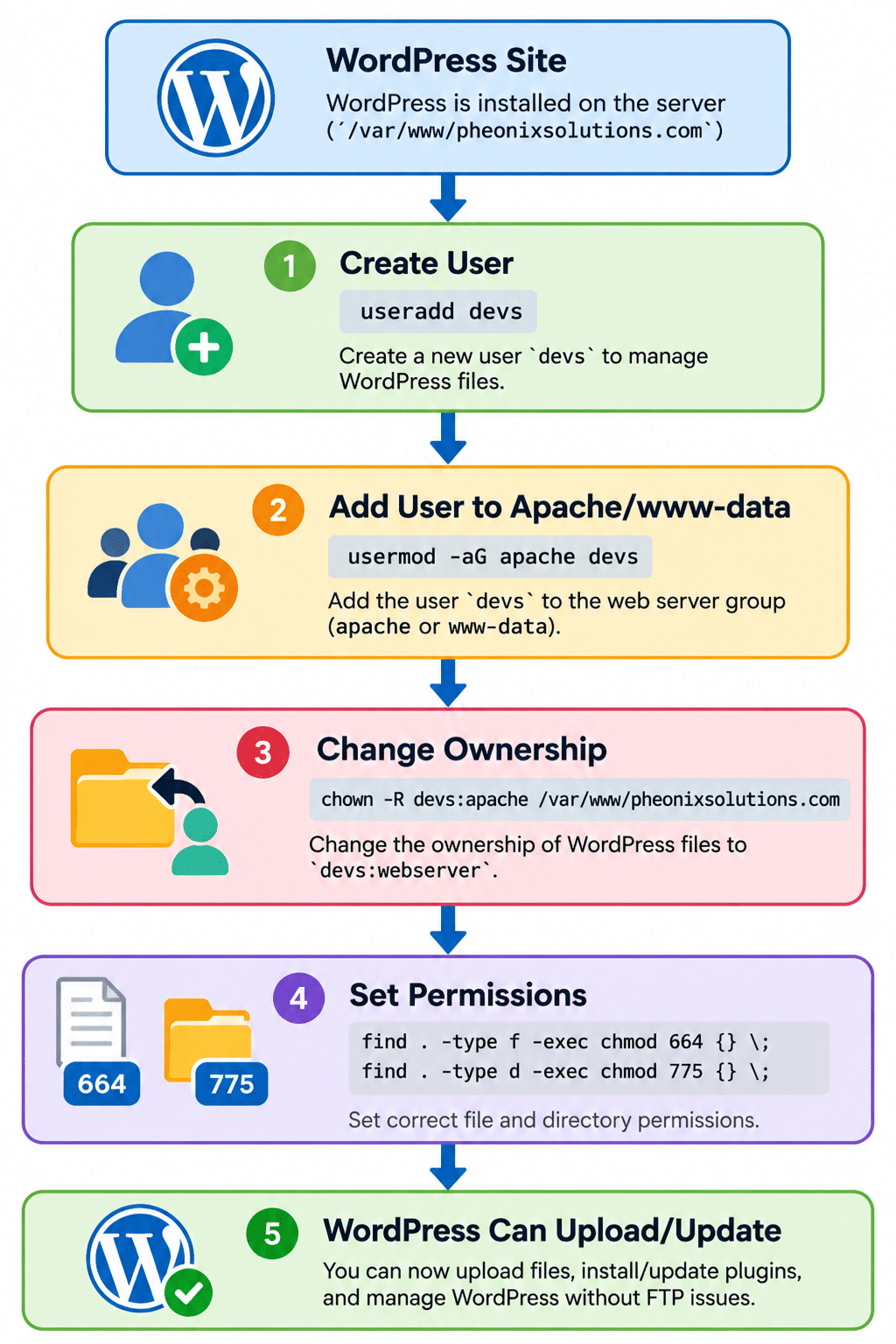
The process consists of the following steps:
- Create a dedicated user.
- Point the user’s home directory to the WordPress document root.
- Add the user to the web server group.
- Assign correct ownership.
- Apply proper file and directory permissions.
Step 1: Create a New User
Create a dedicated user that will manage the WordPress files.
useradd devs
Step 2: Set the User Home Directory
Modify the user’s home directory to point to the WordPress document root.
usermod -d /var/www/pheonixsolutions.com devs
Verify the change:
grep devs /etc/passwd
Step 3: Add the User to the Web Server Group
First identify the web server user.
For Apache:
ps aux | grep apache
or
ps aux | grep httpd
For Nginx:
ps aux | grep nginx
Most servers use either:
- apache
- www-data
Add the user to the appropriate group:
usermod -aG apache devs
For Ubuntu/Debian systems:
usermod -aG www-data devs
Step 4: Change Ownership of WordPress Files
Move to the WordPress document root and update ownership.
cd /var/www/pheonixsolutions.com

chown -R devs:apache /var/www/pheonixsolutions.com
For Ubuntu/Debian:
chown -R devs:www-data /var/www/pheonixsolutions.com
Step 5: Set Correct File Permissions
Apply recommended WordPress permissions.
Files
find . -type f -exec chmod 664 {} \;
Directories
find . -type d -exec chmod 775 {} \;
Permission Flow Diagram
Verify Permissions
Check ownership:
ls -lah /var/www/pheonixsolutions.com
Expected output:
drwxrwxr-x devs apache
Check current user groups:
id devs
Security Best Practices
- Never use
777permissions. - Use a dedicated deployment user.
- Restrict SSH access where possible.
- Keep WordPress, plugins, and themes updated.
- Regularly audit file permissions.
- Take backups before making ownership changes.
Conclusion
Proper file ownership and permissions are essential for a secure and functional WordPress installation. By assigning the correct user, group, ownership, and permissions, developers can manage plugins, themes, uploads, and updates directly from the WordPress Admin Dashboard without FTP-related errors.
Following the steps in this guide will help eliminate common permission issues while maintaining server security and operational efficiency.
Thank you for using Pheonix Solutions. We hope this guide helps simplify WordPress management and troubleshooting.
Frequently Asked Questions (FAQ)
1. Why does WordPress keep asking for FTP credentials?
This usually happens when the web server user does not have write permissions on the WordPress directory.
2. Should I use 777 permissions?
No. Using 777 permissions creates a significant security risk and should be avoided in production environments.
3. What permissions does WordPress recommend?
Generally:
- Files:
664 - Directories:
775
These permissions provide the required access while maintaining security.
4. How do I find my web server user?
Run:
ps aux | egrep 'apache|httpd|nginx'
Common users are:
- apache
- www-data
- nginx
5. Will this fix plugin installation issues?
Yes. In most cases, correct ownership and permissions allow WordPress to install, update, and remove plugins without requesting FTP credentials.
Related Articles
- Pureftp configuration issue on cpanel|Failed to retrieve directory listing
- FTP backup scipt for all the mysql databases
Talk to our experts
Have a technology challenge or looking for the right solution for your business? Our team can help you with cloud, DevOps, development, infrastructure, design, and more. Feel free to reach out to our experts here.