Post Date: March 19, 2019
Last Updated: October 11, 2026
Introduction
This guide explains how to fix Control Web Panel (formerly CentOS Web Panel, or CWP) when the admin panel on port 2031 won’t load because its self signed SSL certificate file is missing. The service can look healthy while the panel is unreachable, so the cause is easy to miss.
Two quick checks usually come first: whether the service is running, and whether the port is blocked by the firewall. In this case neither is the real problem. The logs show the actual cause, a missing self signed SSL certificate file.
Note: The product is now called Control Web Panel and lives at control-webpanel.com. The service name (
cwpsrv) and the admin port (2031) are unchanged. CentOS 7 is past end-of-life, but these steps work the same on AlmaLinux and Rocky Linux.
Prerequisites
Before you replace the self signed SSL certificate, make sure you have:
- Root or sudo access to the server over SSH
- A server running Control Web Panel
- Port 2031 allowed in your firewall
Architecture
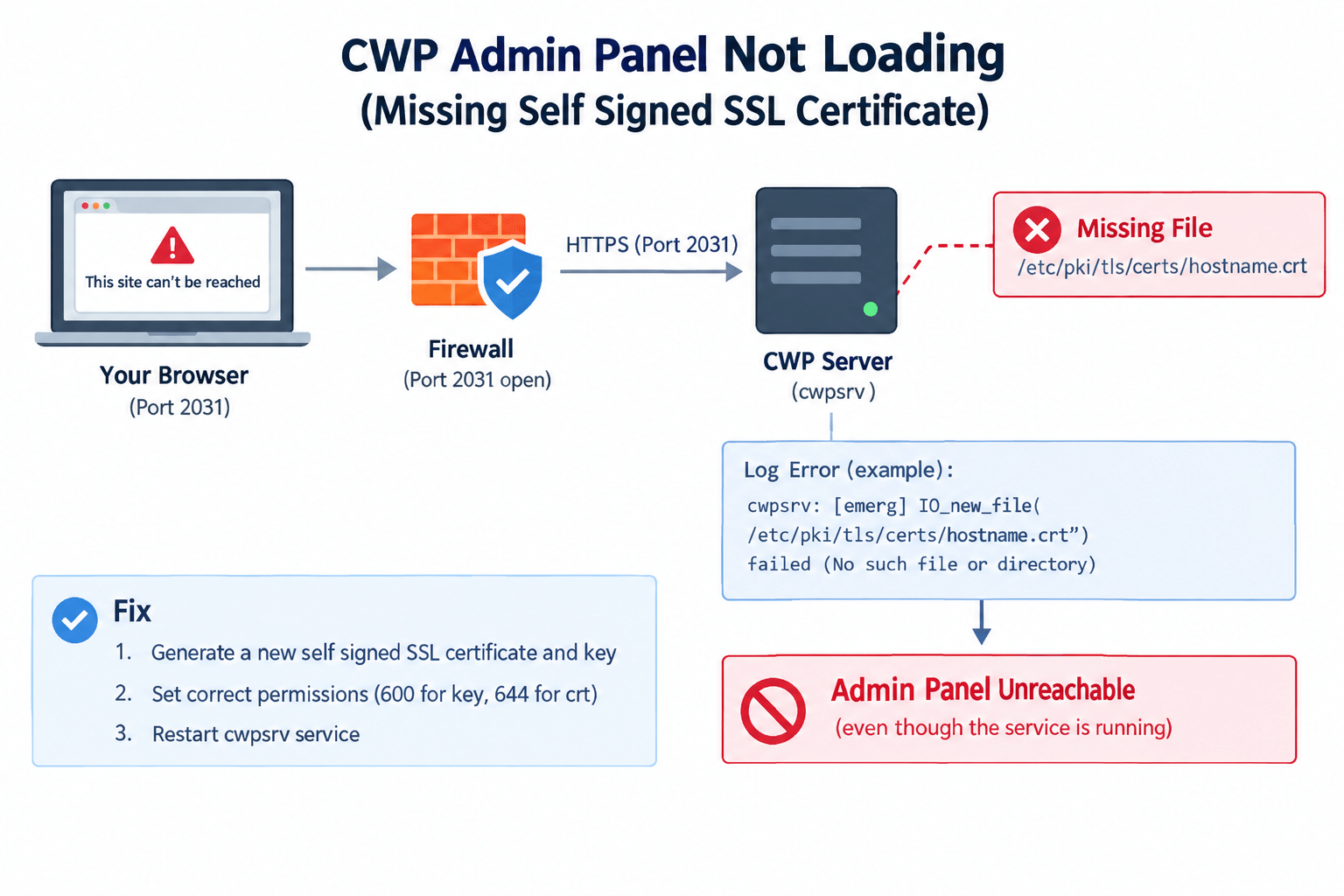
cwpsrvis the panel’s own web server. It listens on port 2031 and reads a self signed SSL certificate and private key from/etc/pki/tls/when it starts- If it can’t open the certificate file, it logs an error and can’t serve HTTPS, even though the service itself may still show as running
- Firewall and service checks both pass, so the problem looks mysterious until you read the logs
The diagram below shows why a missing self signed SSL certificate takes the panel offline:
For general OpenSSL options, see the OpenSSL documentation.
Steps to Generate a New Self Signed SSL Certificate for CWP
1. Confirm the Cause in the Logs
sudo journalctl -u cwpsrv --no-pager | tail -n 20
You’re looking for an error like this:
cwpsrv: [emerg] IO_new_file("/etc/pki/tls/certs/hostname.crt") failed (SSL: error:02001002:system library:fopen:No such file or directory ...)
Correction to the original diagnosis: The original guide said the problem was an expired self signed SSL certificate. An expired certificate only causes a browser warning, not this error. “No such file or directory” means the file is missing, or it’s a symlink pointing at a file that no longer exists. Step 2 tells you which.
2. Check the Certificate Files
ls -l /etc/pki/tls/certs/hostname.crt /etc/pki/tls/private/hostname.key
If either file is missing, or shows as a symlink to a target that doesn’t exist, you need to create a new pair.
3. Back Up Anything That Exists
If either file is present, copy it aside before overwriting:
sudo mkdir -p /root/cwp-ssl-backup
sudo cp -a /etc/pki/tls/certs/hostname.crt /etc/pki/tls/private/hostname.key /root/cwp-ssl-backup/ 2>/dev/null
It’s fine if cp reports that a file doesn’t exist.
4. Generate the New Certificate and Key
sudo openssl req -x509 -nodes -days 365 -newkey rsa:2048 \
  -keyout /etc/pki/tls/private/hostname.key \
  -out /etc/pki/tls/certs/hostname.crt \
  -subj "/CN=$(hostname -f)"
Notes:
-subjfills in the certificate’s name automatically, so the command doesn’t stop to ask interactive questions. Make surehostname -fprints your server’s real hostname.- A self signed SSL certificate generated with
-days 365will expire in a year. That’s harmless for the panel to start, but browsers will keep warning. Raise the number for fewer renewals, or install a trusted certificate to remove the warning entirely.- This replaces the old key as well as the certificate, so the two always match.
5. Set the Correct Permissions
sudo chmod 600 /etc/pki/tls/private/hostname.key
sudo chmod 644 /etc/pki/tls/certs/hostname.crt
The private key should be readable by root only.
6. Restart CWP and Verify
sudo systemctl restart cwpsrv.service
sudo systemctl status cwpsrv.service
sudo ss -tlnp | grep 2031
The last command confirms something is listening on port 2031. Then open the panel:
https://your-server-ip:2031
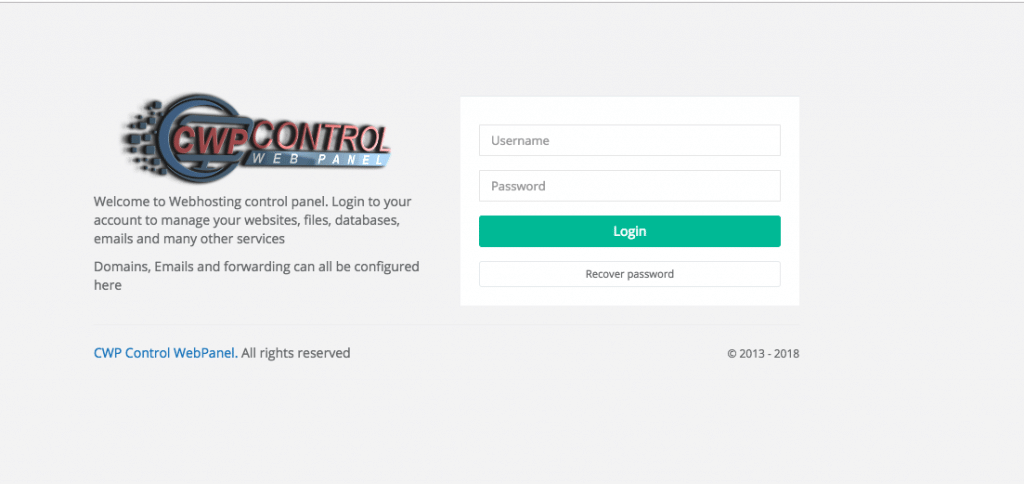
Your browser will show a security warning, which is expected for a self signed SSL certificate. Accept it to continue. To confirm the new certificate’s dates:
openssl x509 -in /etc/pki/tls/certs/hostname.crt -noout -dates
Conclusion
When the panel is unreachable but the service and firewall look fine, read the cwpsrv logs. If they show a missing hostname.crt, generating a fresh self signed SSL certificate and key, setting the right permissions, and restarting cwpsrv brings the panel back. The cause is a missing or broken file rather than an expired certificate, which is why checking the files in Step 2 matters.
Frequently Asked Questions
Why is the panel unreachable when cwpsrv shows as running? The service can start but fail to open its SSL certificate, which logs an error and leaves the HTTPS listener unusable. Always read the logs, not just the service status.
Will the new self signed SSL certificate expire again? Yes, after the number of days you set with -days. Expiry itself won’t stop the panel from starting, but browsers will warn. Use a longer period, or install a certificate from a trusted authority.
Does the browser trust a self signed SSL certificate? No. You’ll see a warning on every new browser until you install a trusted certificate for the panel’s hostname. The connection is still encrypted.
Do other services use these same files? Possibly. If your mail or FTP services are configured to use the same certificate paths, restart them as well so they pick up the new files.
Related Articles
SSL/TLS Configuration and Verification on Linux
How to set up SSL (Let’s Encrypt) for a Plesk mail server
Talk to Our Technology Experts
Is your control panel down or showing SSL errors? Our team can help with control panel troubleshooting, SSL/TLS configuration, and ongoing server support.