
Post Date: March 22, 2019
Last Updated: October 14, 2026
Introduction
Creating an Android application starts with setting up a project in Android Studio and configuring its essential components. One useful feature is the overflow menu in Android Studio, which allows developers to organize additional application options, such as Settings, Help, and About, without cluttering the main screen.
In this tutorial, we will learn how to create a new project and an overflow menu in Android Studio. We will cover selecting an activity, configuring project details, choosing the minimum API level, and creating a menu resource file. This step-by-step guide will help beginners understand the basic process of setting up an Android application and preparing an overflow menu for navigation.
Step 1: Create a New Project in Android Studio
Open Android Studio on your computer.
Follow these steps to create a new project:
- Go to File → New → New Project.
- Select the project template that suits your application requirements.
- Continue to the device and activity selection screen.
Android Studio provides different project templates that help you start building an application with the required structure.
Step 2: Select a Device and Activity
Choose the device type for which you want to develop the application.
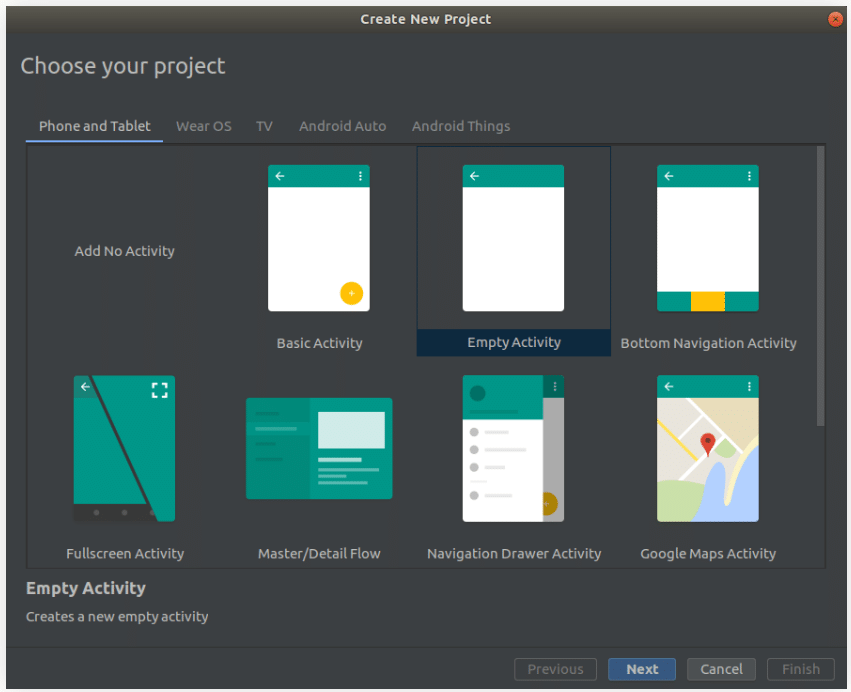
Android Studio will display the available activity templates. An activity represents a screen in an Android application.
If you do not want to add an activity during the initial project setup, select Add No Activity if that option is available in your Android Studio version.
If you selected the Phone option in the previous screen, Android Studio will display templates suitable for phone applications. Choose an activity template according to your project requirements.
Step 3: Configure the Project
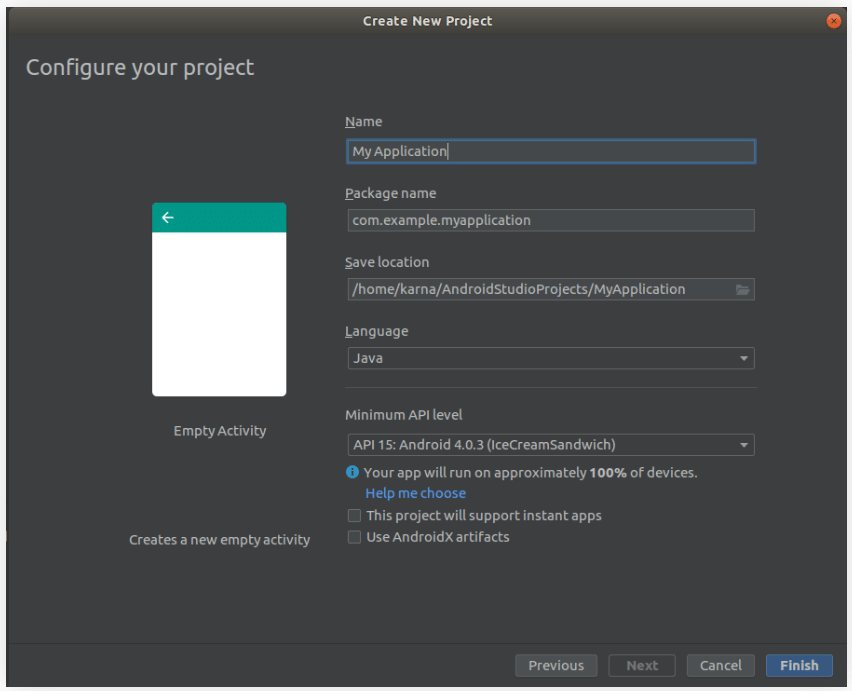
Enter the required project details in the configuration screen.
- Name: Enter the name of your application.
- Package name: Specify the application’s package identifier.
- Save location: Choose where the project files should be stored.
- Language: Select Java or Kotlin, depending on your project requirements and the options available.
- Minimum API level: Select the minimum Android version your application should support.
The minimum API level determines which Android devices can run your application. Android Studio may also display an estimate of the devices supported by the selected API level.
After entering the required details, click Finish to create the project.
Wait for Android Studio to generate the project files and complete the initial setup.
Step 4: Create the Overflow Menu
Once the project has been created, you can start configuring the overflow menu.
Create a Menu Resource File
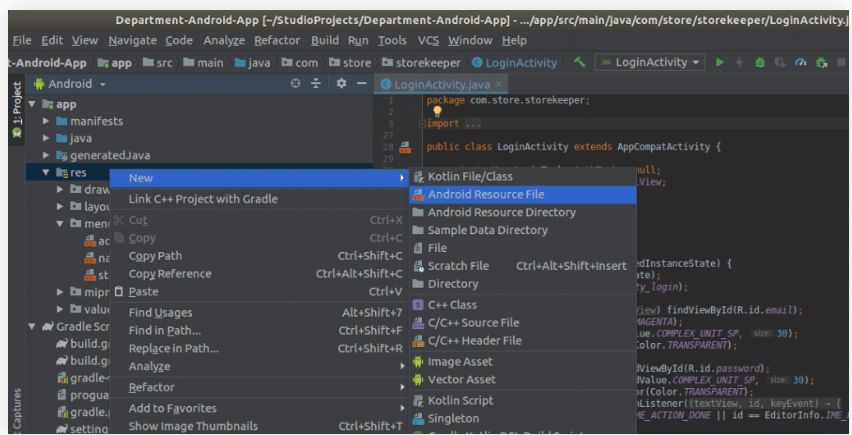
In Android Studio, locate the res folder in your application module.
Follow these steps:
- Right-click the
resfolder. - Select New → Android Resource File.
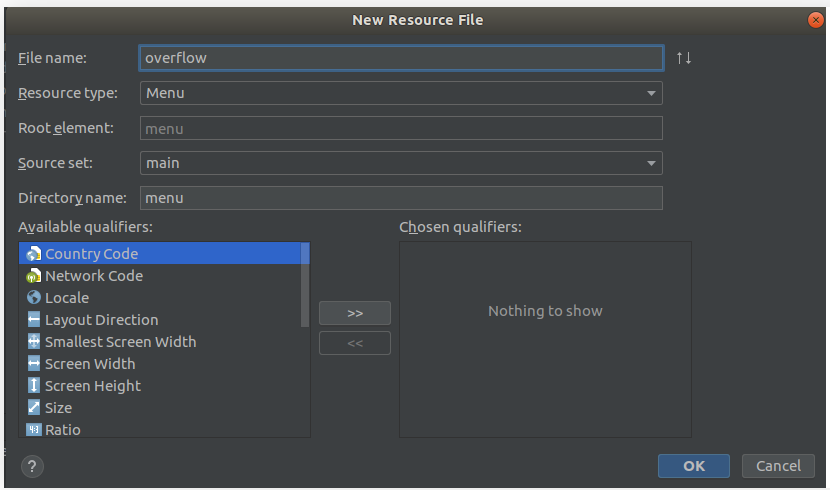
- In the resource configuration window, set the resource type to
Menu. - Enter a name for the file, such as
main_menu. - Click OK.
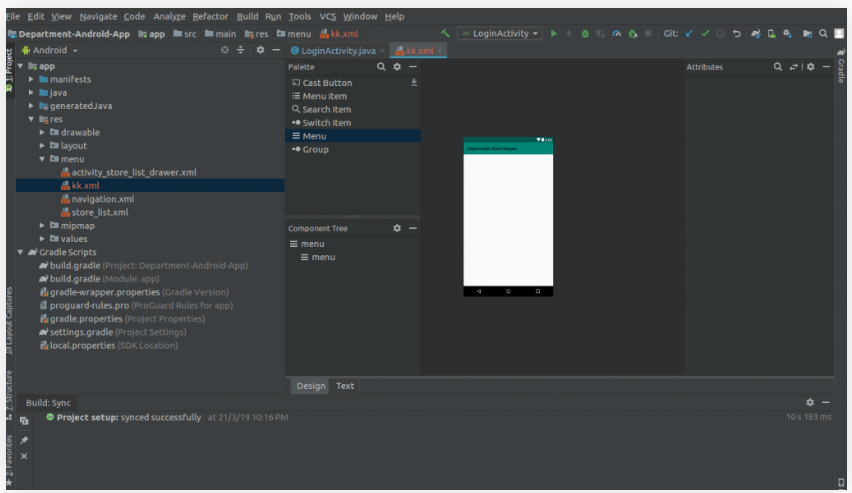
Android Studio will create a separate menu resource file for defining the menu items.
Configure the Menu Resource
After creating the resource file, open the menu configuration window and confirm that the resource type is set to Menu.
Enter the required file name and click OK to finish creating the file.
Android Studio provides a separate XML resource file for defining menu items. This makes it easier to manage the overflow menu independently of the main activity layout.
Understanding the Overflow Menu
The menu resource file is used to define the actions or options that appear in the overflow menu.
For example, an application might include options such as:
- Settings
- About
- Help
- Logout
These are examples of possible menu items; the actual options depend on your application’s requirements.
Note: Creating the menu resource file is the first step in implementing an overflow menu. To display the menu in the application, you must also connect the menu resource to the activity using the appropriate menu-inflation and event-handling code. The original tutorial focuses on creating the project and menu resource file.
Conclusion
In this tutorial, we learned how to create a new project in Android Studio, select a device and activity, configure the project settings, and create a separate menu resource file for an overflow menu.
By using a menu resource file, you can organise additional application options and prepare them for integration into your Android application’s app bar.
Frequently Asked Questions
1. What is an overflow menu in Android?
An overflow menu provides additional application actions or options, commonly accessed through a three-dot icon in the app bar.
2. Can I create an Android Studio project using Java or Kotlin?
Yes. Android Studio supports both Java and Kotlin for Android development, subject to the options available in the selected project template.
3. Does creating a menu resource automatically display the overflow menu?
No. Creating the menu resource defines the menu structure. The activity must also load the menu and handle menu-item selection for the options to function in the application.
Related Articles
- How to Create Your First Project in Android Studio
- How to Add Another Activity to an Existing Android Studio Project
Talk to Our Experts
Need help with Android application development or setting up your Android Studio project? Our experts can help you find the right solution for your business.
Get in touch with us: Contact our team