
Post Date: March 28, 2019
Last Updated: October 15, 2026
Introduction
GitHub is a popular platform for hosting and managing source code using Git version control. Developers can use it to share projects, collaborate with team members, and maintain different versions of their application code.
Android Studio supports Git integration, allowing developers to clone an existing repository and import its project into the development environment.
In this tutorial, we will learn how to import a project from GitHub into Android Studio, configure version control, authenticate with your Git hosting account, and clone a repository to your local machine.
Prerequisites
Before starting, make sure you have the following:
- A GitHub account with access to the repository you want to clone.
- Android Studio installed on your computer.
- Git installed and configured, if required by your Android Studio setup.
- The repository URL of the project you want to import.
Step 1: Configure Version Control in Android Studio
First, open Android Studio and open your existing project or create a project where you want to configure version control.
Android Studio provides Version Control System (VCS) integration for managing source code.
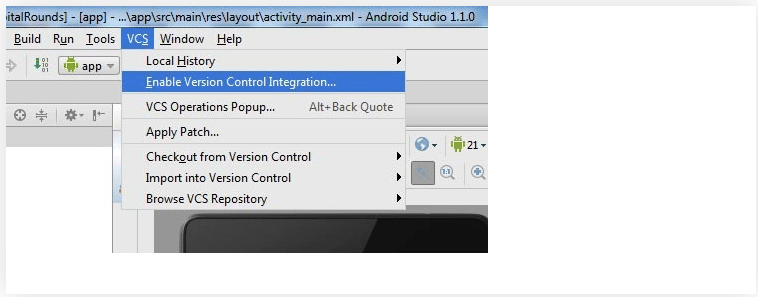
Depending on your Android Studio version and project state, locate the version control option in the toolbar or menus and select Enable Version Control Integration. If prompted, choose Git as the version control system.
This step configures Git integration for the project. The menu layout and wording may differ between Android Studio versions.
Step 2: Open the Git Checkout Option
Next, open the version control options and navigate to the Git checkout or clone option.
In older versions of Android Studio, the workflow may appear under VCS → Checkout from Version Control → Git.
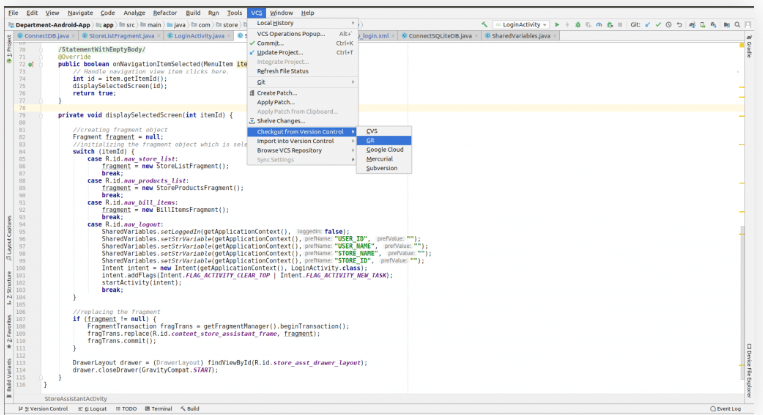
This option allows you to retrieve a project from a remote Git repository and create a local copy on your computer.
Note: If you are cloning a repository that already exists on GitHub, you do not need to create a local Git repository first. You can clone the remote repository directly.
Step 3: Configure the Local Repository
In the original workflow, the next step is to configure a local repository.
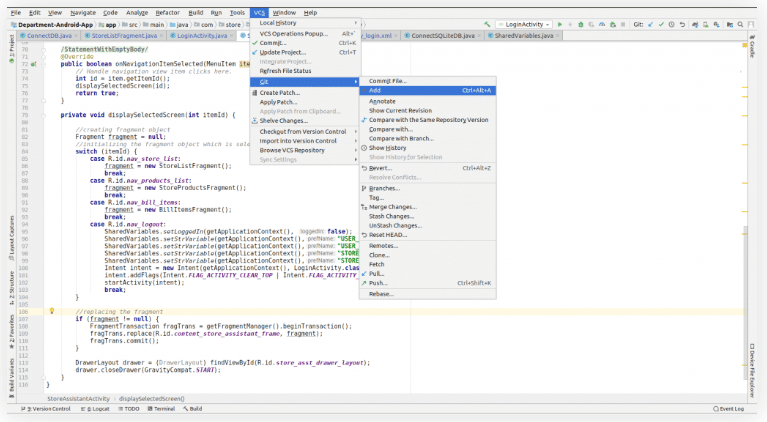
The Git options in Android Studio may include actions such as Add, Commit, Push, and Clone.
The Add option is used to stage files for a commit in an existing Git repository. It does not create a local repository by itself. If you are importing an existing project from GitHub, use the clone workflow instead.
Step 4: Clone the Git Repository
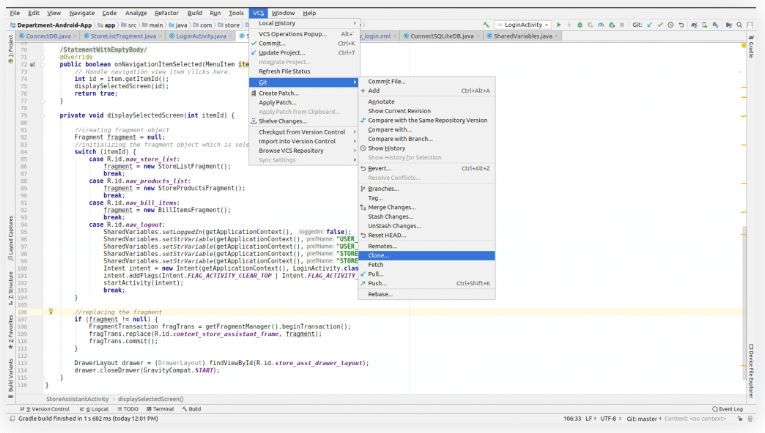
Select the Git → Clone option, or use Android Studio’s Get from VCS option if it is available in your version.
You will be prompted to enter the repository details.
Cloning downloads the repository files and creates a local copy of the project, including its Git history.
Step 5: Authenticate with GitHub
If the repository requires authentication, sign in using the authentication method supported by your Git hosting account and Android Studio version.
The original tutorial demonstrates using the Login GitHub option.
For private repositories, ensure that your account has the necessary access permissions. Depending on your setup, authentication may use a browser login, personal access token, or SSH key.
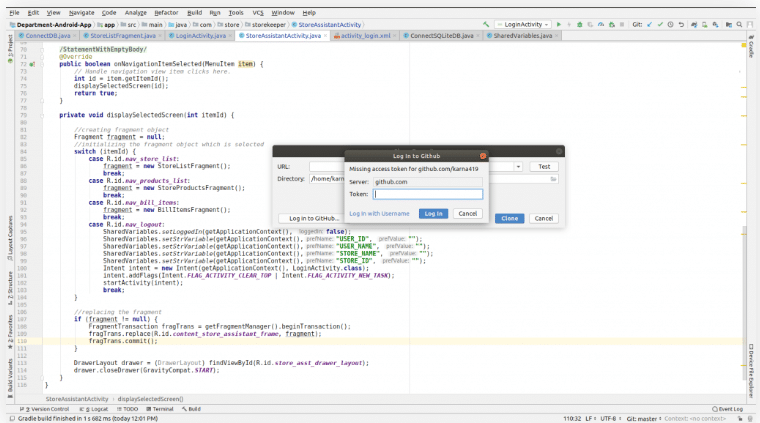
Step 6: Enter the Repository URL and Clone the Project
Copy the repository URL from GitHub and paste it into the URL field in Android Studio.
For example:
https://github.com/username/repository-name.git
Replace username and repository-name with the actual values for your repository.
Choose a local directory where the project should be stored, then click Clone.
Wait for Android Studio to finish downloading the repository. If Android Studio asks whether you want to open the cloned project, select Yes or the equivalent option.
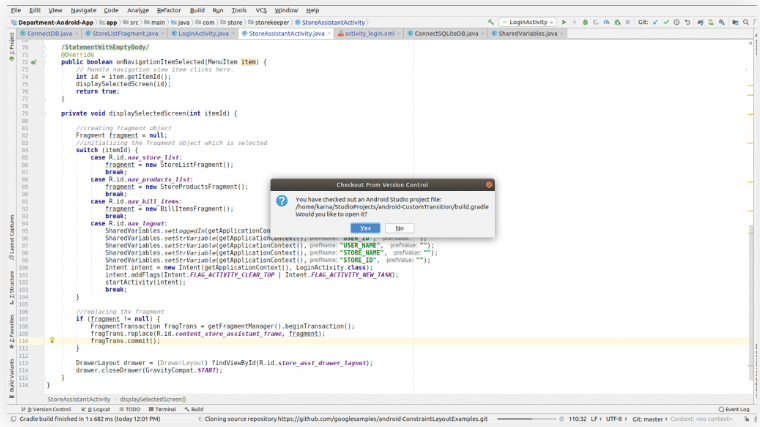
Important: The original article mentions copying the URL from GitLab in this step, although the tutorial title refers to GitHub. Use the URL from the actual hosting platform where your repository is stored. Both GitHub and GitLab support Git repositories.
Step 7: Open the Cloned Project
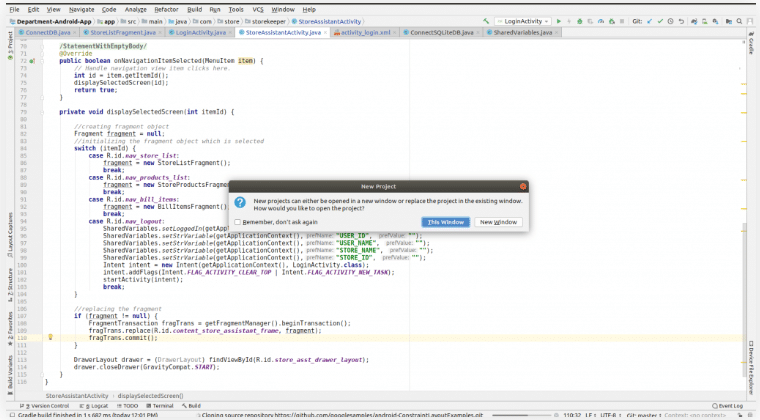
After cloning completes, Android Studio may display a confirmation or project-opening prompt.
Choose the appropriate option to open the cloned project in the IDE.
Android Studio will load the project files. If it prompts you to sync Gradle or download required dependencies, allow the process to complete before building the application.
Step 8: Verify the Imported Project
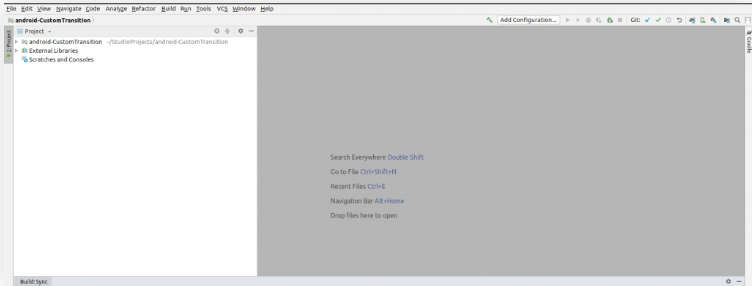
Once the project is opened, check the project structure and confirm that the source files are available.
You should now be able to inspect the code, edit files, build the application, and manage changes through Git.
If the project fails to build, check the Gradle configuration, required SDK versions, and any dependencies specified by the project.
Conclusion
In this tutorial, we learned how to import a project from GitHub into Android Studio by configuring Git integration, authenticating with the hosting account, cloning the repository, and opening the project locally.
This workflow helps developers access existing code, collaborate with team members, and continue development using Android Studio’s built-in Git tools.
Frequently Asked Questions
1. How do I import a GitHub project into Android Studio?
Open Android Studio, select Get from VCS or the Git clone option, enter the repository URL, choose a local directory, and clone the project.
2. Do I need a GitHub account to clone a repository?
A public repository can generally be cloned without signing in. A private repository requires appropriate permissions and authentication.
3. What is the difference between Git and GitHub?
Git is a version control system used to track changes in source code. GitHub is a hosting platform that stores Git repositories and provides collaboration features.
Related Articles
- How to Create Your First Project in Android Studio
- How to Add Another Activity to an Existing Android Studio Project
Talk to Our Experts
Need help with Android Studio, Git integration, or source code management? Our experts can help you find the right solution for your development requirements.
Get in touch with us: Contact our team