
Post Date: March 12, 2019
Last Updated: October 13, 2026
Introduction
In this tutorial, we will learn how to add another activity to an existing Android Studio project.
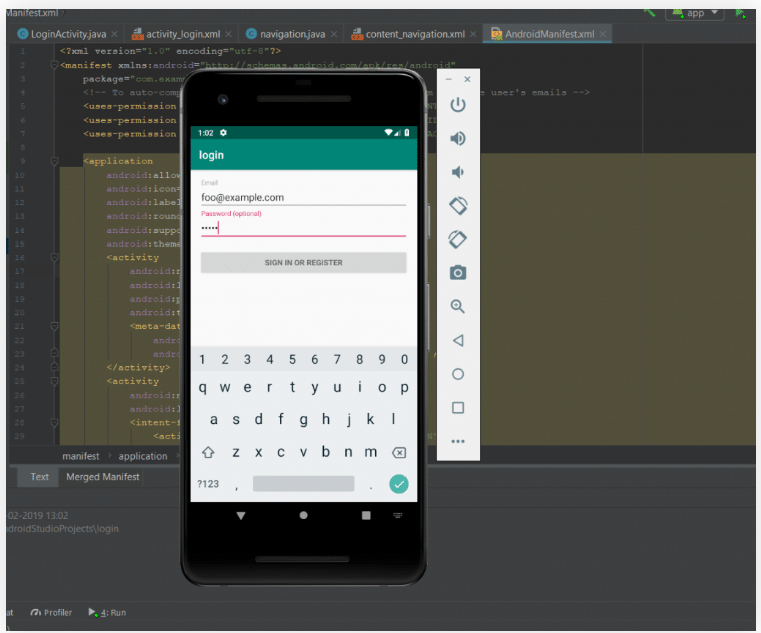
For this example, we will use a login activity as the first screen. When the user clicks the login button, the application should redirect to another activity called Navigation Activity, which contains a navigation drawer menu.
We will create the Navigation Activity, configure the required settings, connect the button to the new activity, and run the application on an Android emulator.
Prerequisites
Before starting, make sure you have:
- Android Studio installed on your computer.
- An existing Android Studio project with a Login Activity.
- An Android emulator configured in Android Studio.
- Basic knowledge of Android activities and XML layouts.
If you have not created your first Android Studio project yet, follow this tutorial:
How to Create Your First Project in Android Studio
Steps to Add Another Activity in Android Studio
Step 1: Open the Existing Android Project
First, open your existing Android Studio project containing the Login Activity.
The login screen will be the first activity displayed when the application starts.
Step 2: Create a Navigation Drawer Activity
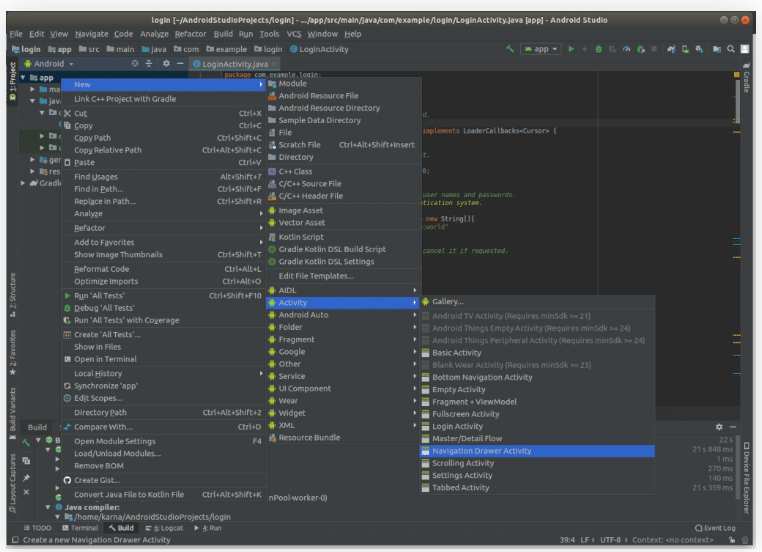
In Android Studio, locate the app folder in the Project panel.
Right-click the app folder and select:
New → Activity → Navigation Drawer Activity
Android Studio will open a configuration window for creating the new activity.
Step 3: Configure the New Activity
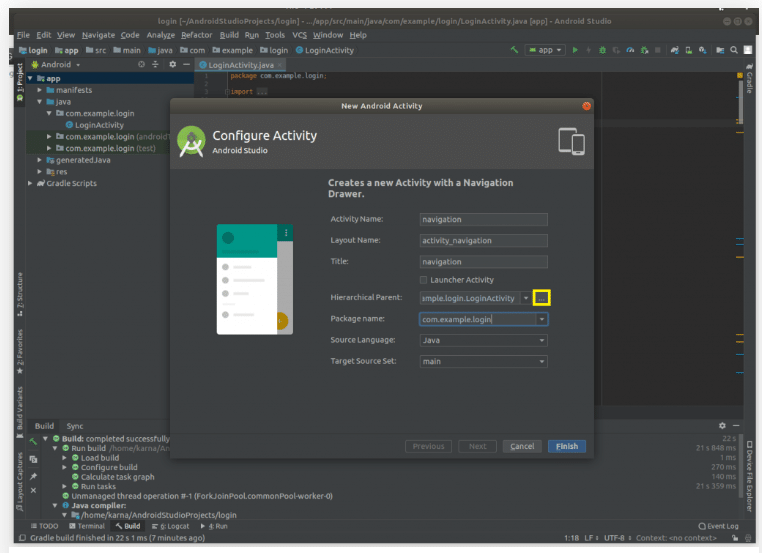
In the configuration window, enter the required activity details.
- Activity Name: Enter the name for the Navigation Activity.
- Parent Activity: Select the Login Activity as the parent, as shown in the original tutorial.
- Review the remaining settings and click Finish.
Android Studio will generate the files required for the new Navigation Drawer Activity.
Step 4: Check the AndroidManifest.xml File
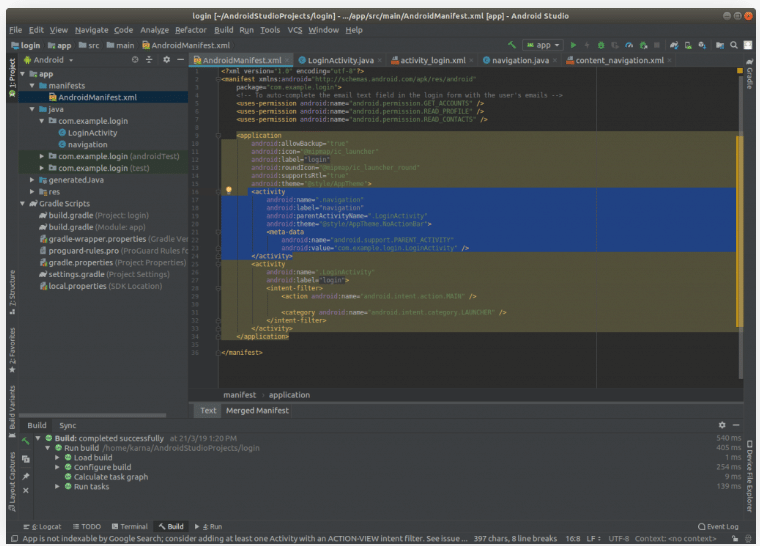
After creating the new activity, open the AndroidManifest.xml file.
Check the activity declarations generated by Android Studio. The manifest should contain an entry for the newly created activity.
The original tutorial also shows the parent activity configuration at this stage.
Note: The manifest registers activities in the application. The parent activity setting is used for navigation relationships and does not, by itself, make the new activity open when the login button is clicked.
Step 5: Add the sendMessage() Method to the Login Activity
Open the Java file for your Login Activity.
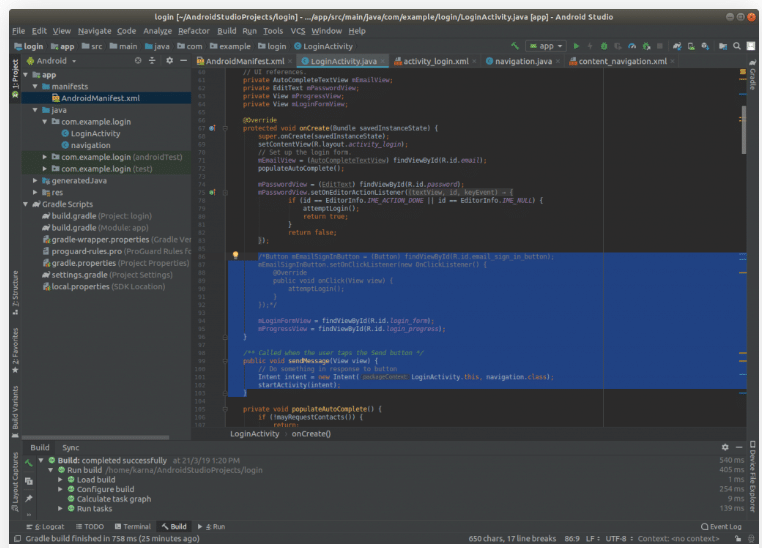
Add a sendMessage() method below the onCreate() method. This method will handle the button click and open the Navigation Activity.
The original tutorial demonstrates adding the method stub through Android Studio. If the IDE shows an error or offers a quick fix, place the cursor on the highlighted code and press Alt + Enter to review the available suggestions.
The method should start the Navigation Activity using an explicit Intent. For a Java-based Android project, the basic implementation is:
public void sendMessage(View view) {
    Intent intent = new Intent(LoginActivity.this, NavigationActivity.class);
    startActivity(intent);
}
Replace LoginActivity and NavigationActivity with the actual class names in your project. Make sure the required Intent and View imports are available.
Step 6: Connect the Login Button to sendMessage()
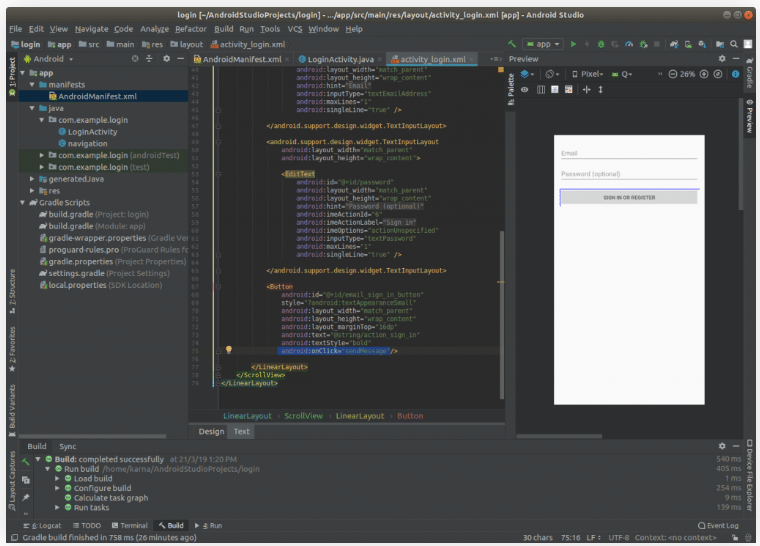
Open the Login Activity’s XML layout file, identified as activity_login.xml in the original tutorial.
Find the login button and add the android:onClick attribute:
android:onClick="sendMessage"
For example:
<Button
    android:id="@+id/button"
    android:layout_width="wrap_content"
    android:layout_height="wrap_content"
    android:text="Sign in or Register"
    android:onClick="sendMessage" />
When the user clicks this button, Android calls the sendMessage() method defined in the activity.
Step 7: Configure the Navigation Activity
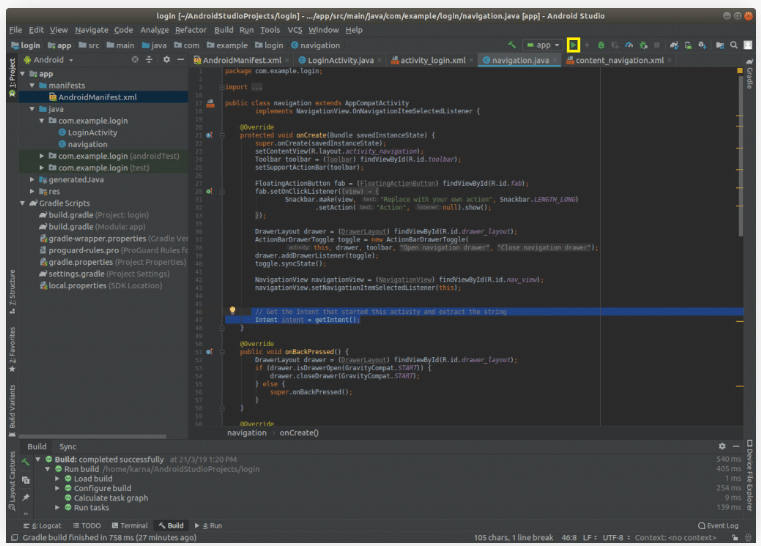
Open the Java file for the Navigation Activity.
The original tutorial shows adding the following line:
Intent intent = getIntent();
This retrieves the Intent used to start the activity. Place the statement inside an appropriate method, such as onCreate(), after the activity has been initialized.
For example:
@Override
protected void onCreate(Bundle savedInstanceState) {
    super.onCreate(savedInstanceState);
    setContentView(R.layout.activity_navigation);

    Intent intent = getIntent();
}
Make sure the layout resource name matches the layout generated for your activity. Retrieving the Intent is only necessary if you need to access information passed to the activity; it does not itself perform the redirection.
Step 8: Run the Android Application
After completing the configuration:
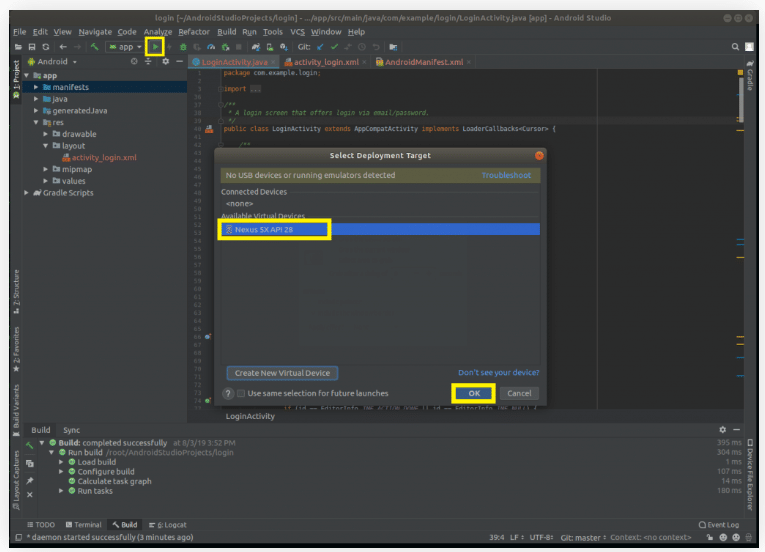
- Click the Run button in Android Studio.
- Select your configured Android emulator.
- Click OK or Run, depending on the displayed dialog.
- Wait for the application to build and launch.
The application should open with the Login Activity.
The login screen will be displayed on the emulator.
After clicking the Sign in or Register button, the application should redirect to the Navigation Activity.
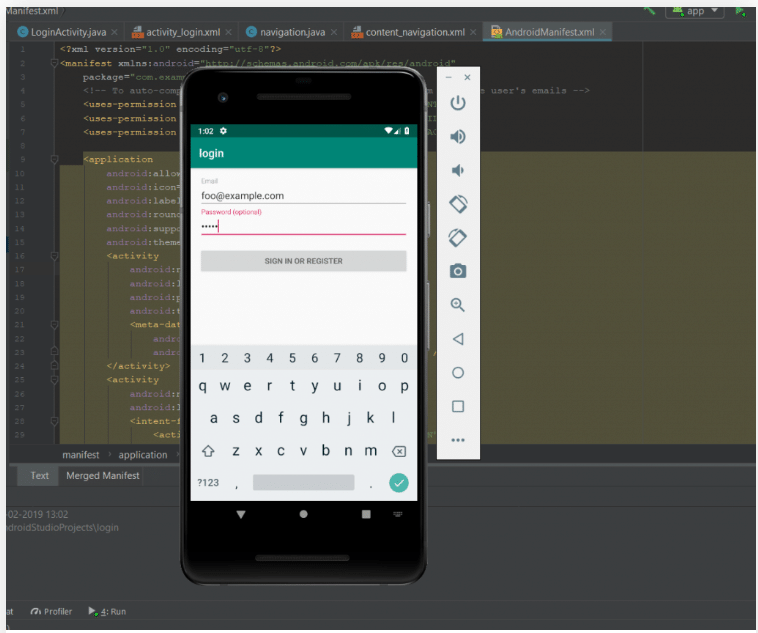
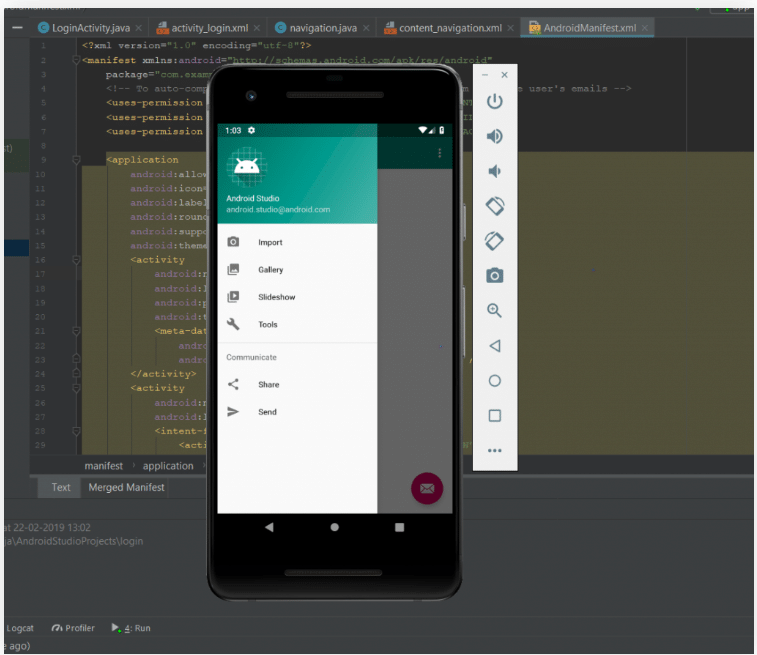
Expected Output
The application starts with the login activity. When the user clicks the login button, the sendMessage() method starts the Navigation Activity using an explicit Intent.
This demonstrates how to connect two activities within an existing Android Studio project.
Frequently Asked Questions
1. What is an Activity in Android Studio?
An Activity represents a screen in an Android application. For example, a login screen and a navigation screen can be implemented as separate activities.
2. How do I open another activity when a button is clicked?
Create an explicit Intent that identifies the destination activity and call startActivity(intent) from the button’s click handler.
3. What is the purpose of AndroidManifest.xml?
The AndroidManifest.xml file declares application components, including activities, and provides important configuration information for the Android application.
4. What does the getIntent() method do?
The getIntent() method retrieves the Intent that started the current activity. It can be used to access extras or other information passed from the previous activity.
5. Can I add more activities to an existing Android project?
Yes. You can create additional activities using Android Studio and connect them using intents, buttons, or other navigation mechanisms.
Conclusion
In this tutorial, we learned how to add a Navigation Drawer Activity to an existing Android Studio project and connect it to a Login Activity.
By creating the new activity, checking the manifest configuration, adding the sendMessage() method, and connecting the login button, you can navigate from one screen to another in an Android application.
Related Articles
- How to Create Your First Project in Android Studio
- How to Run an Android Studio Project/App on an Emulator
Talk to Our Experts
Need help with Android application development or configuring your Android Studio project? Our experts can help you find the right solution for your business.
Get in touch with us: Contact our team