
How to Enable Hardware Virtualisation on Windows 10 machine
Date: 19-06-2021
Step 1: Reboot your computer and login to BIOS mode. Normally, BIOS settings can be accessed using the function keys (F1, F2, F3, F10, or F12) during boot. Some computers are using ESC or Delete key to login BIOS mode.
Step 2: Select the CPU configuration section in BIOS mode and find the settings for Virtualization and select the option for enabling virtualization.
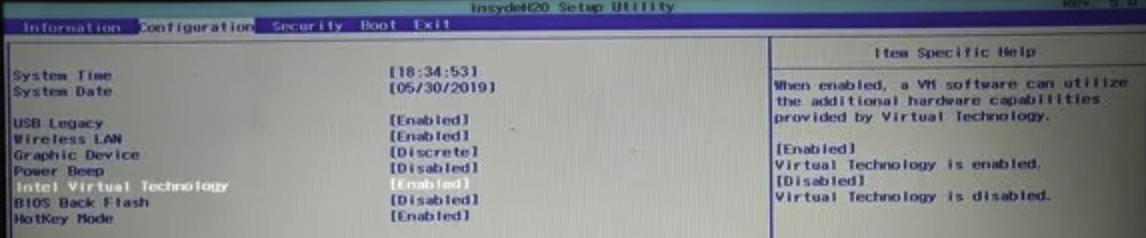
Step 4: Press F10 key to save the changes and exit your BIOS mode and reboot your computer.
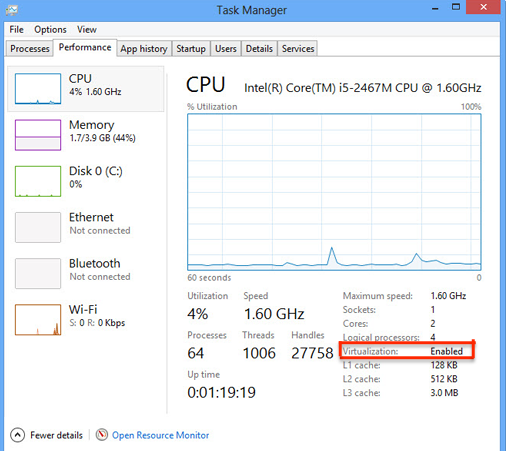
Step 4: Once you login to windows10, Press the Windows key and enter Task Manager in search box and click on Performance to verify the Virtualization status. You can see enable in Virtualization on CPU section.
Thank you!