

Post Date: May 15, 2019
Last Updated: October 22, 2026
Introduction
This guide explains how to install Go on CentOS 7. Go, often called Golang, is an open source programming language created by Google. Many well-known tools, including Docker, Kubernetes, and Hugo, are written in it. If you’re looking for how to install Golang on CentOS 7, the tarball method below is the one Go’s own documentation recommends.
The original guide used Go 1.12.5, which is long out of date. The steps below use a <VERSION> placeholder so you always install a current release. I also added three things the original left out: removing any old Go installation first, comparing the checksum against the published value, and checking that the install actually works.
Note: CentOS 7 reached end-of-life in June 2024. To install Go on CentOS 7 today, these steps still work, and since Go comes as a standalone tarball, the same steps also work on AlmaLinux, Rocky Linux, and most other Linux distributions.
Prerequisites
Before you install Go on CentOS 7, make sure you have:
- Root or sudo access
wgetorcurlinstalled- The current Go version number, from the official Go downloads page
Architecture
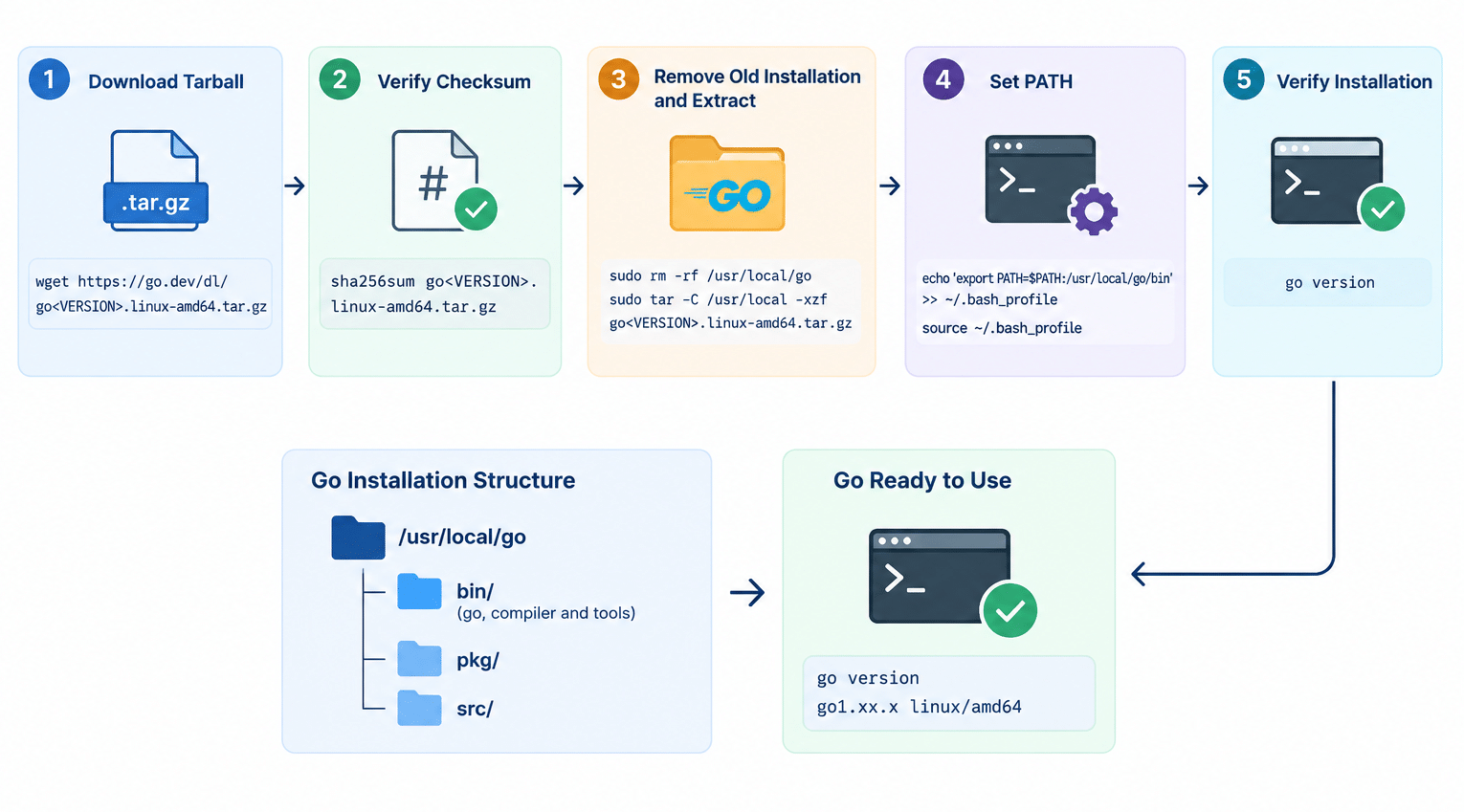
- Go ships as a self-contained toolchain. Extracting the tarball puts everything in one folder,
/usr/local/go - The
gocommand, the compiler, and other tools live in/usr/local/go/bin. Your shell can only run them if that folder is in yourPATH - When you run
go build, the toolchain compiles your source code into a standalone binary that you can copy to another server and run - Because it’s just a tarball, you can install Golang on CentOS 7 without touching the system package manager
The image below shows what happens when you install Go on CentOS 7, from the downloaded tarball to a working go command:
For the official reference, see Go’s installation instructions.
Steps to Install Go on CentOS 7
1. Download the Tarball
Check the downloads page for the current version, then download it:
wget https://go.dev/dl/go<VERSION>.linux-amd64.tar.gz
Replace <VERSION> with the version number shown on the page.
2. Verify the Checksum
sha256sum go<VERSION>.linux-amd64.tar.gz
Compare the output with the SHA256 value listed beside that file on the downloads page. They must match exactly. If they don’t, delete the file and download it again.
Note: The original guide showed a checksum output but never said to compare it against anything. A checksum only protects you if you check it against the published value. Its sample hash also belonged to Go 1.12.5, so it won’t match any other version.
3. Remove Any Old Installation and Extract
Remove a previous Go installation first, if there is one:
sudo rm -rf /usr/local/go
Then extract the new tarball into /usr/local:
sudo tar -C /usr/local -xzf go<VERSION>.linux-amd64.tar.gz
Note: Go’s documentation warns against extracting a new version over an existing
/usr/local/gofolder. Mixing old and new files can leave you with a broken installation, so always delete the old folder first. Once the archive is extracted, the main work to install Go on CentOS 7 is done. The rest is making the command available.
4. Set the Go PATH Environment Variable
Setting the Go PATH environment variable tells your system where to find the Go binaries. For your own user:
echo 'export PATH=$PATH:/usr/local/go/bin' >> ~/.bash_profile
source ~/.bash_profile
For every user on the system, add that same export PATH=$PATH:/usr/local/go/bin line to /etc/profile instead.
5. Verify the Installation
The original guide stopped before this step. Confirm Go runs and reports the version you installed:
go version
6. Run a Test Program (Optional)
After you install Go on CentOS 7, a small program confirms the whole toolchain works:
mkdir -p ~/hello && cd ~/hello
go mod init hello
cat > main.go << 'EOF'
package main

import "fmt"

func main() {
    fmt.Println("Hello, Go on CentOS 7")
}
EOF
go run .
You should see Hello, Go on CentOS 7 printed.
Troubleshooting
If you can’t install Go on CentOS 7 cleanly, check these:
go: command not found: the Go PATH environment variable hasn’t loaded. Runsource ~/.bash_profileor open a new session, then check withecho $PATH- An old version still runs: another Go earlier in your
PATH, often one installed withyum install golang, is taking priority. Find it withwhich -a goand remove the old package withsudo yum remove golang - Permission denied while extracting: writing to
/usr/localneedssudo - Strange build errors after upgrading: you probably extracted over an old installation. Remove
/usr/local/goand extract again
Conclusion
To install Go on CentOS 7, download the current tarball, verify its checksum against the published value, remove any old copy, extract it to /usr/local, and add /usr/local/go/bin to your PATH. Finish with go version to confirm it works. Because the process uses a plain tarball, it’s the same on any Linux distribution, so it carries over if you later move to AlmaLinux, Rocky Linux, or Ubuntu.
Frequently Asked Questions
Is the tarball the best way to install Go on CentOS 7? It’s the method Go’s own documentation recommends, and it gets you a current release. Distribution packages such as the one yum install golang provides often lag well behind the latest Go version.
Do I need root to install Go on CentOS 7? You need it to extract into /usr/local. Without root, you can extract to a folder in your home directory and add that folder’s bin directory to your PATH instead.
Can I install Golang on CentOS 7 with yum? You can, but the version is usually old. Use the tarball steps above for a current release.
How do I upgrade Go later? Repeat Steps 1 to 3 with the new version number. Remove /usr/local/go first, extract the new tarball, and run go version to confirm. Your PATH setting doesn’t need to change.
Related Articles
How to install MySQL 8.0 on CentOS 7
How to Install OpenVZ 7 on CentOS 7
Talk to Our Technology Experts
Building Go applications or setting up development and deployment environments? Our team can help with Go development, server setup, CI/CD pipelines, and ongoing DevOps support.
Connect with our technology experts.