
Post Date:
Last Updated: November 19, 2026
Introduction
Core Web Vitals are the three metrics Google uses to measure how fast, responsive, and stable your website feels to real visitors. In 2026 they still shape both user experience and search visibility: a slow hero image, a laggy button, or a page that jumps while it loads can cost you rankings, leads, and sales.
In this guide, you will learn what each Core Web Vital measures, how to check your scores, and 7 practical ways to speed up your website, with ready-to-use code for images, layout, fonts, JavaScript, and caching.
Key takeaways:
- Three metrics matter: Largest Contentful Paint (LCP) for loading, Interaction to Next Paint (INP) for responsiveness, and Cumulative Layout Shift (CLS) for visual stability.
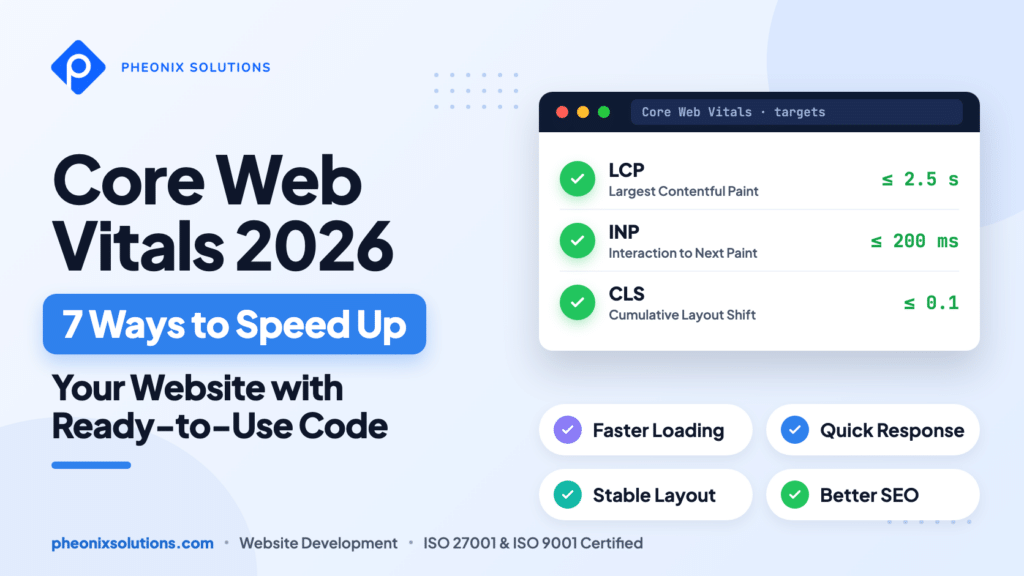
- Know the targets: LCP within 2.5 seconds, INP of 200 milliseconds or less, and CLS of 0.1 or less, for at least 75% of page visits.
- Measure before you fix: use PageSpeed Insights, Lighthouse, and the web-vitals library to find what is actually slow.
- Small changes add up: image priority, reserved space, smarter font loading, lighter JavaScript, and caching fix most problems.
At Pheonix Solutions, we build fast, responsive business websites, and these are the same checks we run before every launch.
On This Page
Why Core Web Vitals Matter in 2026
Core Web Vitals are part of Google’s page experience signals, so they influence how your pages compete in search. More importantly, they reflect what visitors actually feel. When the main content takes too long to appear, when a tap does not respond, or when a button moves just as someone tries to click it, people leave.
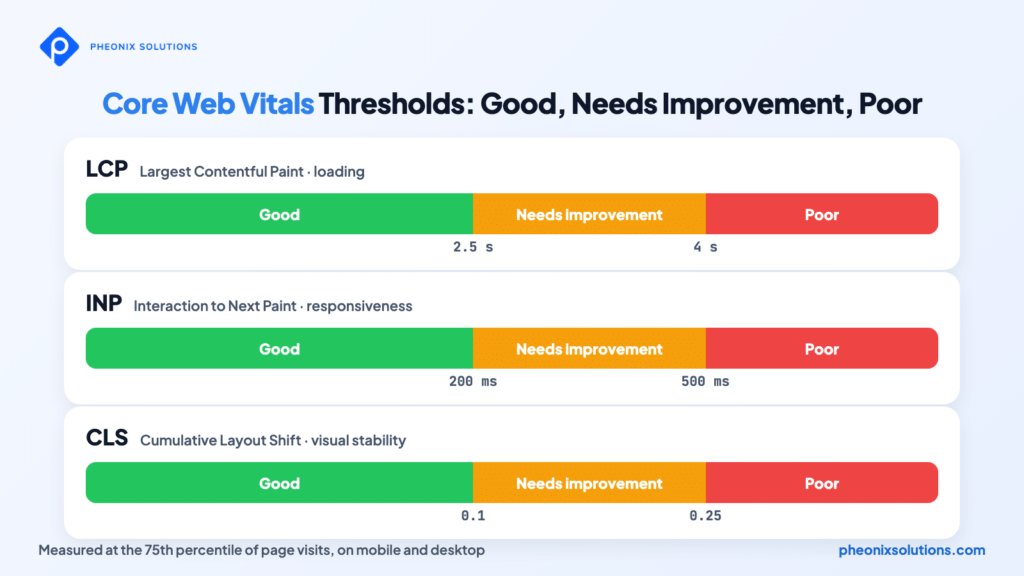
- LCP (Largest Contentful Paint): how long the largest image or text block takes to appear. Good: 2.5 seconds or less. Poor: more than 4 seconds.
- INP (Interaction to Next Paint): how quickly the page responds to clicks, taps, and key presses. Good: 200 milliseconds or less. Poor: more than 500 milliseconds.
- CLS (Cumulative Layout Shift): how much the layout moves unexpectedly while the page loads. Good: 0.1 or less. Poor: more than 0.25.
INP replaced First Input Delay (FID) as a Core Web Vital in 2024, so any guide that still talks about FID is out of date. A page passes only when all three metrics are in the good range at the 75th percentile of visits, measured separately for mobile and desktop.
Prerequisites for Improving Core Web Vitals
Before you start, make sure you have the following ready:
- Access to your website’s code or theme files, and to the web server configuration for the caching step.
- Google Chrome (latest version) for DevTools and Lighthouse.
- A current LTS version of Node.js if you want to run Lighthouse from the command line.
- Access to Google Search Console for your domain (optional, for real-user data).
- Basic knowledge of HTML, CSS, and JavaScript.
7 Ways to Speed Up Your Website and Improve Core Web Vitals
Each step below targets one or more Core Web Vitals. Start with Step 1 to find your biggest problem, then apply the fixes that match it.
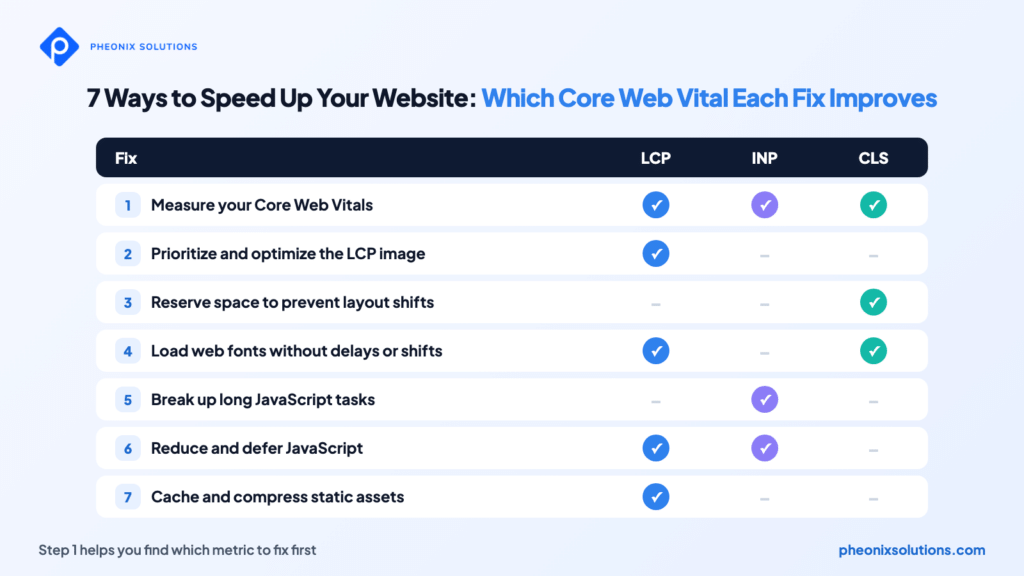
Step 1: Measure Your Core Web Vitals
Start with PageSpeed Insights. Enter your page URL and it shows two kinds of data: field data from real Chrome users over the last 28 days, and lab data from a single Lighthouse test. Google uses field data; lab data helps you debug.
To run Lighthouse from the terminal and open the report in your browser:
npx lighthouse https://www.example.com --only-categories=performance --viewTo collect Core Web Vitals from your own visitors, install the official web-vitals library:
npm install web-vitalsimport { onCLS, onINP, onLCP } from 'web-vitals';
function sendToAnalytics(metric) {
const body = JSON.stringify(metric);
// Use sendBeacon when available, so data is sent even if the page closes
(navigator.sendBeacon && navigator.sendBeacon('/analytics', body)) ||
fetch('/analytics', { body, method: 'POST', keepalive: true });
}
onCLS(sendToAnalytics);
onINP(sendToAnalytics);
onLCP(sendToAnalytics);Note: Replace /analytics with your own endpoint or analytics tool. Run Lighthouse in an incognito window so browser extensions do not skew the result, and remember that lab scores change between runs and devices.
Step 2: Prioritize and Optimize the LCP Image
On most pages, the LCP element is a hero image or banner. Make sure the browser finds it early and downloads it before anything else:
<img
  src="/images/hero-1200.avif"
  srcset="/images/hero-800.avif 800w, /images/hero-1200.avif 1200w, /images/hero-1600.avif 1600w"
  sizes="(max-width: 800px) 100vw, 1200px"
  width="1200" height="630"
  alt="Team reviewing a fast-loading business website"
fetchpriority="high">fetchpriority="high"tells the browser to download this image first.- Never lazy-load the LCP image. Use
loading="lazy"only for images below the fold. - Use modern formats such as AVIF or WebP, and let
srcsetpick the right size for each screen.
If the LCP image is set as a CSS background, the browser discovers it late. Preload it in the <head>:
<link rel="preload" as="image" href="/images/hero-1200.avif" fetchpriority="high">Step 3: Reserve Space to Prevent Layout Shifts
CLS happens when content arrives late and pushes everything else down the page. Always tell the browser how much space to keep:
/* Images and videos keep their shape while loading */
img, video {
  max-width: 100%;
  height: auto;
}

/* Reserve space for an embed or ad slot before it loads */
.ad-slot {
  min-height: 250px;
}

/* Keep a fixed ratio for responsive iframes */
.video-embed {
  aspect-ratio: 16 / 9;
  width: 100%;
}
Set width and height on every image, as in Step 2. Avoid inserting banners or cookie notices above existing content, and animate with transform instead of changing top, left, or height.
Step 4: Load Web Fonts Without Delays or Shifts
Fonts often delay the largest text block and cause a jump when they finish loading. Preload your main font and let text appear immediately:
<link rel="preload" href="/fonts/inter-var.woff2" as="font" type="font/woff2" crossorigin>@font-face {
font-family: "Inter";
src: url("/fonts/inter-var.woff2") format("woff2");
font-weight: 100 900;
font-display: swap;
}Self-host your fonts in WOFF2 format and load only the weights you use. With font-display: swap, visitors see text in a fallback font straight away instead of a blank space.
Note: If the switch from the fallback font causes a visible jump, choose a fallback with similar letter widths, or use font-display: optional for body text so the layout never changes after the first paint.
Is a slow website costing you visitors? Our web development team audits Core Web Vitals and fixes the LCP, INP, and CLS issues that hold your pages back. Talk to our website performance experts for a free consultation.
Step 5: Break Up Long JavaScript Tasks to Improve INP
INP gets worse when a click handler runs a long task that blocks the main thread. Show visible feedback first, then yield to the browser before the heavy work:
// Give the browser a chance to paint and handle other input
function yieldToMain() {
  if (globalThis.scheduler?.yield) {
    return scheduler.yield();
  }
  return new Promise((resolve) => setTimeout(resolve, 0));
}

button.addEventListener('click', async () => {
  showLoadingState();          // 1. Visible feedback first
  await yieldToMain();         // 2. Let the browser paint it

  const results = filterProducts(); // 3. Heavy work afterwards
  await yieldToMain();
  renderResults(results);
});
Use the Performance panel in Chrome DevTools to find long tasks, and check third-party scripts such as chat widgets and trackers, which often cause poor INP.
Step 6: Reduce and Defer JavaScript
Every script has to be downloaded, parsed, and executed. Load only what the page needs straight away and defer the rest:
<!-- Runs after the HTML is parsed, without blocking rendering -->
/js/app.js

<!-- Independent third-party script -->
https://analytics.example.com/tag.js
In a React app, split heavy components into separate bundles so they load only when needed:
import { lazy, Suspense } from 'react';

// The chart code is downloaded only when this component renders
const SalesChart = lazy(() => import('./SalesChart'));

export default function Dashboard() {
  return (
    <Suspense fallback={<p>Loading chart…</p>}>
      <SalesChart />
    </Suspense>
  );
}
Remove libraries and plugins you no longer use, and open the Coverage tab in Chrome DevTools to see how much of each script is never executed.
Step 7: Cache and Compress Static Assets
Returning visitors should not download the same files twice. On an Nginx server, enable compression and long caching for static files:
# Compress text-based files
gzip on;
gzip_types text/css application/javascript application/json image/svg+xml;

# Cache versioned static files for one year
location ~* \.(css|js|woff2|avif|webp|png|jpg|svg)$ {
    expires 1y;
    add_header Cache-Control "public, immutable";
}
Test the configuration and reload Nginx:
sudo nginx -t && sudo systemctl reload nginxNote: Use a one-year cache only for versioned file names, such as app.3f9a2c.js, so each deployment changes the URL. Always run nginx -t before reloading, and serve the site through a CDN for visitors far from your server.
Output
After deploying your changes, replace sendToAnalytics with console.log in the Step 1 snippet to see each metric in the browser console. Every metric reports its value and a rating:
{ name: 'LCP', value: 1840, rating: 'good', ... }
{ name: 'CLS', value: 0.04, rating: 'good', ... }
{ name: 'INP', value: 120, rating: 'good', ... }
The values above are an example; your numbers depend on your site, device, and network. Field data in PageSpeed Insights and Search Console uses a rolling 28-day window, so allow a few weeks for it to reflect your changes.
Conclusion
Core Web Vitals turn website speed into three clear numbers that both visitors and Google care about. Measure first, fix the metric that fails, and measure again.
- Measure: PageSpeed Insights, Lighthouse, and the web-vitals library show where your pages fall short.
- Faster LCP: prioritize the hero image, use modern formats, and preload critical resources.
- Stable CLS: reserve space for images, embeds, and fonts.
- Better INP: break up long tasks and ship less JavaScript.
- Repeat visits: cache and compress static assets.
FAQs
1. What are the Core Web Vitals in 2026?
The Core Web Vitals are Largest Contentful Paint (LCP), Interaction to Next Paint (INP), and Cumulative Layout Shift (CLS). INP replaced First Input Delay (FID) in 2024.
2. Do Core Web Vitals affect SEO rankings?
Yes. They are part of Google’s page experience signals. Helpful content still matters most, but when pages are similar, a better experience can help, and faster pages also keep more visitors and convert better.
3. What is a good Core Web Vitals score?
Aim for LCP of 2.5 seconds or less, INP of 200 milliseconds or less, and CLS of 0.1 or less, for at least 75% of page visits on both mobile and desktop.
4. Why are my lab and field scores different in PageSpeed Insights?
Lab data comes from one simulated test on a set device and network. Field data comes from real visitors over 28 days, on many devices and connections. Use field data to judge your site and lab data to debug it.
5. How long does it take to see improvements?
Lab scores change as soon as you deploy. Field data in PageSpeed Insights and Search Console uses a rolling 28-day window, so full results usually appear within about four weeks.
Related Articles
- Architecting a Secure Authentication System for Modern Web Applications
- Building a Real-Time Notification System with Node.js, Socket.IO, and React
- Automating Application Deployment with Webhooks
- WordPress Website Protection: 7 Essential Steps
Official Documentation
- Web Vitals
- Optimize Largest Contentful Paint
- Optimize Interaction to Next Paint
- Optimize Cumulative Layout Shift
- PageSpeed Insights
- web-vitals JavaScript Library
Talk to Web Development Experts
A fast website is not a one-time task; every new feature, plugin, and script can slow it down again. At Pheonix Solutions, our team has more than 10 years of experience building and optimizing fast, responsive business websites that rank and convert.
We can help you with:
- Website development with Core Web Vitals built in from the first release.
- Performance audits that find and fix slow LCP, poor INP, and layout shifts on existing sites.
- DevOps and cloud services for caching, CDN setup, and server tuning.
- Software maintenance and support to keep your site fast after every update.
Is your website slower than it should be? Talk to our web development experts and get a free consultation on your Core Web Vitals.