Introduction
myLittleAdmin is a web-based management tool used to manage Microsoft SQL Server databases in a Windows hosting environment.
This guide explains how to install myLittleAdmin on a Plesk Windows server using the Plesk command-line interface and verify that the myLittleAdmin option is available from the Plesk panel.
Prerequisites
Before starting, make sure you have:
- RDP access to the Windows server.
- Plesk panel access.
- Administrative privileges on the server.
- Plesk is already installed and configured.
Implementation
Step 1: Connect to the Server Using RDP
Log in to the Windows server using Remote Desktop Protocol (RDP).
Step 2: Open Command Prompt
Open the Run dialog and type:
cmd
Press Enter to open Command Prompt.
Step 3: Navigate to the Plesk Binary Directory
In Command Prompt, run:
cd %plesk_bin%
This changes the current directory to the Plesk binary directory.
Step 4: Open the Plesk Installation Console
Run the following command:
ai.exe --console
The Plesk installation or component management console will open.
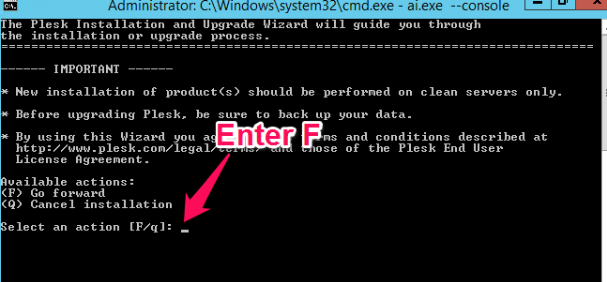
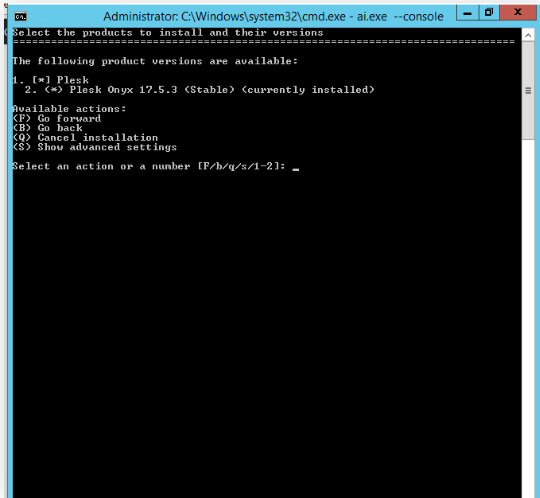
Step 5: Select the Plesk Version
The console will display the available Plesk version.
Press F to continue.
Step 6: Select myLittleAdmin
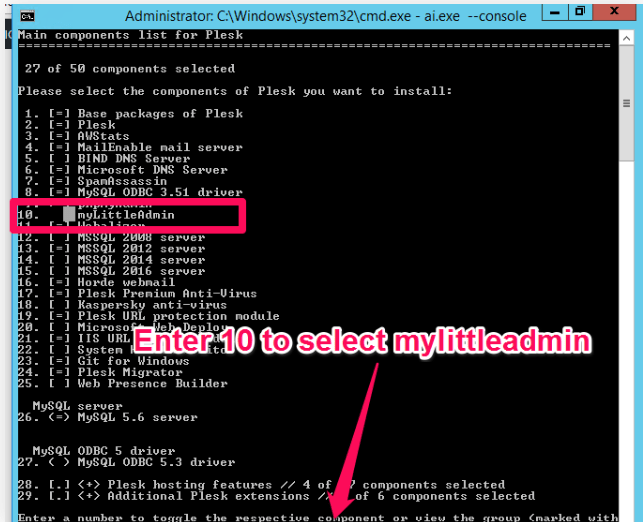
On the new console page, enter:
10
This selects myLittleAdmin from the available components.
Step 7: Continue the Installation
Press F to continue.
Plesk will proceed with the myLittleAdmin component installation.
Step 8: Verify myLittleAdmin in Plesk
Open the Plesk control panel in a browser:
https://IPaddress:8443
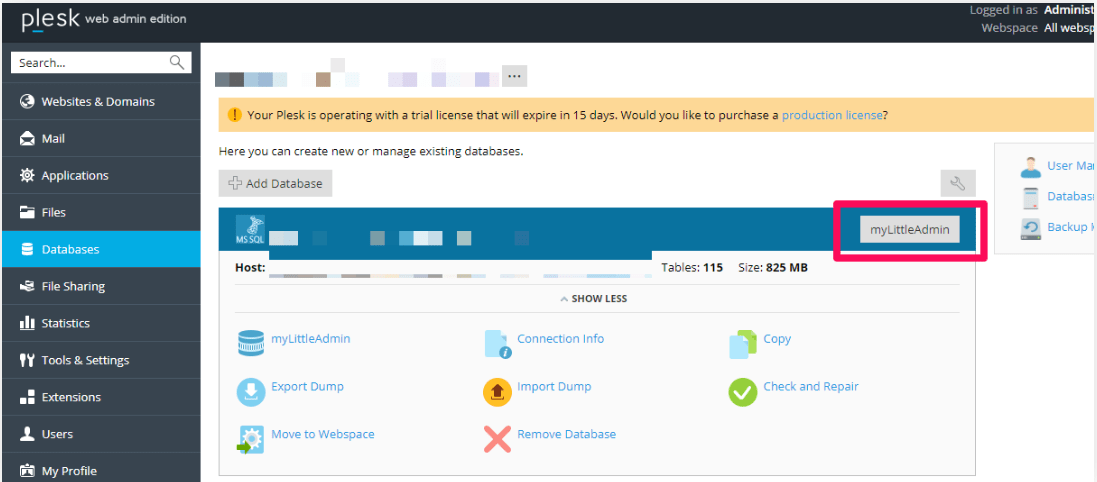
Navigate to the Database section.
After a successful installation, you should see the myLittleAdmin icon available for database management.
Conclusion
Installing myLittleAdmin on a Plesk Windows server provides a convenient web interface for managing Microsoft SQL Server databases.
The installation can be performed through the Plesk component management console using ai.exe --console. After completing the installation, you can verify the setup from the Database section of the Plesk control panel.
FAQs
1. What is myLittleAdmin used for?
myLittleAdmin is a web-based tool for managing Microsoft SQL Server databases in hosting environments.
2. How do I open the Plesk component console?
Open Command Prompt and run:
cd %plesk_bin%
ai.exe --console
3. How do I select myLittleAdmin during installation?
In the component selection screen, enter:
10
and press F to continue.
4. How can I verify that myLittleAdmin is installed?
Log in to Plesk using:
https://IPaddress:8443
Then open the Database section and check for the myLittleAdmin icon.
5. What access is required for this installation?
You need RDP access to the Windows server and Plesk panel access to complete and verify the installation.
Related Articles
Plesk Internal Server Error
Learn how to troubleshoot internal server errors in the Plesk control panel and identify common causes.
https://pheonixsolutions.com/blog/plesk-internal-server-error/
Plesk Windows Statistics Not Being Updated
Learn how to troubleshoot statistics-related issues when Plesk Windows is not updating website or account statistics.
https://pheonixsolutions.com/blog/plesk-windows-statistics-not-being-updated/
Talk to our experts.
Looking for the right technology solution for your business? Our team of experts can help you with development, cloud, DevOps, design, and a wide range of other technology needs. Get in touch with our team here.