
Introduction
Microsoft SQL Server normally uses TCP port 1433 for client connections. In some cases, SQL Server may be configured with a different port, or TCP/IP may not be enabled, which can prevent applications and remote clients from connecting to the database server.
In this article, we will configure Microsoft SQL Server to listen on port 1433, restart the SQL Server service, and verify that the port is listening correctly.
Prerequisites
Before starting, make sure you have:
- Microsoft SQL Server installed on the server.
- Administrative access to the Windows server.
- Access to SQL Server Configuration Manager.
- Access to Windows Services.
- Command Prompt access for verification.
Implementation
Step 1: Open SQL Server Configuration Manager
Open SQL Server Configuration Manager on the server.
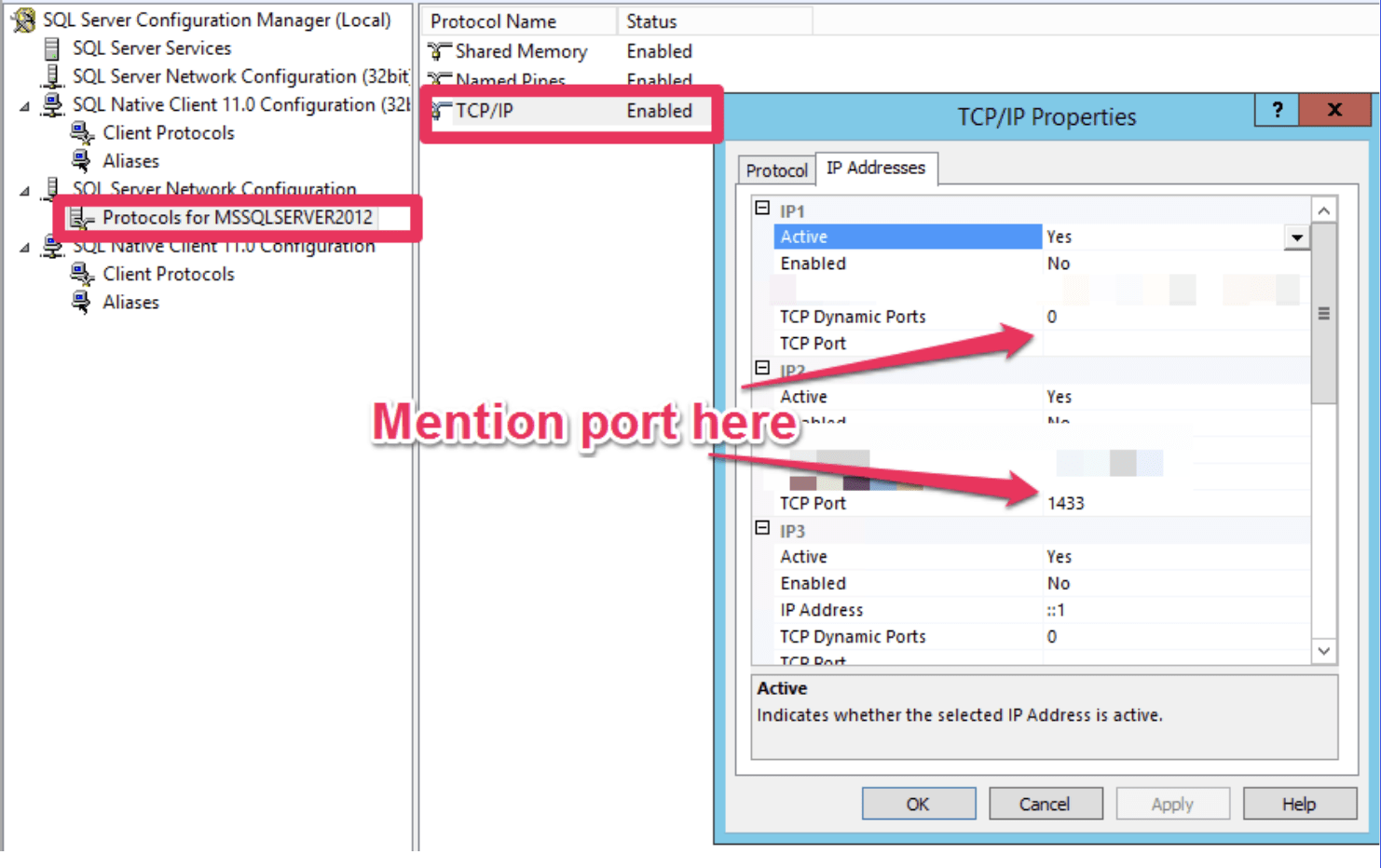
Navigate to the SQL Server network protocol settings:
SQL Server Network Configuration → Protocols for MSSQL
Step 2: Configure the TCP/IP Port
Locate the TCP/IP protocol and open its properties.
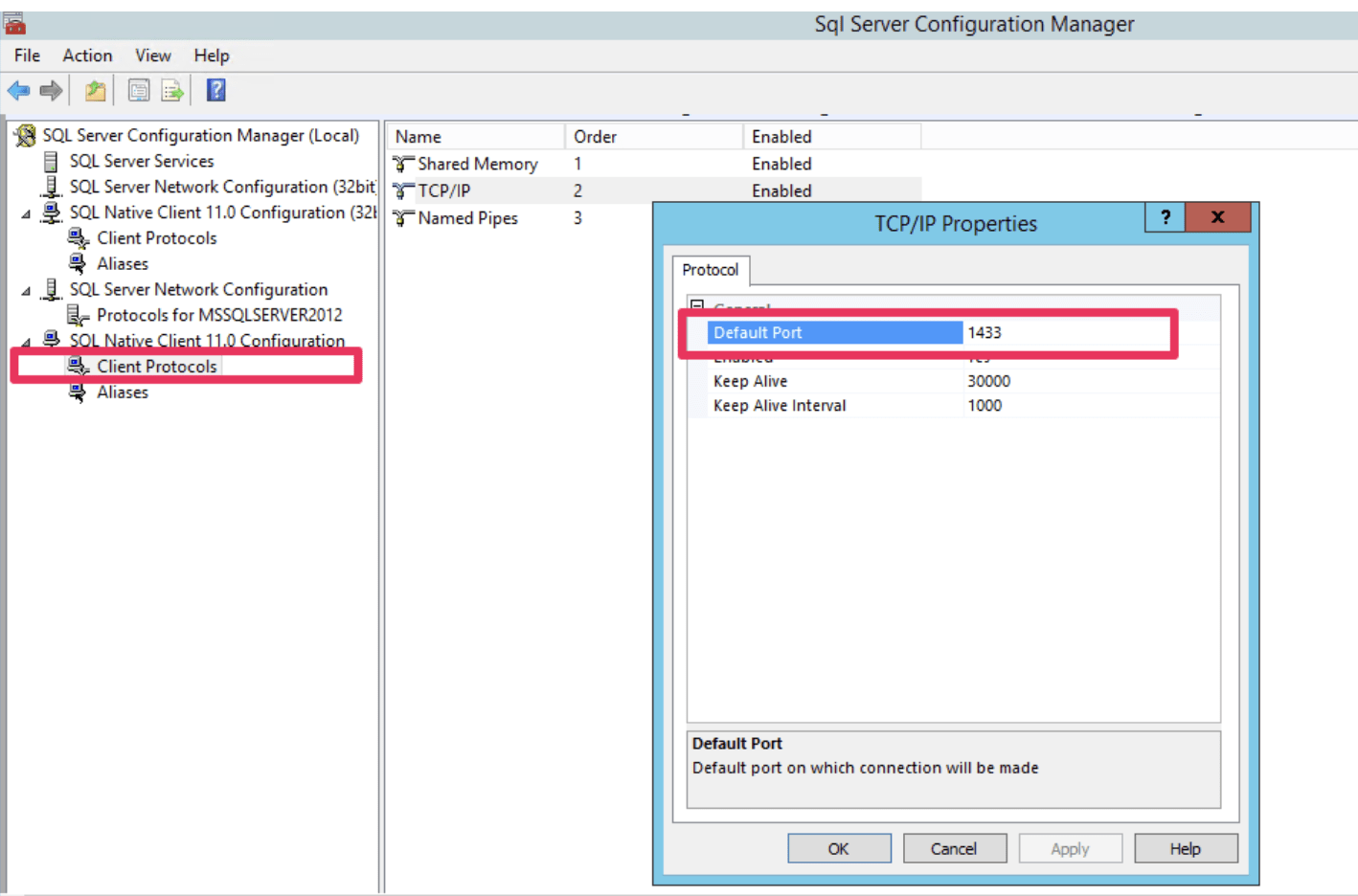
Configure the required TCP/IP settings and set the SQL Server port to:
1433
Ensure that the appropriate TCP/IP protocol is enabled and that port 1433 is configured for the SQL Server instance.
Step 3: Restart the SQL Server Service
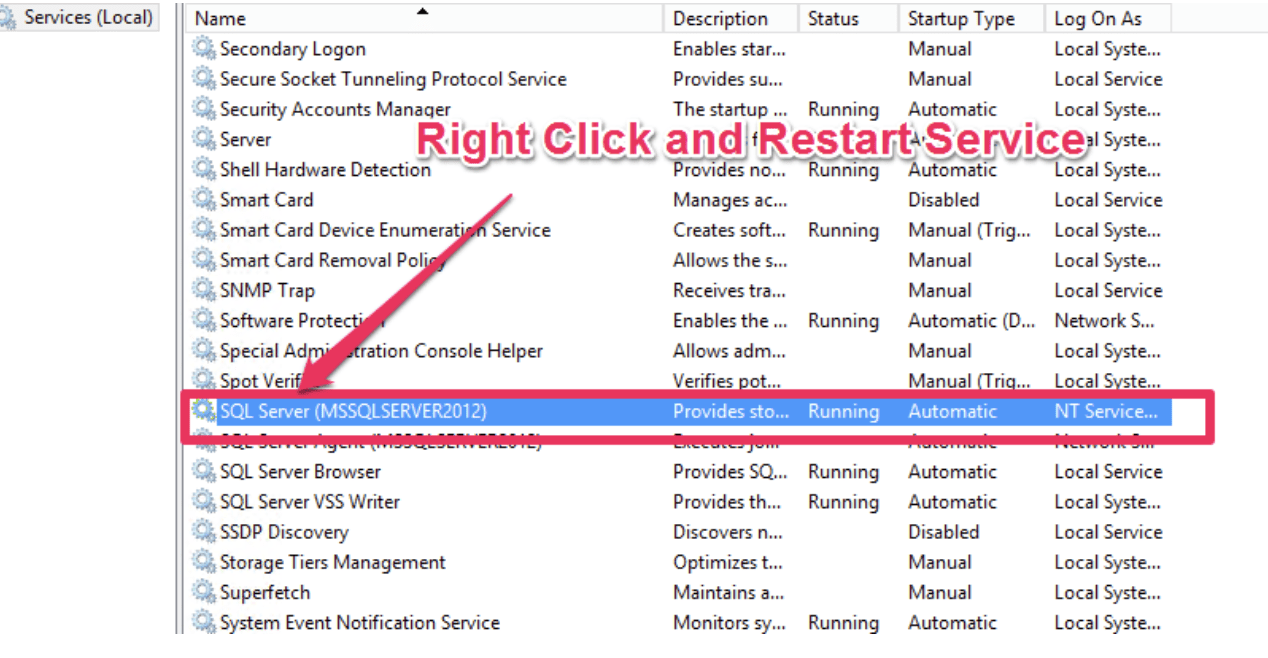
After making the port configuration changes, restart the SQL Server service so that the changes take effect.
Open the Windows Services console.
You can open it by pressing Win + R, entering:
services.msc
and pressing Enter.
Locate the SQL Server service and restart it.
Verification
After restarting the SQL Server service, verify whether the server is listening on port 1433.
Open Command Prompt.
You can open it from the Run prompt by entering:
cmd
Run the following command:
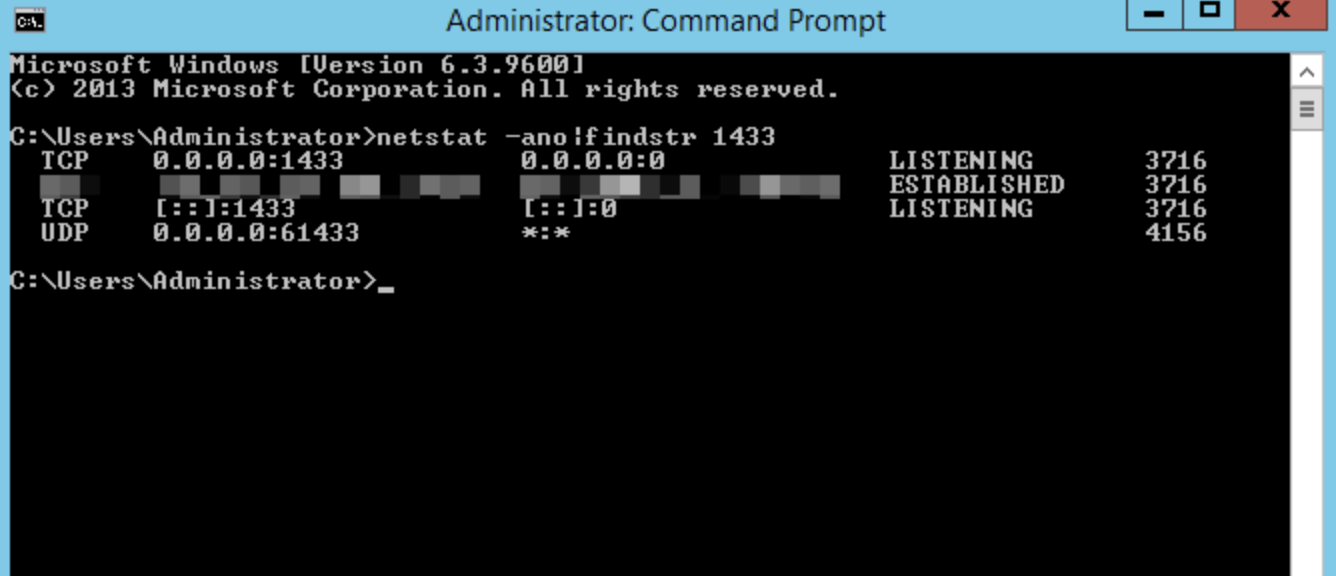
netstat -ano | findstr 1433
If SQL Server is listening on port 1433, the command should display an entry associated with that port.
This confirms that the SQL Server instance is listening on the configured port.
Conclusion
If Microsoft SQL Server is not listening on the default port 1433, you can configure the TCP/IP settings through SQL Server Configuration Manager and restart the SQL Server service.
Once the service has been restarted, use:
netstat -ano | findstr 1433
to verify that port 1433 is listening.
Frequently Asked Questions
1. What is the default port used by Microsoft SQL Server?
TCP port 1433 is the standard default port commonly used by the SQL Server Database Engine for a default instance.
2. Why is SQL Server not listening on port 1433?
The SQL Server instance may be configured to use a different port, or the TCP/IP protocol may not be enabled or configured for port 1433.
3. How can I verify that port 1433 is listening?
Open Command Prompt and run:
netstat -ano | findstr 1433
If an entry is returned for port 1433, the server is listening on that port.
Related Article
Talk to our experts
Looking for the right technology solution for your business? Our team of experts can help you with development, cloud, DevOps, design, and a wide range of other technology needs. Get in touch with our team here.