Introduction
This guide covers how to install SQL Server Management Studio (SSMS) on a Windows server running Plesk, so you can connect to and manage your MSSQL database.
One important fix upfront: the original download link and installation method for this guide are both outdated. SSMS used to be bundled with the SQL Server installer and selected as a feature during setup — that changed starting with SQL Server 2016, when Microsoft made SSMS a free, standalone tool with its own separate installer and release cycle. The steps below use the current method.
Implementation
I. Prerequisites
- A Windows Server with RDP access
- MSSQL Server already installed and running
- Internet access on the server to download the installer
II. How SSMS Connects to MSSQL
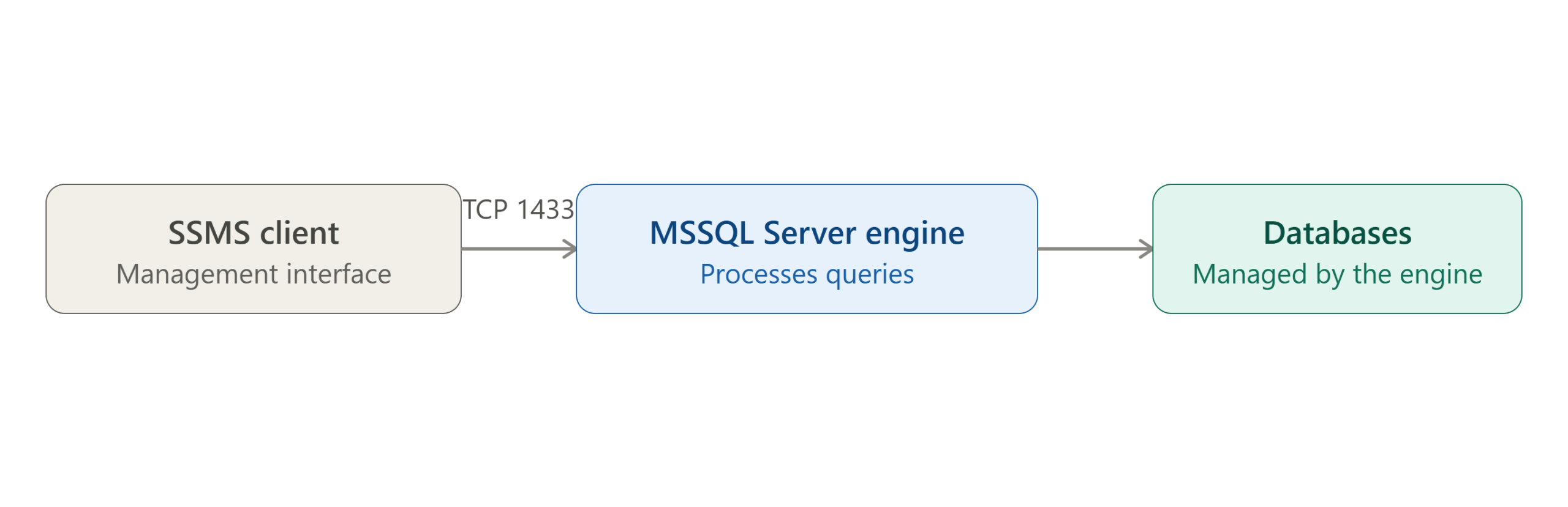
SSMS is just a client application — it doesn’t run the database itself. It connects to your MSSQL Server instance over TCP (port 1433 by default) using either Windows Authentication or SQL Server Authentication, then lets you browse, query, and manage databases through its interface.
III. Download SSMS
Log in to the server using RDP, then download SSMS from the current official Microsoft page:
https://learn.microsoft.com/en-us/sql/ssms/download-sql-server-management-studio-ssms
Note: The original download link (
microsoft.com/.../details.aspx?id=29062) pointed to an old SQL Server 2012-era combined installer page that no longer works — Microsoft’s old download center URLs for this have been retired. The link above is Microsoft’s current, maintained SSMS download page and will always point to the latest version.
IV. Run the Installer
Double-click the downloaded installer (SSMS-Setup-ENU.exe).
Unlike the older combined installer, there’s no “Add Features to an existing instance” step anymore — SSMS installs as its own standalone application now, independent of any specific SQL Server version. Click Install and let the wizard complete; a restart may be required afterward depending on your Windows version.
V. Open SSMS and Connect
Launch SQL Server Management Studio, then go to:
File → Connect Object Explorer
Enter your server name and authentication details to connect to your MSSQL instance.
VI. Conclusion
Installing SSMS today is simpler than the original combined-installer method — download the current standalone installer directly from Microsoft, run it, and connect through Object Explorer. Since SSMS now updates independently of SQL Server itself, this same process works regardless of which SQL Server version your Plesk server is actually running.
FAQ-Frequently Asked Questions
Does SSMS need to match my SQL Server version? No — since SSMS became standalone, a current SSMS version works with a wide range of SQL Server versions, both older and newer. There’s no need to track matching version numbers the way the old bundled installer implied.
Can I install SSMS on a different machine and connect to the Plesk server remotely? Yes — SSMS just needs network access to the SQL Server’s port (1433 by default), so many admins run it from their own workstation rather than RDPing into the server just to manage the database.
What if I can’t connect after installing? Check that SQL Server is configured to accept remote connections (if connecting from off-server) and that the Windows Firewall allows traffic on the SQL Server port.
Related Articles
How to Configure a Static IP Address on CentOS7
How to Install phpMyAdmin on Ubuntu
Talk to our experts.
Looking for the right technology solution for your business? Our team of experts can help you with development, cloud, DevOps, design, and a wide range of other technology needs. Get in touch with our team here.