
Date Posted: May 23, 2017
Last Updated: September 22, 2026
Introduction
phpMyAdmin is an open-source, web-based application used to manage MySQL and MariaDB databases through a graphical interface. It allows administrators to create databases and users, manage tables, execute SQL queries, import and export databases, and manage database privileges.
Note: phpMyAdmin provides administrative access to databases. For production environments, access should be restricted and secured using HTTPS, network controls, strong authentication, and regular security updates.
Prerequisites
Before installing phpMyAdmin, ensure the following requirements are met:
- Ubuntu server with sudo or root access
- Apache2 installed and running
- MySQL or MariaDB installed and running
- PHP installed and configured with Apache
- Internet connectivity to download the required packages
- A server IP address or domain name
Verify Apache
Run the following command to verify that Apache is installed and running:
sudo systemctl status apache2
Verify PHP
php -v
Verify MySQL
sudo systemctl status mysql
Implementation
Step 1: Update the Package Repository
Update the Ubuntu package repository before installing phpMyAdmin:
sudo apt update
Step 2: Install phpMyAdmin
Install phpMyAdmin using the APT package manager:
sudo apt install phpmyadmin
The installation process will download phpMyAdmin and its required dependencies.
Step 3: Select the Web Server
During the installation, you will be prompted to select the web server that should be configured automatically.
Select:
Apache2
Use the Space key to select Apache2 and press Enter to continue.
Step 4: Configure the phpMyAdmin Database
The installer may prompt:
Configure database for phpMyAdmin with dbconfig-common?
Select Yes to allow the package installer to configure the required phpMyAdmin database automatically.
You will then be prompted to configure the database credentials.
Step 5: Install Required PHP Extensions
Depending on the installed PHP version and Ubuntu packages, phpMyAdmin may require additional PHP extensions.
Install the commonly required extensions using:
sudo apt install php-mbstring php-mysql php-xml php-curl php-zip php-gd
Restart Apache after installing the extensions:
sudo systemctl restart apache2
Step 6: Verify the Apache Configuration
The phpMyAdmin package normally provides an Apache configuration file at:
/etc/apache2/conf-available/phpmyadmin.conf
Verify that the configuration file exists:
ls -l /etc/apache2/conf-available/phpmyadmin.conf
If the configuration is not enabled, enable it with:
sudo a2enconf phpmyadmin
Reload Apache:
sudo systemctl reload apache2
Step 7: Access phpMyAdmin
Open a web browser and access phpMyAdmin using:
https://your-domain.com/phpmyadmin
Alternatively, you can access it using the server IP address:
https://SERVER-IP/phpmyadmin
Replace your-domain.com or SERVER-IP with your actual domain name or server IP address.
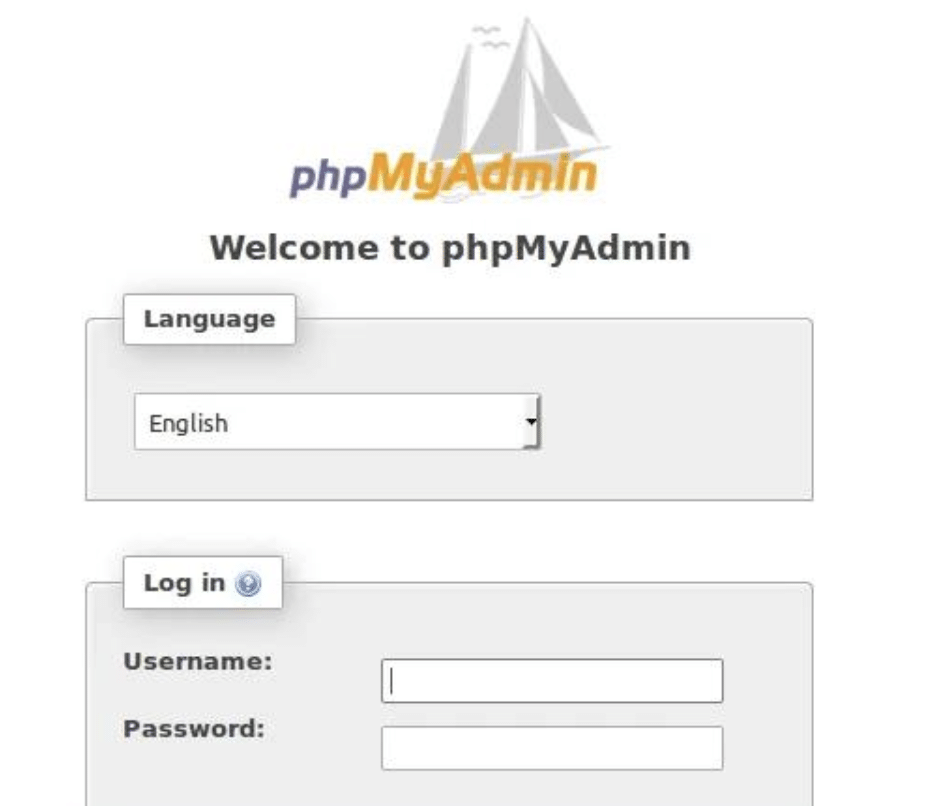
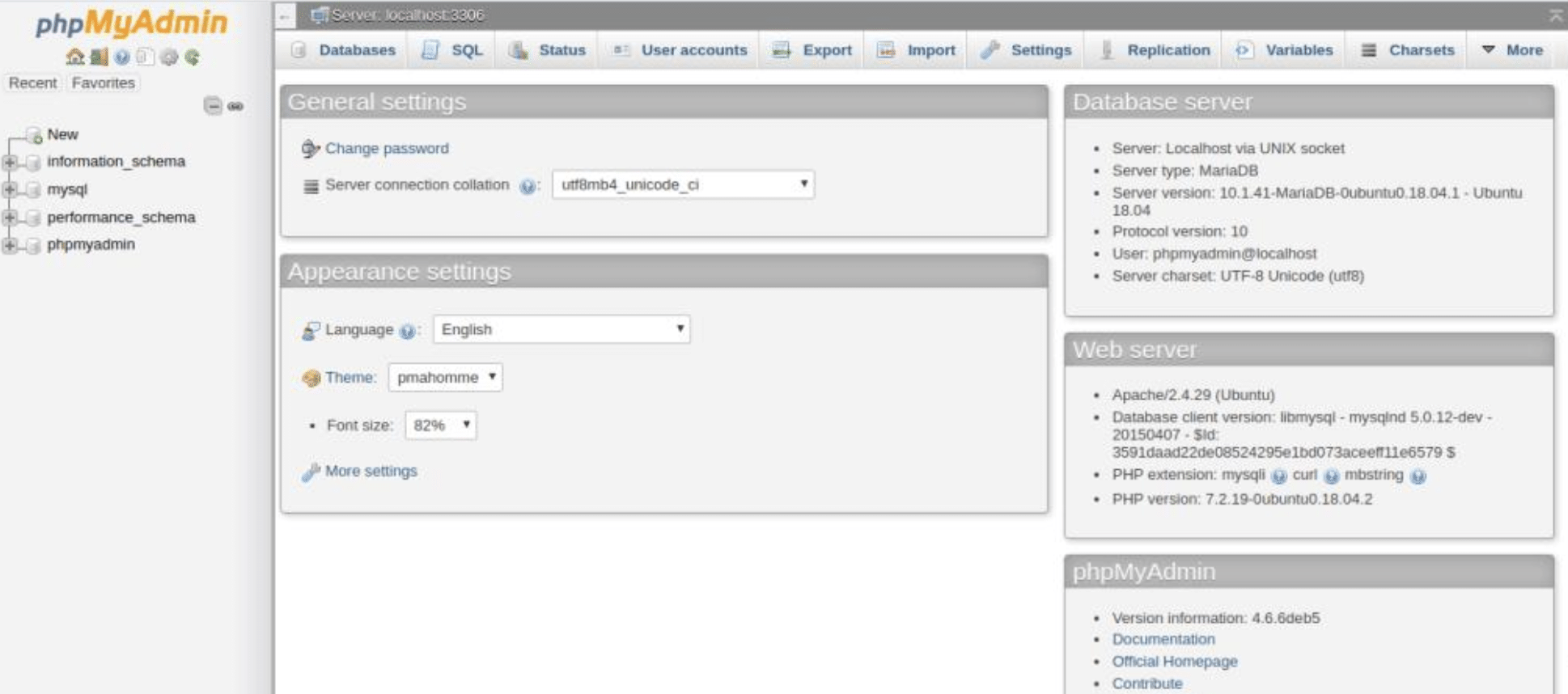
You should now see the phpMyAdmin login page.
Security Recommendations
phpMyAdmin provides direct access to database administration functions. Therefore, additional security measures are recommended, especially for production environments.
1. Use HTTPS
Always use HTTPS to protect database credentials and administrative traffic.
2. Restrict Access
Where possible, restrict phpMyAdmin access to trusted IP addresses or internal networks.
3. Use Strong Credentials
Use strong and unique passwords for database users and avoid sharing administrative credentials.
4. Keep phpMyAdmin Updated
Regularly update the system packages and phpMyAdmin installation:
sudo apt update
sudo apt upgrade
5. Avoid Using the Database Root Account
Use dedicated database users with only the privileges required for administration instead of routinely using the database root account.
6. Consider Additional Authentication
For production environments, consider protecting phpMyAdmin with an additional authentication layer, VPN access, or other network-level restrictions.
Security Note: Installing phpMyAdmin does not automatically secure your database server. Production environments should implement a comprehensive database and server security strategy.
Troubleshooting
phpMyAdmin Returns a 404 Error
If /phpmyadmin returns a 404 error, verify that the Apache configuration is enabled:
sudo a2enconf phpmyadmin
sudo systemctl reload apache2
Verify the enabled configuration:
ls -l /etc/apache2/conf-enabled/ | grep phpmyadmin
PHP Files Are Downloaded Instead of Executed
If PHP files are being downloaded instead of executed, verify that PHP is correctly configured with Apache:
php -v
Restart Apache:
sudo systemctl restart apache2
Unable to Log In to phpMyAdmin
If you cannot log in, verify the following:
- MySQL or MariaDB is running.
- The database username and password are correct.
- The database user has the required privileges.
- The configured authentication method is compatible with the installed MySQL/MariaDB and phpMyAdmin versions.
Conclusion
phpMyAdmin provides a convenient web-based interface for managing MySQL and MariaDB databases on Ubuntu servers.
By installing phpMyAdmin through the Ubuntu package manager and configuring it with Apache and PHP, administrators can manage databases, users, tables, and SQL operations through a browser.
For production environments, phpMyAdmin should be protected with HTTPS, restricted network access, strong authentication, and regular security updates.
Frequently Asked Questions
1. What is phpMyAdmin?
phpMyAdmin is an open-source web application that provides a graphical interface for managing MySQL and MariaDB databases.
2. Can phpMyAdmin be installed without Apache?
Yes. phpMyAdmin can be configured with other supported web servers, such as Nginx, when PHP and the required web-server configuration are properly set up.
3. Is phpMyAdmin suitable for production environments?
phpMyAdmin can be used in production environments, but access should be properly secured and restricted because it provides powerful database administration capabilities.
4. How do I access phpMyAdmin after installation?
You can typically access phpMyAdmin using:
https://your-domain.com/phpmyadmin
5. Does phpMyAdmin store database data?
phpMyAdmin acts as a database administration interface. The actual database data is stored by the MySQL or MariaDB database server.
Related Articles
- How to Manage Content in AVideo/YouPHPTube Platform
- Managing Multiple PHP Versions on Ubuntu Using APT
Talk to our experts
Looking for the right technology solution for your business? Our team of experts can help you with development, cloud, DevOps, design, and a wide range of other technology needs. Get in touch with our team here.