Introduction
File Manager in cPanel allows you to manage your website files directly from the browser without using FTP. You can upload, download, edit, and delete files easily through this interface.
Prerequisites
Before proceeding, ensure you have:
a. cPanel login access
b. Username and password
c. Basic knowledge of files and folders
Implementation
Log in to your cPanel account.
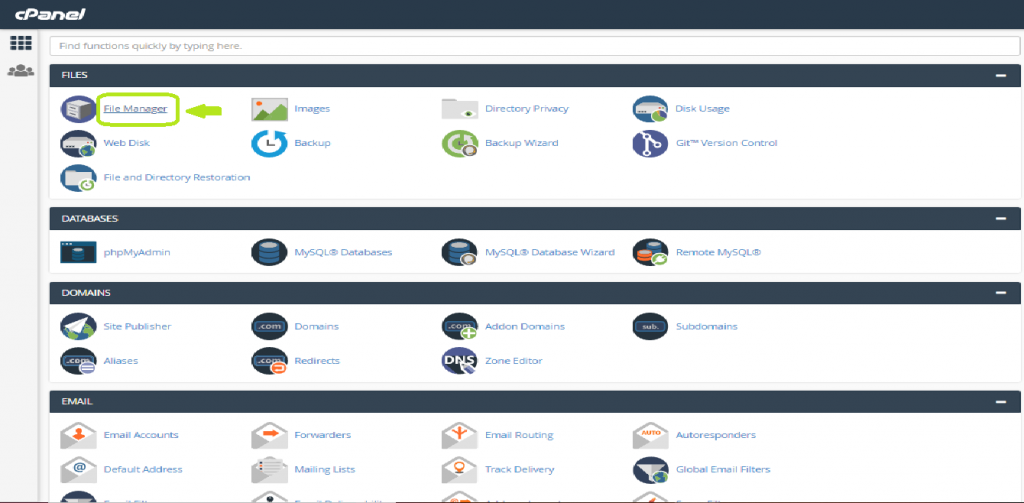
On the home page, under the FILES section, click on File Manager.
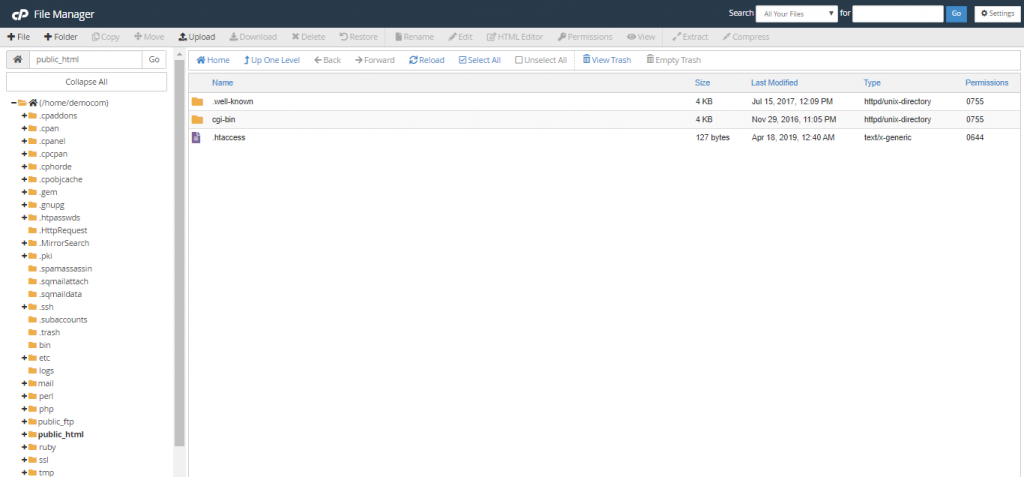
A new interface will open showing the directory structure of your server.
On clicking it, a new interface will be opened as below with the directory structure of your server.
I. Upload a File
Step 1:
Navigate to the directory where you want to upload the file
Step 2:
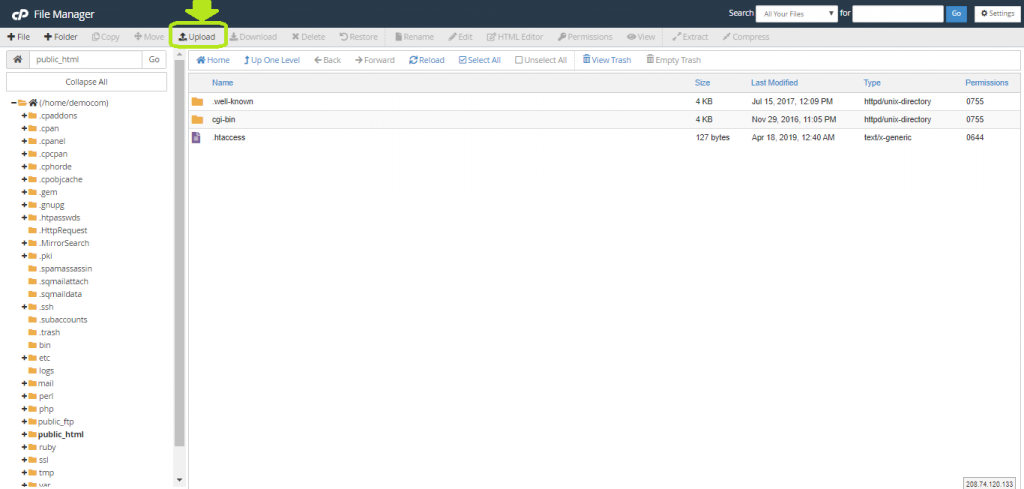
On the top of the interface, you can find the option Upload. Click on it
Step 3:
A new interface will be opened as below.
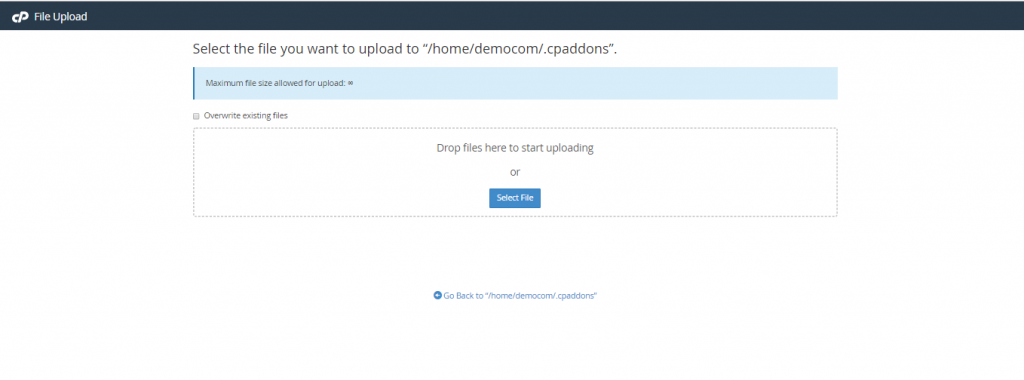
Here you have 2 options to upload a file. You can use either of the options to upload a file.
- Drag and drop the file from your machine to the interface so that it will start uploading in the selected directory
- Click on
Select Fileoption to browse and upload a file from your local machine to the selected directory.
Note: You can check the Overwrite existing files box if you want to automatically replace the already existing file with the same name.
You have successfully uploaded a file using File Manager!!!.
II. Download a File
Step 1:
To download a file from your cPanel server to the local machine, select and open the directory in which the files you want to download is present.
Step 2:
Now, Select the file which you want to download. If you want to download multiple files, select on all the files you want to download. You can also use Select All option to select all the files in a directory.
Step 3:
Click on the Download option on the top to download the selected file/files.
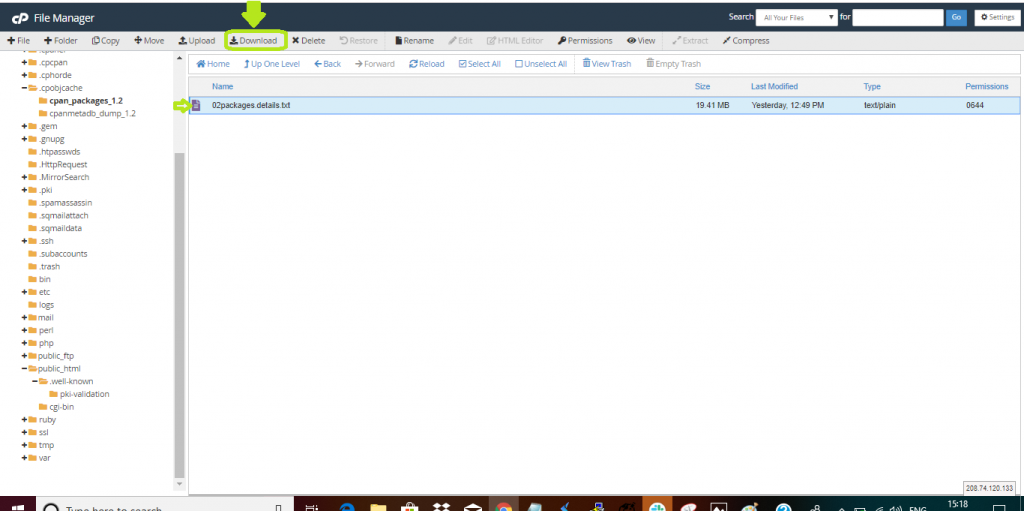
Now you have successfully downloaded files from your cPanel server to your local machine.
III. Edit a File
Before editing a file directly in the File Manager, always ensure to take backup of the original file.
Now lets see how to edit a file in File Manager.
Step 1:
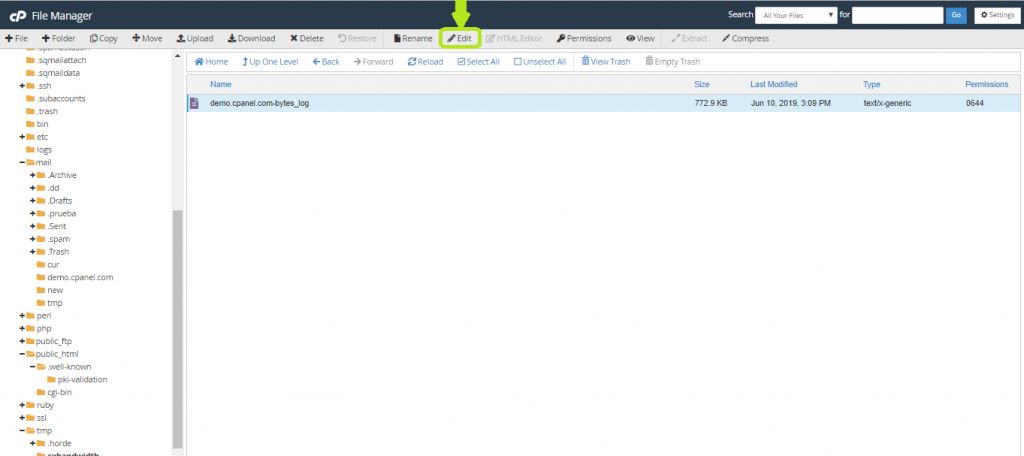
In the File Manager interface opened, select the file which you want to edit.
Then you will find Edit option on the top. Click on it to proceed further.
Step 2:
A pop-up window will be opened as below.
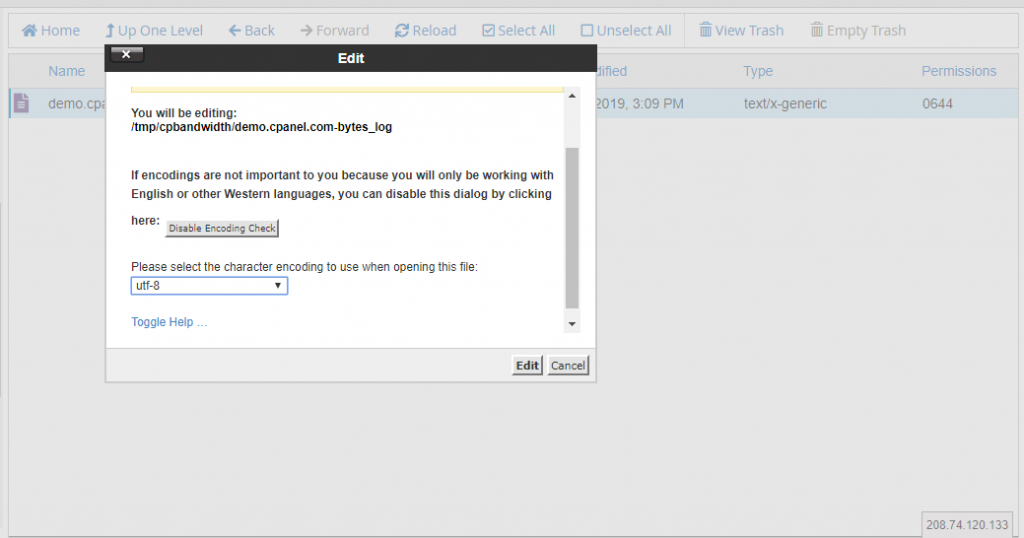
If your website is using English and standard characters, the character encoding is displayed as utf-8 by default. So no need to make any changes in the pop-up window. Directly click on the Edit button in the bottom of the pop-up.
If your website uses any other that does not use UFT-8 Encoding, then select the appropriate character encoding and then click on Edit button.
If you do not want this pop-up window to open every single time, select the option Disable Encoding Check option and then click on Edit button.
Step 3:
On clicking the Edit button, the Edit window will be opened in which you can make changes to the file.
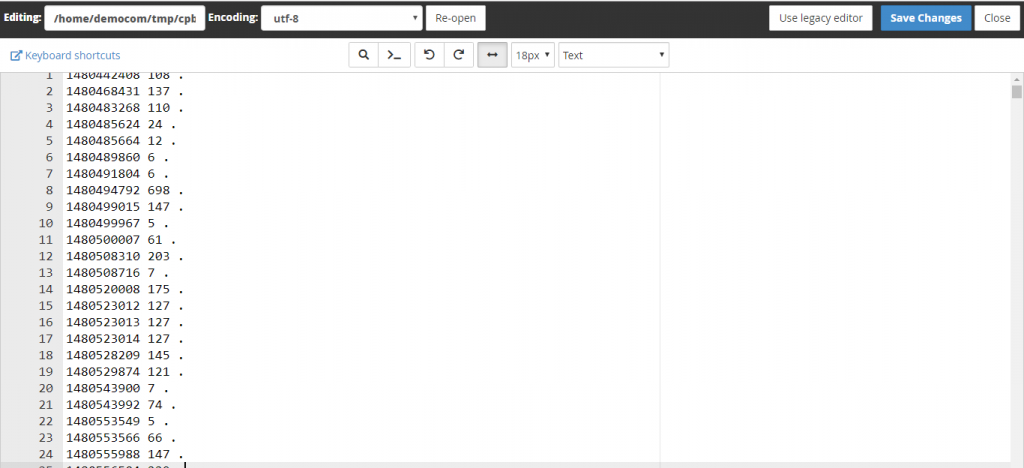
Edit the file and once all the changes were made, click on Save Changes button to save the file.
You have successfully edited a file in File Manager.
IV. Delete a File
Finally, let us see how to delete files in your cPanel server from the cPanel File Manager.
Step 1:
In the File Manager interface, Select the file you want to delete.
Then, you can find the option Delete on the top. Click on it.
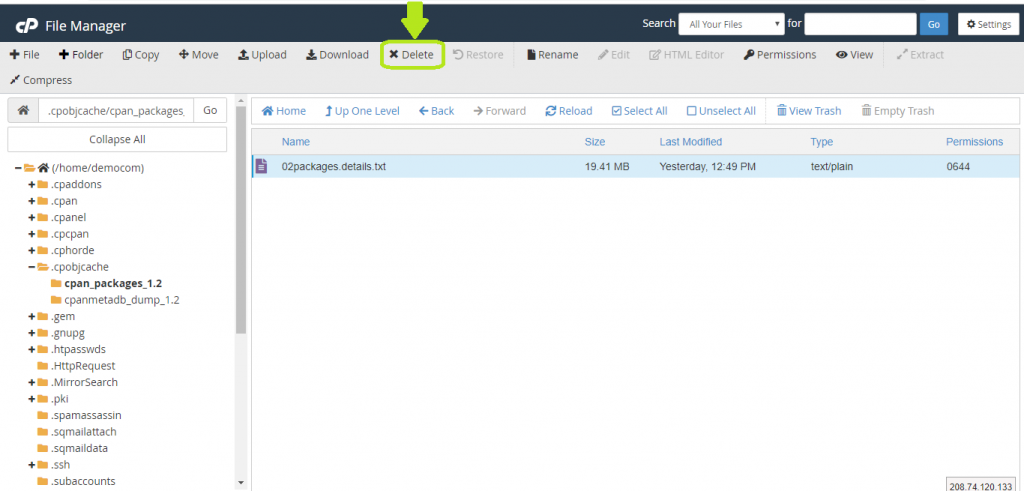
Step 2:
On clicking the Delete button, a pop-up window will be opened as below.
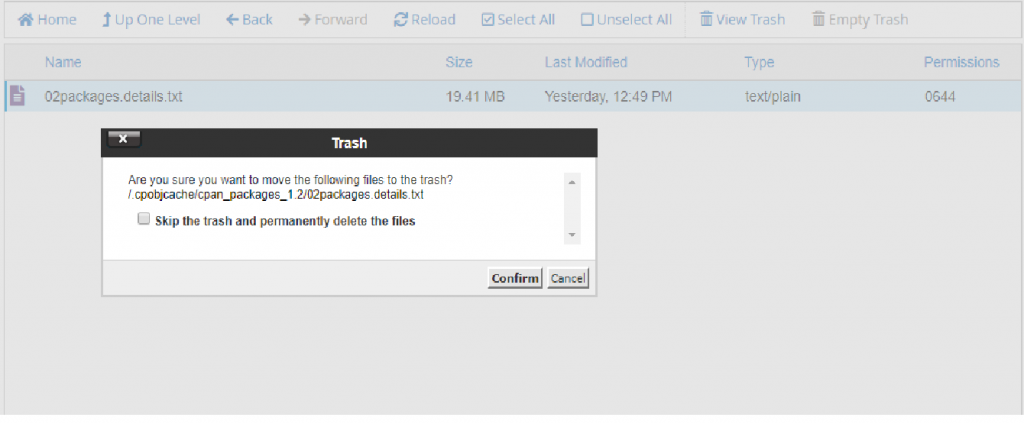
If you want to delete the file permanently, check the option ” Skip the trash and permanently delete the files ” and then click on Confirm button.
Else, If you are not sure about deleting this file, you can leave the option unchecked and directly click on Confirm button. It will move the file to Trash from which you can recover the file later if needed.
The file will be deleted on clicking the Confirm button.
You have successfully deleted a file in your File Manager!!!
Conclusion
cPanel File Manager makes it easy to manage files directly from the browser. You can upload, download, edit, and delete files without using additional tools, making it a convenient option for quick file management tasks.