Introduction
cPanel provides a built-in File Manager that allows users to upload, download, and manage website files directly from the browser without using FTP. It is a quick and convenient way to handle files on your hosting account.
Prerequisites
Before proceeding, ensure:
- Access to your cPanel account
- Basic understanding of file and folder structure
- Files ready on your local system for upload
Implementation
Step 1: Log in to cPanel.
Step 2: Click on File Manager In the FILES section.
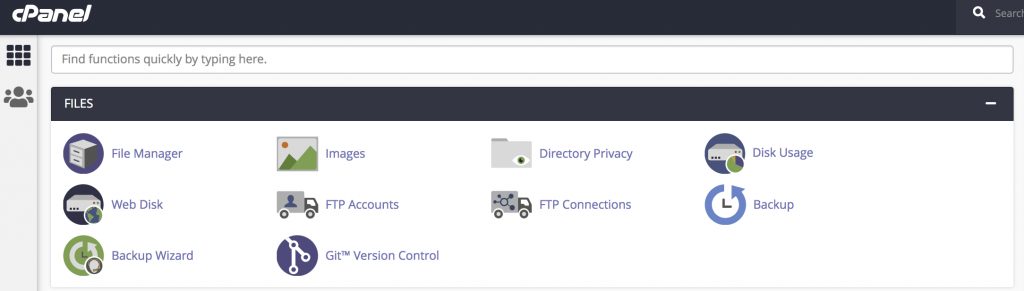
Step 3: Choose the directory where you want to upload the file in the File Manager main window and click the Upload icon.

Step 4: Click Select File and choose the file’s location on your computer, and then double-click the file.
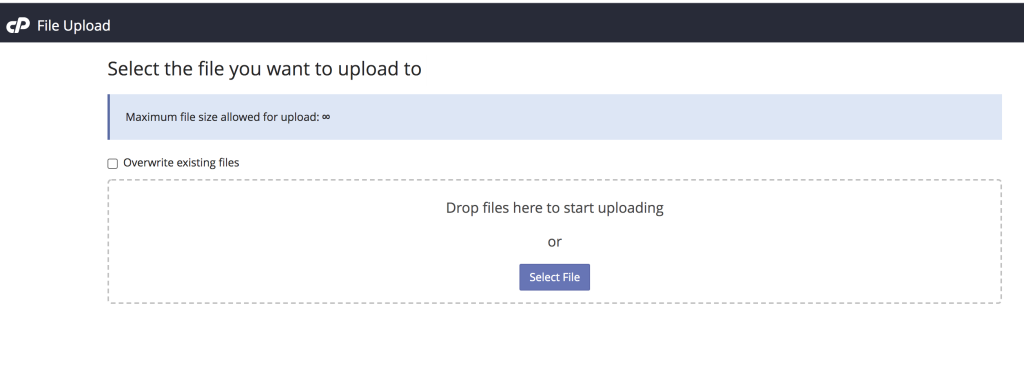
Step 5: Choose which file you want to download from File Manager and click the Download icon.

Step 6: Choose the directory on your local computer where you want to save the file, and then save the file.
Conclusion
Using the File Manager in cPanel makes it easy to upload and download files without additional tools. It is especially useful for quick file operations and basic website management tasks.