Introduction
Sending emails individually to multiple users can be time-consuming, especially for teams, organizations, or businesses that frequently share updates and announcements. To simplify this process, cPanel provides a Mailing List feature that allows you to create one common email ID and send emails to multiple recipients at the same time.
With a mailing list, you only need to send an email to a single common address, and the message will automatically be delivered to all subscribed email IDs. This is a convenient solution for group communication, newsletters, support teams, and internal notifications.
In this tutorial, you will learn how to create and manage a mailing list in cPanel and use it to send emails to multiple recipients easily.
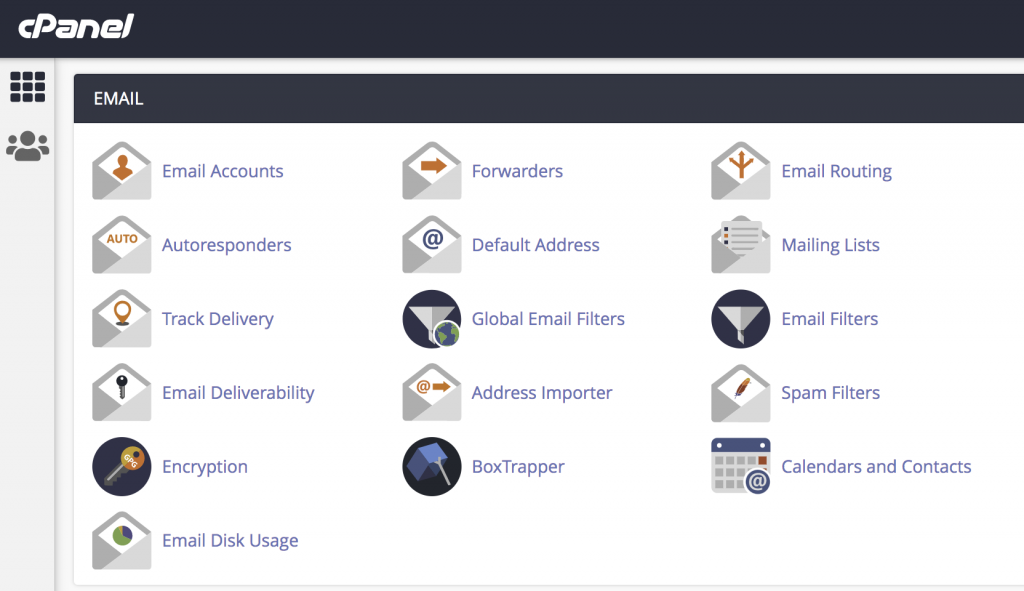
Step 1: Log in to cPanel and Open Mailing Lists the EMAIL section.
- Login to your cPanel account.
- Navigate to the EMAIL section.
- Click on Mailing Lists.
Step 2: Create a Common Email ID (Mailing List)
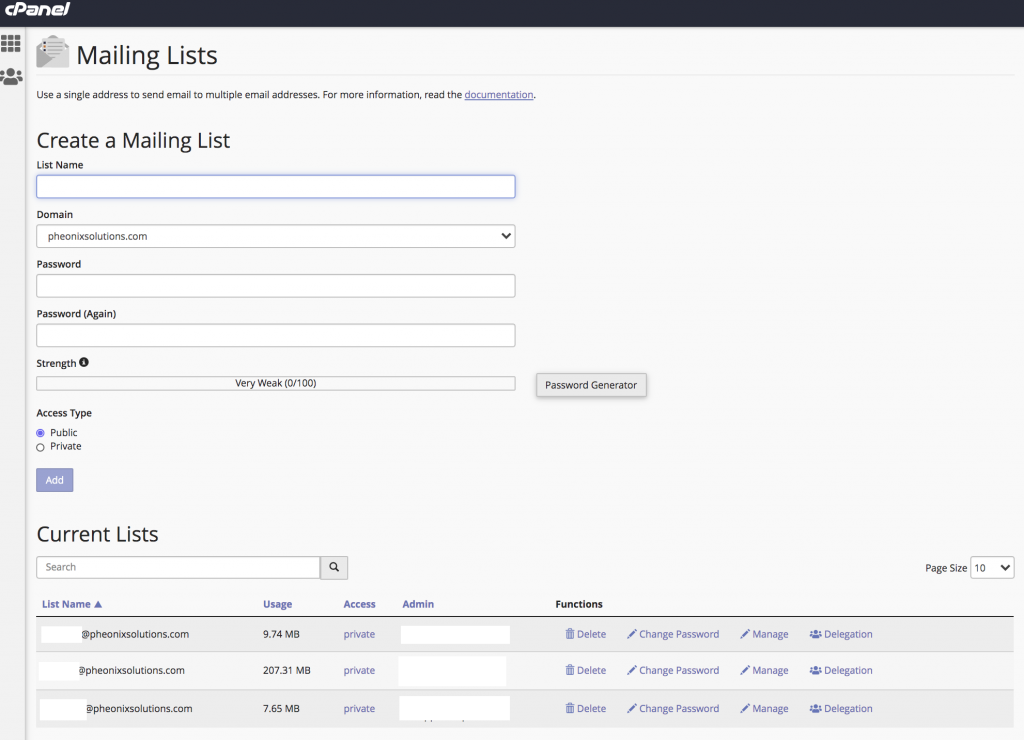
- Enter the following details:
- List Name – Name of the mailing list
- Domain – Select your domain
- Password – Set a secure password
- Choose the Access Type:
- Public – Allows emails from external domains
- Private – Allows emails only from the same domain
- Click Add Mailing List.
Once created, the mailing list email ID will appear under Current Lists
Note:
Access Type:
Public – If you receive mail from other domains mail id, you can use public.
Private – If you receive mail from same domain mail id, you can use private.
Step 3: Manage the Mailing List
Under Current Lists, locate the mailing list you created.
Click on the Manage option.
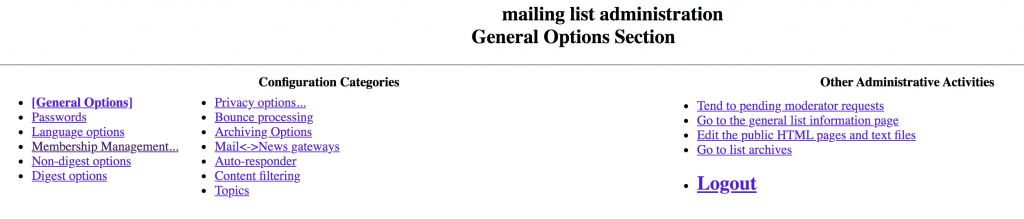
This will open the Mailing List Administration page in a new tab.

Step 4: Open Membership Management
- In the Configuration Categories section, select Membership Management.
This section allows you to add or remove subscriber email addresses from the mailing list.
Step 5: Add Multiple Email IDs
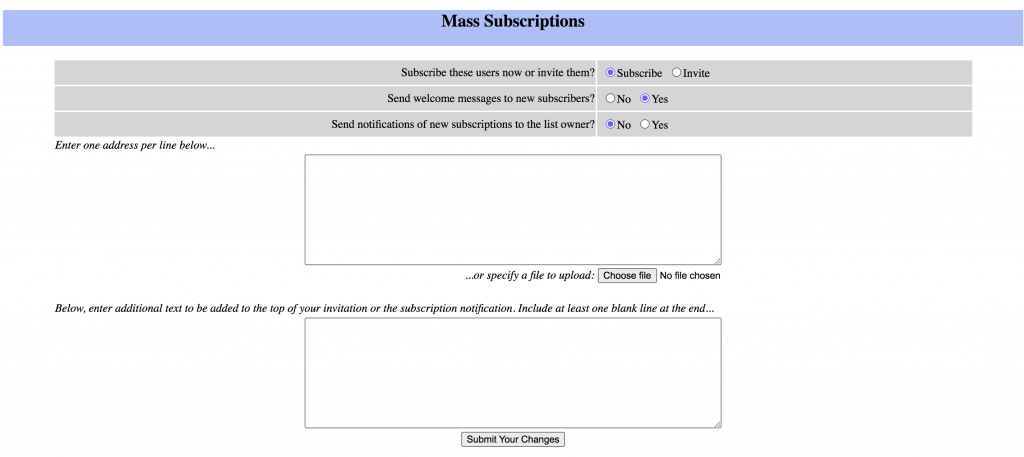
- Click on Mass Subscription.
- In the text box labeled Enter one address per line below, enter all the email IDs you want to add.
- Click Submit Your Changes.
All entered email IDs will now be subscribed to the mailing list.
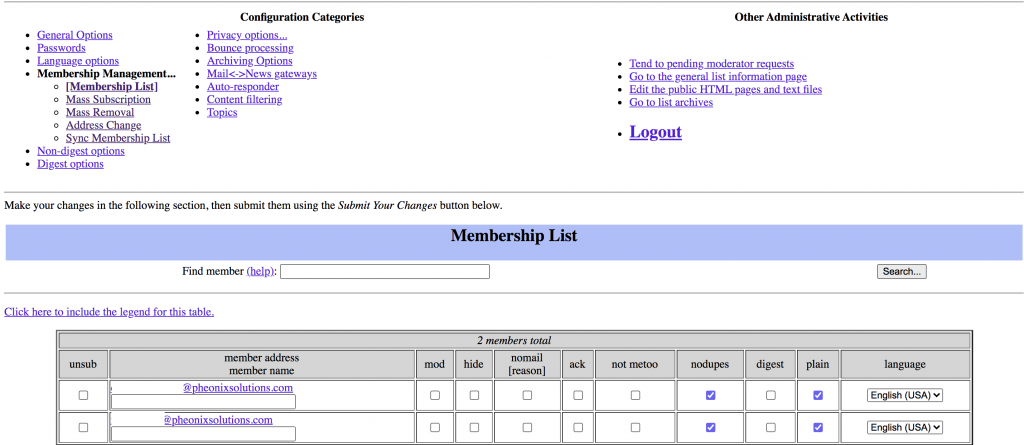
Step 6: Verify the Added Email IDs
Click on Membership List.
Verify that all email IDs are successfully added.
Once the email addresses are listed, you can send an email to the common mailing list email ID, and all subscribed users will receive the same email automatically.
Conclusion
Creating a mailing list in cPanel is a simple and effective way to send emails to multiple recipients using a single common email ID. By following the above steps, you can easily create, manage, and maintain a mailing list for your organization or team. This feature helps streamline communication and ensures that important updates reach all users quickly and efficiently.