Introduction
A hostname SSL certificate secures connections to cPanel services and helps prevent browser security warnings. Installing a valid hostname SSL certificate ensures secure access to services such as WHM, Webmail, FTP, Exim, and Dovecot.
Prerequisites
- Root access to WHM
- Valid hostname SSL certificate installed on the server
- Proper DNS A record configured for the hostname
Implementation
cPanel Services That Use the Hostname SSL Certificate
The hostname SSL certificate is applied to the following services:
- FTP Server
- Exim (SMTP) Server
- Calendar, cPanel, WebDisk, Webmail, and WHM Services
- Dovecot Mail Server
Step 1: Change the Hostname (If Required)
If you want to change the hostname to another name such as:
hostname.abc.com
Navigate to:
WHM → Networking Setup → Change Hostname
Update the hostname and save the changes.
Step 2: Add DNS Record for the Hostname
Add the following DNS A record for the hostname:
hostname.abc.com → 1.2.3.4
Replace 1.2.3.4 with your server IP address.
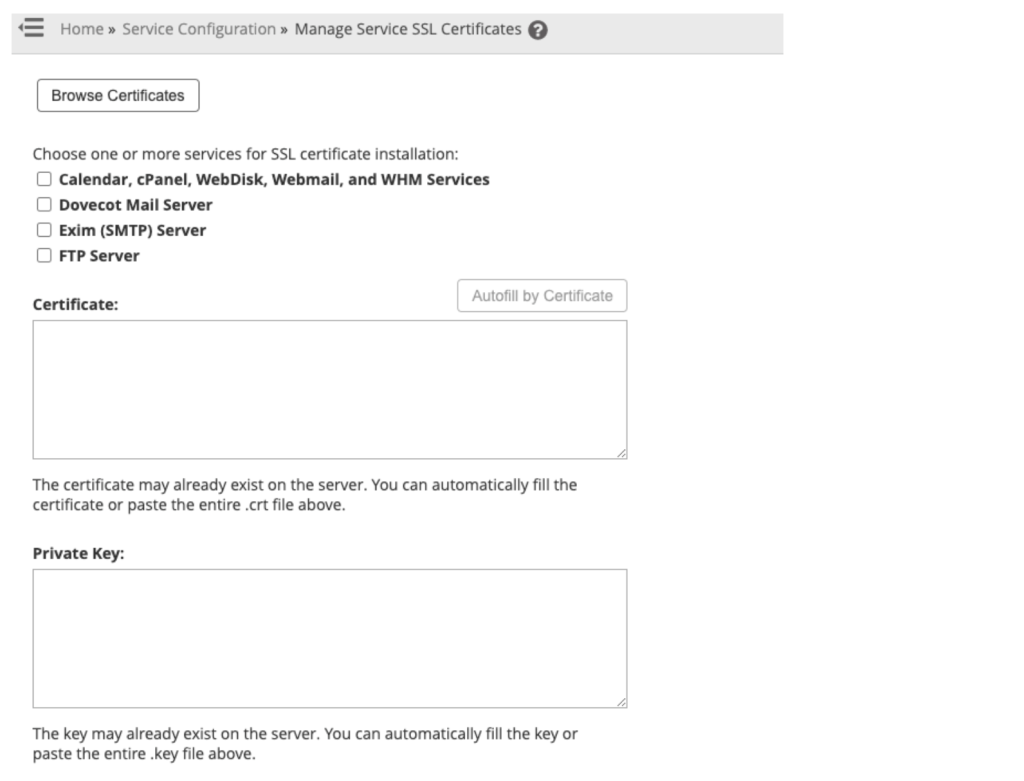
Step 3: Open Manage Service SSL Certificates
Navigate to the following section in WHM:
Home → Service Configuration → Manage Service SSL Certificates
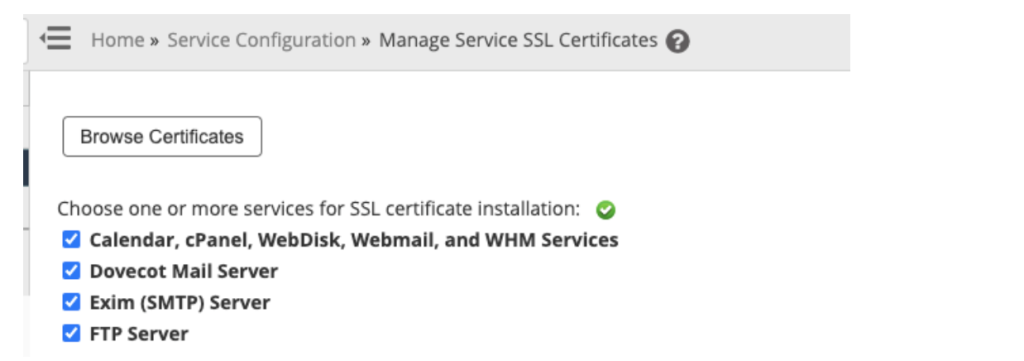
Step 4: Select Services
Check all the boxes for services that require an SSL certificate to be installed.
Then click:
Browse Certificates
Step 5: Select the Valid Hostname SSL Certificate
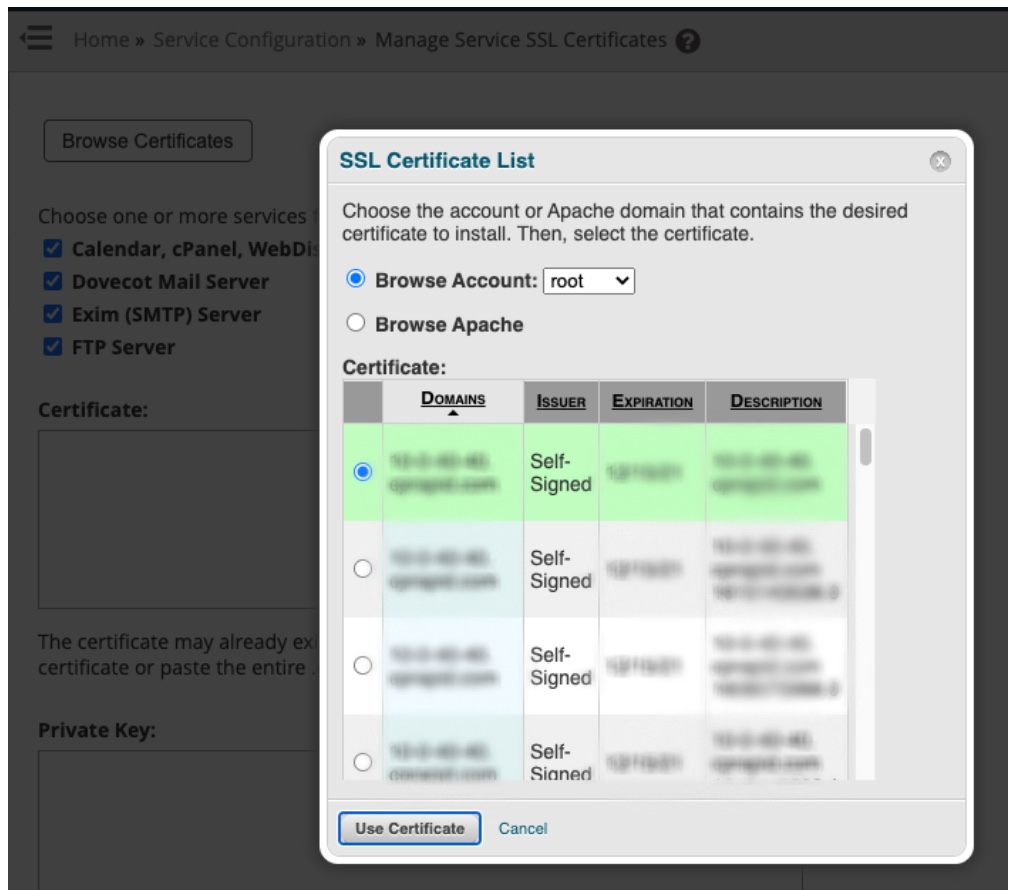
Under the root certificate list, select the VALID hostname SSL certificate.
Note:
Some servers may display self-signed certificates. Ensure you select the valid SSL certificate for the hostname.
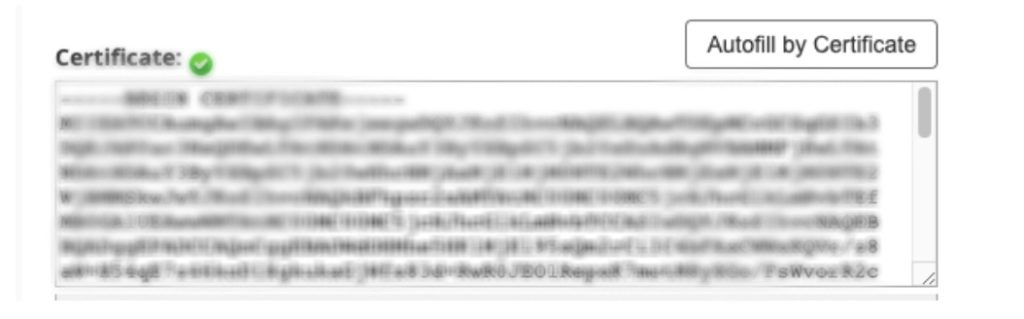
Once selected, green checkmarks will appear next to the certificate details.
Step 5: Select the Valid Hostname SSL Certificate
Under the root certificate list, select the VALID hostname SSL certificate.
Note:
Some servers may display self-signed certificates. Ensure you select the valid SSL certificate for the hostname.
Once selected, green checkmarks will appear next to the certificate details.
Step 6: Install the SSL Certificate
Click the Install button at the bottom of the page.
The SSL certificate will now be applied to all selected cPanel services.
Step 7: Verify the SSL Installation
Open your browser and verify WHM access using:
Ensure the SSL certificate is loading properly without security warnings.
Conclusion
Installing a valid hostname SSL certificate in WHM secures all major cPanel services and ensures encrypted communication for WHM, Webmail, FTP, SMTP, and other server services.