Introduction
Drupal is a content management system (CMS) used to build and manage websites, web applications, and digital platforms. It provides various features for content management, customization, and website development.
Plesk provides an application installation feature that allows website administrators to install Drupal directly through the control panel without manually downloading and configuring the application files.
This document explains how to install Drupal on a domain through the Plesk Control Panel using the application installation feature.
Purpose
The purpose of this document is to provide a step-by-step procedure for installing Drupal on a domain through the Plesk Control Panel.
Prerequisites
Before installing Drupal, ensure that the following requirements are met:
- Access to the Plesk Control Panel.
- A domain configured and available in Plesk.
- Sufficient permissions to manage applications and databases.
- Required administrative credentials for the Drupal installation.
- A supported PHP version and database configuration for the Drupal version being installed.
Procedure
Follow the steps below to install Drupal through the Plesk Control Panel.
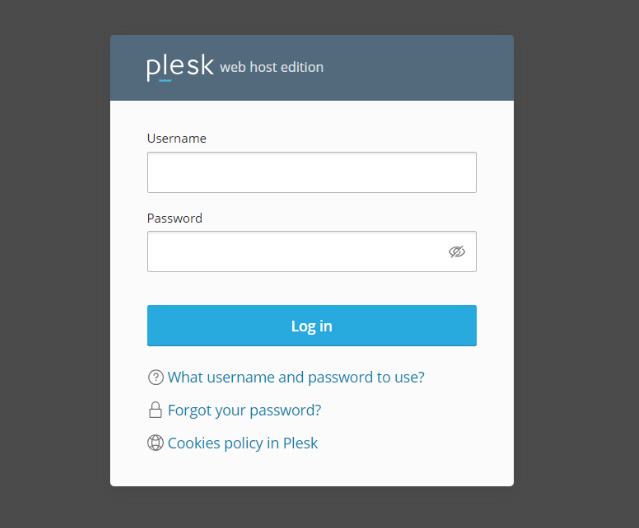
Step 1: Log in to the Plesk Control Panel
- Open the Plesk Control Panel URL in a web browser.
- Enter your Plesk username and password.
- Click Log In to access the dashboard.
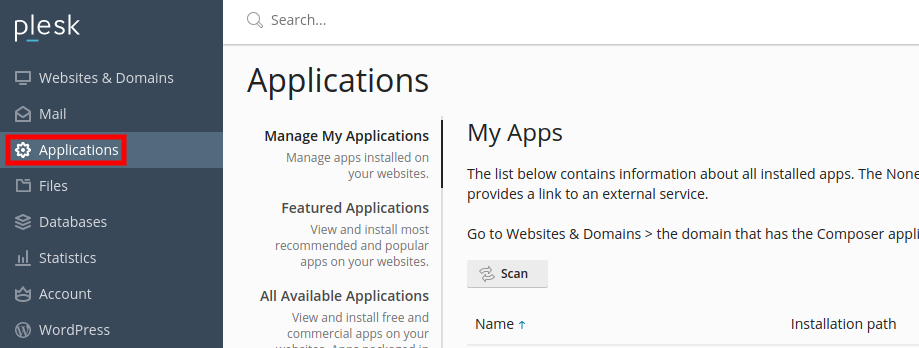
Step 2: Navigate to Applications
- From the Plesk dashboard, navigate to Applications.
- Open the Applications section to view the available applications for installation.
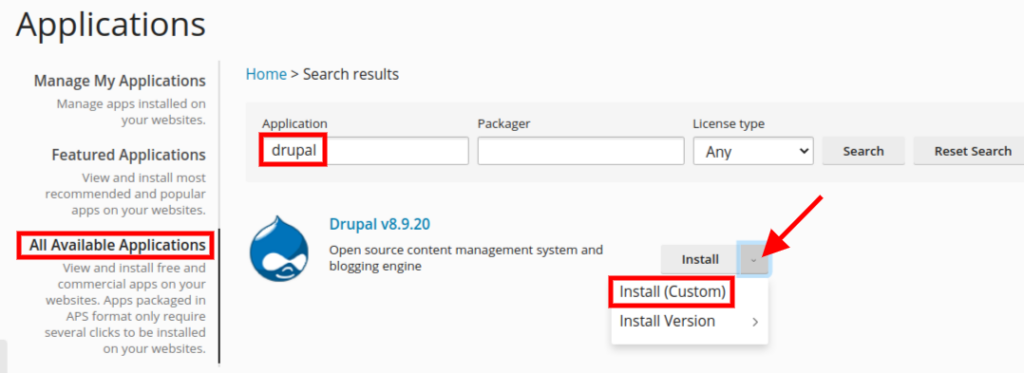
Step 3: Open Featured Applications
- Under the Applications section, click Featured Applications.
- Locate Drupal in the available application list.
- Click Install (Custom) to begin the Drupal installation process.
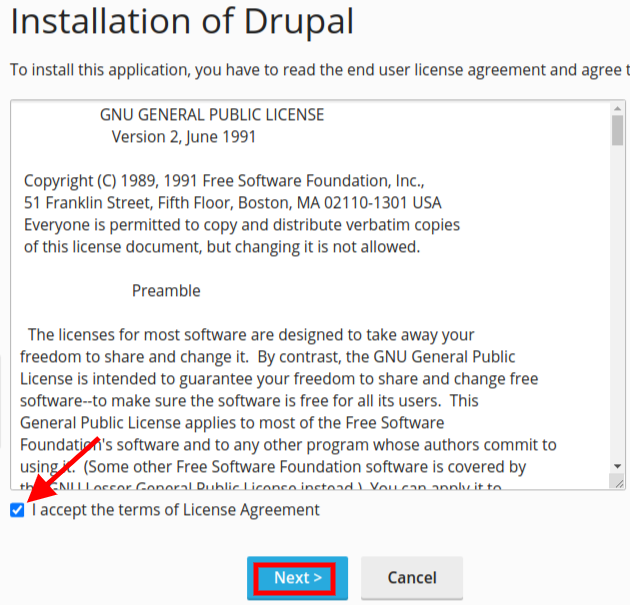
Step 4: Accept the Terms of Use
- Review the application installation terms.
- Select the checkbox to accept the Terms of Use.
- Click Next to proceed with the installation configuration.
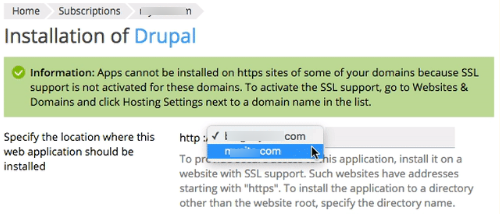
Step 5: Select the Domain and Installation Location
- Select HTTP/HTTPS based on the required website configuration.
- Select the domain on which Drupal needs to be installed.
- Specify the installation location.
- Leave the installation directory field empty to install Drupal in the domain’s root directory.
- Enter a subfolder name to install Drupal in a specific subdirectory.
- Verify that the selected domain and installation location are correct before proceeding.
Step 6: Configure Automatic Updates
- Locate the automatic update option.
- Select Automatically update this app when updates are available if automatic application updates are required.
- Leave the option unchecked if updates need to be managed manually.
Automatic updates can help keep the application updated. However, for production websites, updates should be managed according to the website’s maintenance and backup requirements.

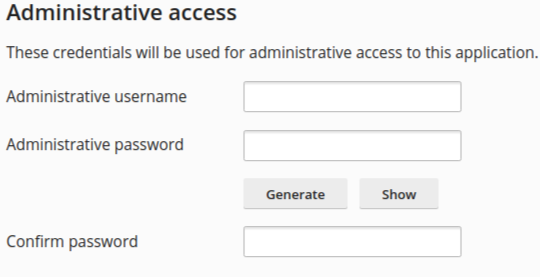
Step 7: Configure Administrative Access
- Under Administrative Access, enter the username for the Drupal administrator account.
- Enter the required administrator password.
- Click Generate if you want Plesk to generate a password automatically.
- Copy and securely store the generated password.
- Verify the administrator credentials before proceeding.
These credentials will be used to access the Drupal administration interface after installation.
Step 8: Configure the Database Password
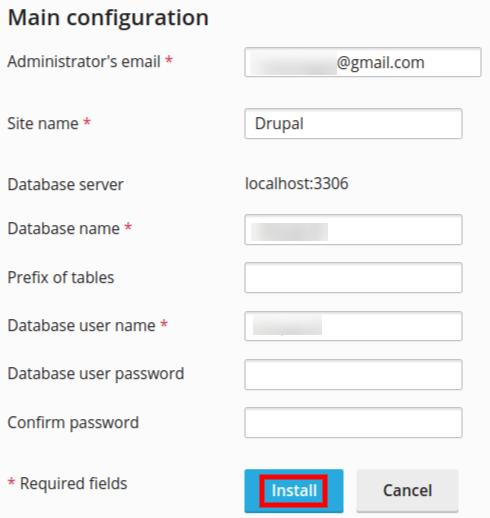
- Navigate to the Main Configuration section.
- Enter the required database user password.
- Confirm the database user password in the corresponding field.
- Verify that the entered passwords match.
Plesk will configure the required database settings as part of the application installation process.
Step 9: Install Drupal
- Review the configured installation settings.
- Verify the selected domain, installation directory, administrator credentials, and database configuration.
- Click Install to begin the Drupal installation.
- Wait for the installation process to complete.
Plesk will install the Drupal application and configure the required components based on the selected installation settings.
Step 10: Verify the Drupal Installation
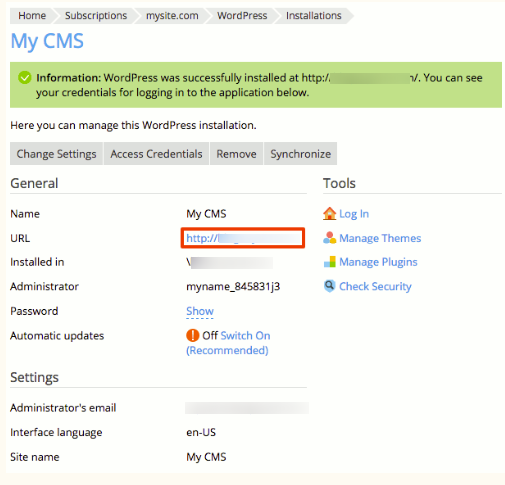
After the installation is complete, verify that Drupal has been installed successfully.
- Review the installation completion notification displayed in Plesk.
- Open the configured domain in a web browser.
- Verify that the Drupal website loads successfully.
- Navigate to the Drupal administrator login page.
- Log in using the administrator credentials configured during installation.
- Verify that the Drupal administration dashboard is accessible.
If Drupal was installed in a subfolder, access the website using the corresponding subdirectory URL.
Result
Drupal is successfully installed on the selected domain through the Plesk Control Panel.
The website is accessible through the configured domain or installation directory, and the Drupal administrator can access the dashboard using the configured credentials.
Important Notes and Best Practices
- Verify the installation location: Ensure Drupal is installed in the correct domain root directory or subfolder.
- Secure administrator credentials: Store the Drupal administrator username and password securely.
- Use HTTPS: Ensure an SSL certificate is configured for the domain and access the website over HTTPS.
- Review automatic updates: Enable automatic updates only when appropriate for the website’s maintenance requirements.
- Check PHP compatibility: Ensure the PHP version and required PHP extensions are compatible with the installed Drupal version.
- Verify database configuration: Ensure the database configuration is completed successfully during installation.
- Take backups: Maintain backups of website files and databases before performing application updates or major configuration changes.
- Verify the installation: Check the website and administrator dashboard after installation to ensure they are accessible and functioning correctly.
Conclusion
Plesk provides a convenient way to install Drupal through its application installation feature, eliminating the need to manually download and configure the application.
By following this procedure, administrators can install Drupal on the required domain, configure administrative access, and verify the installation through the Plesk Control Panel.
Ensuring the correct installation location, secure administrator credentials, compatible PHP configuration, and HTTPS access helps maintain a secure and reliable Drupal website.
Frequently Asked Questions (FAQs)
1. Can I install Drupal through Plesk without manually downloading the files?
Yes. Plesk provides an application installation feature through which Drupal can be installed directly from the control panel without manually downloading and configuring the application files.
2. Can Drupal be installed in a subfolder instead of the domain root?
Yes. During installation, you can specify a subfolder name in the installation location field. Drupal will then be installed in the selected subfolder instead of the domain’s root directory.
3. Can I install Drupal on any domain available in Plesk?
Drupal can be installed on a domain configured in Plesk, provided the domain has the required hosting configuration and the server meets the application’s requirements.
4. How do I access the Drupal administrator dashboard after installation?
Open the Drupal administrator login page through the installed website and log in using the administrator username and password configured during installation.
Related Articles
How to Create a User Role in Plesk
How to Create a Database in Plesk
How to Check the SEO Toolkit in the Customer Panel in Plesk
Talk to Our Technology Experts
Need assistance with Drupal installation, Plesk configuration, or website hosting management? Our team can assist with application installation, hosting configuration, troubleshooting, and ongoing server administration through our DevOps and Cloud Services.
Connect with our technology experts.