
Post Date: June 01, 2020
Last Updated: November 13, 2026
Introduction
Create SFTP Account in Plesk to securely transfer files between your local computer and hosting server using an encrypted SSH connection.
SFTP (Secure File Transfer Protocol) protects login credentials and transferred data from unauthorized access. Plesk Panel allows users to manage FTP accounts and configure SSH access for secure file transfers.
In this guide, we will explain how to create an SFTP account in Plesk, configure SSH access, and complete the Plesk SFTP setup through a simple step-by-step process.
Prerequisites
Before creating an SFTP account in Plesk, ensure you have the following:
- Access to the Plesk Control Panel.
- A domain or subscription configured in Plesk.
- Permission to manage FTP accounts for the domain.
- SSH access enabled for the primary FTP user.
- An SFTP client such as FileZilla or WinSCP to establish the connection.
- Basic knowledge of FTP, SSH, and Plesk secure file transfer configuration.
Implementation
Follow the steps below to complete the Plesk SFTP configuration and establish secure file transfer access for your domain.
Step -1:
Log in to the Plesk Control Panel for your domain.
Step – 2:
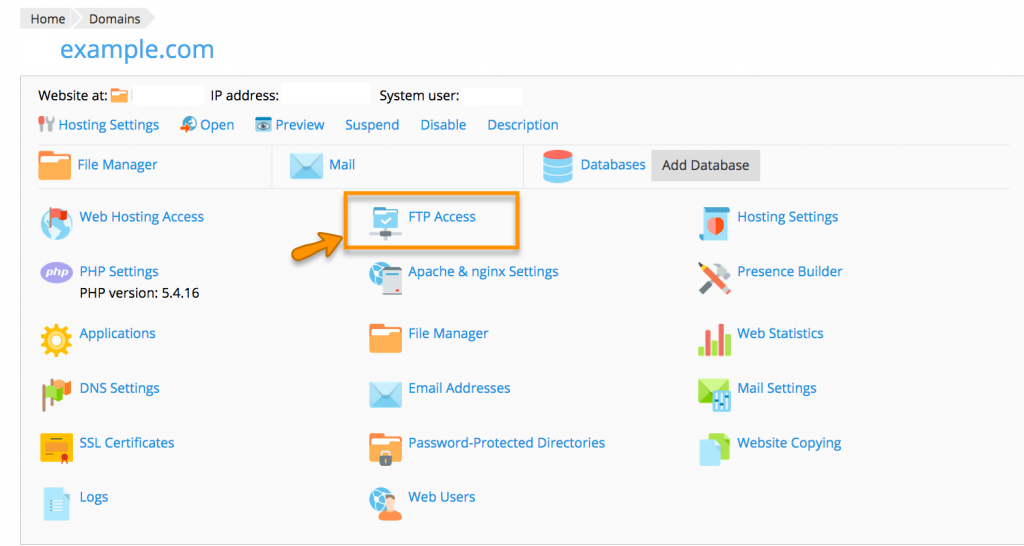
From the Home page, click on Domains. Then click on the desired domain name.

Step – 3:
Next, click on FTP Access.
Step – 4:
Click on Add an FTP Account.

Step -5:
Enter a username, custom home directory, and password. Then click OK.

- FTP account name: This is the FTP username.
- Home directory: Click on the folder to navigate to the desired directory, or leave it with just / to grant access to all domains in that subscription.
- Password: This will be your FTP password and then click OK.
You’re done setting up your new SFTP user.
Step 6:
To enable SFTP access in Plesk, you need to configure SSH access for the subscription’s primary system user. Select the appropriate SSH access option to allow secure file transfers through SFTP
- Follow steps 1-3 above to get to your list of FTP users. Click the user’s name to edit.
- Next, select /bin/bash (chrooted) from the dropdown menu (unless you want a different kind of SSH access).

3. Finally, Click Ok .
Conclusion
Creating an SFTP account in Plesk allows users to transfer files securely between their local systems and the hosting server. By completing the Plesk FTP account creation process and configuring SSH access, you can establish a secure connection for file transfers.
This Plesk SFTP setup helps protect login credentials and transferred data through SSH encryption. Proper Plesk secure file transfer configuration, strong passwords, and restricted directory permissions help improve hosting security.
FAQs
1. What is SFTP in Plesk?
SFTP (Secure File Transfer Protocol) is a secure file transfer protocol that uses SSH encryption to transfer files between a local computer and a remote server.
2. What is the difference between FTP and SFTP?
FTP transfers data without encryption by default, whereas SFTP encrypts login credentials and file transfers using SSH, making it more secure.
3. Can I create multiple SFTP accounts in Plesk?
Plesk allows you to create multiple FTP accounts. However, SFTP access availability depends on the SSH access configuration and the Plesk server setup. In the configuration described in this guide, SFTP access is available only to the primary FTP user.
Related Articles
How to Install Plesk on a Linux Server
How to Create a Domain in Plesk
Official Plesk Documentation
Plesk – Grant SSH or SFTP Access
Need Help Configuring and Managing SFTP Access in Plesk?
Looking to create SFTP accounts or configure secure file transfer access for your domains hosted on Plesk?
Pheonix Solutions provides Plesk server administration, SFTP and SSH configuration, website migration, Linux server management, cloud hosting, and infrastructure support services.
Our team can help you configure secure SFTP access, manage FTP accounts, troubleshoot SSH connectivity issues, configure server permissions, and maintain your hosting environment securely.
Get in touch with our team to discuss your Plesk hosting and server management requirements.