
Post Date: June 01, 2020
Last Updated: November 14, 2026
Introduction
Install WordPress on a Website Using Plesk Panel by following a few simple steps. WordPress is one of the most popular content management systems (CMS) used to create and manage websites. It provides a flexible platform for building blogs, business websites, portfolios, and eCommerce stores.
If you are using WordPress hosting in Plesk, you can simplify the installation process with its built-in application installer. The Plesk WordPress Toolkit makes it easier to install and manage WordPress websites without manually uploading files or configuring database credentials.
In this guide, we will explain how to install WordPress on your domain using the Plesk control panel. We will also cover the basic requirements and some useful tips for managing your WordPress installation
Prerequisites
Before proceeding with the WordPress installation, make sure you have the following:
- Access to the Plesk control panel with valid login credentials.
- A domain name added to your Plesk hosting account.
- An active web hosting subscription with sufficient disk space.
- PHP and database support enabled for your domain.
- A stable internet connection to access the Plesk control panel and complete the installation
Install WordPress on a Website Using Plesk Panel – Step-by-Step Guide
Step 1: Log in to Plesk Panel
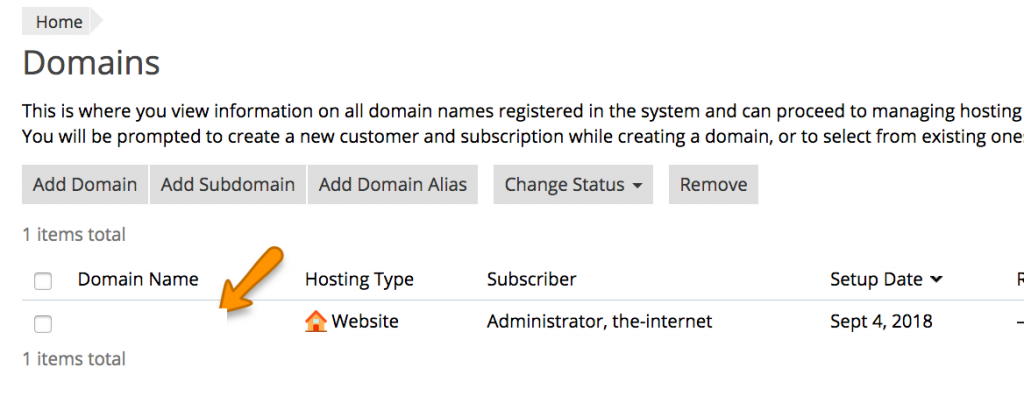
Log in to the Plesk control panel and select Domains from the hosting services menu on the left.

Step 2: Select Your Domain
Select Manage in Customer Panel for the relevant domain.
Step 3: Navigate to Applications
Select Applications from the column on the right.

Step 4: Select and Install WordPress
Select the WordPress version that you would like to use and click install. For the latest version, just click install.

Step -5:
Once the installation has been completed, you will be taken to the CMS management screen. From there you may view your login credentials. Plesk automatically assigns a random username and password to new installs.
Conclusion
Installing WordPress through Plesk Panel is a simple and convenient process that eliminates the need for manual installation and database configuration. By using the built-in application installer, you can quickly set up WordPress on your domain and start building your website.
Once the installation is complete, access the WordPress administration dashboard using the credentials provided by Plesk. For better website security, make sure to use a strong administrator password, keep WordPress and its plugins updated, and configure regular backups.
Following these steps will help you get your WordPress website up and running with minimal effort.
FAQs
1. Can I install WordPress directly from the Plesk Panel?
Yes. Plesk provides a built-in application installer that allows you to install WordPress directly from the Applications section without manually uploading WordPress files.
2. Do I need to create a database manually before installing WordPress?
No. Plesk automatically creates and configures the required database during the WordPress installation process.
3. How can I access the WordPress admin dashboard after installation?
Once the installation is complete, you can access the WordPress admin dashboard using the login URL:
https://yourdomain.com/wp-admin
Use the administrator username and password generated or configured during installation.
Related Articles
How to Install Plesk on a Linux Server
How to Create a Domain in Plesk
Official Documentation
Plesk WP Toolkit – Official Documentation
Need Help Installing and Managing WordPress in Plesk?
Looking to install WordPress, manage your website, or configure WordPress settings through the Plesk control panel?
Pheonix Solutions provides Plesk server administration, WordPress installation and management, website migration, Linux server management, cloud hosting, and infrastructure support services.
Our team can help you install WordPress, configure databases, troubleshoot installation errors, manage WordPress updates, improve website security, and maintain your hosting environment efficiently.
Get in touch with our team to discuss your WordPress hosting and server management requirements.