
Post Date: October 19, 2018
Last Updated: October 16, 2026
Introduction
OpenCart is an open-source e-commerce platform that allows businesses to create and manage online stores. It provides features such as product management, order processing, customer accounts, multiple payment options, multi-store support, and multilingual functionality.
OpenCart is built using PHP and uses a database to store information about products, customers, orders, and store configuration.
In this tutorial, we will cover the main steps involved in installing and configuring OpenCart on a Linux server using Apache, PHP, and a MySQL-compatible database.
Note: The original tutorial uses OpenCart 3.0.2 and CentOS 7. Both are legacy technologies. CentOS Linux 7 reached end of life on June 30, 2024, and OpenCart 3.0.2 was released in 2018. For a new production deployment, choose a supported Linux distribution and an OpenCart release compatible with its current PHP and database requirements. The commands below use a modernized installation approach; verify package names and compatibility for your chosen versions before deployment.
Prerequisites
Before installing OpenCart, ensure that you have:
- A Linux server with root or sudo access.
- Apache HTTP Server installed or available through the package manager.
- A PHP version supported by your selected OpenCart release.
- MySQL or MariaDB configured for the selected OpenCart version.
- PHP extensions required by the application.
- A domain name or server IP address.
- A firewall configured to allow the necessary web traffic.
- A database name and dedicated database user for OpenCart.
- A valid TLS certificate for production deployments.
Implementation
Step 1: Update the Server Packages
Update the package index and installed packages using the appropriate commands for your distribution.
Ubuntu or Debian:
sudo apt update
sudo apt upgrade
RHEL, Rocky Linux, or AlmaLinux:
sudo dnf upgrade
For new deployments, use a supported operating system and avoid relying on CentOS 7-specific repositories.
Step 2: Install Apache
Apache serves the OpenCart website to visitors.
Ubuntu or Debian:
sudo apt install apache2
sudo systemctl enable --now apache2
sudo systemctl status apache2
RHEL-compatible distributions:
sudo dnf install httpd
sudo systemctl enable --now httpd
sudo systemctl status httpd
If the service is running, configure the firewall to allow HTTP and HTTPS traffic as required.
For Ubuntu systems using UFW:
sudo ufw allow 80/tcp
sudo ufw allow 443/tcp
For RHEL-compatible systems using firewalld:
sudo firewall-cmd --permanent --add-service=http
sudo firewall-cmd --permanent --add-service=https
sudo firewall-cmd --reload
Also verify the cloud firewall or security group if the server is hosted on a cloud platform.
Step 3: Install and Configure the Database
Install a supported MySQL or MariaDB version according to the requirements of your chosen OpenCart release.
For example, on Ubuntu or Debian, a MariaDB installation can begin with:
sudo apt install mariadb-server
sudo systemctl enable --now mariadb
sudo systemctl status mariadb
For RHEL-compatible systems, install the appropriate database package from the configured repositories.
After installation, secure the database installation according to the database server’s documentation. Then create a dedicated database and user for OpenCart.
Log in to the database server:
sudo mariadb
Create the database and application user:
CREATE DATABASE opencart_db
    CHARACTER SET utf8mb4
    COLLATE utf8mb4_unicode_ci;

CREATE USER 'opencart_user'@'localhost'
    IDENTIFIED BY 'REPLACE_WITH_A_STRONG_PASSWORD';

GRANT ALL PRIVILEGES ON opencart_db.*
    TO 'opencart_user'@'localhost';

FLUSH PRIVILEGES;
EXIT;
Replace the example password with a unique, strong password. Store it securely and do not include it in publicly accessible files or source control.
Step 4: Install PHP and Required Extensions
OpenCart requires PHP and several extensions for database access, image processing, and application functionality.
The required PHP version and extensions depend on the OpenCart release. Check the official documentation for your chosen version before installing packages.
For Ubuntu or Debian, a typical starting point might be:
sudo apt install php php-cli php-mysql php-curl \
    php-gd php-mbstring php-xml php-zip php-intl
For RHEL-compatible distributions, install the corresponding PHP packages using DNF and the appropriate supported PHP repository.
Check the installed PHP version:
php -v
Verify that the required extensions are loaded:
php -m
Do not assume that the newest available PHP version is compatible with every OpenCart release. Select a supported combination of OpenCart, PHP, and database versions.
Step 5: Download and Extract OpenCart
Download the release that you have verified is appropriate for your server.
Create a temporary working directory:
mkdir -p ~/downloads
cd ~/downloads
Download the selected release from the official OpenCart release source. For example, the original tutorial used OpenCart 3.0.2:
wget https://github.com/opencart/opencart/releases/download/3.0.2.0/3.0.2.0-OpenCart.zip
Security note: OpenCart 3.0.2 is an old release and should not be selected for a new production store simply because it appears in this example. Choose a maintained release, verify its integrity where checksums or signatures are available, and review its installation requirements.
Extract the downloaded archive:
unzip 3.0.2.0-OpenCart.zip
The archive’s directory structure can vary by release. Inspect the extracted files before copying them to the web directory.
find . -maxdepth 3 -type f | head -50
Locate the application’s upload or public web files according to the package documentation.
Step 6: Deploy the Application Files
For an Apache installation on Ubuntu or Debian, the default document root is commonly /var/www/html. On RHEL-compatible systems, it is commonly /var/www/html as well.
Create a directory for the store:
sudo mkdir -p /var/www/html/opencart
Copy the correct application files from the extracted release into this directory. For example, if the release contains an upload directory:
sudo cp -a ~/downloads/upload/. /var/www/html/opencart/
Use this example only if the extracted package actually contains the expected upload directory. Confirm the final file layout before continuing.
Set ownership and permissions appropriate to your Apache service account and the application’s documented writable directories.
On Ubuntu or Debian, Apache commonly runs as www-data. On RHEL-compatible systems, it commonly runs as apache.
Avoid applying broad permissions such as chmod -R 777 or making every application file writable by the web server. Only grant write access to directories that OpenCart explicitly requires to be writable.
Step 7: Configure the Apache Virtual Host
Create a dedicated Apache virtual host configuration for the store.
Ubuntu or Debian:
sudo nano /etc/apache2/sites-available/opencart.conf
Example configuration:
<VirtualHost *:80>
    ServerName shop.example.com
    DocumentRoot /var/www/html/opencart

    <Directory /var/www/html/opencart>
        AllowOverride All
        Require all granted
    </Directory>

    ErrorLog ${APACHE_LOG_DIR}/opencart-error.log
    CustomLog ${APACHE_LOG_DIR}/opencart-access.log combined
</VirtualHost>
Replace shop.example.com with your actual domain.
Enable the site and required Apache rewrite module:
sudo a2enmod rewrite
sudo a2ensite opencart.conf
sudo apache2ctl configtest
sudo systemctl reload apache2
RHEL-compatible distributions: Place the virtual host configuration in the appropriate Apache configuration directory, such as /etc/httpd/conf.d/opencart.conf, then validate and reload the service:
sudo apachectl configtest
sudo systemctl reload httpd
Ensure that the application is deployed to the configured document root. If the selected OpenCart release specifies a different public directory, use that directory instead.
Step 8: Complete the OpenCart Installation in a Browser
Open your domain in a browser:
http://shop.example.com
If DNS is not configured yet, you can use the server’s IP address for initial testing, provided the virtual host and network configuration allow it.
Follow the installation wizard.
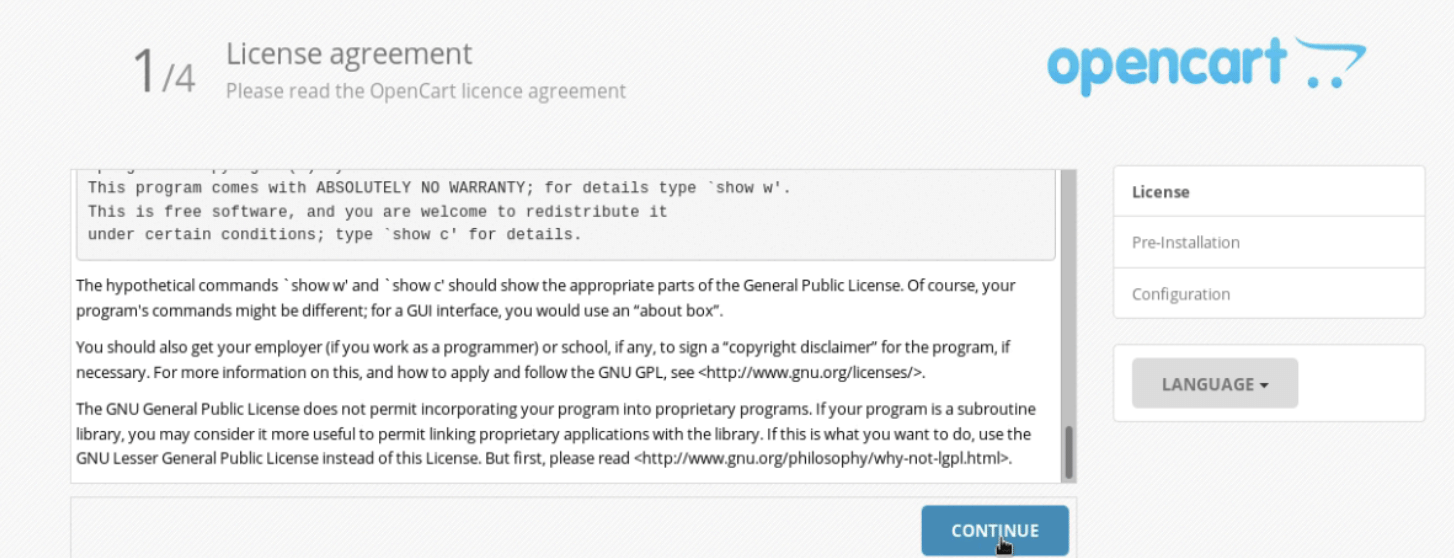
Step 1: License agreement
Review and accept the license terms to continue.
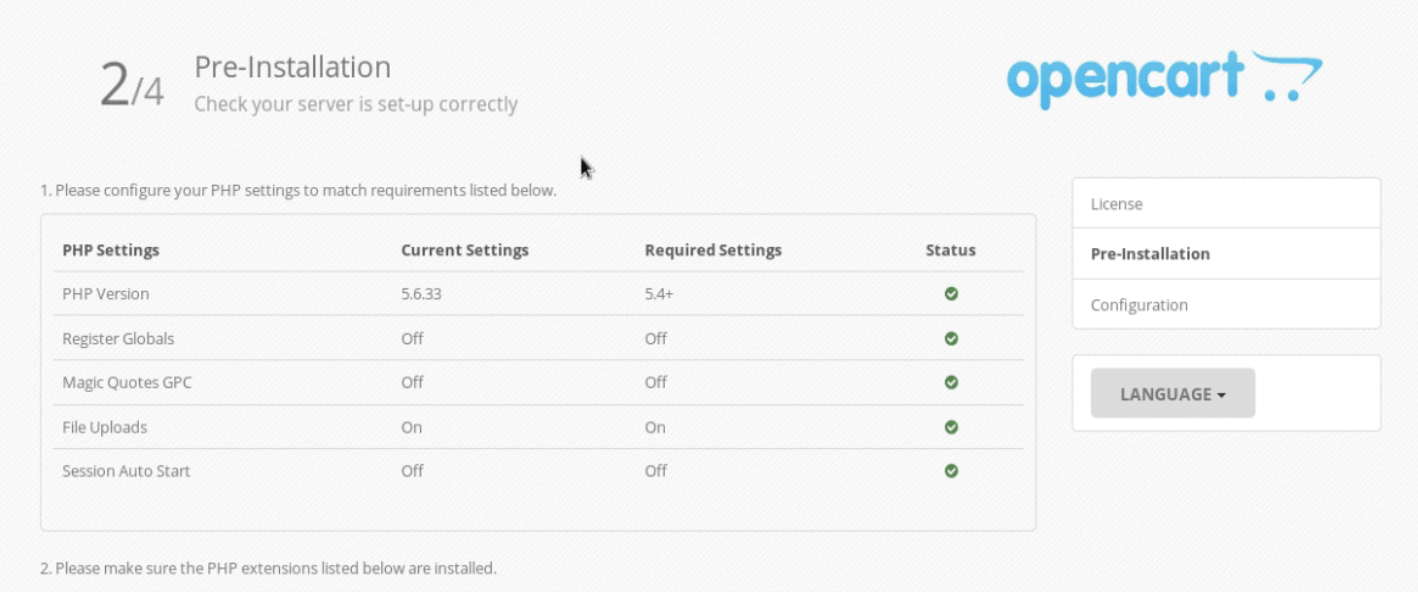
Step 2: Server requirements
The installer checks whether the server meets the required PHP version, extensions, file permissions, and configuration requirements. Resolve any reported errors before proceeding.
Step 3: Database configuration
Enter the database details created earlier:
- Database host:
localhost, if the database is on the same server. - Database name:
opencart_db. - Database username:
opencart_user. - Database password: The password configured for the application user.
Use the field names displayed by your particular OpenCart release.
Step 4: Administrator account
Complete the administrator setup using the fields provided by the installer. Choose a unique administrator username and a strong password.
Step 5: Finish installation
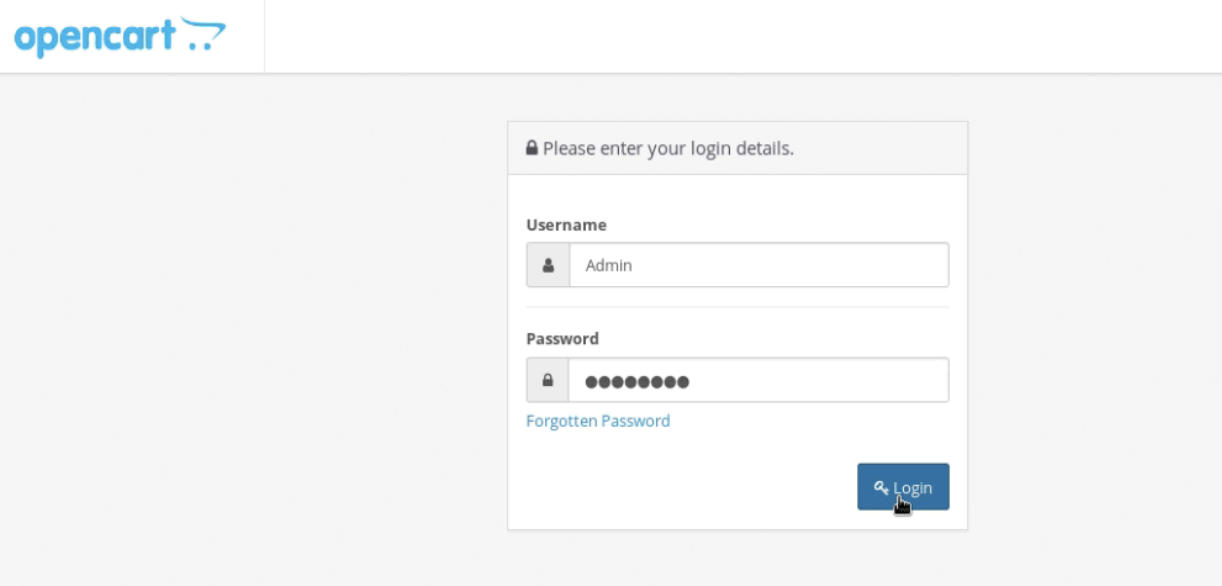
Once the installation completes, access the store’s administration interface using the URL specified by the installer or release documentation.
Verify that both the storefront and the administration interface work correctly.

Step 9: Apply Post-Installation Security Measures
Before making the store publicly available, complete the following checks:
- Configure HTTPS using a valid TLS certificate.
- Verify that the storefront and administration interface use the correct domain.
- Remove installation files or directories as instructed by the OpenCart release documentation.
- Confirm that database credentials and configuration files are not publicly accessible.
- Restrict write permissions to only the required application directories.
- Change default or predictable administrator paths and credentials where supported by the selected release.
- Configure database and application backups and test restoration.
- Keep the operating system, PHP, OpenCart, extensions, and themes updated.
- Monitor Apache logs, application errors, and suspicious login attempts.
- Test checkout, payment integration, email delivery, and order creation before accepting real customer orders.
For production stores, configure HTTPS before entering administrator credentials or processing customer information.
Conclusion
OpenCart provides a flexible platform for building and managing an online store. A successful deployment requires a compatible Linux environment, Apache, PHP, a supported database, correct application permissions, and a properly configured web server.
By following the installation process and completing the recommended security checks, administrators can establish a more reliable foundation for an e-commerce application.
For production use, select maintained software versions, protect database credentials, enable HTTPS, configure backups, and monitor the application regularly.
Frequently Asked Questions
1. What is OpenCart?
OpenCart is an open-source e-commerce platform used to build and manage online stores, products, customers, orders, and payment integrations.
2. Can OpenCart run on CentOS 7?
Older OpenCart releases were deployed on CentOS 7, but CentOS Linux 7 is now end of life. A supported operating system is recommended for new deployments.
3. Which database does OpenCart use?
OpenCart uses a MySQL-compatible database. The supported MySQL or MariaDB versions depend on the selected OpenCart release.
4. Why does the OpenCart installation wizard report missing PHP extensions?
The installed PHP environment may not include all the extensions required by the selected OpenCart release. Review the installer’s messages, install the appropriate extensions, and restart or reload the relevant PHP and web server services if necessary.
5. Why can I not access my OpenCart website?
Common causes include incorrect DNS records, Apache configuration errors, firewall restrictions, missing application files, incorrect permissions, or PHP errors. Review the web server configuration and logs to identify the cause.
6. How can I secure an OpenCart store?
Use supported software versions, HTTPS, strong administrator credentials, restricted file permissions, protected database credentials, regular backups, and timely security updates. Review third-party extensions carefully before installing them.
7. Can I migrate an existing OpenCart store to a newer version?
Yes, but the process depends on the source and target versions, installed extensions, theme compatibility, and database schema. Back up the files and database, then test the migration in a staging environment before updating the production store.
Related Articles
- How to Force HTTPS on Your Website
- Redirect HTTP to HTTPS in Apache
- SSL/TLS Configuration and Verification on Linux
Need Help with OpenCart Installation and Configuration?
Pheonix Solutions provides Linux server administration, web application deployment, database configuration, and infrastructure support. Our team can help install and configure OpenCart, troubleshoot server issues, and improve the security and reliability of your e-commerce environment.
For assistance with your e-commerce infrastructure, contact our team through the Pheonix Solutions Contact Page.
Pingback: HOW TO INSTALL ZEN CART ON CENTOS – 7. - PHEONIX SOLUTIONS