
Post Date : November 23,2018
Last Updated: October 05, 2026
Introduction
Virtual Private Servers (VPS) allow administrators to create isolated environments on a physical server while efficiently sharing hardware resources. OpenVZ is a container-based virtualization platform that enables fast deployment and management of VPS instances.
This guide explains how to create, configure, and start a new VPS container on an OpenVZ host node using vzctl commands.
Prerequisites
Before creating a VPS, ensure that:
- OpenVZ is installed and configured on the host node.
- Root access is available on the OpenVZ server.
- An OS template is already downloaded.
- A free IP address is available.
- Adequate CPU, RAM, and disk resources exist on the host.
VPS Deployment Workflow
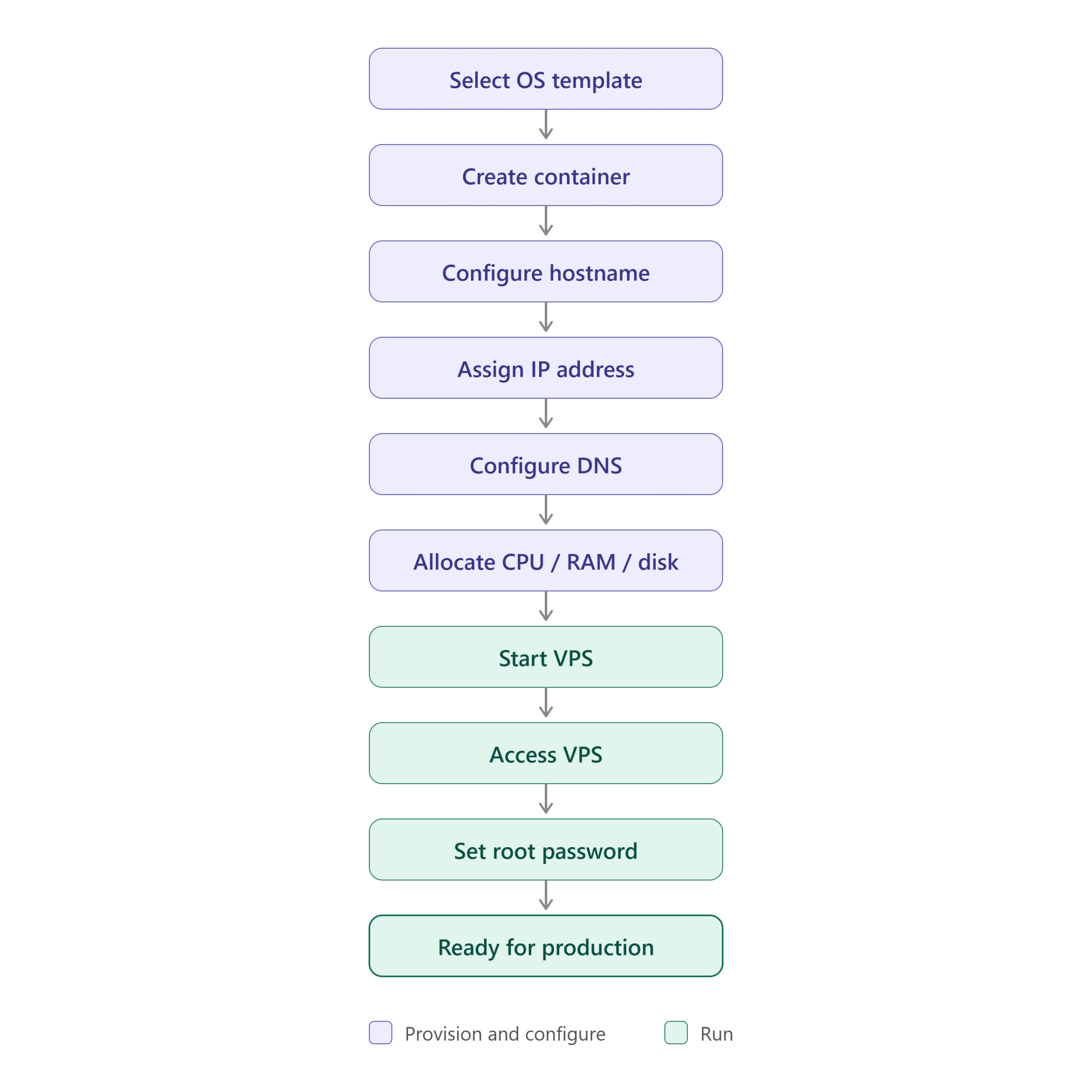
Step 1: View Available OS Templates
Check the available operating system templates on the OpenVZ node:
ls /vz/template/cache/
Example output:
centos-7-x86_64.tar.gz
ubuntu-20.04-x86_64.tar.gz
debian-11-x86_64.tar.gz
Choose the template you want to use for the VPS.
Step 2: Create a New VPS Container
Create a new container using the selected template:
vzctl create 114 --ostemplate centos-7-x86_64 --config vswap-4g
Where:
| Parameter | Description |
|---|---|
| 114 | Container ID (CTID) |
| centos-7-x86_64 | OS Template |
| vswap-4g | Memory configuration |
Note: Use the template name without the
.tar.gzextension.
Step 3: Assign a VPS Name
Set a descriptive name for the VPS:
vzctl set 114 --save --name VPS1
Step 4: Enable Auto Start on Boot
Configure the VPS to start automatically after server reboot:
vzctl set 114 --save --onboot yes
Step 5: Configure Hostname
Set the server hostname:
vzctl set 114 --save --hostname ns1.example.com
Replace:
ns1.example.com
with your desired hostname.
Step 6: Assign an IP Address
Add a public or private IP address:
vzctl set 114 --save --ipadd xxx.xxx.xxx.xxx
Example:
vzctl set 114 --save --ipadd 192.168.1.100
Step 7: Configure DNS Servers
Set DNS resolvers for the VPS:
vzctl set 114 --save --nameserver 8.8.8.8 --nameserver 8.8.4.4
You may also use:
1.1.1.1
1.0.0.1
for Cloudflare DNS.
Step 8: Configure CPU, RAM, and Swap
Allocate server resources:
vzctl set 114 --save --cpus 1
vzctl set 114 --save --ram 2G
vzctl set 114 --save --swap 2G
Example configuration:
| Resource | Value |
|---|---|
| CPU | 1 Core |
| RAM | 2 GB |
| Swap | 2 GB |
Adjust according to workload requirements.
Step 9: Allocate Disk Space
Assign storage capacity:
vzctl set 114 --save --diskspace 10G
Example:
10 GB Storage
Increase the value if hosting websites, databases, or applications.
Step 10: Start the VPS
Start the container:
vzctl start 114
Verify status:
vzlist
Step 11: Access the VPS Console
Enter the VPS directly from the host node:
vzctl enter 114
You should now be inside the VPS environment.
Step 12: Set the Root Password
Configure a password for the root user:
passwd
Enter and confirm the new password.
Verify Network Connectivity
Test internet access:
ping google.com
Check IP configuration:
ip addr
Verify DNS resolution:
nslookup google.com
Common Troubleshooting
VPS Does Not Start
Check container status:
vzlist -a
Review logs:
cat /var/log/vzctl.log
Network Not Working
Verify:
- IP address assignment
- DNS configuration
- Host node routing
- Firewall rules
Insufficient Resources
Check host resource utilization:
free -h
df -h
top
Conclusion
OpenVZ provides a lightweight and efficient virtualization platform for deploying VPS containers. By following the steps in this guide, you can create a new VPS, configure networking, allocate resources, and prepare the server for production use within minutes.
Proper hostname configuration, DNS settings, resource allocation, and security hardening should always be completed before hosting applications or customer workloads. Regular monitoring and backups will help maintain performance and reliability in production environments.
Frequently Asked Questions (FAQ)
1. How do I view all VPS containers on the OpenVZ server?
Use:
vzlist -a
This displays all running and stopped containers.
2. How can I stop or restart a VPS?
Stop a VPS:
vzctl stop 114
Restart a VPS:
vzctl restart 114
3. How can I change the VPS resources later?
You can modify resources anytime:
vzctl set 114 --save --ram 4G
vzctl set 114 --save --cpus 2
vzctl set 114 --save --diskspace 20G
Restart the VPS if required.
Related Article
Talk to our experts
Have a technology challenge or looking for the right solution for your business? Our team can help you with cloud, DevOps, development, infrastructure, design, and more. Feel free to reach out to our experts here.