Introduction
The “IP Address Has Changed!” error in cPanel occurs when your session IP changes during login. This can interrupt access to both cPanel and WHM.
Prerequisites
- Access to cPanel and WHM
- Valid login credentials
Implementation
There are two possibilities why you would receive the error message “IP address has changed” from cPanel.
- Your Internet Service Provider (ISP) has a short DHCP lease time, causing your IP address to be renewed/released and reassigned while you are logged into cPanel.
- You are attempting to log in to cPanel with the same account on two different devices simultaneously.
There are two ways to resolve the error message.
Method 1:
Log in to cPanel again, which usually resolves the issue.

Method 2: Configure Cookie IP Validation Settings
- Log in to cPanel and WHM.
- Go to → Server Configuration → Tweak Settings → Security Tab
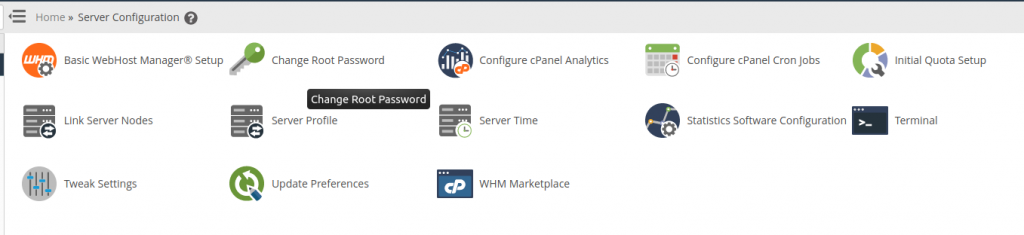
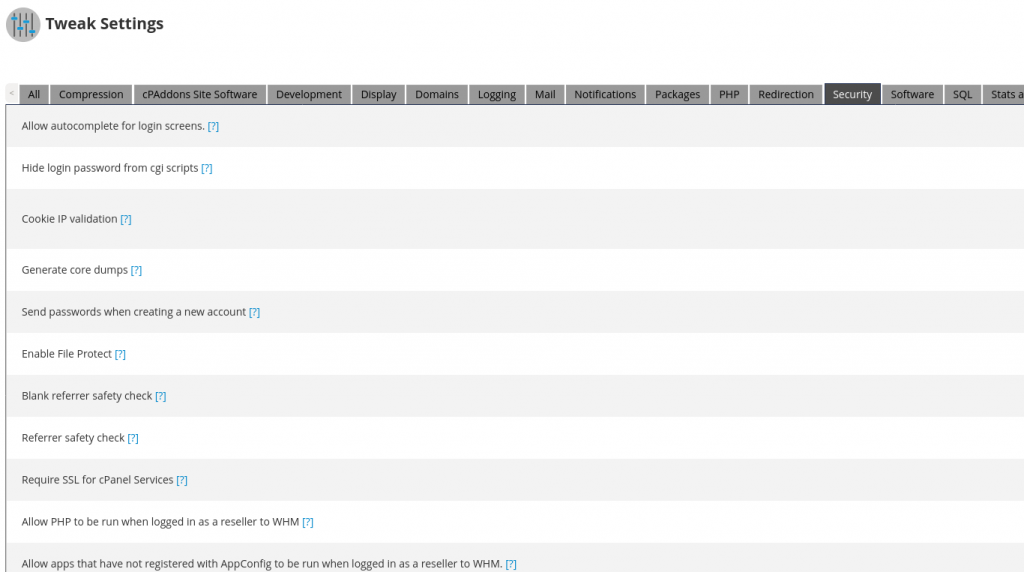
3. Look for Cookie IP Validation
- Click the “?” icon for details
- This setting validates IP addresses used in cookie-based logins

4. Change the setting to loose.
- This reduces the frequency of re-authentication
- You can also disable it completely if required
5. Disable proxy domains
- Otherwise, you must use a proxy server with a static IP
6. Clear your browser cache and log in again
Conclusion
By adjusting cookie IP validation settings in WHM and re-logging into cPanel, you can resolve the “IP Address Has Changed!” error and maintain a stable session.