Introduction
The Address Importer feature in cPanel allows you to quickly create multiple email accounts by importing data from a CSV or Excel file. This is useful when migrating email accounts or creating bulk email addresses for an organization.
Prerequisites
Before starting, ensure you have:
- Access to your cPanel account
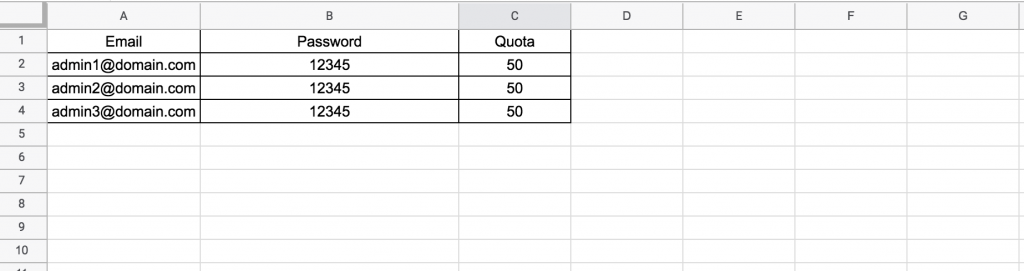
- A valid CSV or Excel (XLS) file containing email account details
- Properly formatted data with email usernames and passwords
- The domain already added to your cPanel account
Implementation
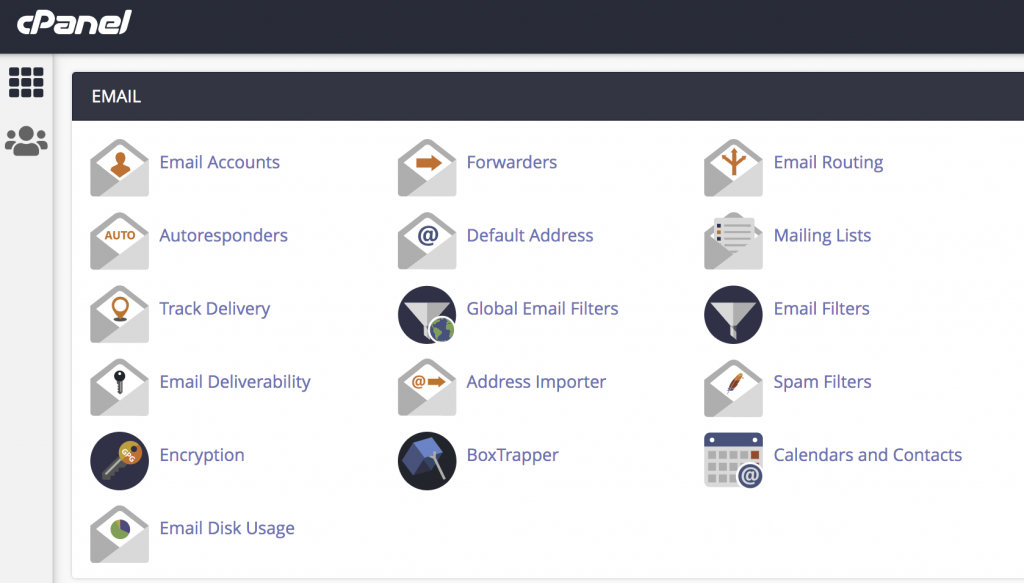
Step 1: Login in to cPanel Account and click Address Importer in the EMAIL section of the cPanel home screen.
Step 2: Select the Email Accounts option in What would you like to import.
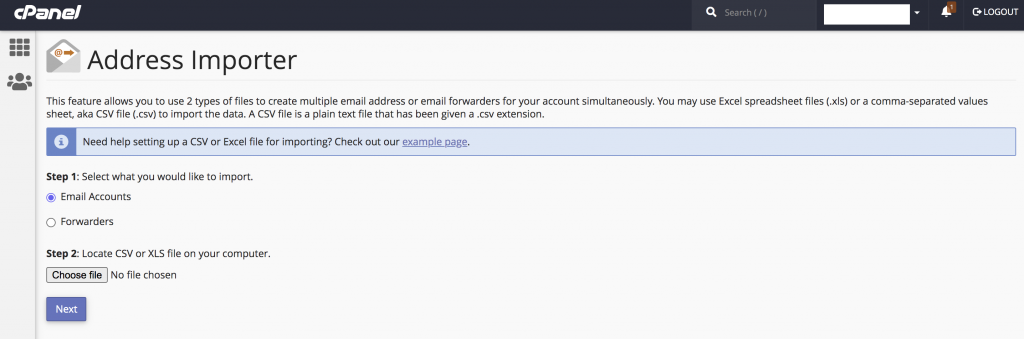
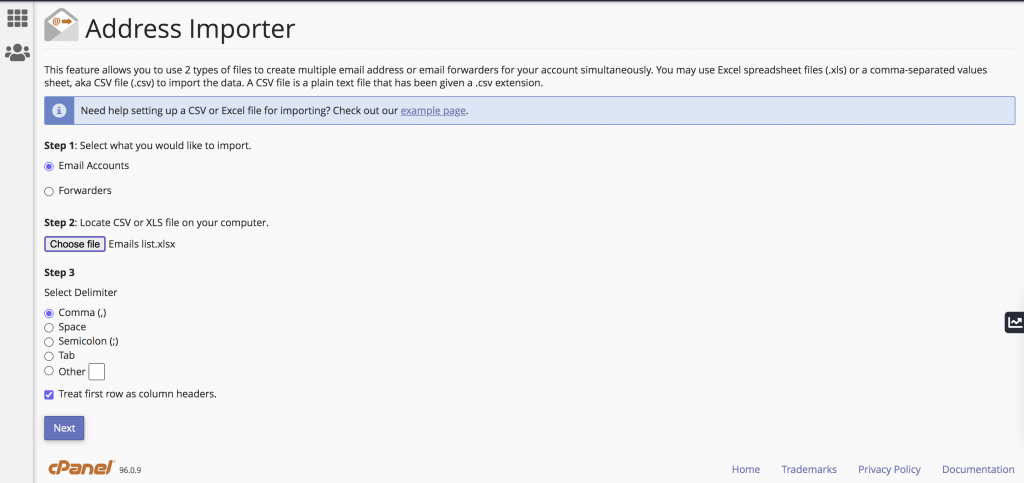
Step 3: Click Choose file and select your Excel Spreadsheet or CSV file. If you have selected XLS file, Select Comma and Treat first row as column headers if you placed column headers in the first row of the file. If you have selected CSV file, Select Comma only and Click Next.
Step 4: Select the domain name in which you want to create the emails. Click Next.
Step 5: Review the information to make sure that it is correct, and then click Finish to import the data. The import process may take some time if you are importing a lot of data.
Conclusion
Using the Address Importer feature in cPanel makes it easy to create multiple email accounts in bulk. By preparing a properly formatted CSV or Excel file, administrators can save time and simplify email account management.