Introduction
cPanel provides an easy way to back up and restore MySQL databases directly from the control panel. Regular database backups help protect website data and simplify recovery during migrations or troubleshooting.
Prerequisites
Before proceeding, ensure:
- Valid cPanel login credentials
- Existing MySQL database in the account
- Sufficient disk space for backup files
- SQL backup file available for restore operations
Implementation
I. Backup MySQL Database
Step 1: login to cPanel account.
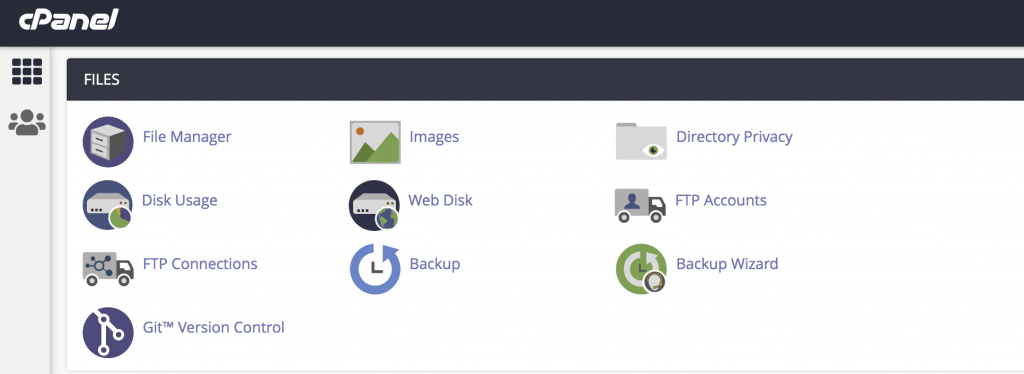
Step 2: Select Backup in the Files section of the main page. You can see all databases associated with your cPanel account.
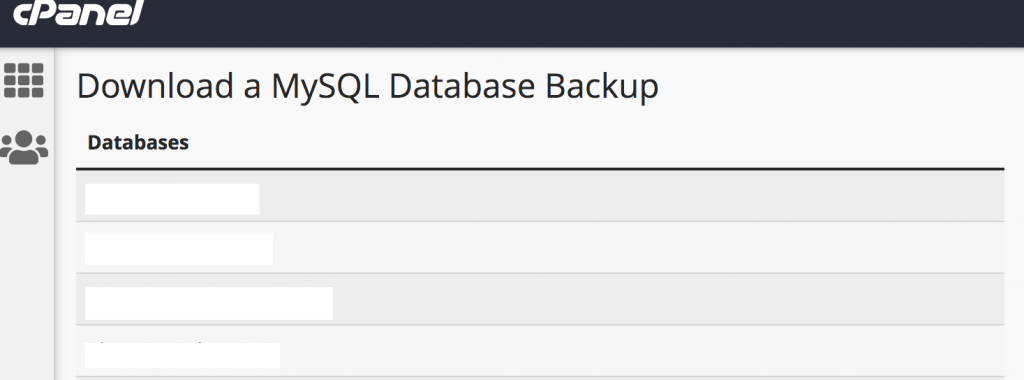
Step 3: Click on your database in the Download a MySQL Database Backup section and cPanel will generate an SQL file and save it to the default download location on your computer.
II. Restore MySQL Database
Step 1: Select Backup in the Files section of the main page. You can see all databases associated with your cPanel account.
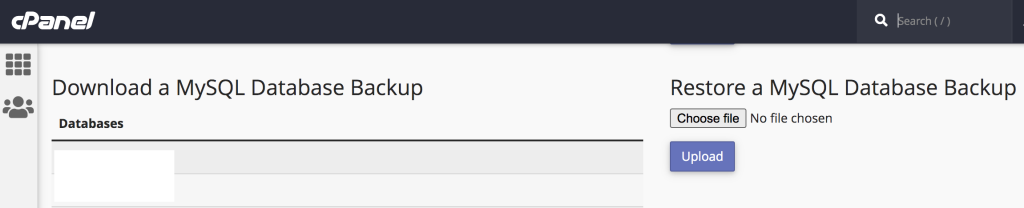
Step 2: Click Choose File and select an SQL file from your local machine. Click Upload and cPanel will import the file in the Restore a MySQL Database Backup section.
Conclusion
Using cPanel backup tools, users can easily create and restore MySQL database backups for website recovery, migration, and data protection purposes.