Introduction
Managing active FTP sessions is important for maintaining the security and performance of your hosting account. In cPanel, you can easily monitor and terminate current FTP connections whenever required. This helps prevent unauthorized access, stop inactive sessions, and manage file transfers effectively.
Steps to Terminate Current FTP Connections in cPanel
Step 1:
Login to your cPanel account.
Step 2:
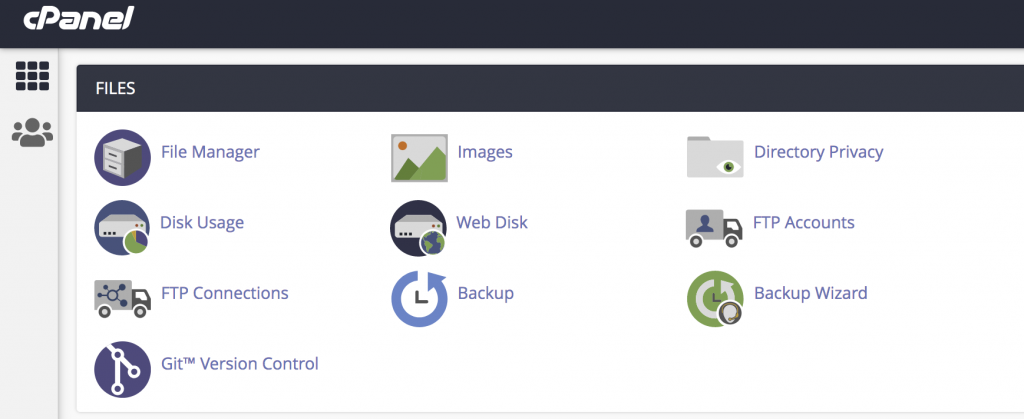
Under the FILES section, click on FTP Connections.
Step 3:
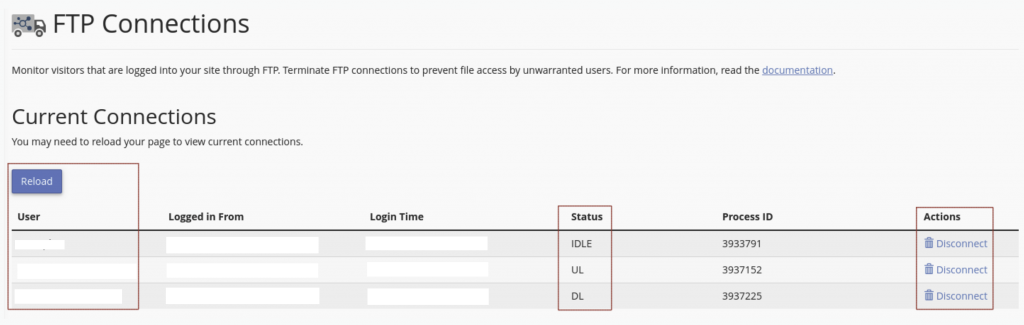
You can view all active FTP connections on your account. The Status section helps you track the activity of each FTP user.
Note:
- IDLE – FTP account is logged in but not currently uploading or downloading files.
- UL – FTP account is currently uploading files to your account.
- DL – FTP account is currently downloading files from your account.
Step 4:
Click on Disconnect next to the FTP session that you want to terminate.
Conclusion
By following the above steps, you can quickly disconnect active FTP sessions from your cPanel account. Regularly monitoring FTP connections helps improve account security and ensures better control over file transfer activities.