Introduction
Email accounts can consume significant disk space over time due to accumulated emails, attachments, spam messages, and archived folders. Monitoring email disk usage in cPanel helps administrators and users identify storage consumption, manage mailbox quotas, and maintain smooth email performance. This guide explains how to check the disk usage of email accounts using the Email Disk Usage feature in cPanel.
Prerequisites
Before proceeding, ensure you have the following:
- Valid cPanel login credentials
- Access to the hosting account where the email account is configured
- Permission to manage or view email accounts in cPanel
- A stable internet connection and web browser
Steps to Check Email Disk Usage in cPanel Account
Step 1: Login to cPanel Account
Access your hosting cPanel account using your username and password.
Step 2: Open Email Disk Usage
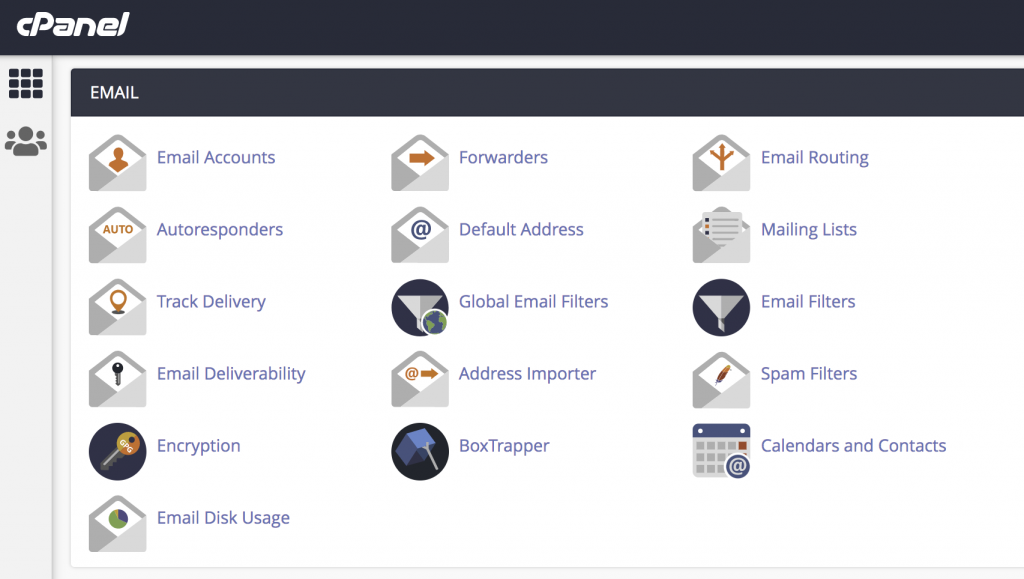
From the cPanel dashboard, navigate to the EMAIL section and click on Email Disk Usage.
Step 3: Select the Required Email Account
In the Account dropdown box, select the required email ID for which you want to check disk usage.
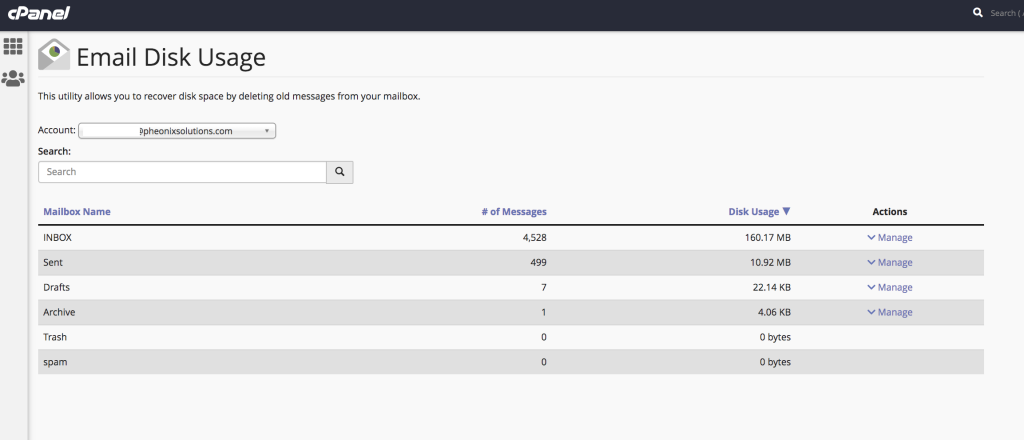
The system will display detailed mailbox usage information, including:
- Total storage used
- Usage by folders (Inbox, Sent, Trash, Spam, etc.)
- Available quota information
Conclusion
The Email Disk Usage feature in cPanel provides a simple and effective way to monitor mailbox storage consumption. Regularly checking email disk usage helps prevent mailbox quota issues, improves email performance, and ensures sufficient storage availability for ongoing communication. Administrators can also use this feature to identify large folders and clean unnecessary emails when required.