Introduction
In cPanel/WHM environments, packages are used to define hosting account limits and features such as disk space, bandwidth, email accounts, databases, and more. When migrating accounts from one cPanel server to another, it is often necessary to copy hosting packages so that the same account configurations can be maintained on the destination server.
Copying packages between cPanel servers helps administrators save time, maintain consistency, and simplify server migrations. WHM provides built-in tools that make this process straightforward and efficient.
Prerequisites
Before starting, ensure you have the following:
- Root access to both source and destination cPanel/WHM servers
- WHM login credentials
- SSH access enabled between the servers
- Stable network connectivity between both servers
- Existing packages created on the source server
- Basic understanding of WHM administration
IMPLEMENTATION
Step1:
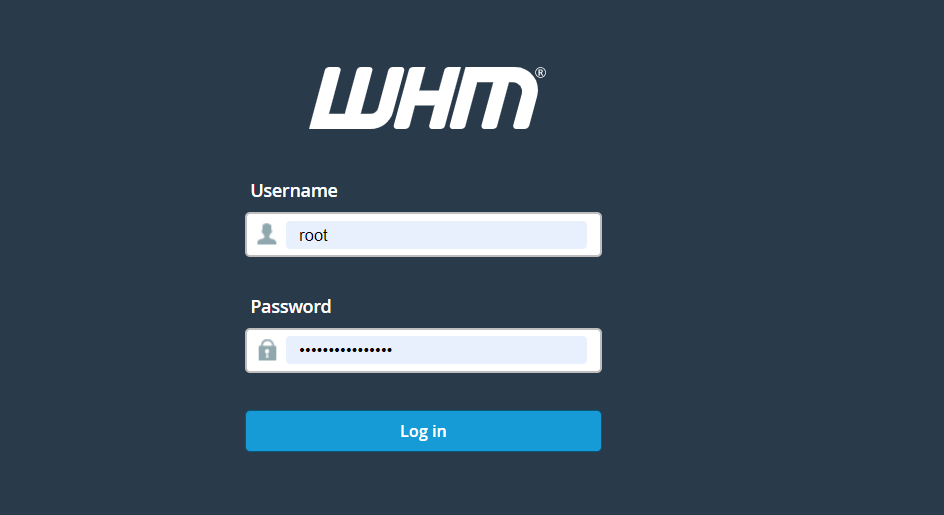
Log into WHM on the destination server.
Step2:
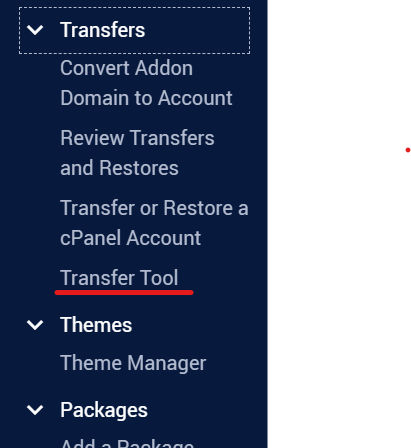
Navigate to Transfer Tool.
Step3:
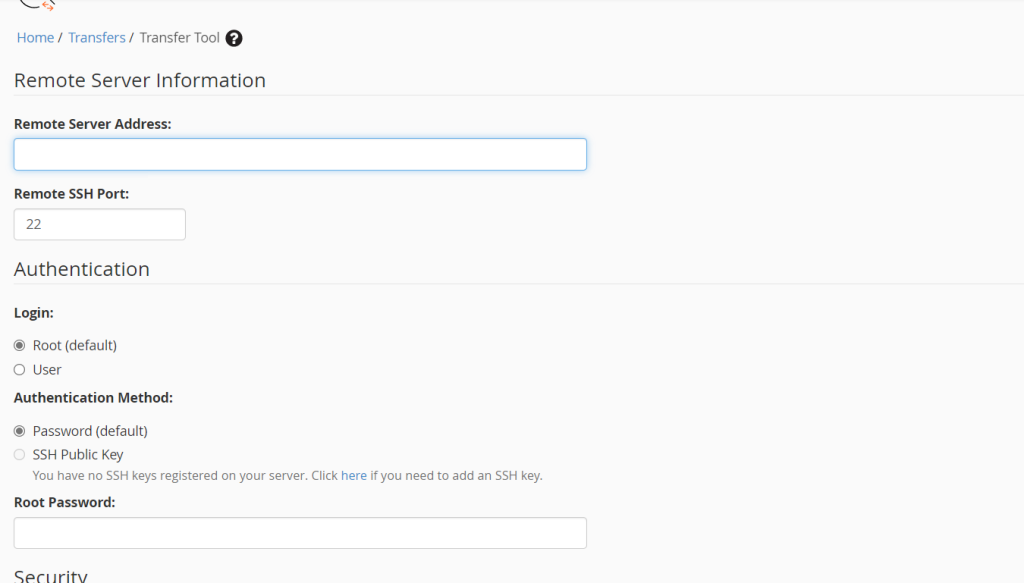
Input the Remote Server and Authentication information.
Step4:
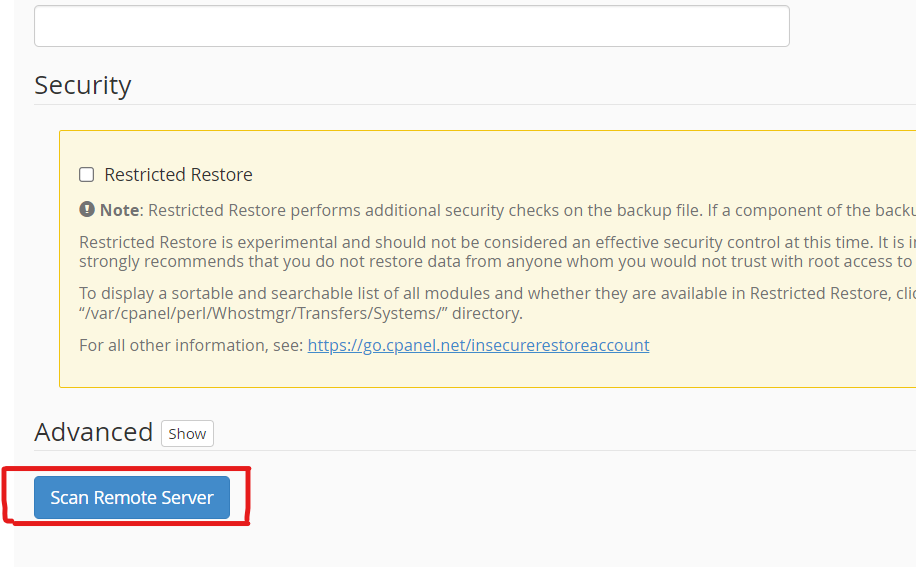
Click on “Scan Remote Server”.
Step5:
Click the Packages tab.
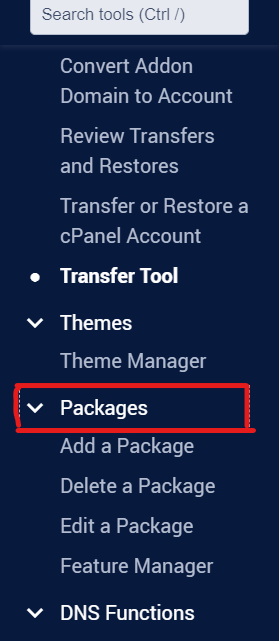
Step6:
Select the desired packages.
Step7:
Click on Copy. The packages are copied.
Conclusion
Copying packages between cPanel servers is an essential task during server migrations and account transfers. WHM’s Transfer Tool provides an easy and reliable way to move packages automatically along with hosting accounts.
For advanced administrators, manually copying package configuration files is also an option when only package settings are required. By following the steps in this guide, you can ensure a smooth and consistent migration process between cPanel servers.