
Post Date: April 26, 2019
Last Updated: October 18, 2026
Introduction
OpenStack provides image management capabilities through the Glance service, allowing users to upload, manage, and delete virtual machine images. While these operations can be performed using the Horizon dashboard, the OpenStack command-line interface (CLI) offers a convenient way to manage cloud images efficiently. In this tutorial, we will explain how to download a cloud image, upload it to OpenStack Glance, verify the uploaded image, and delete an image using simple command-line instructions.
Prerequisites
Before uploading cloud images to OpenStack through the command line, ensure that you have the following:
- A working OpenStack environment with the Glance image service configured.
- SSH or terminal access to an OpenStack controller or a node with the OpenStack CLI installed.
- Valid OpenStack administrator credentials or a user account with the required image management permissions.
- The OpenStack command-line client installed and configured.
- A cloud image file, such as a QCOW2 image, downloaded from a trusted source.
- Sufficient storage space to store and upload the cloud image.
- Network connectivity to download the image, if you are retrieving it from the internet.
Implementation
Upload cloud images in OpenStack using the command-line interface (CLI) to manage virtual machine images efficiently. OpenStack Glance allows administrators to upload, view, and delete cloud images without using the Horizon dashboard. In this tutorial, we will demonstrate how to download a Debian QCOW2 image, upload it to Glance, verify its status, and delete it using OpenStack CLI commands.

Download an image from internet. We use debian image for example. Login to the server where the glance service is running, in our case it’s a allinone node.
cd /root
wget http://cdimage.debian.org/cdimage/openstack/current-9/debian-9-openstack-amd64.qcow2
Source your keystone admin credentials using below source command
[root@os ~]# source keystonerc_admin
[root@os ~(keystone_admin)]#
Go to the folder where your have place cloud image qcow2 file.
[root@os ~(keystone_admin)]# cd /root/
[root@os ~(keystone_admin)]#
Upload a Cloud Image to OpenStack Glance
Syntax :
[root@os ~(keystone_admin)]# openstack image create –disk-format qcow2 –container-format bare –public –file {Name-Cloud-Image}.qcow2 <Name-of-Image>
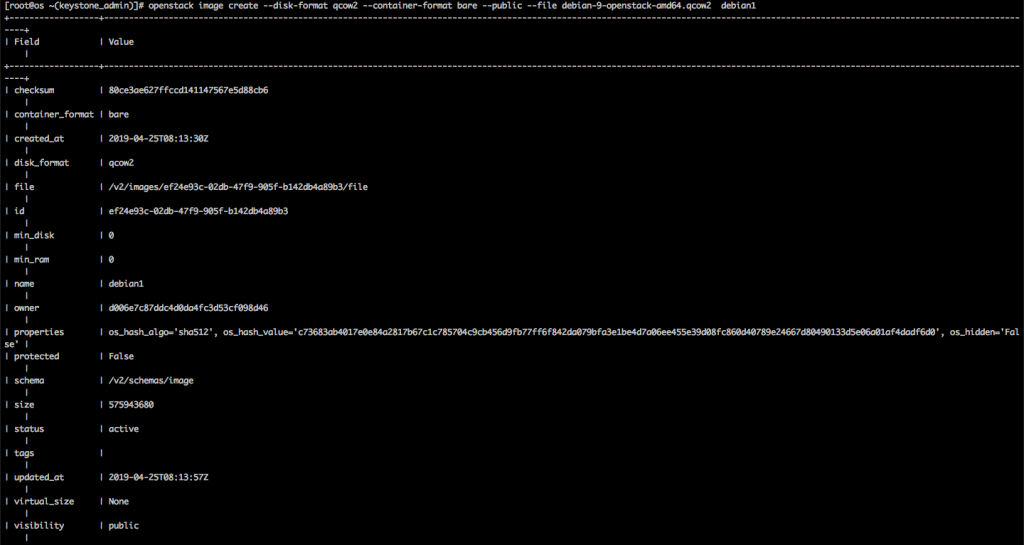
Example : Let’s assume I want to upload Debian9 qcow2 file.
[root@os ~(keystone_admin)]# openstack image create --disk-format qcow2 --container-format bare --public --file debian-9-openstack-amd64.qcow2 debian1
Verify Uploaded OpenStack Images
[root@os ~(keystone_admin)]# openstack image list
+--------------------------------------+------------+--------+
| ID                                   | Name       | Status |
+--------------------------------------+------------+--------+
| eecc5097-4e5d-4c94-a45b-55086eac58ff | CentOS7    | active |
| 91269ac5-d934-400f-8e97-bc7a59b33245 | Ubuntu VDK | active |
| 2e55d18b-262d-4e7a-9d37-3af350a885f7 | cirros     | active |
| 6be91be3-d1c0-45b2-88d5-295718555bd8 | debian     | active |
| c3f0db79-d08d-4582-8bd1-e39308aef705 | debian9    | active |
+--------------------------------------+------------+--------+
Delete a Cloud Image in OpenStack
Syntax :
# openstack image delete <Image-Name-or-Image-ID>
[root@os ~(keystone_admin)]# openstack image delete debian1
[root@os ~(keystone_admin)]#
Conclusion
Uploading cloud images in OpenStack using the command line is a simple and efficient way to manage virtual machine images. With OpenStack CLI commands such as openstack image create, openstack image list, and openstack image delete, administrators can upload new images, verify their status, and remove images that are no longer required. These commands simplify OpenStack Glance image management without relying on the Horizon dashboard. For more information about uploading, listing, and deleting cloud images, refer to the official Link.
For more tutorials, please visit pheonixsolutions
FAQs
1. What is OpenStack Glance?
OpenStack Glance is an image service that allows users to discover, register, store, and manage virtual machine images used to launch instances in an OpenStack cloud environment.
2. How do I upload a cloud image to OpenStack using the command line?
You can upload a cloud image using the openstack image create command with the appropriate disk format, container format, file path, and image name.
openstack image create --disk-format qcow2 \
  --container-format bare \
  --public \
  --file debian-9-openstack-amd64.qcow2 \
  debian1
3. How can I check whether an image was uploaded successfully?
Run the following command to list available images and check their status:
openstack image list
Realted Articles
How to install openstack-utils package On CentOS 7.6
How to Install single node OpenStack on CentOS 7.6
Need Help with OpenStack?
Need help with OpenStack installation, cloud image management, Glance configuration, or troubleshooting virtual machine deployments? Our experts can assist with OpenStack administration, cloud infrastructure, DevOps, Linux server management, and other technical requirements.Get in touch with our team here