Post Date: May 15, 2019
Last Updated: October 22, 2026
Introduction
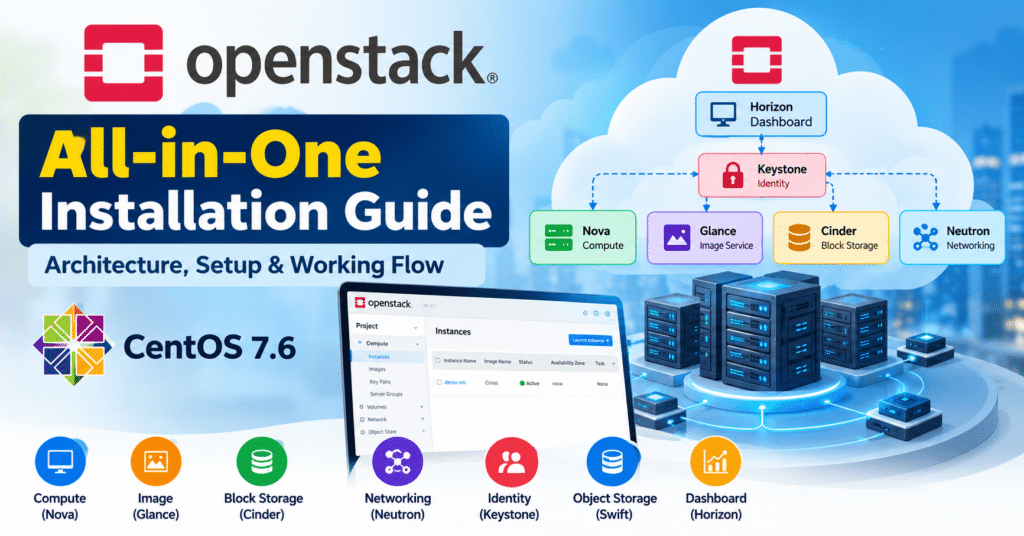
Cloud computing has become an essential part of modern IT infrastructure, allowing organizations to provision computing resources on demand without managing every physical server individually. OpenStack is one of the widely used open-source platforms for building and managing private and public cloud environments.
OpenStack provides Infrastructure as a Service (IaaS) by managing compute, storage, and networking resources through a collection of interconnected services. It enables administrators to create virtual machines, manage virtual networks, allocate storage, control user access, and automate cloud infrastructure operations.
The OpenStack platform consists of several integrated projects, including Compute, Image Service, Block Storage, Identity, Networking, Object Storage, Telemetry, Orchestration, and Database-related services.
OpenStack can also serve as the infrastructure foundation for database services, big-data platforms such as Hadoop, and container-based workloads. Additional components and integrations are required to provide these capabilities.
Administrators can manage OpenStack through the web-based Horizon dashboard, command-line clients, APIs, and automation tools.
In this tutorial, we will explore OpenStack architecture, understand how its services communicate, and examine how to deploy an all-in-one OpenStack environment.
Important compatibility note: The original procedure uses CentOS 7.6 and OpenStack Stein. Both are legacy releases, and CentOS Linux 7 reached end of life on June 30, 2024. The Packstack commands below are therefore retained as a historical lab procedure, not as a guaranteed working installation for a new server. For new deployments, use a supported operating system and follow the current installation documentation for the selected OpenStack release. CentOS lifecycle reference.
What Is OpenStack?
OpenStack is a collection of open-source software services used to build and operate cloud infrastructure. Instead of managing every server, disk, and network device manually, administrators can use OpenStack APIs and services to allocate and control infrastructure resources.
For example, an organization can use OpenStack to:
- Create and manage virtual machines.
- Upload and maintain operating system images.
- Create private networks and assign IP addresses.
- Attach persistent storage to virtual machines.
- Manage users, projects, and access permissions.
- Monitor resource usage.
- Automate infrastructure provisioning.
OpenStack is modular, meaning administrators can deploy the services required for their environment and expand the deployment as their requirements grow.
OpenStack Architecture and Core Components
OpenStack consists of several services, each responsible for a specific infrastructure function.
1.Core OpenStack services
| Component | Service name | Purpose |
|---|---|---|
| Compute | Nova | Creates and manages virtual machine instances. |
| Image Service | Glance | Stores and manages virtual machine images. |
| Block Storage | Cinder | Provides persistent block storage volumes. |
| Identity | Keystone | Handles authentication, authorization, and service access. |
| Networking | Neutron | Manages virtual networks, routers, IP addresses, and connectivity. |
| Object Storage | Swift | Stores data as objects in a distributed storage system. |
| Dashboard | Horizon | Provides a web interface for managing cloud resources. |
| Placement | Placement | Tracks resource inventories and allocations used for scheduling. |
| Telemetry | Telemetry services | Collects usage and monitoring data, depending on the deployment. |
| Orchestration | Heat | Automates infrastructure deployment using templates. |
| Database service | Trove | Provides database-as-a-service capabilities when deployed and configured. |
Not every deployment includes all these services. The selected release, architecture, and deployment method determine which components are installed.
2. How the components work together
Consider a user who wants to create a Linux virtual machine through the Horizon dashboard.
- The user signs in through Keystone authentication.
- Horizon sends the request to the appropriate OpenStack API.
- Nova processes the instance creation request.
- Glance provides the requested operating system image.
- Placement helps Nova identify a suitable compute resource.
- Neutron configures the virtual network and associated connectivity.
- Cinder can provide a persistent volume if one is requested.
- Nova coordinates the creation and startup of the virtual machine.
- The dashboard displays the instance status and connection information.
The exact sequence varies according to the instance configuration, storage type, networking setup, and OpenStack release.
OpenStack Working Flow
The following diagram illustrates the simplified workflow for creating a virtual machine.
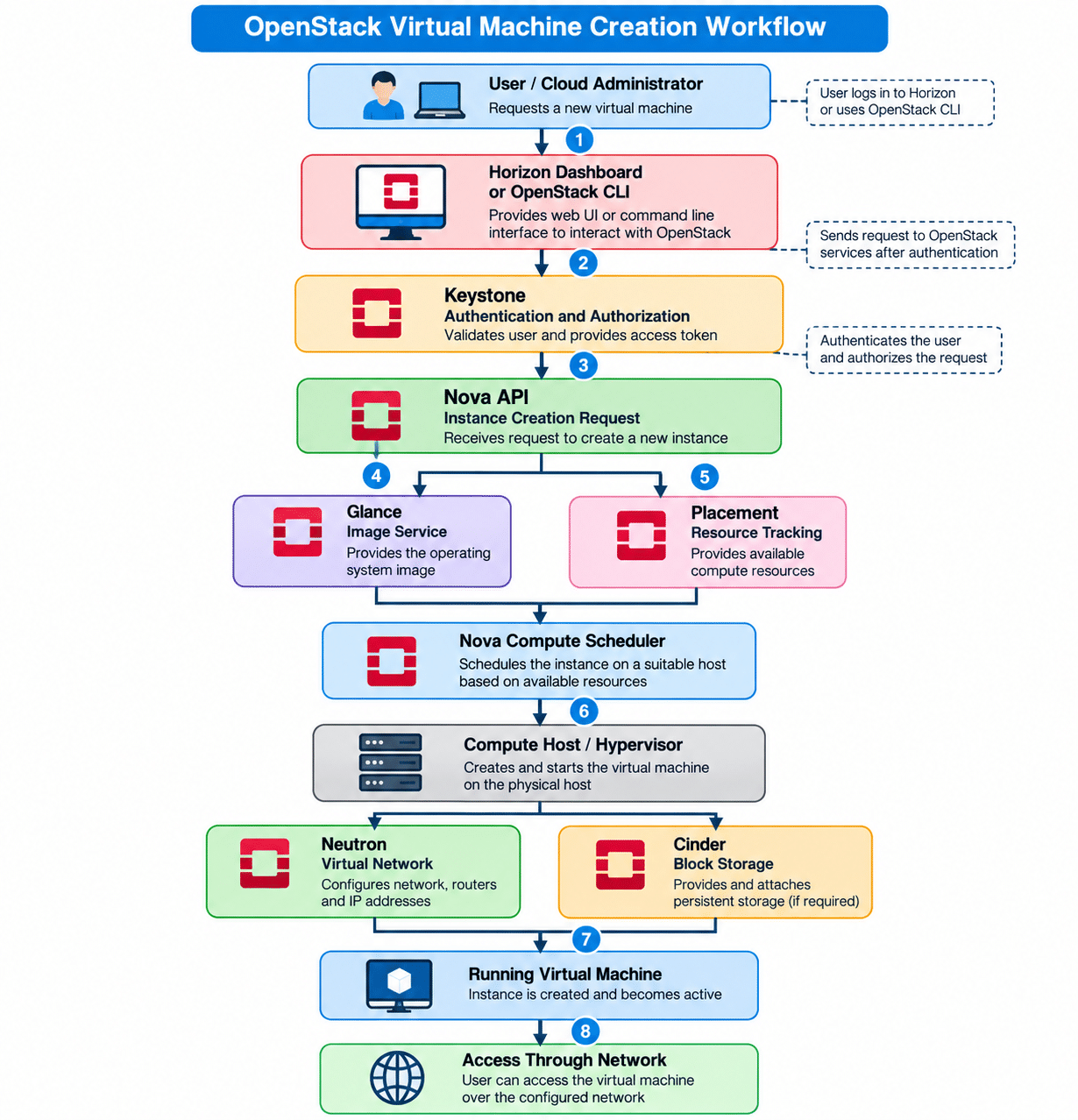
Working flow explained
Step 1: User authentication
The user accesses the dashboard or command-line interface and authenticates through Keystone.
Step 2: Resource request
The user specifies the instance name, image, flavor, network, and optional storage.
Step 3: Scheduling
Nova and Placement coordinate resource selection based on available compute capacity and scheduling constraints.
Step 4: Image and compute provisioning
The selected image is retrieved through Glance, and Nova coordinates the creation of the virtual machine on a suitable compute host.
Step 5: Networking and storage
Neutron provides the requested network connectivity. If persistent block storage is required, Cinder provisions and attaches the volume.
Step 6: Instance becomes available
After the required resources are configured and the virtual machine starts successfully, the user can access it through the configured network.
Deployment Models
OpenStack can be deployed in several configurations.
All-in-one deployment
An all-in-one deployment runs the required OpenStack control services and compute functionality on a single physical or virtual server.
It is useful for:
- Learning OpenStack administration.
- Testing APIs and command-line tools.
- Demonstrating cloud infrastructure.
- Development and proof-of-concept environments.
Its primary limitation is that the server becomes a single point of failure and has limited capacity.
Multi-node deployment
A multi-node deployment separates control-plane services, compute hosts, and storage or networking functions across multiple servers.
It is more suitable for larger environments requiring scalability, resource isolation, and improved availability.
Production deployment
Production OpenStack environments require additional planning for redundancy, storage durability, network isolation, monitoring, backups, security, upgrades, and disaster recovery. An all-in-one lab is not a substitute for a production architecture.
Prerequisites for an All-in-One Installation
The following requirements describe the historical CentOS 7 and Packstack lab setup.
| Requirement | Description |
|---|---|
| Operating system | CentOS Linux 7.6, for the historical procedure only |
| CPU | 64-bit processor with Intel VT-x or AMD-V support |
| Memory | Minimum 16 GB RAM for a small lab; more is recommended |
| Storage | Sufficient disk space for images, instances, logs, and services |
| Access | SSH access and administrative privileges |
| Network | Stable IP address and correctly configured host networking |
| Hostname | A unique, resolvable hostname |
| Virtualization | Hardware virtualization enabled in the BIOS/UEFI |
| Connectivity | Repository access during installation |
For a new deployment, select a supported operating system and verify the CPU, memory, storage, and network requirements against the documentation for your chosen OpenStack release.
1. Verify hardware virtualisation
Run the following command on the Linux server:
egrep -c '(vmx|svm)' /proc/cpuinfo
A nonzero result indicates that the CPU flags for Intel VT-x (vmx) or AMD-V (svm) are visible to the operating system.
For example:
16
This example means the flags were found in 16 processor entries; it does not necessarily mean there are 16 physical CPU cores.
If the result is zero, check the BIOS/UEFI virtualization settings. If the server is itself a virtual machine, verify that nested virtualization is supported and enabled.
2. Verify system resources
hostnamectl
free -h
df -h
lscpu
ip -br addr
These commands display the hostname, available memory, disk usage, CPU information, and network interface addresses.
Prepare the Server
The following commands apply to the legacy CentOS 7 environment. Do not copy them blindly to a modern server.
1. Update the system
sudo yum -y update
On an end-of-life system, repositories may no longer be available through their original locations. A successful package update does not restore vendor security support.
2. Configure the hostname
Set a suitable hostname for the lab:
sudo hostnamectl set-hostname openstack-node
hostnamectl
Ensure that the hostname resolves correctly using DNS or the local host configuration.
3. Review network configuration
Before changing network services, identify the active interfaces and management IP address:
ip -br addr
ip route
Record the existing network configuration and ensure that you have console access in case a remote network change disconnects SSH.
Important: Do not disable NetworkManager or the firewall indiscriminately. NetworkManager may be responsible for the server’s network connectivity, while the firewall provides an important security boundary. Follow the selected deployment guide and configure only the necessary network rules.
4. Review SELinux configuration
Check the current SELinux state:
getenforce
sestatus
Avoid permanently disabling SELinux as a default installation step. For a modern deployment, follow the security requirements of the chosen OpenStack distribution and deployment method.
5. Review existing services
The original guide suggests removing Postfix and NetworkManager. Neither action should be considered universally necessary.
If Postfix is not required, inspect its status before deciding whether to stop or remove it:
systemctl status postfix
Do not remove a network-management service until you have confirmed how the host’s network interfaces are configured.
Historical Installation Procedure: CentOS 7 and OpenStack Stein
Legacy lab procedure — not recommended for a new installation.
OpenStack Stein was released in 2019. Its associated CentOS 7 repository and Packstack installation workflow may no longer be available or compatible with current repositories and package dependencies.
The following commands document the original workflow for historical reference.
Step 1: Install the OpenStack Stein repository package
sudo yum install -y centos-release-openstack-stein
The command attempts to install the repository configuration package for the Stein release.
Step 2: Enable the repository
sudo yum-config-manager --enable openstack-stein
Step 3: Update available packages
sudo yum update -y
Step 4: Install Packstack
sudo yum install -y openstack-packstack
Packstack was used to automate the installation of OpenStack services on RPM-based systems. Availability and compatibility depend on the historical repository and package versions.
Step 5: Run the all-in-one installer
sudo packstack --allinone
Packstack attempts to install and configure the selected OpenStack services on a single node. Depending on the release and configuration, the process may prompt for credentials and network settings.
On completion, Packstack may generate an answer file containing deployment settings and a credentials file such as keystonerc_admin.
If the installation fails because the Stein repository is unavailable or dependencies cannot be resolved, do not assume that repeatedly running the same commands will fix the problem. Use a supported operating system and deployment procedure instead.
Recommended Approach for a New OpenStack Lab
For a new installation, use the current official deployment documentation rather than the legacy Packstack workflow.
One option is Kolla-Ansible, which deploys OpenStack services using containers and Ansible. Its supported operating systems and configuration requirements vary by release. Consult its current support matrix and installation documentation.
A second option is OpenStack-Ansible, which uses Ansible playbooks to deploy and configure OpenStack services. See the OpenStack-Ansible deployment guide.
Before selecting a deployment method:
- Choose the OpenStack release.
- Confirm that the host operating system is supported.
- Review the documented minimum hardware requirements.
- Plan the management and provider networks.
- Configure name resolution, time synchronization, and administrative access.
- Follow the complete installation guide for that release.
- Validate the deployment before creating workloads.
Do not combine package commands from different OpenStack releases or distributions unless the relevant documentation explicitly supports that combination.
Access the OpenStack Dashboard
After a successful installation that includes Horizon, the dashboard is normally accessed through a URL configured by the deployment.
For example:
http://<OPENSTACK_NODE_IP>/dashboard
Replace <OPENSTACK_NODE_IP> with the server’s actual IP address. The URL path, protocol, and port can vary according to the deployment configuration.
The historical Packstack deployment commonly provided an administrator account named admin. Its credentials may be recorded in a file such as:
/root/keystonerc_admin
On the legacy deployment, inspect the file securely:
sudo less /root/keystonerc_admin
Treat this file as sensitive because it may contain administrative credentials or environment variables. Do not publish its contents, commit them to source control, or include passwords in screenshots.
For a current deployment, use the authentication method and dashboard URL provided by its deployment configuration.
Verify the OpenStack Services
After deployment, verify the environment before attempting to launch instances.
1. Load administrator credentials
For a deployment that provides an OpenStack RC file, load the appropriate file into the current shell. For example, on the legacy Packstack installation:
source /root/keystonerc_admin
The file may configure environment variables required by the OpenStack CLI.
2. Check authentication
openstack token issue
A successful response indicates that the CLI can authenticate and obtain a token.
3. List available services
openstack service list
This command displays the services registered in Keystone.
4. Check compute resources
openstack compute service list
openstack hypervisor list
These commands help verify that the compute services and hypervisors are registered and visible to the CLI.
5. Check images, networks, and flavors
openstack image list
openstack network list
openstack flavor list
These commands list the resources needed for instance creation. An empty list does not automatically indicate a failed installation; the resources may not yet have been created.
6. Check block storage
openstack volume service list
openstack volume list
Block Storage commands require the relevant service to be installed and configured.
Note: CLI availability, command syntax, service names, and returned fields can differ across OpenStack releases. Consult the documentation for the installed release when a command is not recognized.
Create Your First Virtual Machine
Once authentication and the required services are working, create a small test instance.
The following commands illustrate the general process. They assume that a usable image, flavor, and network already exist.
Step 1: Select an image
openstack image list
Record the ID or name of an available image.
Step 2: Select a flavor
openstack flavor list
Choose a flavor that fits the image and available host resources.
Step 3: Select a network
openstack network list
Choose a network that is configured for the intended instance connectivity.
Step 4: Launch an instance
Replace the example values with actual resources from your deployment:
openstack server create \
  --image <IMAGE_NAME_OR_ID> \
  --flavor <FLAVOR_NAME_OR_ID> \
  --network <NETWORK_NAME_OR_ID> \
  test-instance
Step 5: Verify instance status
openstack server list
openstack server show test-instance
Wait for the instance to reach the ACTIVE state. If it remains in ERROR, inspect the instance details and relevant Nova and Neutron logs.
An ACTIVE instance does not automatically guarantee external connectivity. Security groups, IP assignment, routing, provider network configuration, and guest operating-system settings must also be correct.
Troubleshooting Common Issues
Issue 1: OpenStack repository cannot be found
Possible causes:
- The historical repository has been retired.
- The operating system has reached end of life.
- Repository configuration or network connectivity is incorrect.
Recommended action: Verify the OS release, repository configuration, and network connectivity. For a new deployment, switch to a supported operating system and a documented release-specific installation procedure.
Issue 2: Hardware virtualization is unavailable
Possible causes:
- Virtualization is disabled in BIOS/UEFI.
- Nested virtualization is not enabled by the hypervisor.
- The CPU does not expose the required flags.
Recommended action: Check the BIOS/UEFI settings or the parent hypervisor configuration, then repeat the virtualization checks.
Issue 3: Horizon dashboard is inaccessible
Possible causes:
- The dashboard service is not running.
- The web server is not listening on the expected port.
- DNS, routing, or firewall configuration is incorrect.
Recommended action: Check the service status, web-server logs, network configuration, and deployment-specific dashboard URL.
Issue 4: Authentication fails
Possible causes:
- Incorrect credentials.
- An incorrect OpenStack RC file.
- An incorrect Keystone endpoint.
- A service configuration or time synchronization issue.
Recommended action: Verify the credential source and endpoint configuration, then test authentication using openstack token issue.
Issue 5: Virtual machine creation fails
Possible causes:
- Insufficient compute resources.
- An unavailable or invalid image.
- Incorrect network configuration.
- Compute service or hypervisor problems.
Recommended action: Review openstack server show <INSTANCE_NAME>, compute service status, available resources, and relevant service logs.
Issue 6: Virtual machine starts but cannot reach the internet
Possible causes:
- The instance has no appropriate route.
- The network lacks an external gateway.
- Security groups block traffic.
- Provider network or NAT configuration is incomplete.
Recommended action: Verify the instance IP, router and gateway configuration, security group rules, and upstream network connectivity. Avoid opening all ports to the internet as a troubleshooting shortcut.
OpenStack Security Best Practices
A cloud infrastructure platform controls sensitive compute, storage, and networking resources. Security must be considered during installation and throughout the platform’s lifecycle.
Follow these practices:
- Deploy on a supported operating system and OpenStack release.
- Keep packages and services updated according to the vendor’s maintenance guidance.
- Restrict dashboard and API access to authorized networks.
- Use HTTPS and appropriate TLS certificates.
- Apply least-privilege permissions to users and projects.
- Use secure passwords and rotate credentials when required.
- Protect administrator credential files.
- Configure firewall rules deliberately instead of disabling network protection.
- Separate management traffic from tenant and provider traffic where appropriate.
- Back up configuration data and critical cloud resources.
- Monitor authentication events, service health, and system logs.
- Test recovery procedures before relying on the environment for important workloads.
For production deployments, design for high availability, resilient storage, capacity management, and disaster recovery.
Conclusion
OpenStack provides a flexible foundation for building and managing cloud infrastructure. Its modular architecture brings together compute, networking, storage, identity, and other services to automate the provisioning and management of virtualized resources.
In this tutorial, we covered the core OpenStack components, the virtual machine creation workflow, all-in-one deployment concepts, the historical CentOS 7 and Packstack installation procedure, basic verification commands, instance creation, troubleshooting, and security best practices.
For beginners, an all-in-one lab is a useful way to understand OpenStack APIs, the Horizon dashboard, and the relationship between its core services. For new environments, however, a supported operating system and a current, documented deployment method should be used instead of the obsolete CentOS 7 and Stein combination.
With proper planning and configuration, OpenStack can serve as a foundation for scalable private cloud infrastructure, automated resource provisioning, and a wide range of cloud-based workloads.
Frequently Asked Questions (FAQs)
1: What is OpenStack, and why is it used?
OpenStack is an open-source cloud infrastructure platform that provides services for managing virtual machines, networking, images, and storage. Organizations use it to build private or public clouds and automate infrastructure provisioning through APIs, a dashboard, and command-line tools.
2: Can OpenStack be installed on a single server?
Yes. An all-in-one deployment can run the required control and compute services on a single server. This configuration is suitable for learning, development, and testing. Production environments generally need a more resilient architecture.
3: Is CentOS 7 with OpenStack Stein suitable for a new deployment?
No. CentOS Linux 7 reached end of life in June 2024, and OpenStack Stein is a legacy release. This combination should be treated as a historical lab environment. For new deployments, select a supported operating system and follow the current documentation for a compatible OpenStack release.
Related Articles
Failed to connect to server VNC console in Openstack
How to install openstack-utils package On CentOS 7.6
Talk to Our Technology Experts
Running or migrating an OpenStack cloud? Our team can help with OpenStack deployment, service monitoring and troubleshooting, and ongoing cloud infrastructure support.