Post Date: November 4, 2018
Last Updated: October 01, 2026
Introduction
This guide explains how to manually migrate cPanel/WHM accounts from one server to another using pkgacct and restorepkg — useful when you need direct control over the process, such as migrating before a license expires on the old server.
Before you start: Notify affected domain owners ahead of time. Email, databases, and files added during the transfer window may not carry over if the account is actively in use while you’re backing it up.
One note on scope: for large, whole-server migrations, WHM’s built-in Transfer Tool (via a remote access key) is now the officially recommended method and handles a lot of this automatically. The manual steps below remain useful for single accounts, scripted bulk migrations, or when you need more direct control than the Transfer Tool offers.
Prerequisites
- Root access to both the source and destination servers
- SSH connectivity between the two servers
- Enough free disk space on the destination server for the incoming accounts
Architecture
pkgacctpackages a cPanel account’s files, email, databases, and configuration into a singlecpmove-*.tar.gzarchive- That archive is transferred to the new server
restorepkgunpacks the archive and recreates the account on the destination server
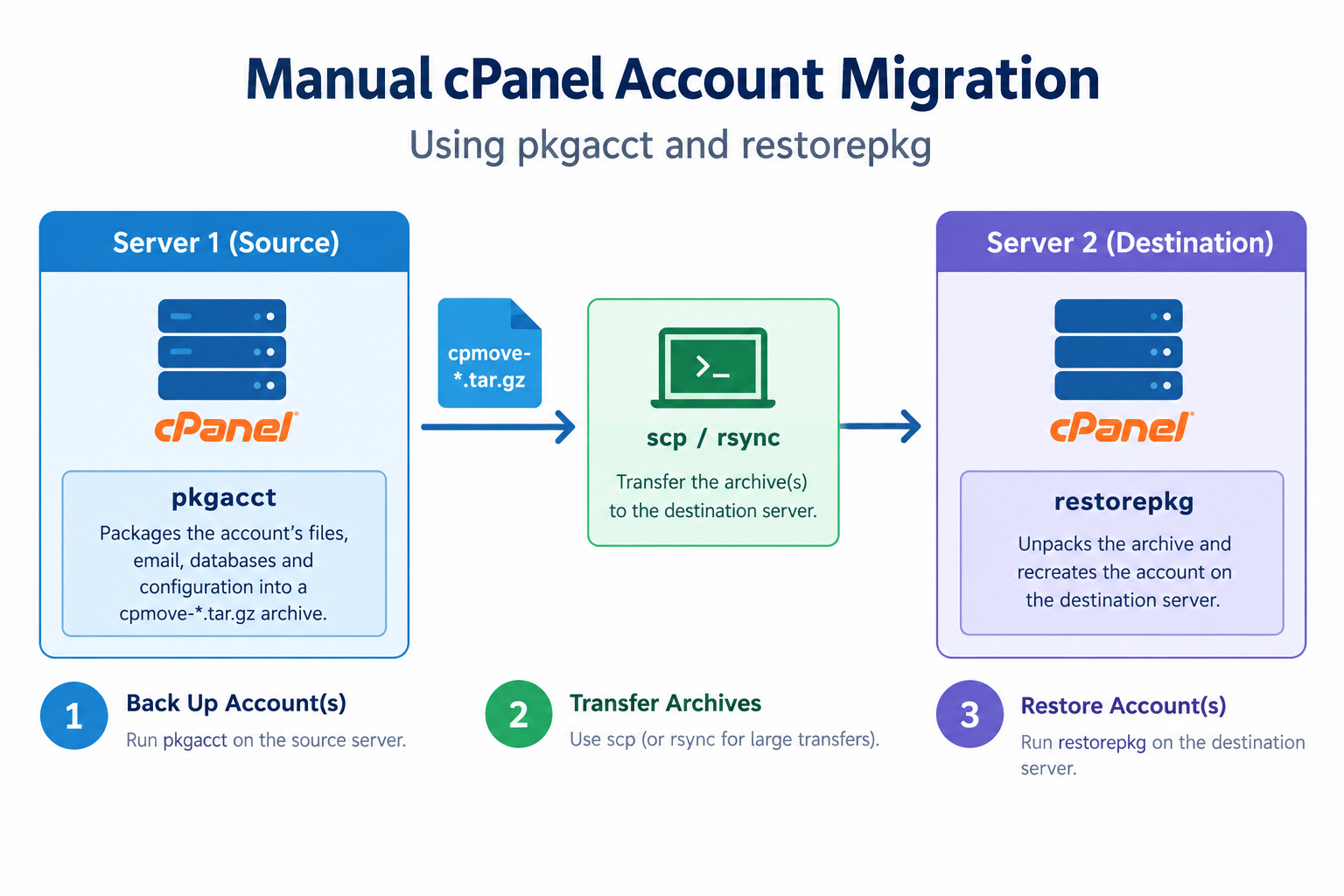
Steps
1. Back Up the Account(s) on Server 1
For a single account:
cd /home
/scripts/pkgacct accountname1
Note: The original guide had
/script/pkgacct(missing the “s”) — the correct cPanel scripts directory is/scripts/, as used correctly elsewhere in this same guide forrestorepkg.
This creates cpmove-accountname1.tar.gz in the current directory.
For multiple accounts, generate a clean list of usernames first:
cat /etc/trueuserdomains | awk -F': ' '{print $2}' > /root/acctlist
Note: The original used a
cutcommand with two conflicting-dflags, which doesn’t reliably parse thedomain.tld: usernameformat in/etc/trueuserdomains. Theawkcommand above splits on the actual": "separator correctly.
Then back up every account in that list, run inside screen so an interrupted SSH session doesn’t kill a long-running backup:
screen
for i in $(cat /root/acctlist); do /scripts/pkgacct "$i"; done
Note: The original loop (
for i in \cat /root/users.txt $i`;do /script/pkgacct $i; done;) was malformed — it referenced$iinside thecatcommand itself, which makes no sense before$iis even defined. The corrected version above reads the account list first, then runspkgacct` once per account.
2. Transfer the Archives to Server 2
For a single account:
scp cpmove-accountname1.tar.gz root@<server2_ip>:/home/
Note: The original used
scp -rf.-r(recursive) isn’t needed for a single file, and-fisn’t a flag meant for interactive use — it’s an internal protocol flagscpuses when operating in server mode behind the scenes, not something you should pass manually. Plainscpwith no flags, as shown above, is correct here.
For multiple accounts, transfer every archive plus the account list:
scp cpmove-*.tar.gz root@<server2_ip>:/home/
scp /root/acctlist root@<server2_ip>:/root/
For very large transfers,
rsync -avzis often more reliable thanscp, since it can resume an interrupted transfer rather than starting over.
3. Restore the Account(s) on Server 2
For a single account:
cd /home
/scripts/restorepkg cpmove-accountname1.tar.gz
For multiple accounts, again run inside screen:
screen
for i in $(cat /root/acctlist); do /scripts/restorepkg "$i"; done
4. Restoring Over an Existing Account (If Needed)
If an account with the same username already exists on the destination server, use one of these options instead:
/scripts/restorepkg --force cpmove-accountname1
/scripts/restorepkg --skipaccount cpmove-accountname1
--force overwrites the existing account; --skipaccount skips recreating the account itself but still processes other parts of the restore. For the full list of restorepkg options, see cPanel’s current restorepkg documentation.
Note: The original linked to an old cPanel version-68 documentation URL, which predates cPanel’s current documentation structure and is very likely broken by now. The link above points to cPanel’s current docs site.
Conclusion
Manually migrating cPanel accounts comes down to pkgacct on the source server, transferring the resulting archive, and restorepkg on the destination. For single accounts this is quick and direct; for bulk migrations, generating a clean account list with awk (not the original’s fragile cut command), running long loops inside screen, and double-checking every script path (/scripts/, not /script/) are what actually make the difference between a smooth migration and a broken one.
Frequently Asked Questions
Why did pkgacct fail with “command not found”? Almost certainly the /script/ vs /scripts/ typo — cPanel’s script directory is /scripts/ (plural).
Should I use the manual method or WHM’s Transfer Tool? For a full server migration or many accounts at once, WHM’s built-in Transfer Tool is generally more reliable and officially supported. The manual method here is still useful for single accounts or when you need more granular control over the process.
What happens to email and databases during migration? pkgacct includes email accounts and databases in the archive by default, so restorepkg recreates them on the destination — just confirm this with a test account before relying on it for a full production migration.
Related Articles
How to Install WHM cPanel on Ubuntu 20.04
How to Deploy WordPress Behind a Reverse Proxy on cPanel/Apache
Talk to Our Technology Experts
Migrating servers or managing a cPanel/WHM environment? Our team can help with server migrations, hosting infrastructure, and ongoing support.