
Post Date: March 22, 2022
Last Updated: November 03, 2026
Introduction
Managing files between local machines and remote servers is an essential task for Linux system administrators, developers, and DevOps engineers. Whether you are uploading website files, downloading backups, or synchronizing directories, choosing the right file transfer tool can make server management easier and more efficient.
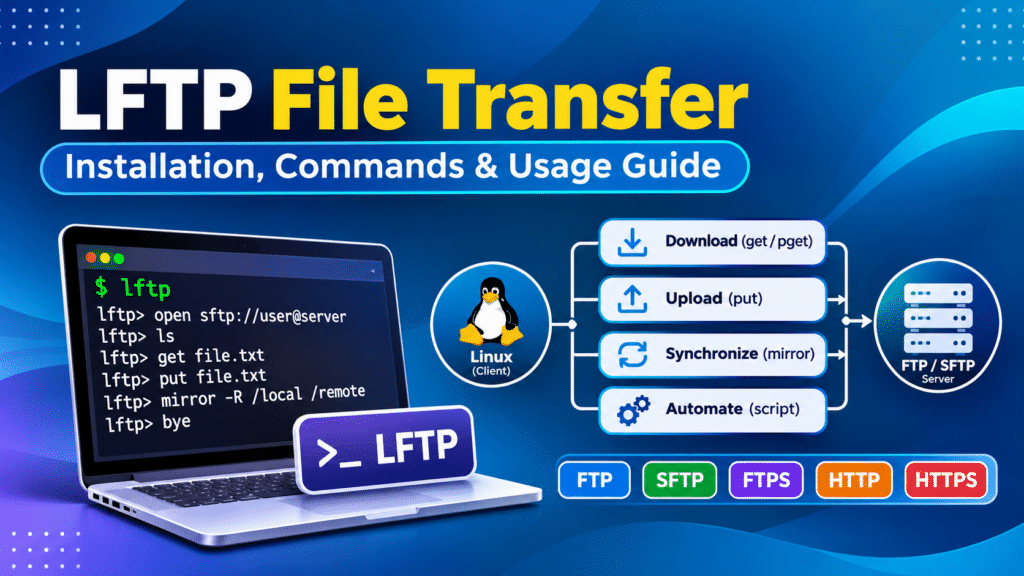
LFTP file transfer is a powerful command-line solution that simplifies file management between local systems and remote servers. Unlike traditional FTP clients, LFTP supports advanced features such as parallel downloads, resumable transfers, directory mirroring, automated synchronization, and secure file transfers through SFTP and FTPS.
In this guide, you will learn how to install LFTP on Linux, establish FTP and SFTP connections, execute essential LFTP commands, upload and download files, synchronize directories, and automate file transfers using shell scripts.
What Is LFTP?
LFTP is a feature-rich command-line file transfer client for Linux and Unix-like operating systems. It supports multiple network protocols and provides advanced capabilities for transferring files between local systems and remote servers.
The LFTP FTP client is particularly useful for system administrators and developers who regularly manage remote files, website deployments, and server backups.
Key Features of LFTP
- Multiple protocol support: Supports FTP, FTPS, SFTP, HTTP, HTTPS, and FISH.
- Parallel downloads: Downloads large files using multiple connections.
- Resumable transfers: Continues interrupted downloads and uploads when supported by the server.
- Directory mirroring: Synchronizes local and remote directories.
- Automation: Executes commands through shell scripts and scheduled jobs.
- Background transfers: Allows transfers to continue while performing other tasks.
- Scripting support: Automates repetitive file management operations.
LFTP File Transfer Workflow
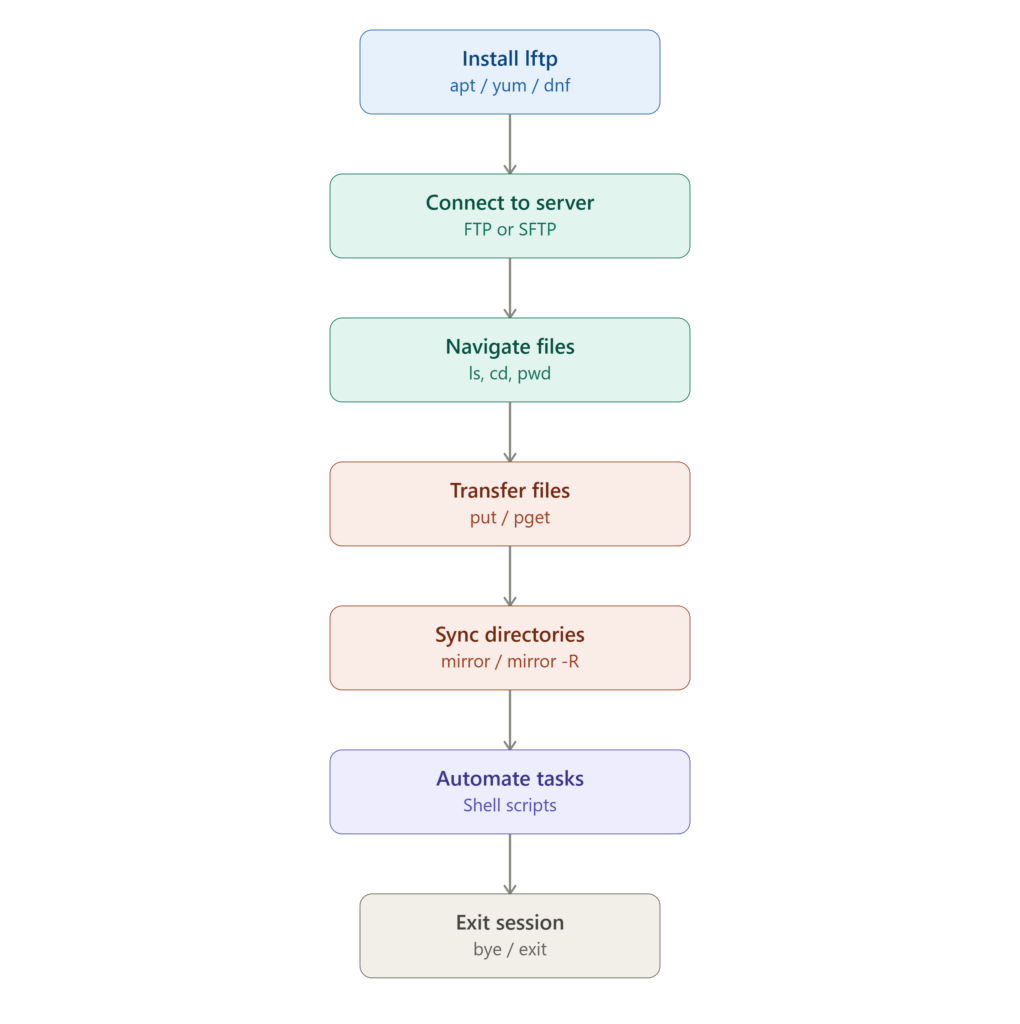
The following workflow illustrates how LFTP connects a local Linux system to a remote server and performs file transfer and directory synchronization operations.
How to Install LFTP on Linux
Before using LFTP commands, install the LFTP package on your Linux system. The installation procedure depends on your Linux distribution.
1. Install LFTP on Ubuntu and Debian
On Ubuntu and Debian-based distributions, use the APT package manager.
Update the package repository:
sudo apt-get update
Install LFTP:
sudo apt-get install lftp -y
Verify the installation:
lftp --version
2. Install LFTP on CentOS and RHEL
On CentOS and RHEL-based systems, use YUM to install LFTP:
sudo yum install lftp -y
For newer distributions that support DNF, execute:
sudo dnf install lftp -y
Verify the installed version:
lftp --version
How to Connect to an FTP or SFTP Server Using LFTP
After installing LFTP, you can establish a connection to a remote server using its hostname or IP address.
Before connecting, ensure that you have:
- Remote server hostname or IP address.
- FTP or SFTP username.
- Password or SSH key authentication.
- Appropriate remote directory permissions.
1. Connect to an FTP Server
Use the following command to connect to an FTP server:
lftp ftp://username@hostname
Replace username with your FTP username and hostname with your remote server address.
LFTP will prompt for the password when required.
2. Connect to an SFTP Server
For encrypted file transfers, use SFTP:
lftp sftp://username@hostname
SFTP uses SSH to encrypt communication between the local machine and remote server.
You can also configure SSH key-based authentication to avoid repeatedly entering your password.
Note: Prefer SFTP or properly configured FTPS over unencrypted FTP when transferring sensitive files.
Essential LFTP Commands for File Management
After connecting to the remote server, you can execute several LFTP commands to manage remote files and directories.
1. List Remote Files and Directories
Use the ls command to display the contents of the current remote directory.
ls
2. Change the Remote Directory
Use the cd command to navigate to another remote directory.
cd directory_name
For example:
cd public_html
3. Display the Current Remote Directory
Execute the following command to identify your current remote working directory:
pwd
4. Display the Local Directory
To view the current local working directory, use:
lpwd
5. List Local Files
Use the following command to display files available on your local machine:
!ls
These basic LFTP commands help you navigate and manage files on both local and remote systems.
How to Download Files Using LFTP
LFTP provides the get and pget commands to download files from remote servers.
1. Download a Single File Using GET
To download a file from the remote server to your local directory, execute:
get filename.txt
The file will be downloaded to your current local working directory.
2. Download Files Using PGET
The pget command supports segmented downloads using multiple connections.
pget -n 4 filename.zip
Here:
pgetinitiates a segmented download.-n 4specifies four download connections.filename.zipis the remote file.
This feature can improve download performance when the server supports multiple connections.
How to Upload Files Using LFTP
The put command uploads a local file to the remote server.
Execute:
put filename.txt
To upload a file to a specific remote directory:
put filename.txt -o /public_html/filename.txt
For multiple files, you can use:
mput *.txt
Ensure that the remote account has the necessary write permissions before uploading files.
How to Synchronize Directories Using the LFTP Mirror Command
One of the most useful LFTP features is directory synchronization.
The mirror command copies files and directories between local and remote systems while synchronizing their contents.
1. Upload a Local Directory to a Remote Server
Use the reverse mirror option -R to upload a local directory to the remote server.
mirror -R /home/user/project /public_html/project
Explanation:
mirrorstarts the directory synchronization process.-Renables reverse mirroring./home/user/projectis the local source directory./public_html/projectis the remote destination directory.
2. Download a Remote Directory to a Local Machine
To download an entire remote directory, execute:
mirror /public_html/project /home/user/project
This command copies the remote directory contents to the specified local destination.
3. Delete Files That No Longer Exist in the Source
If you want the destination to match the source exactly, you can use the --delete option.
For example:
mirror --delete /public_html/project /home/user/project
Important: The --delete option can remove destination files that are not present in the source. Verify the source and destination paths carefully before executing synchronization commands.
How to Exit an LFTP Session
After completing file transfer operations, close the LFTP session using:
bye
You can also use:
exit
Both commands terminate the interactive LFTP session.
How to Automate LFTP File Transfers Using Shell Scripts
LFTP supports command execution through shell scripts, making it useful for automated backups, website deployments, and scheduled directory synchronization.
For example, the following command downloads a remote directory without opening an interactive LFTP session:
lftp -u username sftp://hostname -e "mirror /remote/directory /local/directory; bye"
For automated environments, avoid placing passwords directly in shell scripts or command-line arguments. Use SSH key authentication, a protected credential store, or an appropriately secured LFTP configuration.
Automate File Transfers Using a Bash Script
Create a script:
nano lftp_backup.sh
Add the following content:
#!/bin/bash

REMOTE_HOST="sftp://hostname"
REMOTE_USER="username"
REMOTE_DIR="/remote/directory"
LOCAL_DIR="/backup/directory"

lftp -u "$REMOTE_USER" "$REMOTE_HOST" <<EOF
mirror "$REMOTE_DIR" "$LOCAL_DIR"
bye
EOF
Save the file and provide execution permissions:
chmod +x lftp_backup.sh
Run the script:
./lftp_backup.sh
The script performs the following operations:
- Defines the remote server and directory details.
- Establishes an SFTP connection.
- Synchronizes the remote directory with the local backup directory.
- Closes the LFTP session after the transfer.
For unattended scheduled backups, configure SSH key-based authentication and test the script before adding it to a cron job.
Best Practices for Secure and Efficient LFTP File Transfers
Follow these recommendations when using LFTP in production environments:
- Use SFTP: Prefer encrypted SFTP connections instead of unencrypted FTP.
- Protect credentials: Avoid storing passwords directly in shell scripts.
- Verify directory paths: Check source and destination paths before executing mirror operations.
- Use parallel downloads carefully: Configure
pgetconnections according to server capacity. - Automate repetitive tasks: Use shell scripts and cron jobs for regular backups and synchronization.
- Maintain backups: Keep a separate backup before performing large synchronization or deletion operations.
- Verify transfers: Check transferred files and review errors before considering a backup or deployment successful.
- Preserve SSH host verification: Do not disable SSH host key checking in production environments.
Conclusion
LFTP is a powerful command-line utility that simplifies file management and remote server synchronization on Linux systems. Its support for FTP, FTPS, SFTP, parallel downloads, directory mirroring, and shell script automation makes it a valuable tool for system administrators and DevOps engineers.
By understanding essential LFTP commands, you can efficiently upload files, download remote data, synchronize directories, and automate routine backup operations.
Whether you are managing website files, transferring large datasets, or maintaining remote server backups, LFTP provides a flexible and reliable solution for secure and efficient file transfers.
Frequently Asked Questions (FAQs)
1. What is LFTP used for in Linux?
LFTP is a command-line file transfer client used to upload, download, and synchronize files between local Linux systems and remote servers. It supports FTP, FTPS, SFTP, HTTP, HTTPS, and other protocols.
2. How do I install LFTP on Ubuntu?
Run the following commands to install LFTP on Ubuntu:
sudo apt-get update
sudo apt-get install lftp -y
Verify the installation using lftp --version.
3. Is LFTP secure for file transfers?
LFTP supports secure protocols such as SFTP and FTPS. SFTP is generally recommended because it encrypts file transfers through SSH.
4. What is the difference between GET and PGET in LFTP?
The get command downloads a file using a standard transfer, while pget supports segmented downloads using multiple connections to improve download performance.
5. How do I synchronize directories using LFTP?
Use the mirror command to download a remote directory or mirror -R to upload a local directory to a remote server.
Example:
mirror -R /home/user/project /public_html/project
6. Can LFTP automate file transfers?
Yes. LFTP supports shell scripts and scheduled execution through cron jobs. It can automate website deployments, backups, and recurring directory synchronization.
Related Articles
- How to Fix the OpenSSH SFTP Server “Subsystem Not Found” Error
- Why WordPress Requests FTP Credentials During Plugin Installation
- Resolving WordPress FTP Credential Prompts When Installing Plugins
Simplify Secure File Transfers with Our Linux Experts
Looking for reliable Linux, DevOps, cloud computing, or infrastructure management solutions for your business?
Pheonix Solutions provides professional technology services to help businesses improve infrastructure performance, security, scalability, and operational efficiency.
Explore our DevOps and Cloud Services to learn more about our solutions.
Need assistance with your infrastructure requirements? Contact our experts to discuss how we can help your business.