
Introduction
This guide explains how to install PostgreSQL on Ubuntu, covering everything from the initial package installation through creating a dedicated database user and configuring access — not just the bare minimum needed to get the service running.
PostgreSQL is a powerful, open-source object-relational database server, often compared to MySQL but known for stronger standards compliance, more advanced data types, and robust support for complex queries and concurrent transactions. It’s a common choice for applications that need reliability and advanced features beyond what simpler database engines offer.
One quick note before starting: if you’re following this guide because you found an older tutorial referencing Ubuntu 16.04, be aware that Ubuntu 16.04 reached end of standard support in April 2021 and end of all support (including Extended Security Maintenance) in April 2024. The installation steps below apply equally to any current Ubuntu LTS release (22.04, 24.04, etc.) — Section II covers this in more detail before you proceed.
Implementation
I. Prerequisites
Before you install PostgreSQL on Ubuntu, make sure you have:
- An Ubuntu host (ideally a currently supported LTS release — see Section II)
- Root or sudo access
- Basic familiarity with the Linux command line
II. Important: Use a Currently Supported Ubuntu Version
If you’re setting this up on Ubuntu 16.04 specifically because an old tutorial recommended it, it’s worth stopping to reconsider. Ubuntu 16.04 no longer receives security updates from Canonical as of April 2024, which means:
- The underlying OS carries unpatched vulnerabilities that will only accumulate over time
- PostgreSQL itself may not offer packages compatible with such an old Ubuntu release going forward
- Running any production database server on an unsupported OS is a real, compounding security risk, regardless of how well PostgreSQL itself is configured
The commands in this guide work identically on Ubuntu 22.04, 24.04, or any current LTS release — there’s no reason to specifically target 16.04 today. If you’re maintaining an existing legacy 16.04 system, treat this as a strong signal to plan a migration to a supported release.
III. Architecture Overview
Before installing anything, it helps to understand how PostgreSQL is structured once running:
- The PostgreSQL server process (
postgres) runs continuously in the background, listening for connections - Client applications — whether that’s the
psqlcommand-line tool, a web application, or a GUI tool like pgAdmin — connect to this server process over a Unix socket (for local connections) or TCP/IP (for network connections) - Each client connection authenticates against PostgreSQL’s role-based permission system, which determines what that specific connection is allowed to see or modify
- The server manages all actual reads and writes to the underlying data files on disk — clients never touch the data files directly
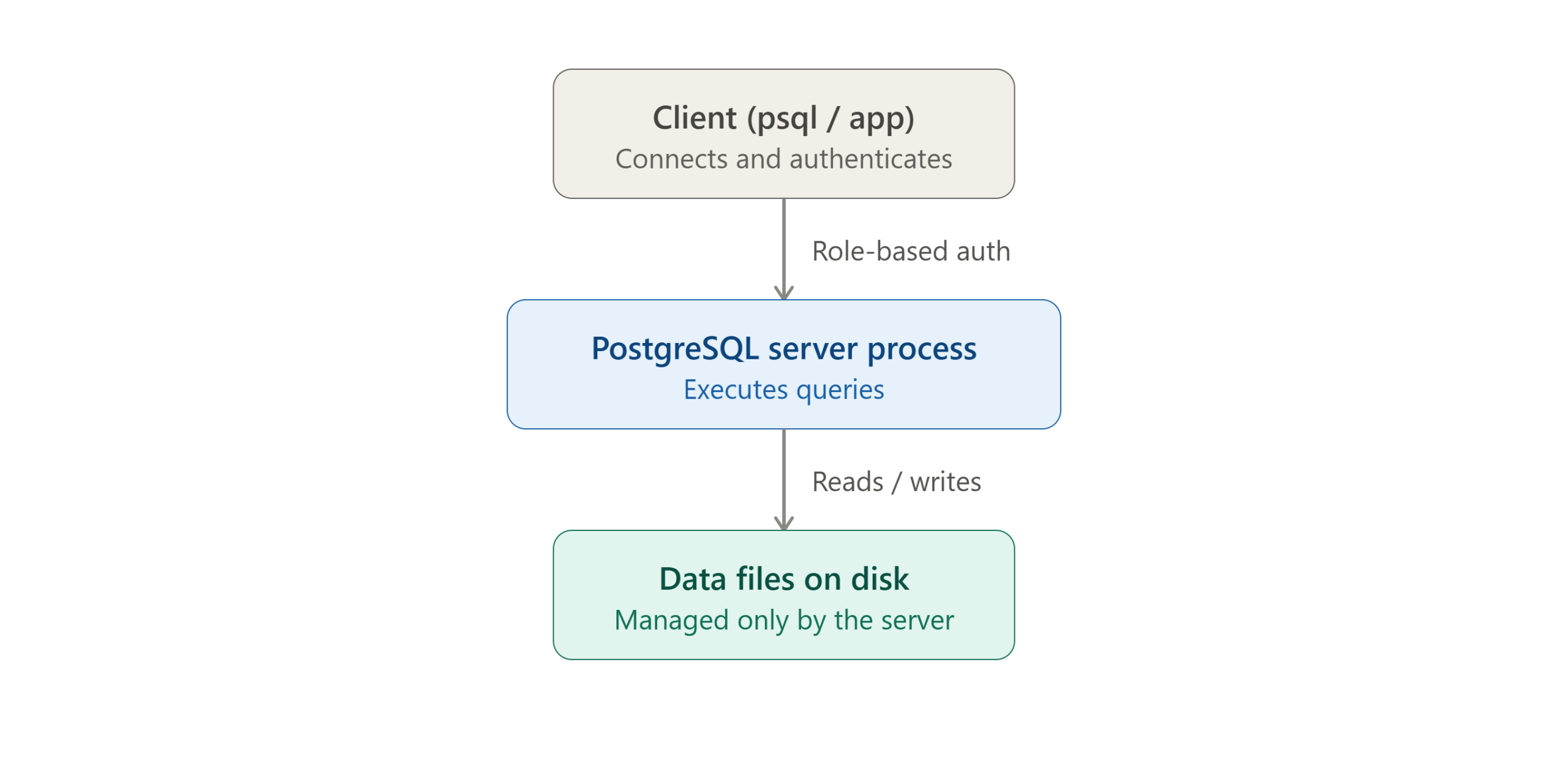
This matters practically because PostgreSQL’s default authentication setup — covered in the next few steps — relies on this role system tightly, including a close relationship between Linux system users and PostgreSQL database roles that trips up a lot of newcomers.
IV. Update System Packages
Before installing anything new, update your package index:
sudo apt update
sudo apt upgrade -y
V. Install PostgreSQL
Install PostgreSQL along with the postgresql-contrib package, which adds useful additional extensions and utilities not included in the base package:
sudo apt install postgresql postgresql-contrib -y
This installs the PostgreSQL server, the psql command-line client, and creates a dedicated Linux system user named postgres, which PostgreSQL uses internally for its own administrative operations.
VI. Verify the PostgreSQL Service Is Running
Check the service status:
sudo systemctl status postgresql
You should see active (running). If it’s not running, start it manually:
sudo systemctl start postgresql
VII. Enable PostgreSQL to Start on Boot
Ensure PostgreSQL automatically starts whenever the server reboots:
sudo systemctl enable postgresql
VIII. Access the PostgreSQL Prompt
This is where a small but common mistake shows up in a lot of quick-reference guides. PostgreSQL’s default administrative Linux user is named postgres — not postgresql. Using the wrong username here will fail with a “role does not exist” or “user does not exist” error, since Linux and PostgreSQL both expect the exact system username that was created during installation.
The correct command is:
sudo -u postgres psql
This switches to the postgres system user and opens the psql interactive prompt as PostgreSQL’s default superuser role, also named postgres.
To exit the prompt at any time:
\q
IX. Create a New Database and User
Rather than using the default postgres superuser role for applications, create a dedicated database and a scoped user — the same least-privilege principle that applies to any database system.
From inside the psql prompt:
CREATE DATABASE example_db;
CREATE USER app_user WITH ENCRYPTED PASSWORD 'Str0ng-Unique-Passw0rd!';
GRANT ALL PRIVILEGES ON DATABASE example_db TO app_user;
Security note: Replace both the username and password with real, strong, unique values. Avoid short or predictable passwords — PostgreSQL, like any database exposed to an application, is a common target if credentials are weak or reused elsewhere.
X. Verify the New User Works
Exit the current psql session:
\q
Then log in directly as the new user, connecting to the specific database:
psql -U app_user -d example_db -h localhost
Note: The
-h localhostflag matters here. By default, PostgreSQL’s local authentication method (peerauthentication) expects the connecting Linux system username to exactly match the PostgreSQL role name — which won’t be true for an application-specific role likeapp_userunless a matching Linux user also exists. Specifying-h localhostforces a TCP connection instead, which uses password authentication (assuming it’s configured, covered in the next step) rather than relying on the Linux username matching.
XI. Configure Password Authentication (If Needed)
If the connection in Step X is rejected, PostgreSQL’s authentication configuration may need adjusting. Open the pg_hba.conf file, whose exact path varies by PostgreSQL version but is commonly:
sudo vi /etc/postgresql/*/main/pg_hba.conf
Look for a line matching local TCP connections, typically something like:
host all all 127.0.0.1/32 scram-sha-256
If this line uses peer or ident instead of scram-sha-256 (or md5 on older PostgreSQL versions), change it to scram-sha-256 for local TCP connections to use standard password authentication. After editing, restart PostgreSQL:
sudo systemctl restart postgresql
Note:
scram-sha-256is the modern, more secure password authentication method in current PostgreSQL versions, and is preferable to the oldermd5method where available.
XII. Common PostgreSQL Administration Commands
A few commands worth keeping on hand once your database and user are set up, run from inside psql:
List all databases:
\l
List all roles (users):
\du
Connect to a specific database:
\c example_db
List tables in the current database:
\dt
Change a user’s password:
ALTER USER app_user WITH ENCRYPTED PASSWORD 'NewStrongerPassword!';
Revoke privileges from a user:
REVOKE ALL PRIVILEGES ON DATABASE example_db FROM app_user;
XIII. Troubleshooting Common Issues
“role does not exist” when running sudo -u postgres psql: Double-check the username is exactly postgres, not postgresql — this is the single most common typo, as covered in Step VIII.
“Peer authentication failed” when connecting as an application user: This means you’re connecting via a Unix socket rather than TCP, and the Linux system username doesn’t match the PostgreSQL role. Add -h localhost to force a TCP connection, as shown in Step X, or adjust pg_hba.conf as covered in Step XI.
PostgreSQL service fails to start after installation: Check the service logs for specifics:
sudo journalctl -u postgresql
This usually points directly to a configuration file issue or a port conflict with another running service.
Changes to pg_hba.conf don’t seem to take effect: Confirm you restarted the PostgreSQL service after editing the file — a reload isn’t always sufficient for authentication method changes, depending on the specific setting changed.
XIV. Allowing Remote Connections (If Actually Needed)
By default, PostgreSQL only listens for local connections. If you have a genuine need for a remote application server to connect to this database — for example, a separate application server in the same private network — two files need adjustment.
1. Allow PostgreSQL to listen on network interfaces, not just localhost. Edit postgresql.conf:
sudo vi /etc/postgresql/*/main/postgresql.conf
Find the listen_addresses line and set it to either a specific IP or all interfaces:
listen_addresses = '*'
Using
*listens on all network interfaces. For tighter control, specify the exact IP address of the interface you want PostgreSQL reachable on instead.
2. Add a rule permitting the specific remote host in pg_hba.conf:
host example_db app_user 192.168.1.50/32 scram-sha-256
This line permits connections to example_db from the specific role app_user, only from the IP address 192.168.1.50, using password authentication.
3. Restart PostgreSQL to apply both changes:
sudo systemctl restart postgresql
4. Update your firewall to allow the connection. If using ufw:
sudo ufw allow from 192.168.1.50 to any port 5432
Security note: Scope both the
pg_hba.confrule and firewall rule to the narrowest set of hosts and databases actually required. A broad rule like0.0.0.0/0inpg_hba.confcombined with an open firewall port exposes your database to the entire internet — precisely the exposure the security best practices section above recommends avoiding.
XV. Security Best Practices
- Avoid using the
postgressuperuser role for applications. Always create scoped, dedicated roles per application or use case, following the least-privilege principle covered in Step IX. - Restrict network exposure. Unless remote connections are genuinely required, keep PostgreSQL bound to
localhostand use SSH tunneling or a VPN for any remote administrative access instead of exposing port 5432 directly to the internet. - Keep PostgreSQL updated. Like any database software, PostgreSQL receives periodic security patches — staying current is one of the most effective, low-effort security practices available.
- Use strong, unique passwords for every role, and rotate them periodically, especially for roles with broad privileges.
- Back up regularly using
pg_dump, and periodically test that backups can actually be restored, since an untested backup provides false confidence rather than real protection.
XVI. Conclusion
You’ve now installed PostgreSQL on Ubuntu, verified the service is running and set to start on boot, and created a dedicated database and user rather than relying on the default superuser account for everyday use. Along the way, this guide corrected a common typo (postgres, not postgresql, as the system username) and covered the authentication quirks — particularly peer vs. TCP-based password authentication — that trip up a lot of newcomers on their first PostgreSQL setup. With that foundation in place, you’re ready to connect real applications to your database securely.
For deeper reference on roles, authentication methods, and configuration options, see the official PostgreSQL documentation.
Frequently Asked Questions
Why do I get “role does not exist” even though I just installed PostgreSQL? This almost always means a typo in the username — the correct default administrative user is postgres, not postgresql. Double-check the exact spelling in your command.
What’s the difference between peer authentication and password authentication in PostgreSQL? Peer authentication (used by default for local Unix socket connections) trusts the connection based on the Linux system username matching the PostgreSQL role name, with no password required. Password-based authentication (like scram-sha-256) requires an actual password, and applies to TCP connections or when explicitly configured in pg_hba.conf.
Can I use PostgreSQL and MySQL on the same server at the same time? Yes — the two use different default ports (5432 for PostgreSQL, 3306 for MySQL) and are otherwise independent, so running both simultaneously on the same host is common and generally not an issue, as long as the server has adequate resources for both.
Is it safe to expose PostgreSQL’s port directly to the internet? Generally not recommended. Keep PostgreSQL bound to localhost for local application connections, and use SSH tunneling, a VPN, or a properly firewalled private network for any legitimate remote access needs instead of exposing port 5432 publicly.
Talk to Our Technology Experts
Setting up or managing a PostgreSQL database? Our team can help with database administration and server security.
Connect with our technology experts.