
Introduction
Zabbix is an open-source monitoring tool used for monitoring servers, networks, IT components, cloud services, and virtual machines. It provides monitoring metrics such as network utilization, disk space consumption, and CPU load.
If you have lost access to the Zabbix administrator account, you can reset the Zabbix admin password directly through the MySQL database.
This guide explains how to reset the Zabbix Admin password using MySQL on an Ubuntu server.
Prerequisites
Before resetting the Zabbix Admin password, make sure you have:
- Server root login.
- MySQL root login or Zabbix database user login.
- Access to the Zabbix MySQL database.
Implementation
Step 1: Log in to the Server
Log in to the Ubuntu server using SSH:
$ ssh root@ip
Step 2: Log in to MySQL
Log in to the MySQL command prompt using a user that has full access to the Zabbix database:
$ mysql -u user_name -p

Step 3: Select the Zabbix Database
Connect to the Zabbix database:
mysql> use zabbix_database;

Step 4: Reset the Zabbix Admin Password
Update the password for the admin user:
mysql> update users set passwd=md5('YOUR_NEW_PASSWORD') where alias='Admin';
Replace YOUR_NEW_PASSWORD with the new password you want to set.
Step 5: Exit MySQL
After updating the password, exit the MySQL command prompt:
mysql> exit
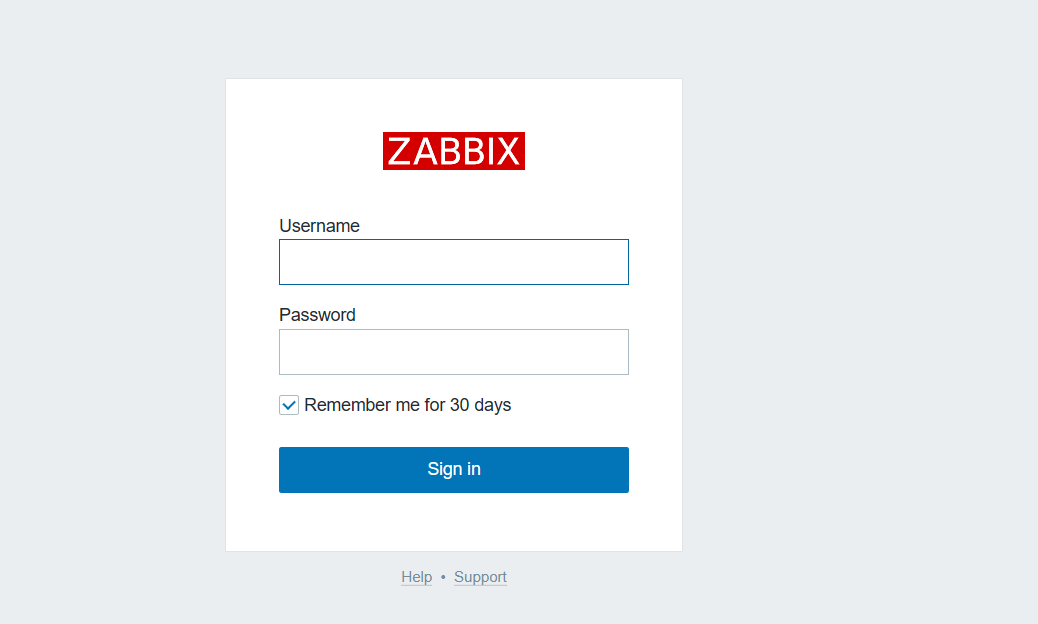
Once the password has been reset, you can access the Zabbix admin panel through the following:
http://your_server_ip/zabbix
Log in using the admin username and the newly configured password.
FAQs
How can I reset the Zabbix Admin password on Ubuntu?
You can reset it by logging in to the Zabbix MySQL database and updating the password for the Admin user in the users table.
Which database is used in this procedure?
This procedure uses the MySQL database associated with the Zabbix installation.
Do I need root access to reset the Zabbix password?
You need access to the server and a MySQL account with sufficient permissions to access and update the Zabbix database.
What is the Zabbix admin username?
The administrator account referenced in this procedure is identified by the alias:
Admin
How do I access Zabbix after resetting the password?
After resetting the password, access the Zabbix web interface using:
http://your_server_ip/zabbix
Then log in with the admin account and the newly configured password.
Related Articles
Install Ubuntu Server and Zabbix on Raspberry Pi
Learn how to install and configure Ubuntu Server and Zabbix on a Raspberry Pi to set up a Zabbix monitoring environment.
How to Install Ubuntu Server and Zabbix on Raspberry Pi
Add Zabbix Agents, Configure Alerting and Monitor Your Infrastructure
Learn how to add Zabbix agents, configure alerting, and monitor your infrastructure using Zabbix.
How to Add Zabbix Agents, Configure Alerting and Monitor Your Infrastructure
Talk to our experts
Looking for the right technology solution for your business? Our team of experts can help you with development, cloud, DevOps, design, and a wide range of other technology needs. Get in touch with our team here.