Post Date: September 21, 2018
Last Updated: September 23, 2026
Introduction
This guide explains how to upgrade your PHP version on Ubuntu using the ondrej/php PPA. The original version of this guide covered upgrading PHP 7.0 to 7.1 — both long past end-of-life at this point. The process below is the same regardless of which versions you’re moving between; use whatever current PHP version your applications actually require rather than these old version numbers.
Prerequisites
- Ubuntu server with an existing PHP version installed
- Root or sudo access
- Knowledge of which PHP version your applications require
Architecture
- The
ondrej/phpPPA lets multiple PHP versions coexist side by side on the same system, each installed under its own version-specific path - Only one version is active at a time for the web server, controlled by which Apache module is enabled (
mod_php) or which PHP-FPM pool Nginx is pointed at - Installing a new version’s packages does not automatically switch which version is active — that’s a separate step
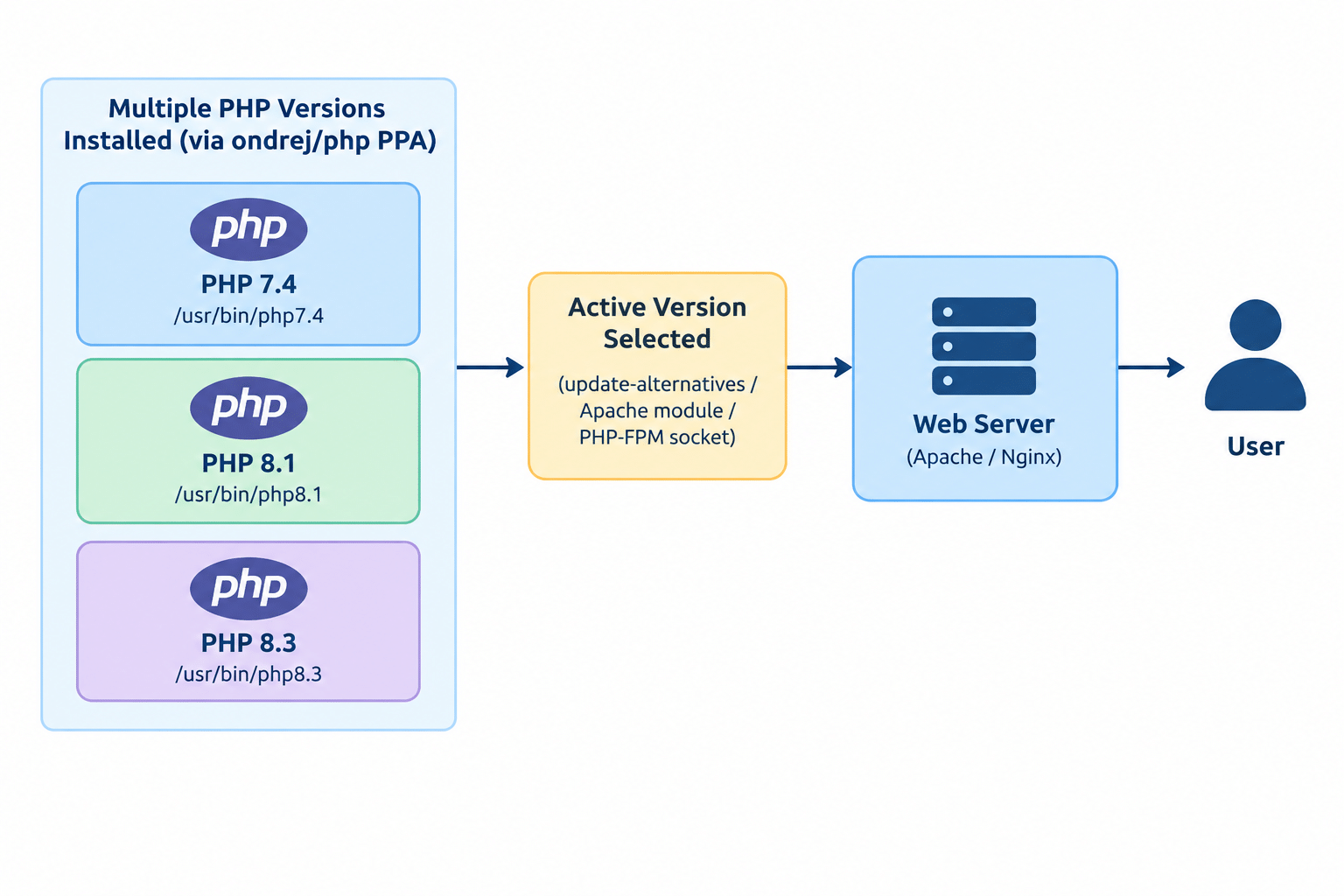
This is the step the original guide left out entirely — installing PHP 7.1’s packages alongside 7.0 doesn’t actually make the server start using it, which Step 5 below covers.
Steps
1. Add the ondrej/php PPA
sudo add-apt-repository ppa:ondrej/php
sudo apt-get update
If add-apt-repository isn’t found:
sudo apt-get install software-properties-common
Note: The original guide also referenced
python-software-properties, an old package name from much earlier Ubuntu releases. It’s no longer available or needed on current Ubuntu versions —software-properties-commonalone providesadd-apt-repository.
2. List Your Current PHP Packages
dpkg -l | grep php | tee packages.txt
This gives you a reference list of exactly what’s currently installed, useful for knowing which extension packages to reinstall for the new version.
3. Stop the Web Server and Install the New PHP Version
sudo systemctl stop apache2
sudo apt-get install php<NEW_VERSION> php<NEW_VERSION>-common
Replace <NEW_VERSION> with your actual target version (e.g., 8.3).
4. Install the Extensions You Need
Match these against the list from Step 2:
sudo apt-get install php<NEW_VERSION>-curl php<NEW_VERSION>-xml php<NEW_VERSION>-zip php<NEW_VERSION>-gd php<NEW_VERSION>-mysql php<NEW_VERSION>-mbstring
5. Switch the Active PHP Version
This step was missing from the original guide, but it’s essential — without it, your web server keeps using the old version even after the new one is installed.
If using Apache with mod_php:
sudo a2dismod php<OLD_VERSION>
sudo a2enmod php<NEW_VERSION>
If using PHP-FPM (with Apache or Nginx):
Update your web server’s config to point at the new version’s FPM socket, typically something like /run/php/php<NEW_VERSION>-fpm.sock instead of the old version’s socket path, then restart PHP-FPM:
sudo systemctl restart php<NEW_VERSION>-fpm
For the CLI version (used when running php from the command line):
sudo update-alternatives --set php /usr/bin/php<NEW_VERSION>
6. Remove the Old Version
Once you’ve confirmed everything works on the new version:
sudo apt-get purge php<OLD_VERSION> php<OLD_VERSION>-common
7. Start the Web Server and Verify
sudo systemctl start apache2
php -v
Confirm the version shown matches your target version.
Conclusion
Upgrading PHP on Ubuntu with the ondrej/php PPA is straightforward, but the critical step a lot of quick guides skip is actually switching the active version — via a2dismod/a2enmod for Apache’s mod_php, updating the FPM socket path for PHP-FPM setups, or update-alternatives for the CLI. Installing the new packages alone isn’t enough.
Frequently Asked Questions
Why is my site still showing the old PHP version after installing the new one? This is almost always Step 5 being skipped — the new version’s packages were installed, but the web server (or CLI) was never actually switched over to use it.
Can I run two PHP versions at the same time for different sites? Yes — this is exactly what the ondrej/php PPA is designed for. Different Apache virtual hosts or Nginx server blocks can each point at a different PHP-FPM pool/socket, running different versions side by side.
Should I test the new PHP version before removing the old one? Yes — test your applications thoroughly on the new version first, since PHP version upgrades can introduce breaking changes for older code. Keep the old version installed until you’re confident everything works.
Related Articles
Goals of setting up of Apache,PHP,MySQL and Magento on macOS
Managing Multiple PHP Versions on Ubuntu Using APT
Talk to Our Technology Experts
Managing PHP versions across your servers or planning an application upgrade? Our team can help with PHP migrations, server configuration, and ongoing support.