
How to Set AWS Billing Budget Email Notification
Introduction
AWS provides a Budget feature that helps you monitor your cloud spending. You can configure email notifications to alert you when your usage or cost exceeds a specified limit. This helps prevent unexpected high bills and keeps your expenses under control.
Prerequisites
Before setting up the budget alert, ensure you have:
a. AWS account access
b. Permissions to access Billing & Cost Management
c. Valid email address for notifications
Implementation
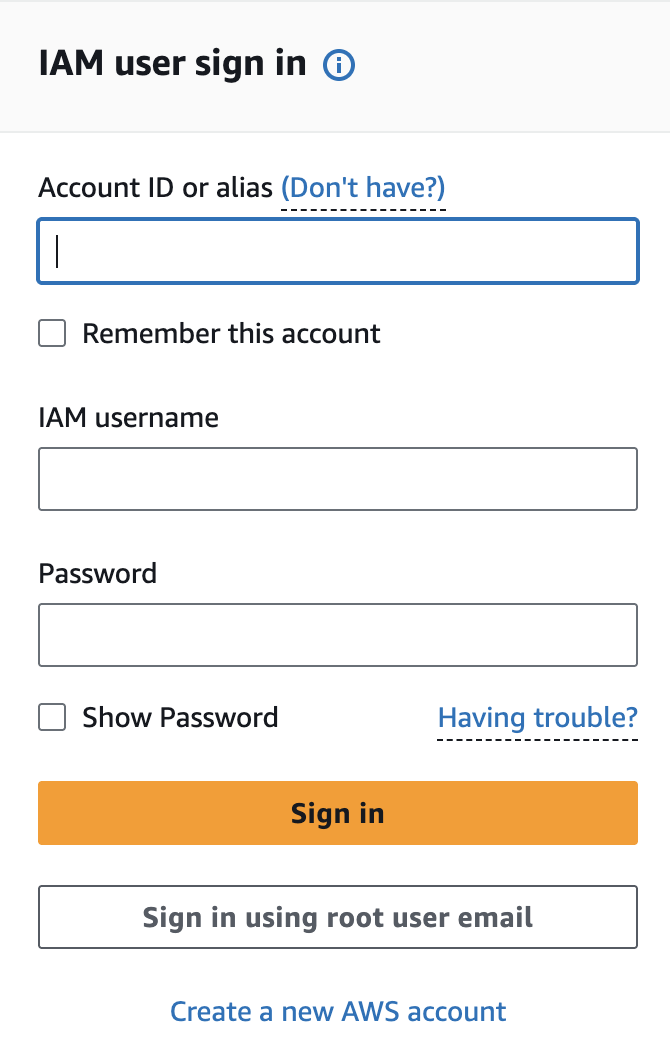
Step 1: Login to AWS Console
Login to your AWS Management Console
Step 2: Go to Billing Dashboard
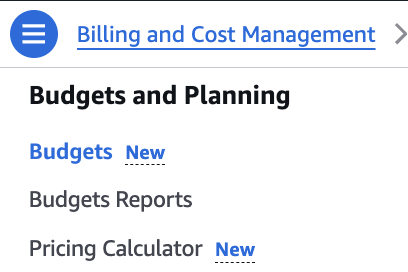
Navigate to:
Billing → Budgets
Step 3: Create a Budget
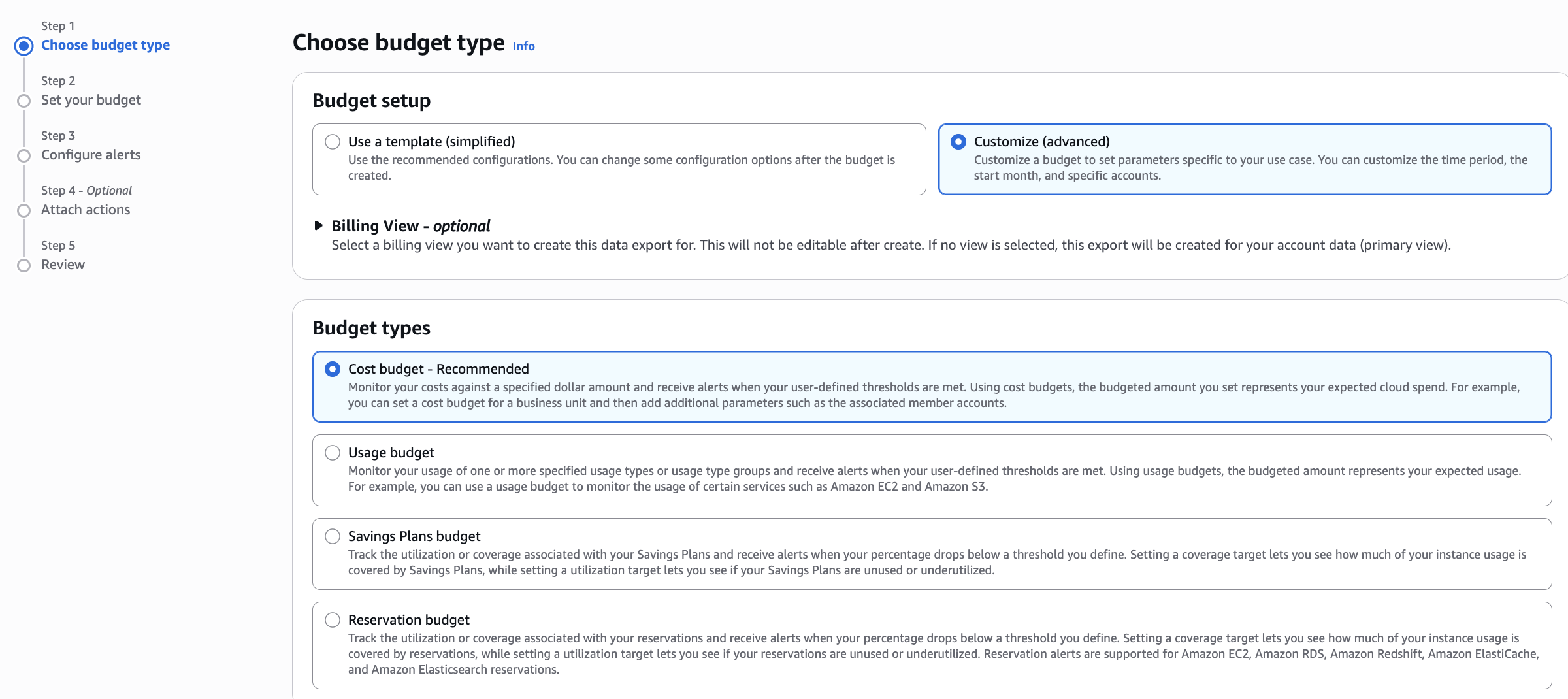
Click on Create budget
Select: Cost budget
Click Next
Step 4: Set Budget Details
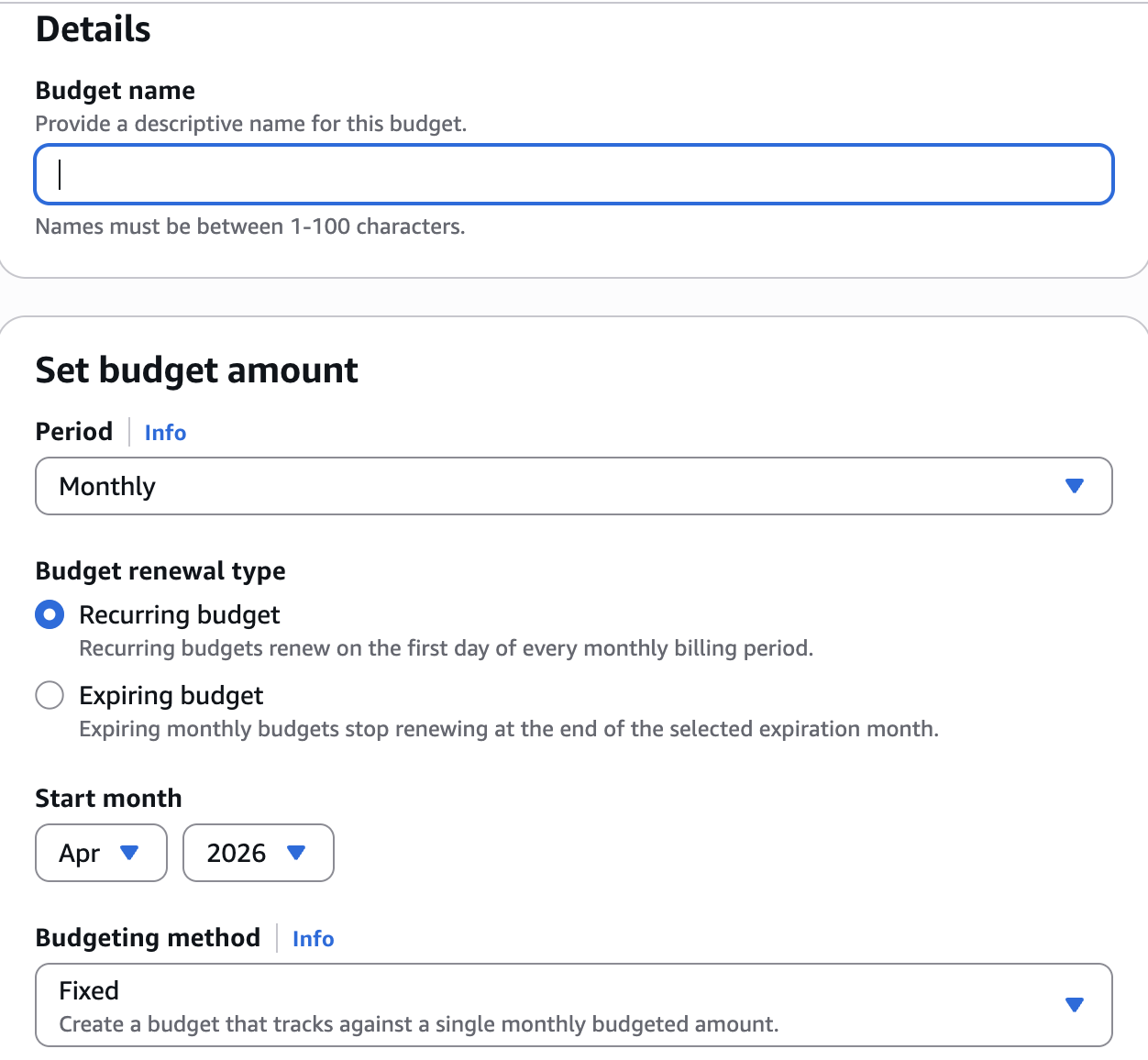
- Enter Budget name
- Set Budget period (Monthly recommended)
- Enter Budget amount (example: $100)
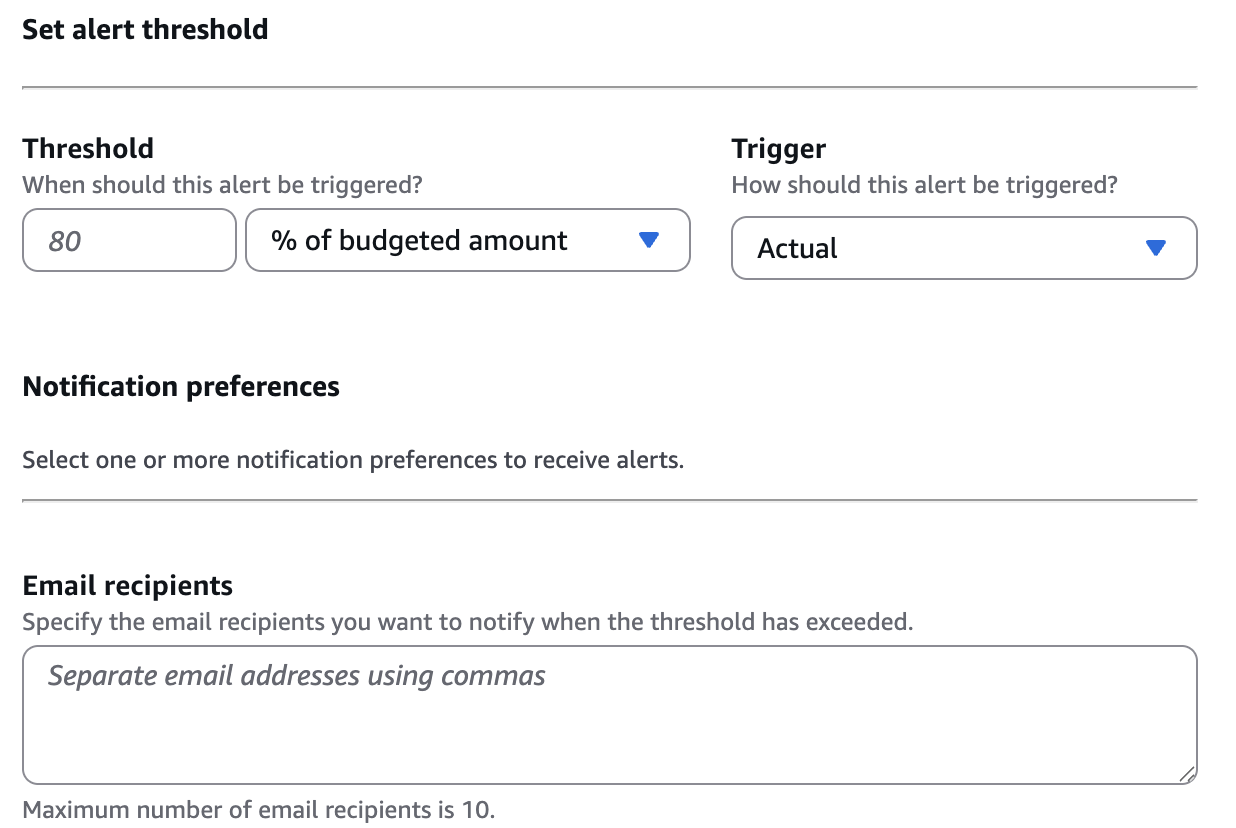
Step 5: Configure Alert Threshold
Set alert condition:
- Type: Actual cost
- Threshold: Example 80% or 100%

Step 6: Add Email Notification
Enter your email address Choose Receive alerts
Step 7: Review and Create
Review all settings and click Create budget
Note:
- AWS will monitor the usage
- When the cost exceeds the defined threshold
- You will receive an email notification instantly
Conclusion
AWS Budget email notifications are a simple and effective way to control your cloud spending. By setting a budget and alert threshold, you can avoid unexpected charges and take action before costs go beyond your limit.
